Most people don't fail at planning because they're disorganized. They fail because their planning tool gets in the way. You open it, you're immediately confronted with projects, sub-tasks, dependencies, and a toolbar with seventeen icons — and twenty minutes later you've configured a workspace instead of planning your week. There's a better way.
Visual weekly planning is the practice of laying your entire week out in front of you — what's happening, when, and what you need to remember — in a format your brain can actually process at a glance. No buried lists. No nested menus. Just a clear picture of your week, built fast, that you can actually stick to.
What to Look for in a Visual Weekly Planner
Before any specific tool enters the picture, it helps to understand what actually makes visual planning work — and what makes it fail. The category is crowded with apps that call themselves visual but bury the visual layer behind setup, permissions, and onboarding flows. Here are the three criteria that actually separate good visual planners from the rest.
1. Instant spatial layout. The defining trait of visual planning is that you can see everything at once and move things around by feel. A planner that forces you to fill in forms, assign categories, or set properties before you can place something on the board isn't really visual — it's a list with a prettier skin. The best tools let you drop a note, drag it to a day, and keep moving. Speed of capture matters enormously here: if getting a thought onto the board takes more than three seconds, you'll stop using it.
2. Reminders that actually follow you. A visual plan on a board you never look at is just a pretty document. The planner needs to reach out and tap you on the shoulder when something matters — and that tap needs to bring you directly back to the relevant note or event, not just send you to a generic inbox. Push notifications that deep-link to the original note are the gold standard. Email and SMS as optional extras are a bonus, but the core behavior needs to be immediate and device-native.
3. Low friction, high flexibility. Weekly plans change. Monday's priorities look different by Wednesday afternoon. A good visual planner lets you move, rewrite, and restructure without penalty — no re-assigning owners, no cascading dependency warnings, no confirmation dialogs. Flexibility is the whole point of planning visually rather than committing to a rigid project structure.
Why Sticky Notes Are the Right Mental Model
There's a reason physical sticky notes have survived every wave of productivity software. They have zero cognitive overhead. You pick one up, write on it, and put it somewhere meaningful. The spatial position carries information — left means earlier in the week, right means later, top means high priority, stuck to the monitor means do-this-now. Your brain reads that spatial layout instantly without translating it through categories or status labels.
Digital sticky notes, done right, replicate that instinct and add what paper can't: reminders, attached files, and sync across your devices. Done wrong, they become glorified text files with a yellow background. The difference comes down to whether the tool preserves the spatial, grab-and-move quality that makes physical sticky notes work — or replaces it with structure that slows you down.
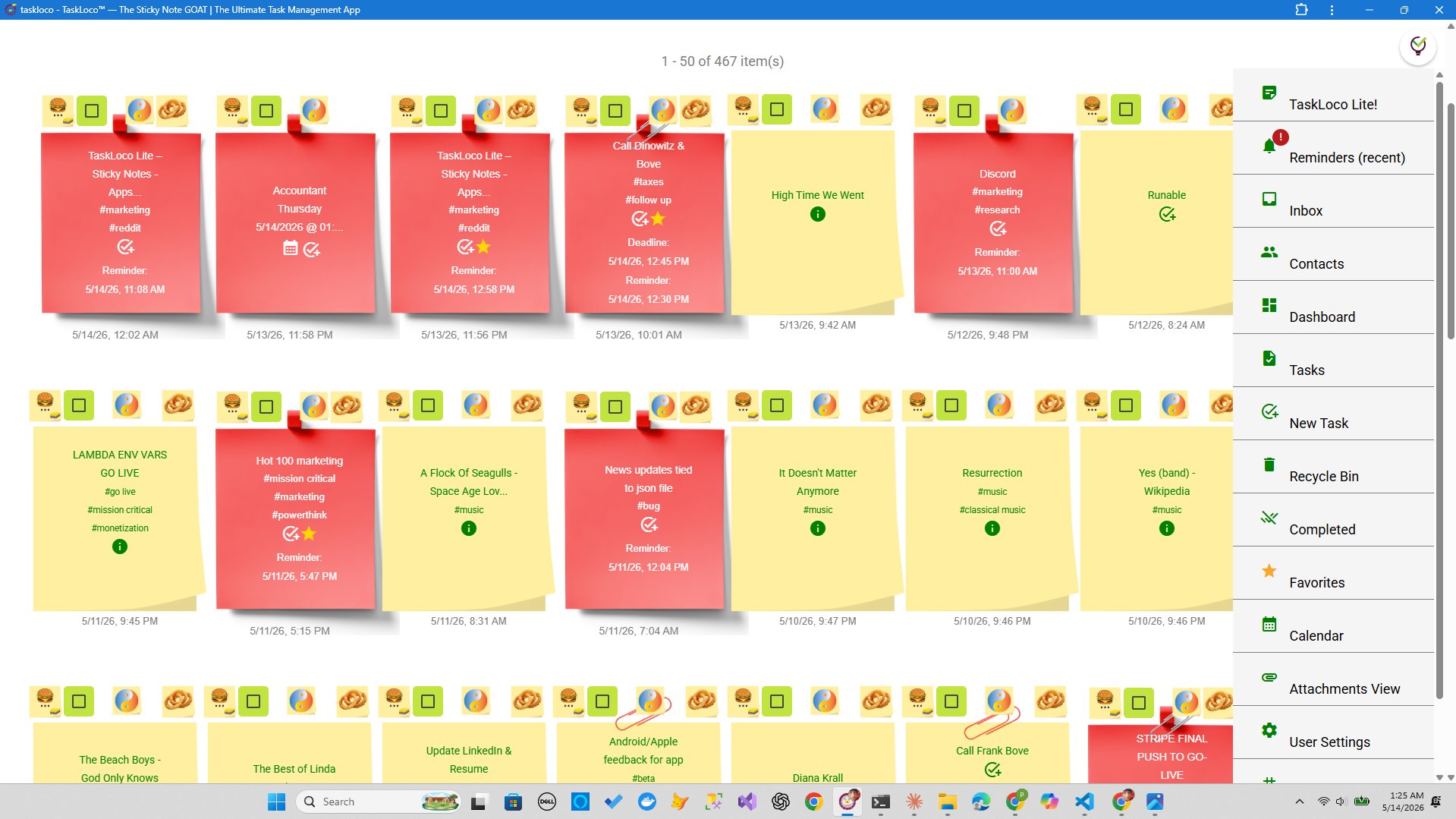
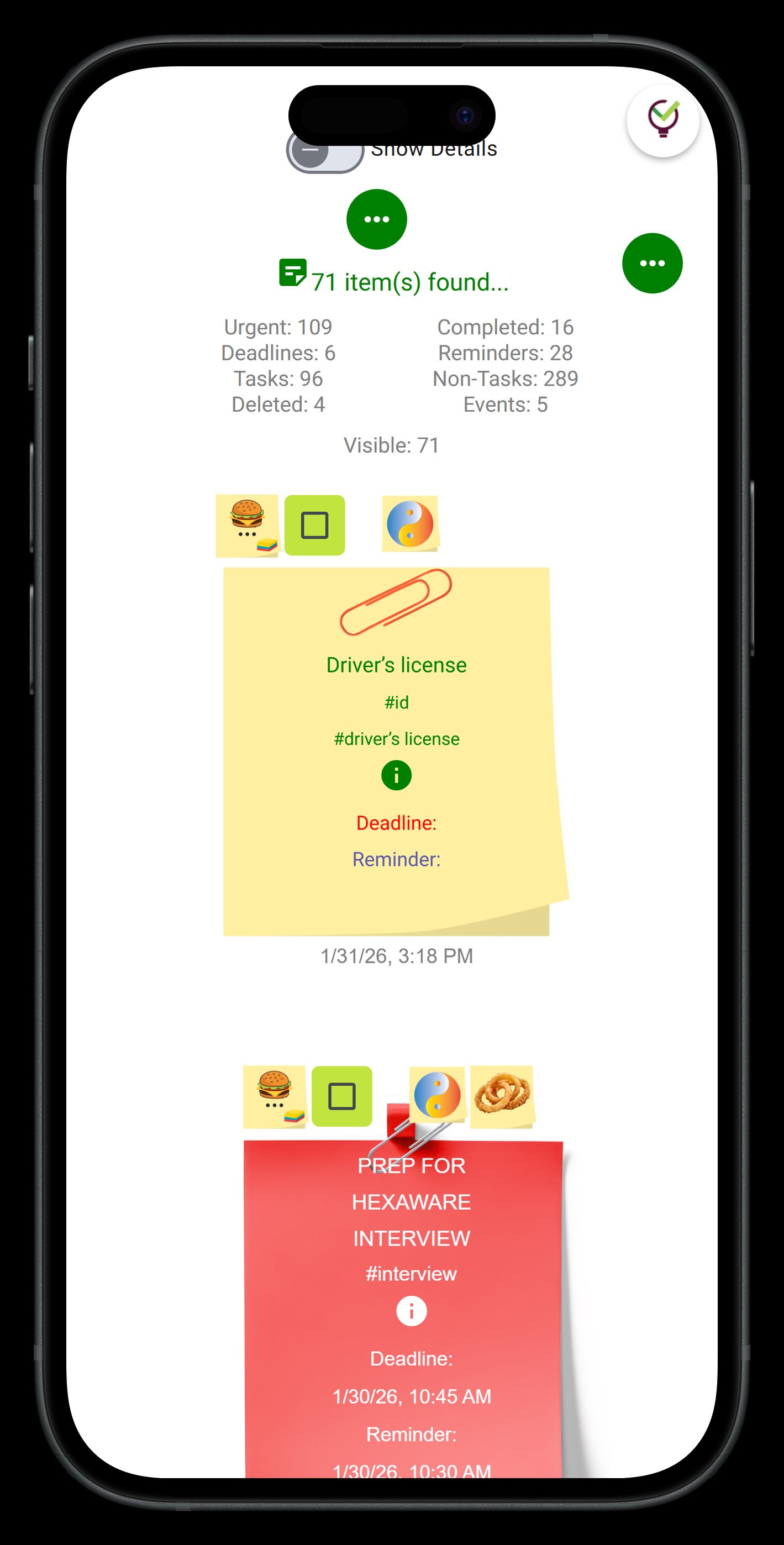
TaskLoco is built entirely around this model. Notes live on a visual wall. You write, place, and rearrange them with no friction. When a note needs a deadline, you give it one and get a push notification that deep-links straight back to that note — not to your dashboard, not to a task list, to the note itself. When you need to attach a reference doc, contract, or photo, you attach it directly to the note where it belongs.
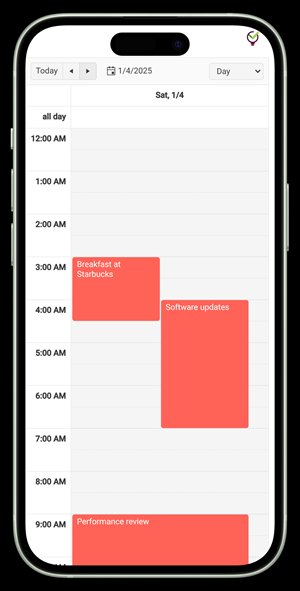
The calendar view in TaskLoco Premium turns that same wall of notes into a weekly timeline automatically. Notes with due dates slot into the calendar. You can see your whole week — spatially, chronologically — without rebuilding anything. Plan on the wall, review in the calendar, act on the note. That's the complete loop.
Building Your Week in TaskLoco: The Actual Process
Here's what visual weekly planning looks like in practice with TaskLoco, from blank wall to full week in under ten minutes.
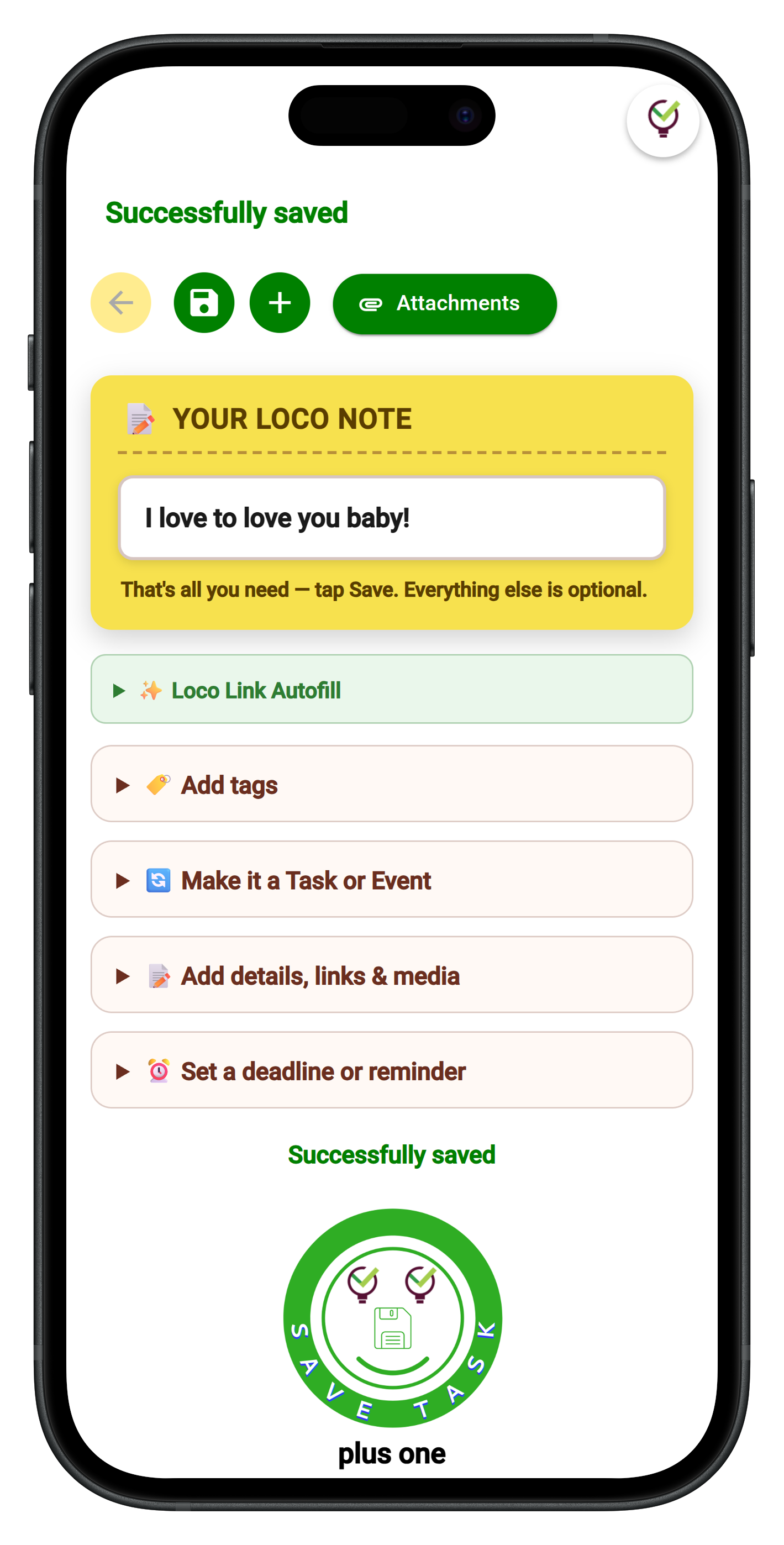
Step 1 — Capture everything first. Open your wall and drop a note for every commitment, task, and thing you're trying to remember this week. Don't organize yet. Just get it all out. TaskLoco's Chrome extension makes this even faster — if you're reading something on the web that needs to become a task, one click captures it as a note with the source link attached. On your phone, TaskLoco Lite lets you jot notes instantly without even signing in, storing them locally on your device so nothing gets lost in the capture phase.
Step 2 — Arrange spatially by day. Drag your notes into rough columns or clusters by day of the week. This is where the visual format earns its keep — you'll immediately see Tuesday is overloaded and Thursday is light, without counting items in a list. Move things around until the week looks survivable.
Step 3 — Add reminders to anything time-sensitive. For notes that need to happen at a specific time, set a reminder. TaskLoco delivers it as a push notification to your phone and computer, and tapping the notification takes you directly back to that note — not to a generic app screen. Optional email and SMS notifications are available if you want backup channels.
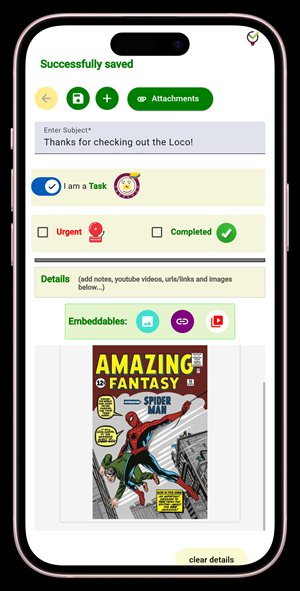
Step 4 — Attach what you'll need. Meeting agenda? Client brief? Reference image? Attach it directly to the relevant note in TaskLoco Premium (10GB storage included). When the reminder fires and you tap through, everything you need is already there.
Step 5 — Check the calendar view. Switch to calendar view to see your week as a timeline. Verify nothing is colliding, nothing critical is missing a date, and the week as a whole looks like something a human being can actually execute.
Files, Teams, and the Tools That Actually Support Visual Planning
Visual planning breaks down the moment you have to leave your planner to find the thing you're supposed to be working on. The file attachment feature in TaskLoco Premium exists for exactly this reason: every note can carry its own payload — a PDF, a photo, a spreadsheet, a voice memo. When your reminder fires and you open the note, you're not hunting through email or a shared drive. The file is on the note.
Team planning works the same way. TaskLoco's team sharing lets a teammate receive a shared note and clone it as their own — with their own copy, their own reminders, their own attached files. It works like forwarding an email, except what gets forwarded is a fully formed task with context attached. No permissions to configure, no access levels to set. Share, clone, done. Each team member on Premium gets their own subscription with their own wall, their own calendar, and their own reminder stack — the team layer sits on top of that individual foundation rather than replacing it.
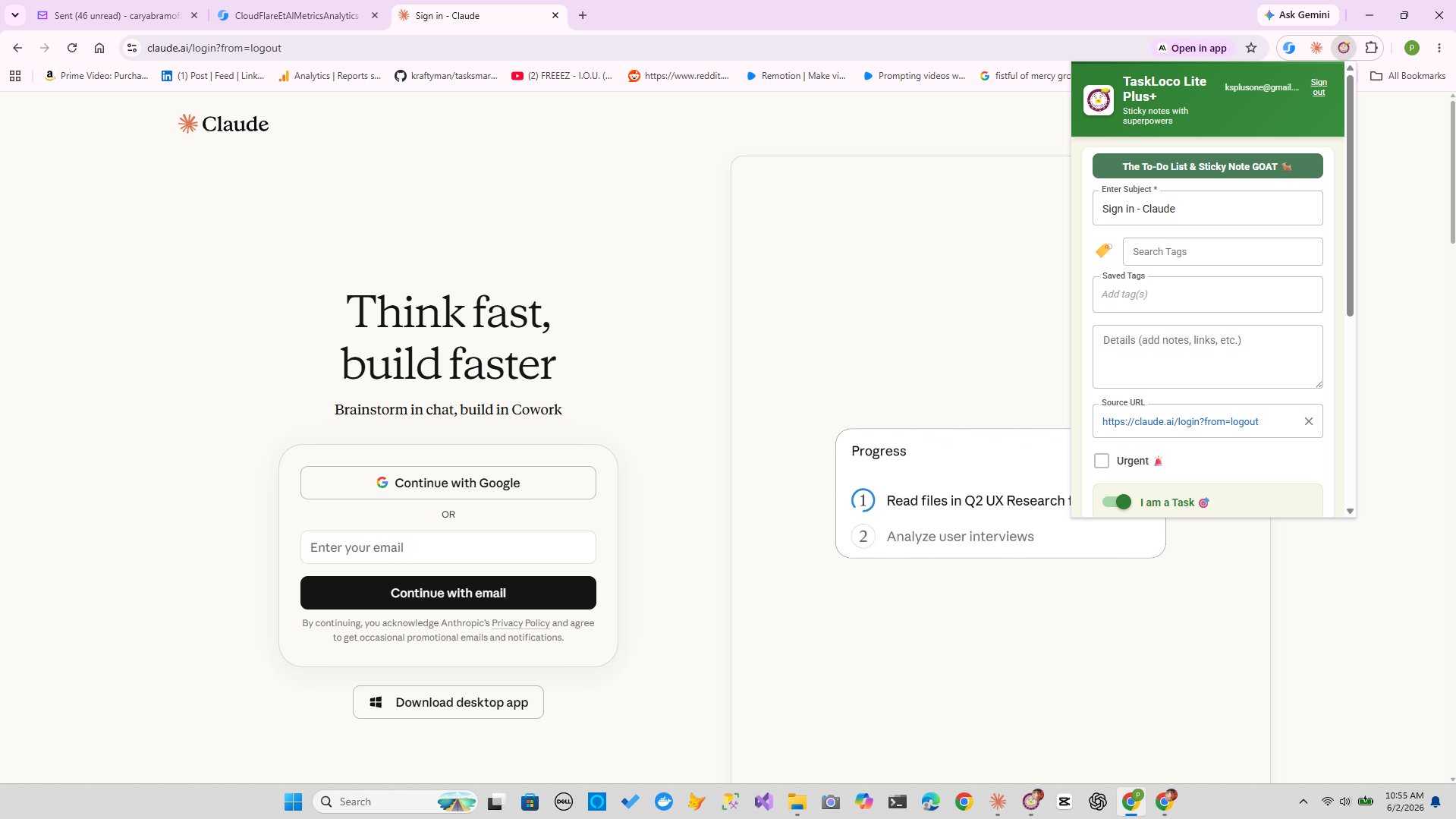
For capturing material from the web as part of your planning process, the TaskLoco Chrome extension is a one-click operation. Reading a brief, a spec, a news item that needs to become a task this week? Click the extension, and it lands on your wall as a note with the source URL. Nothing gets lost between browser and planner.
The result is a planning system where the plan, the files, the reminders, and the team coordination all live in the same place — instead of being spread across a sticky note app, a calendar, a file drive, and a chat tool that you have to mentally stitch together every morning.
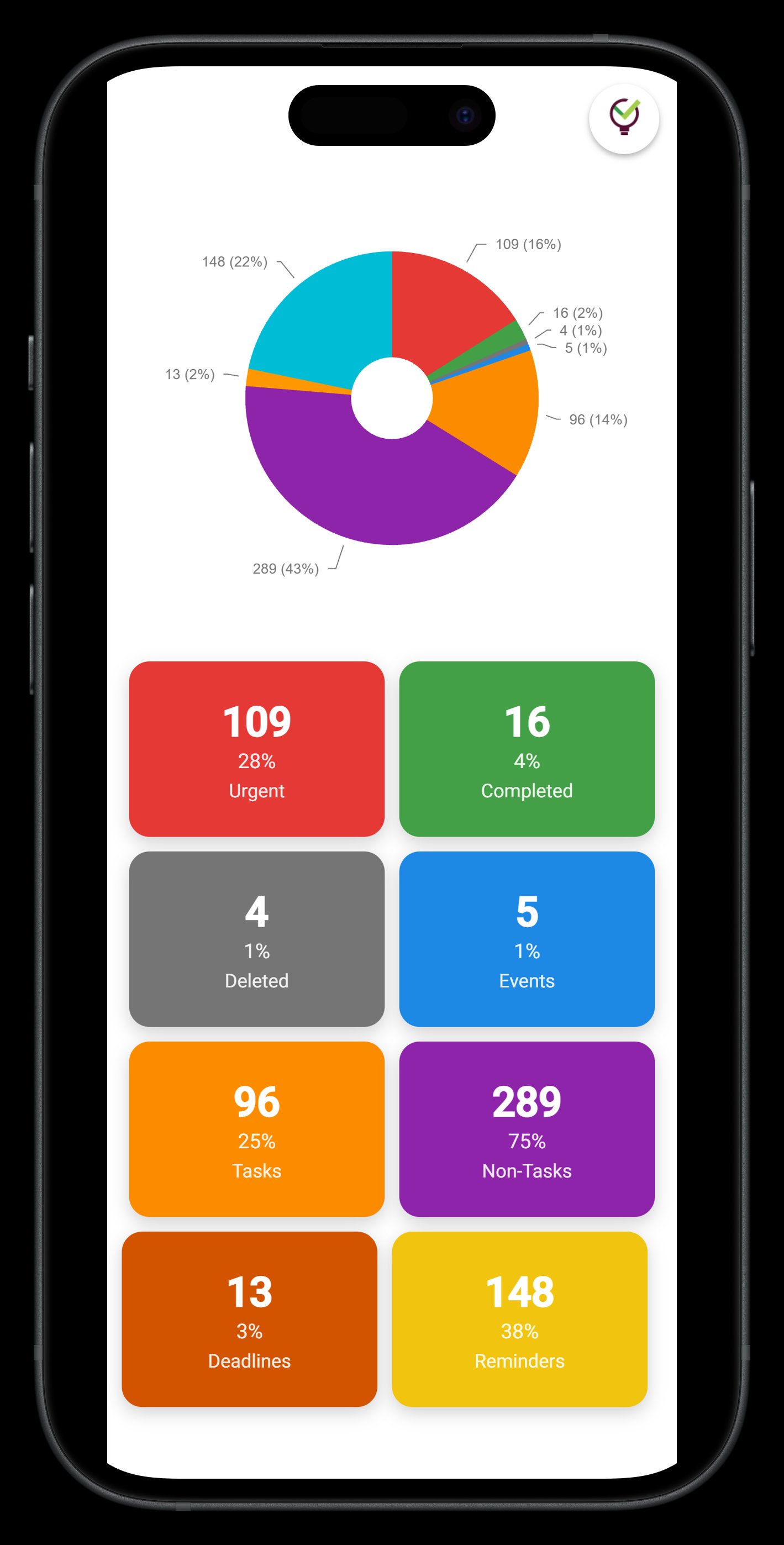
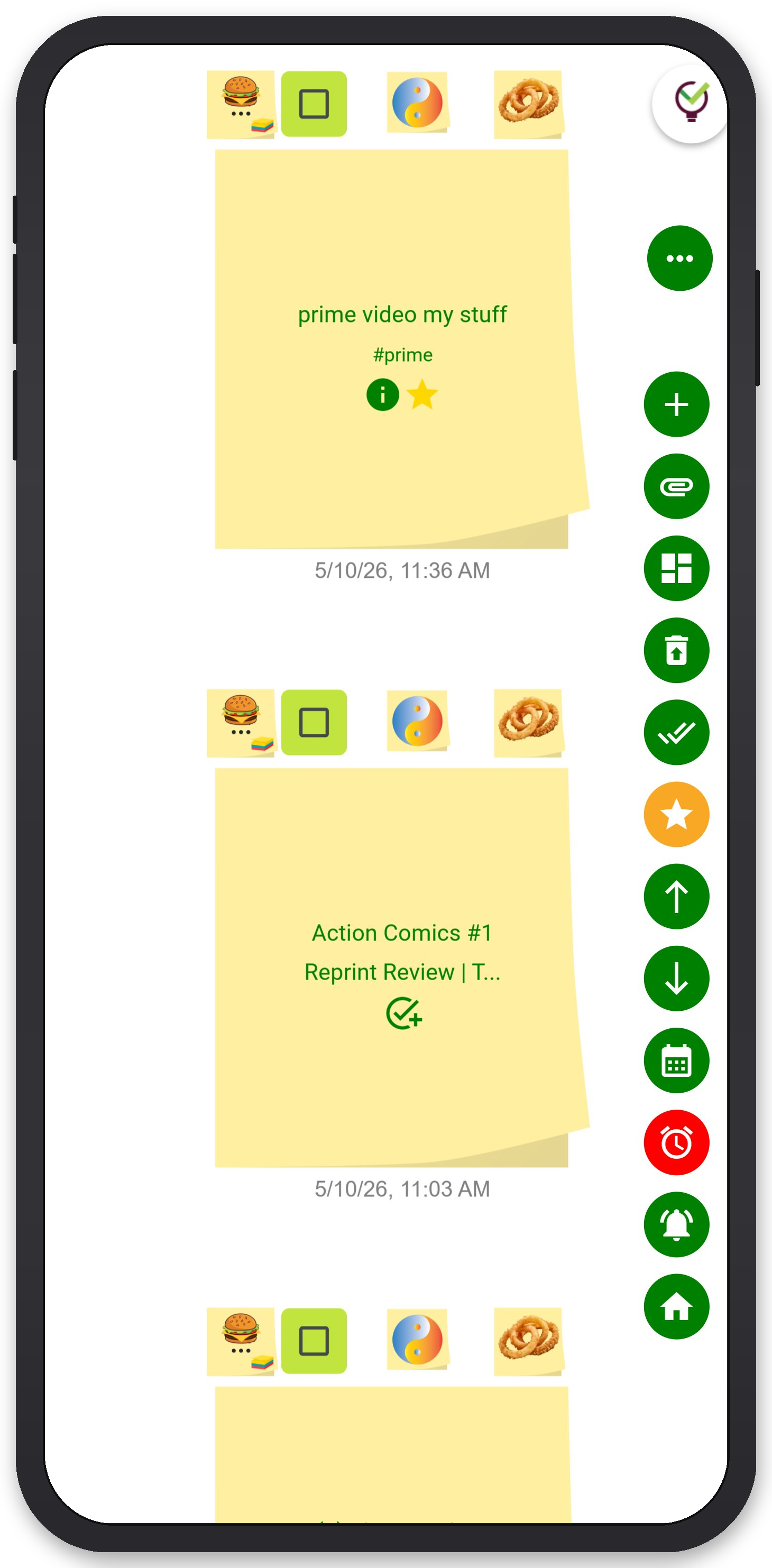
TaskLoco Premium is regularly $9.99/month per person. Right now, charter members can lock in 50% off the regular price — forever. That means $4.99/month per person today. And if our price ever goes up, you still pay half. Always.
Code CHARTER50 auto-applies at checkout. First 500 spots only — once they're gone, this offer is gone permanently. Act fast while spots last.
Every Premium subscription includes unlimited notes, 10GB file storage, reminders, calendar, and team sharing. Each team member requires a separate subscription. 7-day free trial — no charge until day 8. Cancel anytime.
Free Options: TaskLoco
TaskLoco Lite
- Native iPhone & Android app
- Completely anonymous — no sign-in
- Data stays on your device
- Up to 20 notes
- Free forever
TaskLoco Lite Plus+
- Web app + Chrome extension
- Sign in with Google
- Wall syncs across all devices
- Up to 30 notes
- Free forever
Lock In 50% Off — Forever
7-day free trial. No charge until day 8. CHARTER50 auto-applies at checkout.
🔒 Lock In My Charter SpotSee TaskLoco in Action
Frequently Asked Questions
What does 'visual weekly planning' actually mean?
Visual weekly planning means laying out your entire week in a spatial format you can see all at once — not a scrolling list, not a series of nested menus. Think of it like a physical desk covered in sticky notes arranged by day, except digital, with reminders and attached files. The core benefit is pattern recognition: you can see at a glance that Tuesday is overloaded or that Thursday has nothing urgent, and you can adjust by moving things around rather than editing properties in a form.
How is TaskLoco different from a regular calendar app for weekly planning?
A calendar app is great at showing you appointments — fixed blocks of time that are already committed. Visual planning with TaskLoco starts one step earlier: you capture everything (tasks, ideas, commitments, references) as sticky notes on a free-form wall, arrange them spatially, and then let the calendar view surface the time-sensitive ones automatically. The wall gives you flexibility to think and rearrange; the calendar gives you the chronological view when you need it. You're not choosing between them — you get both.
Can I use TaskLoco for visual planning without signing up?
Yes. TaskLoco Lite is the native iPhone and Android app — completely anonymous, no sign-in, no account required. It stores up to 20 notes in a JSON file on your device. It's a genuine starting point for capture and personal note-taking. For visual weekly planning with a calendar view, reminders, file attachments, and cross-device sync, you'll want TaskLoco Premium, which starts with a 7-day free trial. TaskLoco Lite Plus+ (free, sign in with Google) syncs up to 30 notes across all your devices via the web app and Chrome extension — a good middle step before Premium.
How do reminders work in TaskLoco?
TaskLoco reminders are delivered as push notifications to your phone and computer. The key detail: tapping the notification takes you directly to the specific note the reminder is attached to — not to your dashboard or a generic task list. Optional email notifications are available as a free additional channel. Optional SMS notifications are available as an add-on. Reminders are a Premium feature.
Does visual weekly planning work for teams, or just individuals?
TaskLoco supports both. Individual planning is the foundation — each person gets their own wall, calendar, and reminder stack. Team planning is layered on top through TaskLoco's sharing feature: you can share a note with a teammate, who receives it and clones it as their own — with their own reminders and attached files. No permissions to configure, no access control to manage. Each team member requires their own Premium subscription. $9.99/month per person (currently $4.99/month per person for first 500 charter members with code CHARTER50)
What's the fastest way to get a full week planned in TaskLoco?
The fastest path: open your wall and drop a note for every task or commitment you're thinking about — don't organize, just capture. Then drag notes into rough day-of-week groupings. Add due dates and reminders to anything time-sensitive. Attach any reference files directly to the relevant notes. Switch to calendar view to review the week as a timeline and spot collisions. Most people complete this process in under fifteen minutes once they're familiar with the flow. The Chrome extension speeds up capture significantly if you're pulling tasks from web pages.
Is there a native mobile app for TaskLoco Premium?
The native iPhone and Android apps in the App Stores are TaskLoco Lite — the free, anonymous, no-sign-in version that stores up to 20 notes on your device. TaskLoco Premium (and Lite Plus+) run as a web app, accessible from your phone's browser on any device. The Chrome extension is available for desktop browsers. Premium features — unlimited notes, calendar view, reminders, file attachments, and team sharing — are available through the web app, not through the native Lite app.
Born in Brooklyn. Powered by AWS. Your data stays yours.
TaskLoco is available on iPhone, Android, Chrome, and every web browser.