Sunday night you map out the week. Tuesday afternoon it's already gone sideways. Not because you had bad intentions — because your plan was in a place you stopped checking. A calendar buried under meetings. A to-do list that scrolled off screen. A note app that never reminded you of anything. The plan existed. It just didn't survive contact with the actual week.
Good weekly planning isn't about writing more things down. It's about keeping the right things visible, attached to a reminder that finds you when it matters, and easy enough to update that you actually keep it current. This guide breaks down what separates plans that happen from plans that don't — and shows you a system built around exactly that.
What to look for in a weekly planning tool
Before you pick a tool, be honest about why your last system broke down. Most people don't have a discipline problem — they have a visibility problem. The plan gets made and then gets buried. A good weekly planning tool solves for three things, in this order.
1. Visibility at a glance. Your priorities need to be somewhere you look without being reminded to look there. If opening the app is itself a task, the system is already fighting you. The best tools surface your week the moment you open them — no drilling, no searching, no scrolling.
2. Reminders that reach you. A task with no reminder is a wish. The difference between a plan and a calendar entry is accountability. Your tool needs to push a notification to wherever you actually are — your phone, your desktop — and ideally take you directly back to the task when you tap it. If the reminder just says "don't forget" without context, you're already context-switching at the worst possible time.
3. Low friction to update. Weeks change. A tool that makes rescheduling feel like a chore will be abandoned the first time something shifts on Monday. The faster you can move a note, edit a deadline, or add a new priority, the more likely your plan reflects reality instead of the fiction you wrote on Sunday.
Why sticky notes beat lists for weekly planning
Linear lists have a structural problem: everything looks equally important. Item 14 on a list has the same visual weight as item 1. Your brain has to re-rank priorities every single time it reads the list, which is exhausting — and why most people stop reading their lists by Wednesday.
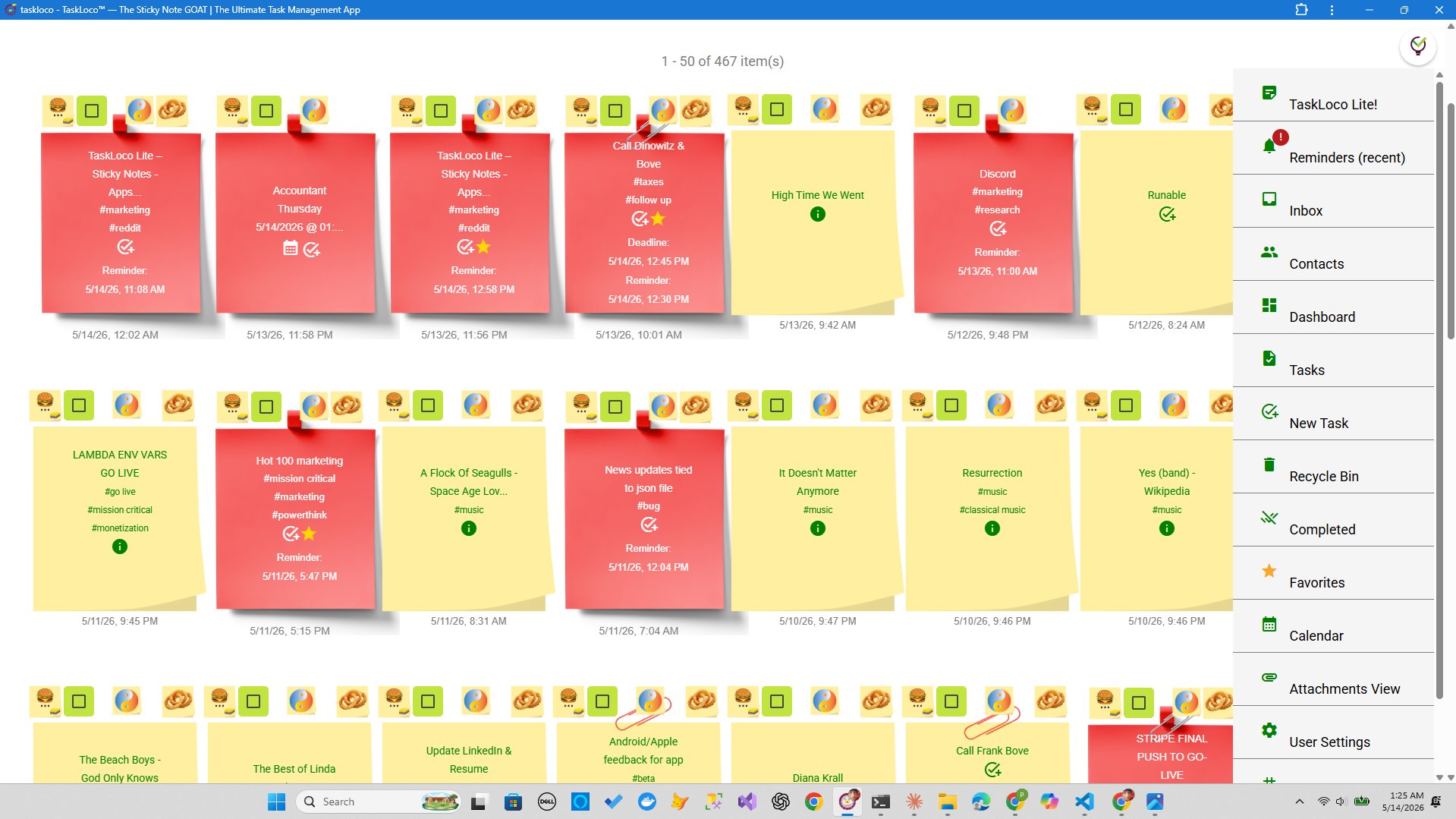
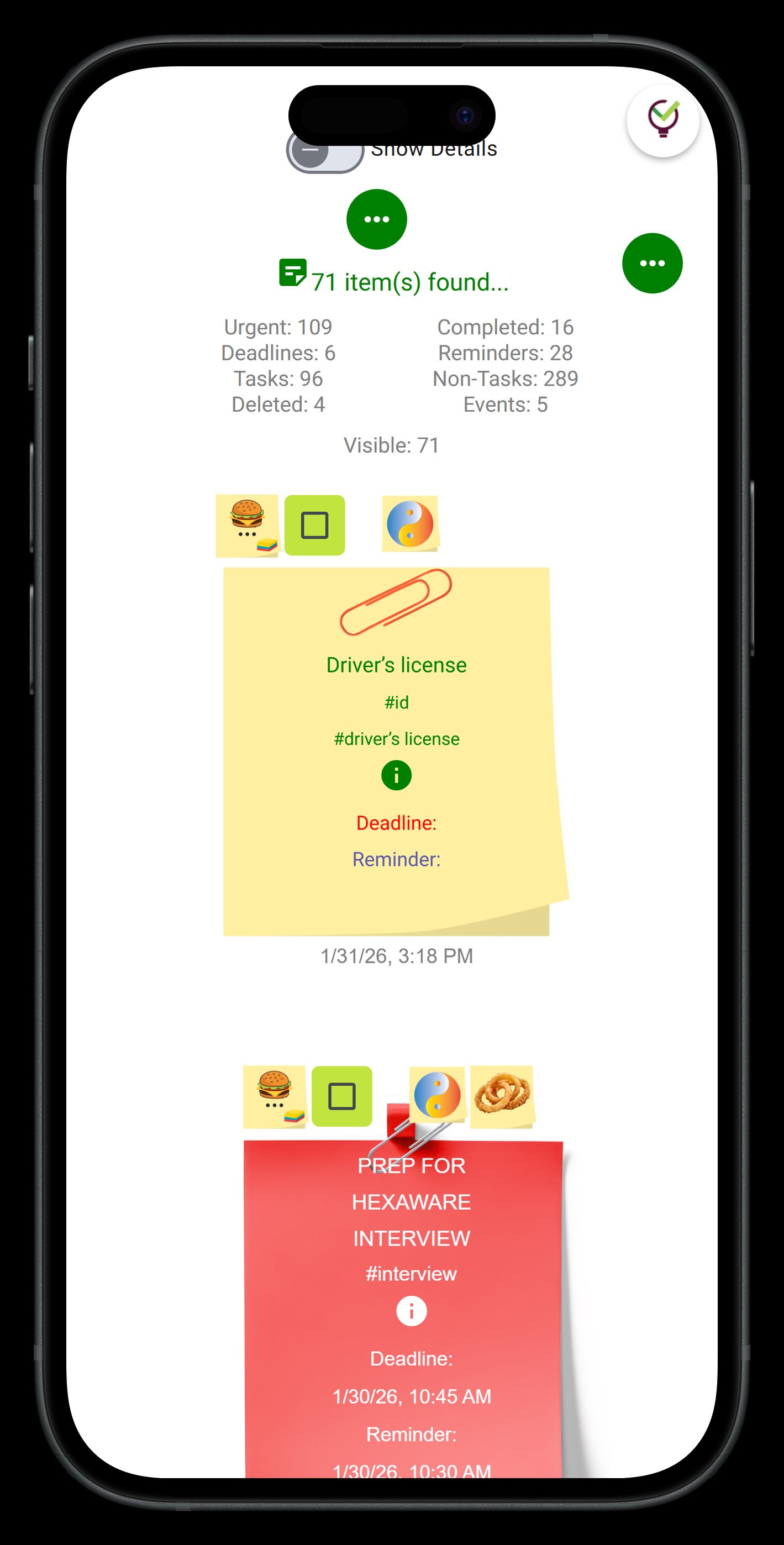
Sticky notes on a wall work differently. Position carries meaning. Left-to-right can be Monday through Friday. Top-to-bottom can be high priority to low. A cluster of notes in one spot signals a heavy day before you read a single word. You can see shape and pressure in your week the same way a physical cork board works — but without the limitation of a physical wall.
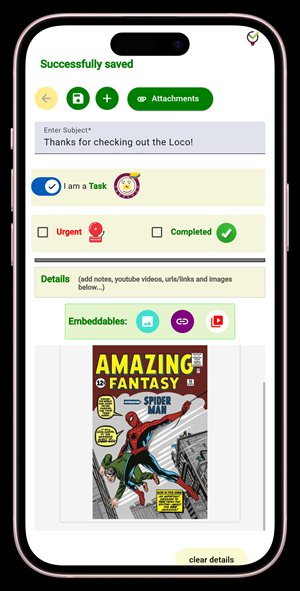
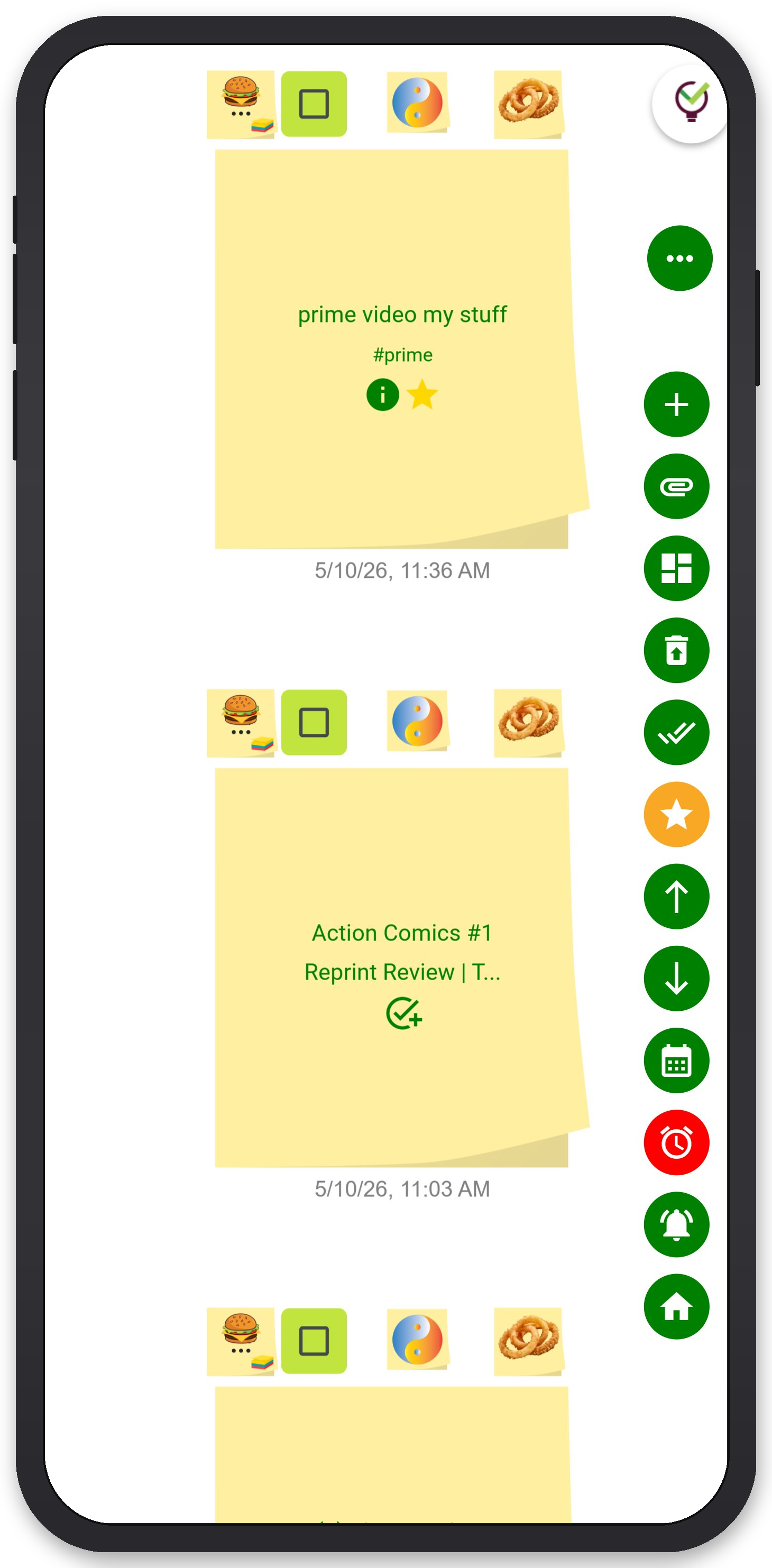
TaskLoco is built entirely around this model. Your Premium wall is unlimited — notes, tasks, calendar events, and file attachments all live together in the same visual space. You drag, drop, and rearrange. Color code by project, client, or energy level. When a note has an attachment or a file, it's right there on the card — no navigating to a separate documents section.
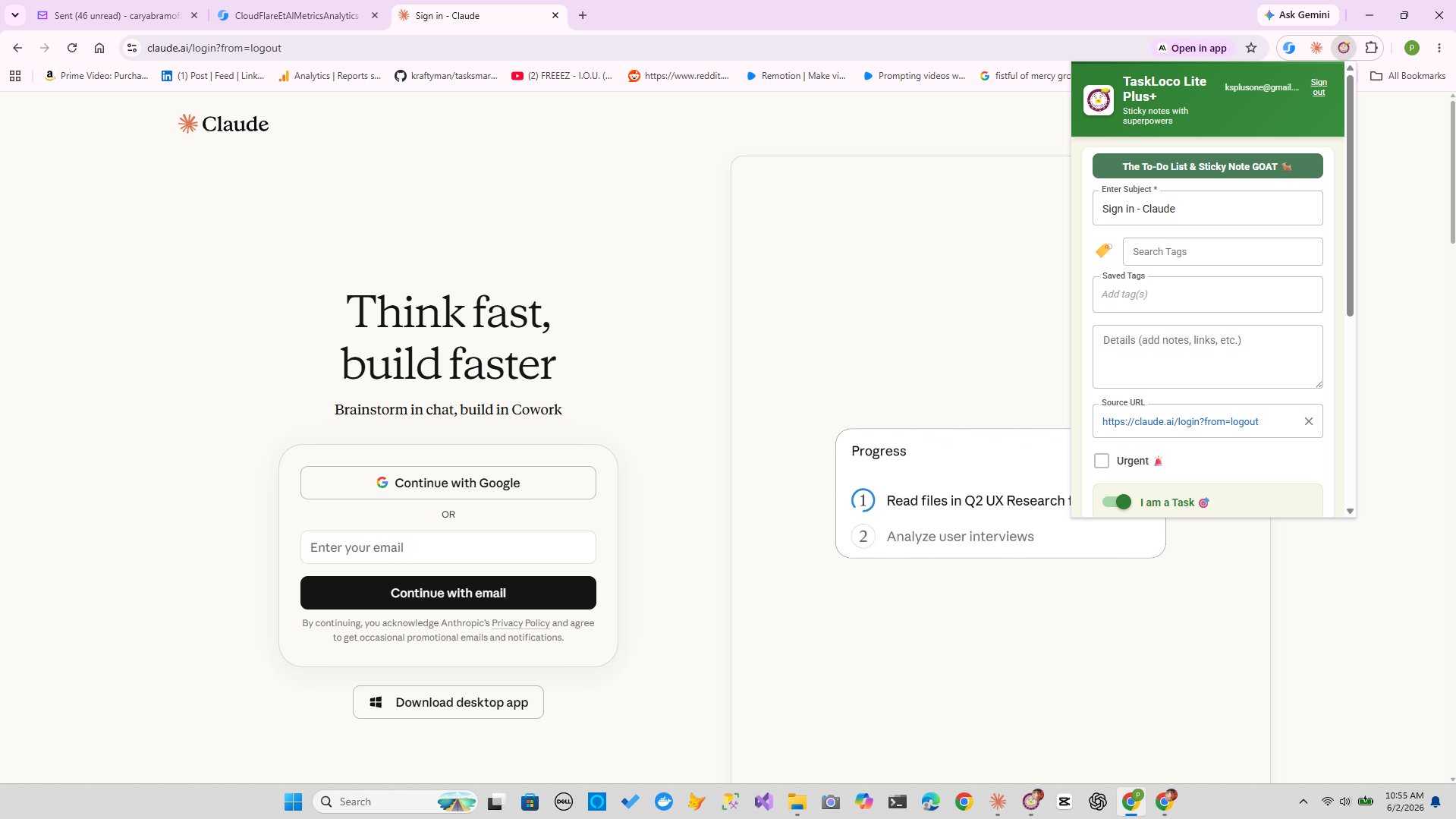
The Chrome extension makes the capture loop fast. Spot something on a webpage that needs to go into this week's plan? One click and it's a note on your wall, with the source URL already attached. No copy-pasting, no tab-switching, no losing the context of what you found.
The reminder problem: why most tools get this wrong
Most planning tools let you set a due date. That's not the same as a reminder. A due date is a fact stored in a database. A reminder is an interruption that reaches you wherever you are, at the right moment, and pulls you back into your plan without making you go find it.
TaskLoco Premium reminders are delivered as push notifications — directly to your phone and your computer. When you tap the notification, it deep-links straight back to the original note. You land in context: the task, any attached files, whatever you wrote. Not your inbox. Not the app's home screen. The note itself.
That deep-link is the part most tools skip. Without it, a reminder creates a second task: go find the thing the reminder was about. With it, you're already there.
If push notifications aren't enough, you can layer on email notifications at no extra cost, or add SMS as an optional add-on. But the foundation is push — because that's where attention actually lives in the moment a reminder needs to land.
Building a weekly plan that survives Monday
Here's a system that actually holds. It takes about 20 minutes on Sunday and 5 minutes each morning. The key is that everything lives in one place and the tool does the reminding for you.
Sunday: Set the wall. Open your TaskLoco wall and create one sticky note per major outcome you need to hit this week — not tasks, outcomes. "Client proposal drafted." "Three chapters reviewed." "Budget submitted." Put these at the top of your wall. Color them differently from everything else so they're instantly identifiable.
Sunday: Break outcomes into notes. Under each outcome, create the actual tasks as individual notes. These are the specific actions. Attach any relevant files directly to the notes so the context travels with the task — reference documents, screenshots, links captured with the Chrome extension.
Sunday: Set reminders on the ones that matter. Not every task needs a reminder. The ones where timing actually matters — the ones you'd forget if not interrupted — those get push notification reminders set to land when you have a realistic window to act on them.
Each morning: 5-minute reset. Scan your wall. Move anything that shifted. Add anything new that came in. The wall should reflect today's reality, not Sunday's plan. This is the update loop that keeps the plan alive.
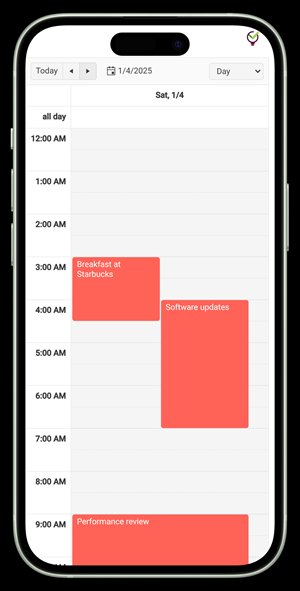
TaskLoco's calendar view lets you see the same notes in a time-based layout whenever you need that perspective. Switch between wall view and calendar without duplicating anything — it's the same notes, different angle.
If you're on a team, sharing notes in TaskLoco works the way email works: the recipient gets a copy they can clone as their own note and work with independently. No permissions to configure, no access levels to manage, no waiting for someone to grant you edit rights. Share a note, and it becomes theirs.
TaskLoco Premium is regularly $9.99/month per person. Right now, charter members can lock in 50% off the regular price — forever. That means $4.99/month per person today. And if our price ever goes up, you still pay half. Always.
Code CHARTER50 auto-applies at checkout. First 500 spots only — once they're gone, this offer is gone permanently. Act fast while spots last.
Every Premium subscription includes unlimited notes, 10GB file storage, reminders, calendar, and team sharing. Each team member requires a separate subscription. 7-day free trial — no charge until day 8. Cancel anytime.
Free Options: TaskLoco
TaskLoco Lite
- Native iPhone & Android app
- Completely anonymous — no sign-in
- Data stays on your device
- Up to 20 notes
- Free forever
TaskLoco Lite Plus+
- Web app + Chrome extension
- Sign in with Google
- Wall syncs across all devices
- Up to 30 notes
- Free forever
Lock In 50% Off — Forever
7-day free trial. No charge until day 8. CHARTER50 auto-applies at checkout.
🔒 Lock In My Charter SpotSee TaskLoco in Action
Frequently Asked Questions
Why do my weekly plans always fall apart by midweek?
Usually it's one of three things: the plan is in a place you stop looking, there are no reminders to pull you back when you drift, or the tool makes it too hard to update the plan when something changes. Fix the visibility first — your priorities need to be on something you look at every day without being reminded to look. Then add reminders on the tasks where timing actually matters. Then make sure rescheduling takes seconds, not minutes.
How is TaskLoco different from a regular to-do list app?
A to-do list is linear — everything looks equally important and you have to re-rank mentally every time you read it. TaskLoco organizes tasks as sticky notes on a visual wall, so position carries meaning. Heavy days look heavy. High-priority items sit at the top. You see the shape of your week before reading a single word. Add push notification reminders that deep-link back to the exact note, and it's an active planning system rather than a passive list.
What's the best way to use TaskLoco for weekly planning?
Set your wall on Sunday: one note per major outcome at the top, individual task notes underneath, relevant files attached directly to each note. Set push notification reminders only on the tasks where timing genuinely matters. Each morning, spend five minutes scanning and updating the wall to reflect today's reality. Use the calendar view when you need a time-based perspective — it's the same notes, just a different angle.
Can I attach reference documents to my tasks?
Yes, with TaskLoco Premium. Files attach directly to individual notes — not to a separate documents folder you have to navigate to separately. When a reminder fires and deep-links you back to the note, your reference document is already there. Premium includes 10GB of file storage, with expandable add-on tiers available.
How do TaskLoco reminders work?
TaskLoco Premium reminders are delivered as push notifications to your phone and computer. When you tap the notification, it deep-links directly back to the original note — so you land in context rather than having to go find the task. Optional email notifications are available at no extra cost. Optional SMS is available as an add-on.
Can I try TaskLoco before committing?
$9.99/month per person (currently $4.99/month per person for first 500 charter members with code CHARTER50)
Does TaskLoco work for team planning, or just individuals?
Both. TaskLoco Premium includes full team sharing — share a note and the recipient can clone it as their own, work with it independently, and attach their own files. No permission levels to configure, no access management. Each team member needs their own separate Premium subscription. Reminders and real-time sync keep everyone current.
Born in Brooklyn. Powered by AWS. Your data stays yours.
TaskLoco is available on iPhone, Android, Chrome, and every web browser.