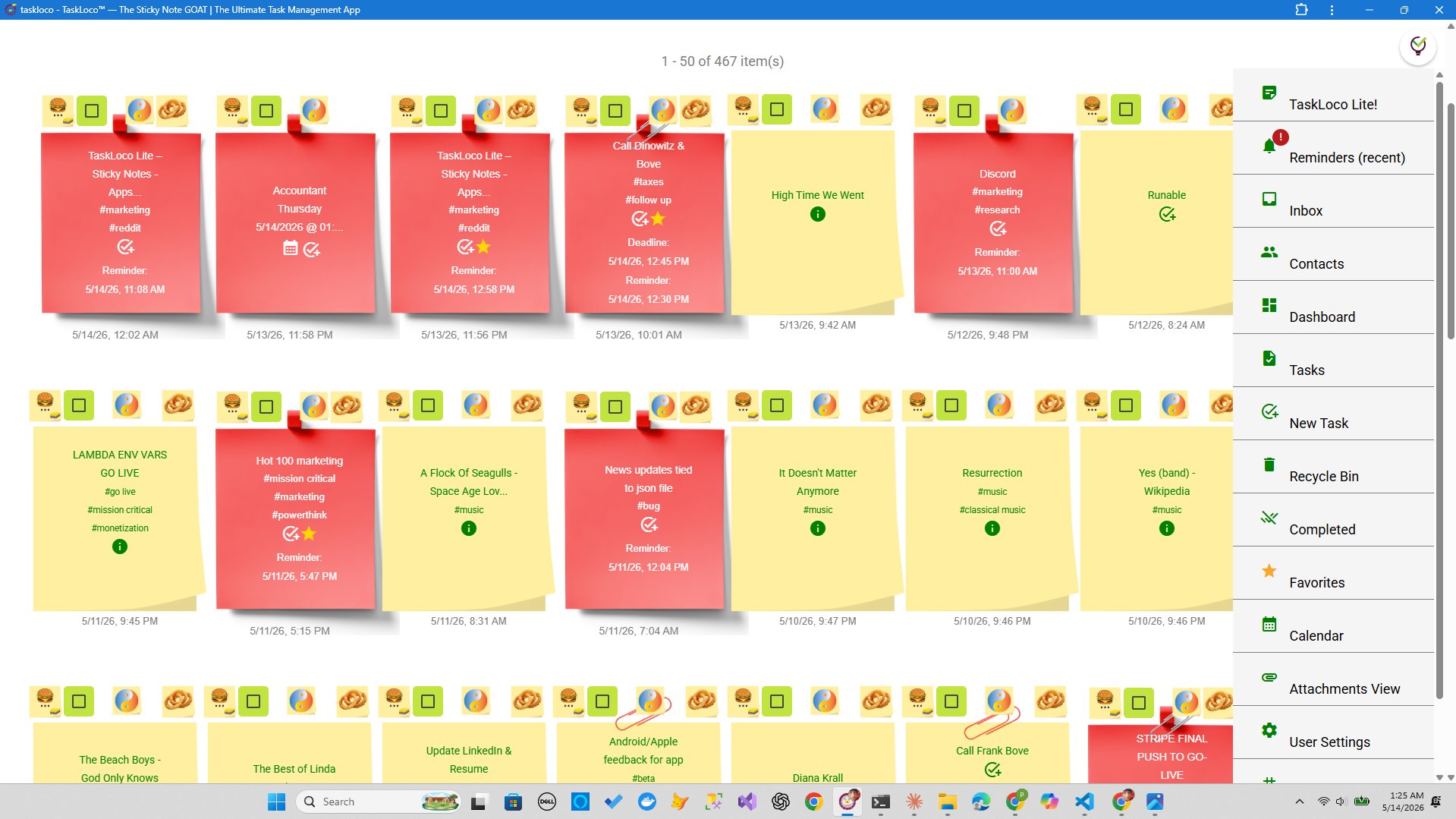
Most launches don't fail because the idea was bad. They fail because the plan lived in someone's head, a buried spreadsheet, or seventeen Slack threads that nobody could untangle when crunch time hit. A visual launch plan fixes that — it turns abstract momentum into a wall of concrete, movable pieces everyone on the team can see at once.
Whether you're shipping a product, a marketing campaign, a podcast season, or a service offering, the discipline is the same: get every idea out of your head and onto a surface, group it by phase, attach your deadlines and files, and let the whole team pull from one source of truth. This guide walks through exactly how to do that — and why a sticky-note-based tool is often the fastest way to get there.
What to Look For in a Visual Launch Planning Tool
Before picking a tool, it helps to understand what actually separates a planning surface that works from one that becomes another thing you stop using after week two. There are three criteria that matter most — and they apply regardless of what you're launching or how big your team is.
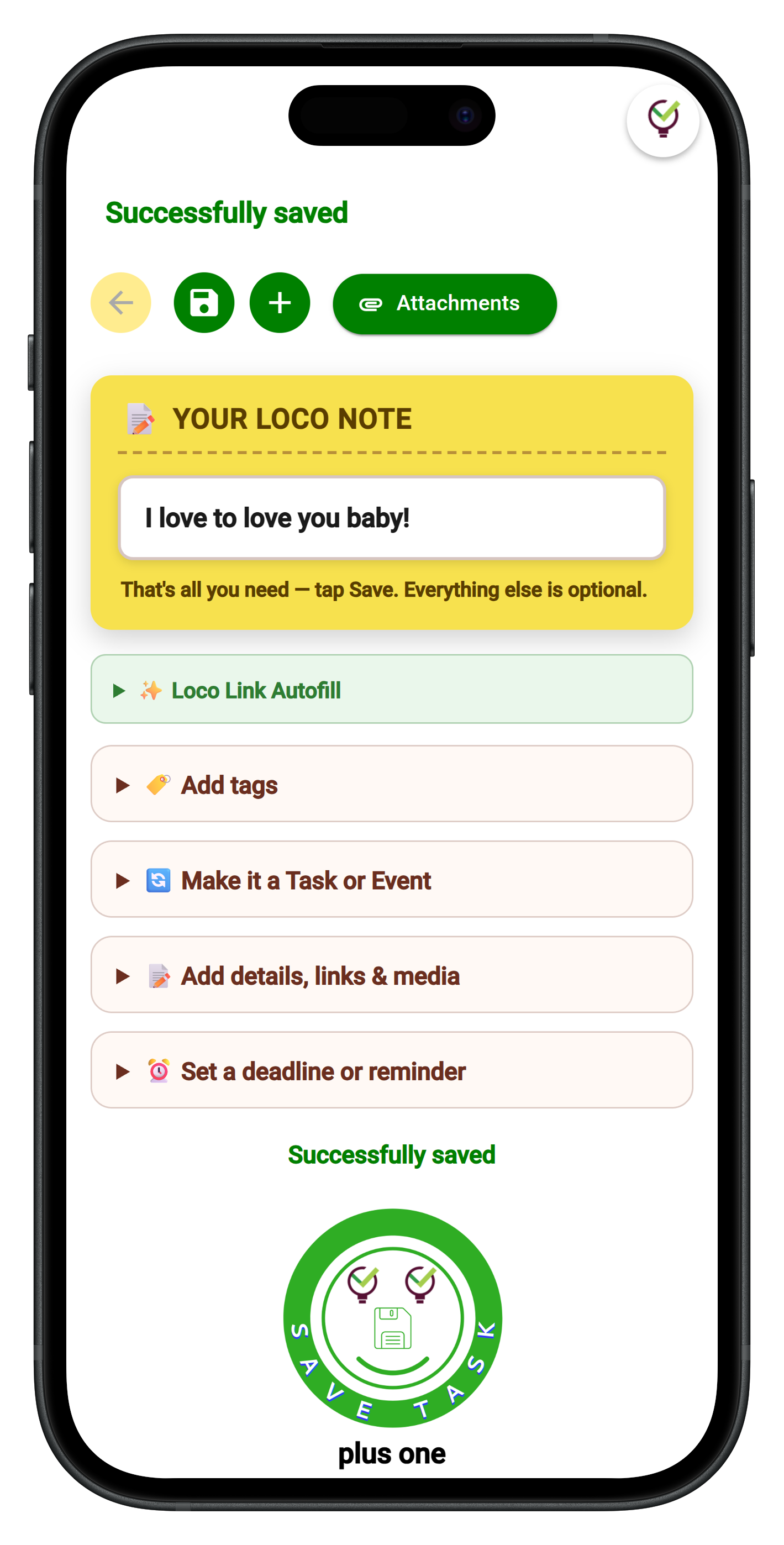
1. Friction-free capture. A launch plan only works if people actually add to it. If creating a new task or note takes more than two or three seconds, ideas get lost before they're recorded. The best planning tools make capture nearly instant — a keyboard shortcut, a one-click browser extension, or a dead-simple mobile interface. If you're still clicking through four menus to add a thought, the tool is working against you.
2. A real visual surface. Not just a list with colored labels. A genuine spatial canvas — one where you can place ideas in phases, drag them as priorities shift, and see the entire launch arc at a glance — is qualitatively different from a sorted table. Your brain processes spatial layout differently than it processes rows and columns. Groups of sticky notes on a wall make relationships and gaps visible in a way that a list simply cannot.
3. Reminders that follow you, not the other way around. A plan with no reminders is a plan you have to remember to check. The best tools push deadline alerts directly to you — on your phone, on your desktop — so the launch plan stays active even when you're deep in execution mode and not staring at the board.
Build Your Launch Wall: Phase by Phase
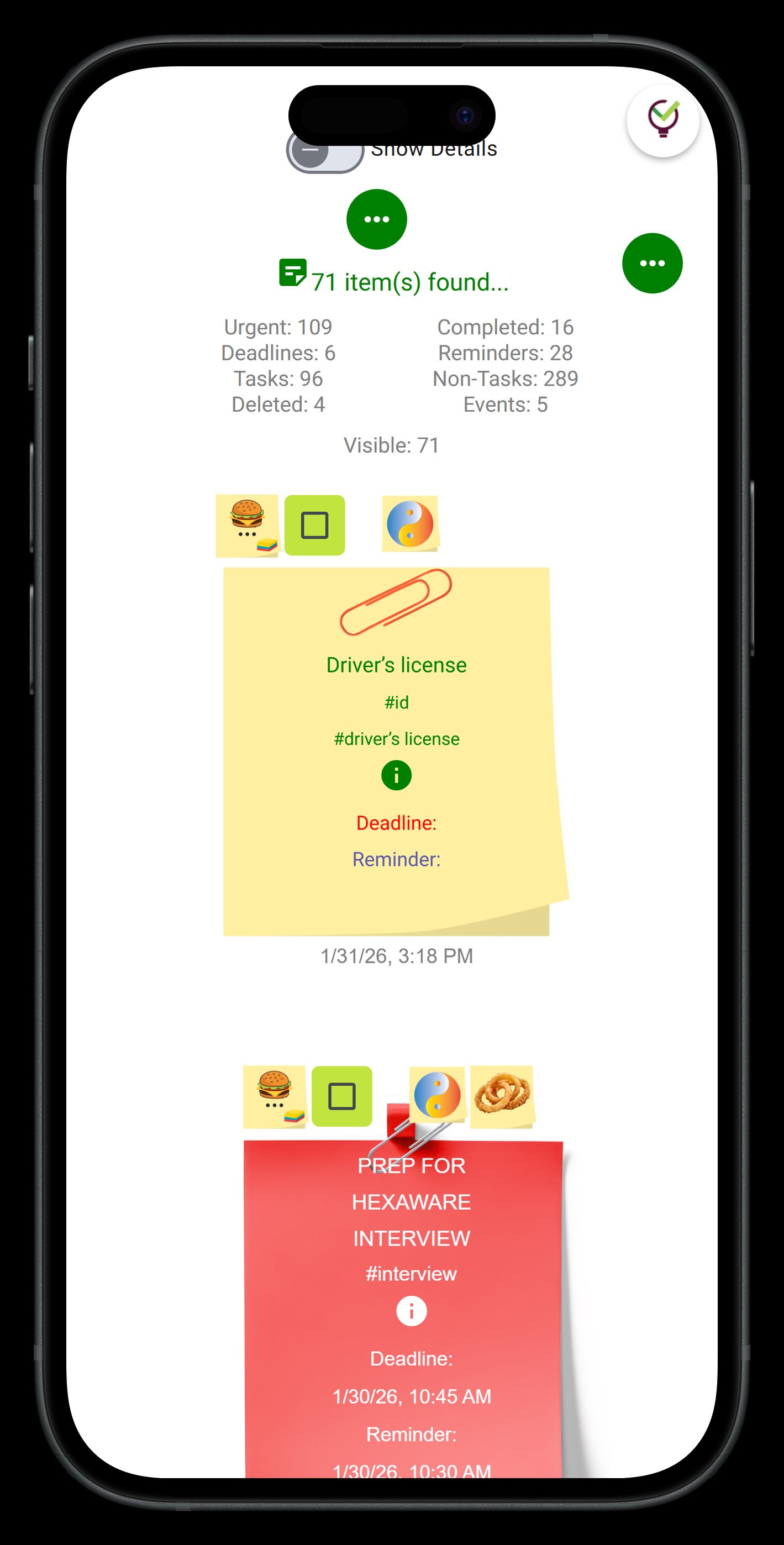
The fastest way to start a visual launch plan is to divide your wall into columns — one per phase. For most launches, five phases cover the full arc: Ideation → Strategy → Pre-Launch → Launch Day → Post-Launch. Within each column, every note is one discrete task, decision, or open question. Nothing more. The moment a note tries to do two things, split it.
Ideation phase. Dump everything here first — no filter, no judgment. Every feature idea, every copy angle, every channel you might use. This column should feel almost embarrassingly full early on. You're not committing to anything yet; you're making the invisible visible. This is where the sticky-note metaphor earns its keep: a note is cheap to create and even cheaper to discard.
On TaskLoco, you can capture ideas from your desktop wall, from the web app on your phone's browser, or with a single click from the Chrome extension if you spot something on a competitor's page or a relevant article. Every note lands on the same wall, synced instantly.
Strategy phase. Now you're making decisions. Which ideas survive? What's the core message? Who owns what? Drag surviving notes from Ideation into Strategy, rewrite them as concrete commitments, and attach any reference files — briefs, brand guidelines, research docs. TaskLoco Premium gives you 10GB of file storage baked in, so you're not linking out to a separate drive for every attachment.
Pre-Launch phase. This is where reminders become non-negotiable. Every task in this column should have a deadline, and that deadline should push a notification to every responsible person's phone and computer. Not an email they'll see tomorrow — a push notification they see now. In TaskLoco, reminders deep-link back to the original note, so tapping the alert takes you straight to the task with all its context and attached files, not to a generic inbox.
Launch Day and Post-Launch. Launch Day notes tend to be short and time-sensitive — go/no-go checklist items, publishing steps, announcement triggers. Post-Launch is where you park your retrospective tasks: what to measure, what to document, what to fix in the next cycle. Keeping Post-Launch on the same wall as Ideation means lessons from this launch become the raw material for the next one.
Files, Team Sharing, and the Calendar View
Three Premium features make the difference between a visual plan that's useful for one person and one that actually runs a launch across a team.
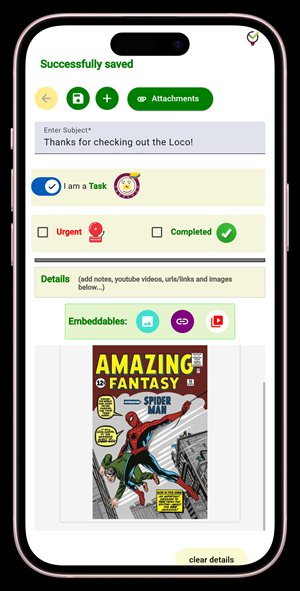
File attachments. Every launch generates assets — design mockups, copy drafts, approval sign-offs, launch checklists. Keeping those files attached directly to the relevant note means nobody has to ask where the final logo file is or which copy doc is the approved version. TaskLoco Premium includes 10GB of file storage, and you can stack additional storage tiers if your launch involves heavy media. The file lives on the note it belongs to, not in a folder structure someone has to decode.
Team sharing. TaskLoco's team sharing works the way email works — you share a note, and the recipient can clone it and make it their own. There are no permission levels to configure, no access tiers to manage. If someone is responsible for a task, they own a live copy of that note on their own wall, with full context intact. This makes delegation fast: share the note, they clone it, it's theirs to execute. Changes and updates stay visible without complex admin overhead.
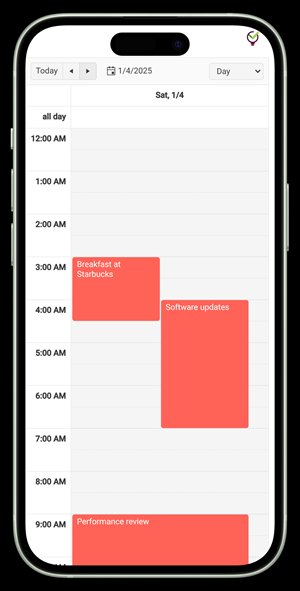
Calendar view. The wall shows you the spatial layout of your launch. The calendar shows you the temporal layout. Both views are included in Premium, and they're reading from the same notes — so a deadline you set on a note in the wall view shows up on the calendar automatically. During the final stretch before launch, most teams switch to living in the calendar view: it makes the countdown concrete and prevents the classic mistake of realizing too late that three critical tasks all land on the same day.
Capture Fast, Stay Focused: The Chrome Extension and Dashboard
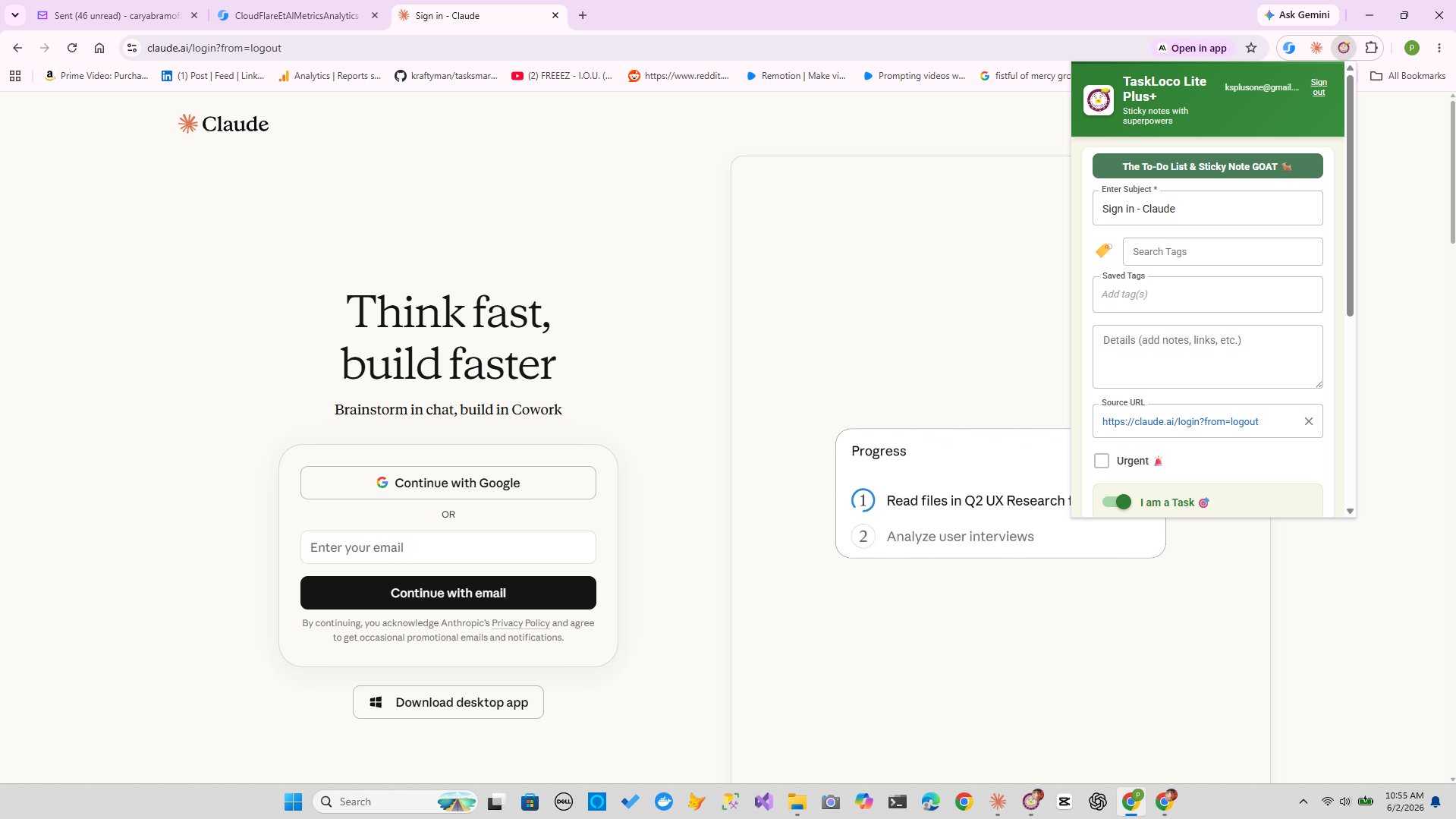
The slowest part of any planning process is the gap between having a thought and recording it somewhere useful. That gap is where ideas die. TaskLoco's Chrome extension closes it: one click captures the current webpage — URL, title, any selected text — directly into a new note on your wall. If you're doing competitive research, gathering inspiration, or reviewing an article relevant to your launch messaging, you don't break your flow to switch apps and type a note. You click, it's captured, and you keep reading.
This matters more during launch planning than almost any other workflow, because launch prep involves a lot of research — market positioning, competitor messaging, PR targets, channel benchmarks. The Chrome extension turns that passive research into an active feed of organized notes your whole team can see.
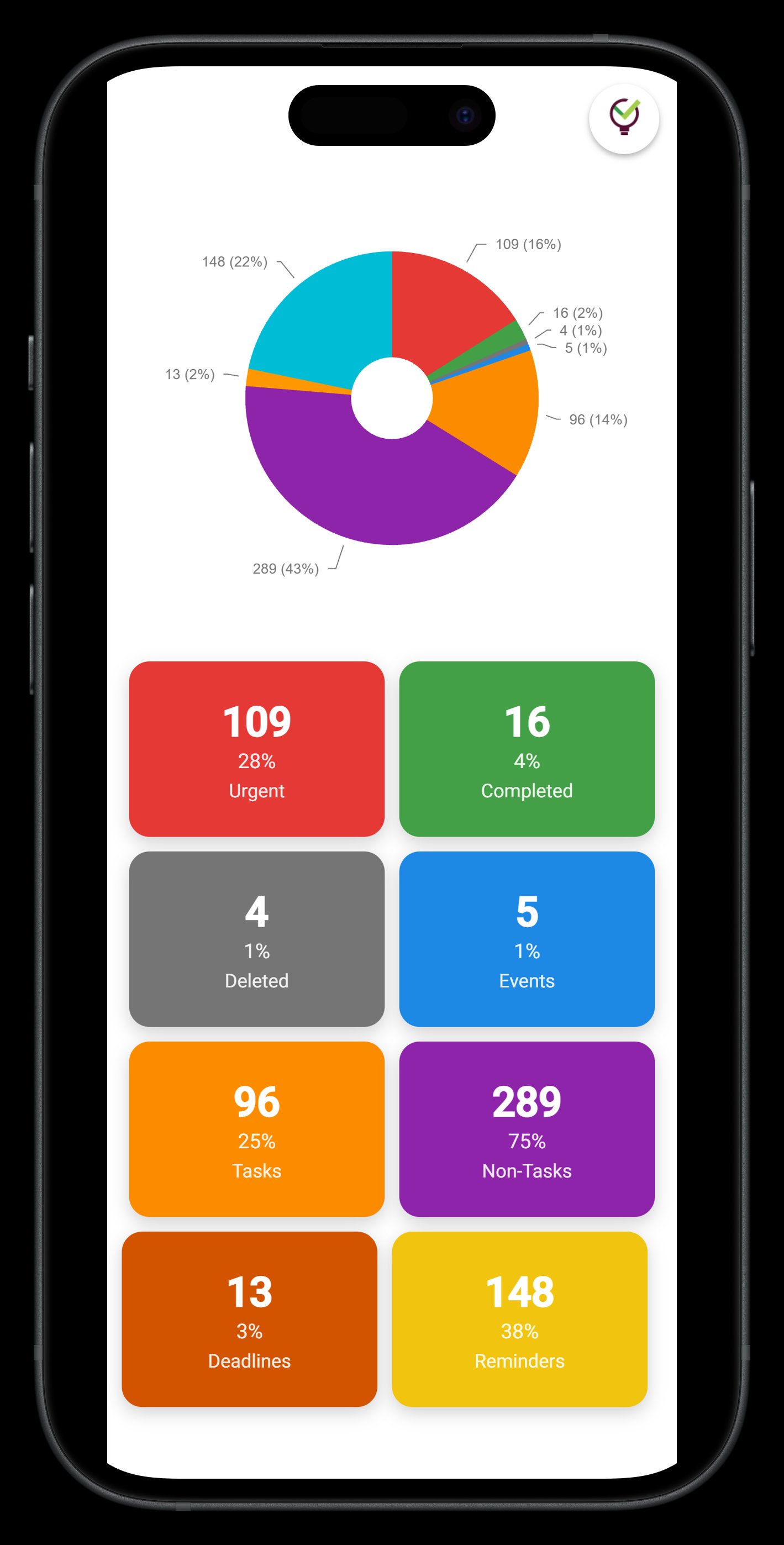
The dashboard view gives you a different angle: a high-level read on what's in progress, what's overdue, and what's coming up. During the final week before ship, the dashboard is where you start every morning — it tells you at a glance whether the launch is on track or whether something has gone quiet that shouldn't have. Combined with push-notification reminders that deep-link back to the original note, the dashboard keeps the plan alive without requiring anyone to manually check a board they might otherwise forget to open.
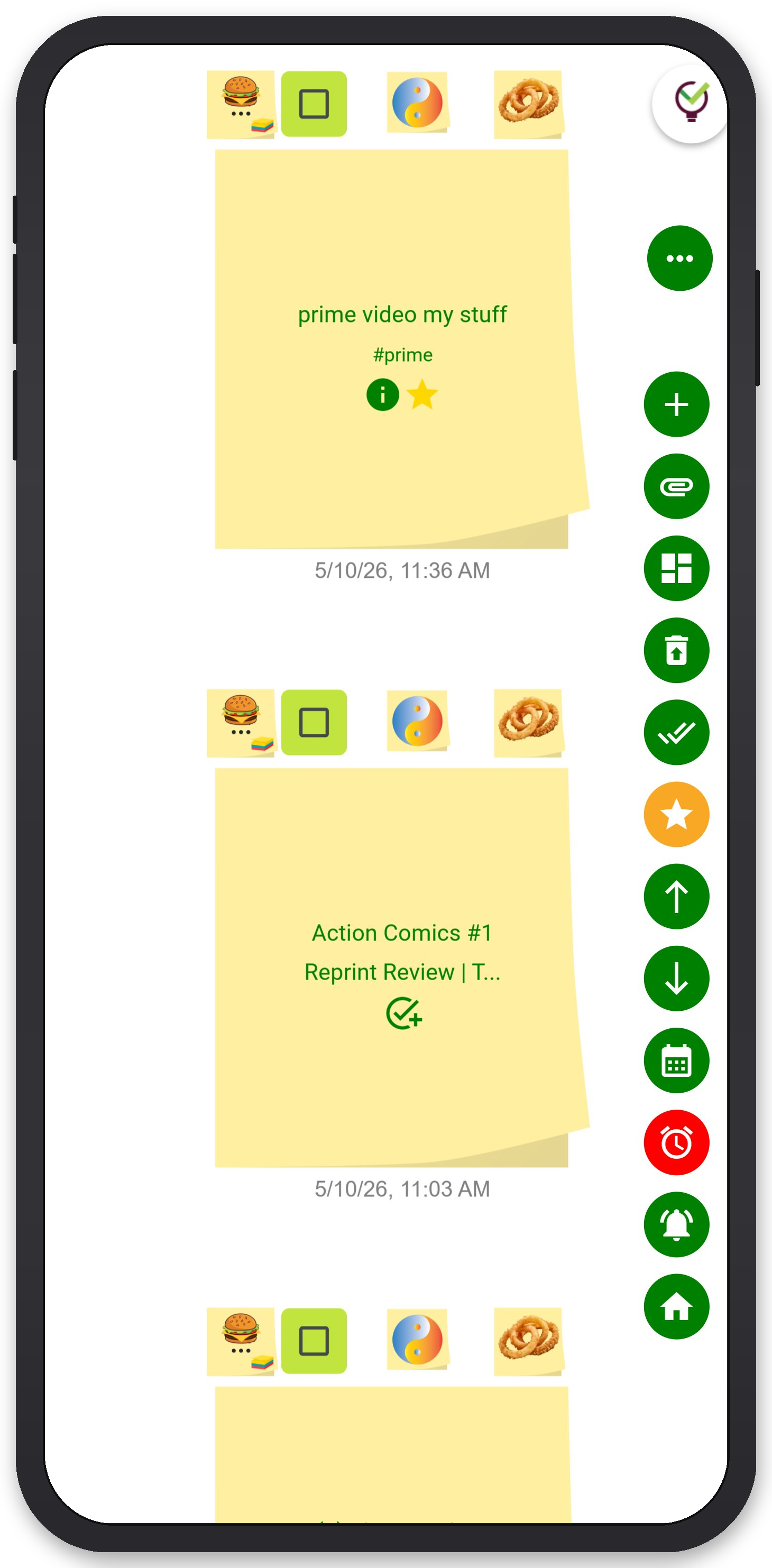
TaskLoco Premium is regularly $9.99/month per person. Right now, charter members can lock in 50% off the regular price — forever. That means $4.99/month per person today. And if our price ever goes up, you still pay half. Always.
Code CHARTER50 auto-applies at checkout. First 500 spots only — once they're gone, this offer is gone permanently. Act fast while spots last.
Every Premium subscription includes unlimited notes, 10GB file storage, reminders, calendar, and team sharing. Each team member requires a separate subscription. 7-day free trial — no charge until day 8. Cancel anytime.
Free Options: TaskLoco
TaskLoco Lite
- Native iPhone & Android app
- Completely anonymous — no sign-in
- Data stays on your device
- Up to 20 notes
- Free forever
TaskLoco Lite Plus+
- Web app + Chrome extension
- Sign in with Google
- Wall syncs across all devices
- Up to 30 notes
- Free forever
Lock In 50% Off — Forever
7-day free trial. No charge until day 8. CHARTER50 auto-applies at checkout.
🔒 Lock In My Charter SpotSee TaskLoco in Action
Frequently Asked Questions
What does a visual launch plan actually look like?
A visual launch plan is a spatial board — typically organized into columns by phase (Ideation, Strategy, Pre-Launch, Launch Day, Post-Launch) — where each note or card represents one discrete task, decision, or open question. Unlike a spreadsheet or a list, the board lets you see the entire launch arc at once, drag items as priorities shift, and spot gaps and bottlenecks before they become emergencies. On TaskLoco, that board is a sticky-note wall where you can attach files, set reminders, and share notes with teammates.
How many phases should a launch plan have?
Five phases work for most launches: Ideation, Strategy, Pre-Launch, Launch Day, and Post-Launch. Ideation is where you dump every idea without filtering. Strategy is where you make decisions and assign ownership. Pre-Launch is execution with deadlines and reminders. Launch Day is a live checklist. Post-Launch captures what to measure and improve next time. You can collapse or expand phases depending on how long your launch cycle is — a one-week sprint might merge Ideation and Strategy; a six-month product launch might split Pre-Launch into multiple sub-phases.
What's the best tool for planning a product launch visually?
The best tool is one that makes capture fast, gives you a genuine spatial canvas (not just a list with colors), and pushes reminders to you rather than waiting for you to check in. TaskLoco hits all three: notes are created in seconds from the web app or the Chrome extension, the wall view is a real drag-and-drop canvas organized however you want, and reminders are delivered as push notifications that deep-link directly back to the original note. Team sharing, file attachments (10GB included), and a calendar view round out the full launch planning workflow in one place.
How do reminders work in TaskLoco for launch deadlines?
Reminders in TaskLoco are delivered as push notifications — to your phone and your computer. When you tap the notification, it deep-links directly back to the original note, so you land on the task with all its context and attached files, not in a generic inbox. Optional email notifications are available as an additional channel, and SMS reminders are an optional add-on. Reminders are a Premium feature.
Can my whole team use the same launch wall in TaskLoco?
Yes. TaskLoco's team sharing works like email — you share a note and the recipient clones it onto their own wall. No permissions to configure, no access levels to manage. Each team member who needs Premium features (reminders, file attachments, team sharing, unlimited notes) requires their own individual subscription. $9.99/month per person (currently $4.99/month per person for first 500 charter members with code CHARTER50)
Do I need to pay to start planning a launch in TaskLoco?
No. TaskLoco Lite is a free native app (iPhone and Android) that stores up to 20 notes on your device — no sign-in required, completely anonymous. TaskLoco Lite Plus+ is a free web app (and Chrome extension) that syncs up to 30 notes across all your devices when you sign in with Google. Both free tiers are a real starting point for early-stage planning. For a full launch — with reminders, file attachments, calendar view, and team sharing — you'll need Premium. $9.99/month per person (currently $4.99/month per person for first 500 charter members with code CHARTER50)
What's the difference between the wall view and the calendar view in TaskLoco?
The wall view is spatial — it shows you what exists and how pieces relate to each other, organized however you choose to group them (by phase, by owner, by priority). The calendar view is temporal — it shows you when things are due, making the timeline concrete and surfacing scheduling conflicts before they happen. Both views read from the same notes, so a deadline set on the wall shows up on the calendar automatically. During the final stretch before launch, most teams shift to living in the calendar view. Both are included in TaskLoco Premium.
Born in Brooklyn. Powered by AWS. Your data stays yours.
TaskLoco is available on iPhone, Android, Chrome, and every web browser.