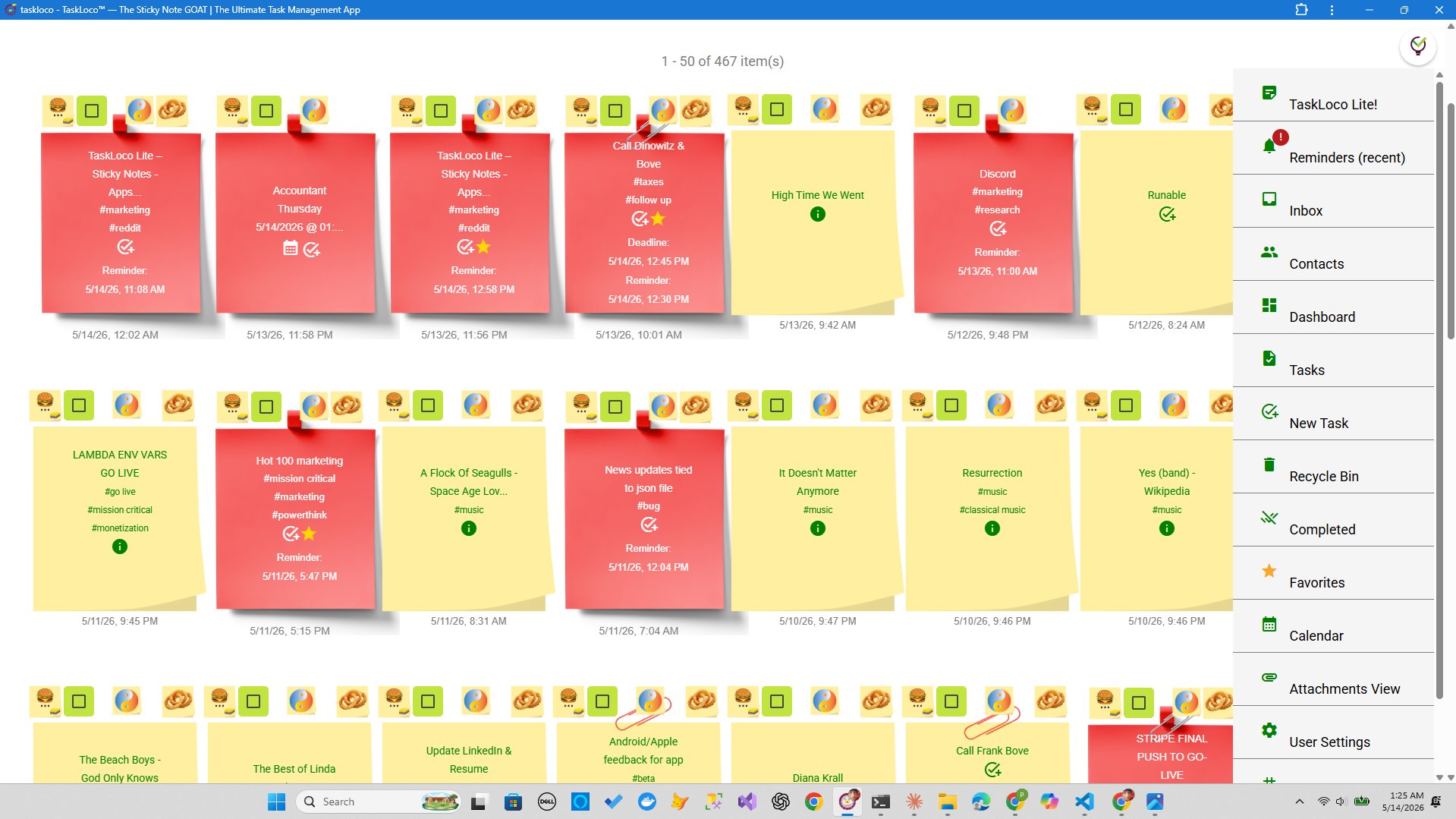
There's a reason your to-do list keeps growing but your sense of progress doesn't. The list format itself is working against you. Every item sits in a single column, given the same visual weight whether it's 'reply to Dave' or 'finish the quarterly report.' Your brain has to do extra work just to figure out where to look first — and that cognitive overhead adds up fast.
Visual task management isn't a trend or a productivity gimmick. It's a direct response to how human cognition actually works. Spatial memory, pattern recognition, color and proximity — these are hardwired features of your brain, not nice-to-haves. When you arrange your work visually instead of linearly, you're using those features instead of fighting them. This piece explains why, and how to actually apply it — with or without any app at all.
The Science Behind Why Visual Works Better
The human brain processes visual information roughly 60,000 times faster than text. That's not a marketing claim — it comes from decades of cognitive science research on the dual-coding theory, which explains that the brain uses two separate systems: one for verbal/linguistic information, one for visual and spatial information. A to-do list only engages the verbal system. A visual layout engages both, which means more of your brain is working to understand and retain the information in front of you.
Spatial memory is another factor. You remember where things are, not just what they are. Think about the last time you walked into a room to get something and forgot what it was — then remembered the moment you walked back. Location anchors memory. When a task lives in a specific visual position on a board or wall, your brain encodes its location alongside its content. That's why you can often glance at a sticky-note wall and instantly know what's urgent without reading every word.
Proximity and grouping matter too. The Gestalt principle of proximity tells us that items placed near each other are perceived as related. On a to-do list, everything is equidistant. On a visual board, you can cluster 'Project A' tasks together, separate them from 'Project B,' and keep personal errands in a totally different zone — and your brain reads those relationships instantly without any labels required.
How to Build a Visual System — No App Required
You don't need software to go visual. The classic approach still works: physical sticky notes on a wall or whiteboard, arranged in zones. Here's a simple method you can set up in under ten minutes.
Step 1 — Define your zones. Divide your wall or whiteboard into three to five sections. Common ones: Today, This Week, Waiting On, and Someday. You can also organize by project instead of time horizon — whatever matches how you actually think about your work.
Step 2 — One task per note. Resist the urge to cram multiple items onto one sticky note. The whole power of physical notes is that they're individual, movable objects. If a task has sub-steps, write the sub-steps on smaller notes and cluster them around the parent.
Step 3 — Use color deliberately, not decoratively. Pick a system and stick to it. For example: yellow for work tasks, blue for personal, pink for anything blocked or waiting on someone else. Color should carry meaning — it becomes part of the visual grammar your brain reads automatically after a few days.
Step 4 — Move things physically. This is underrated. Physically moving a note from 'This Week' to 'Today' to 'Done' creates a small but real sense of completion. The act of moving matters. Don't just cross things off — relocate them.
Step 5 — Do a daily 5-minute reset. Every morning, spend five minutes looking at the board before touching your phone or email. Decide what moves. Add any new notes. Remove anything finished. This review is what separates a useful visual system from a cluttered wall that you stop seeing after a week.
When Digital Visual Systems Pull Ahead
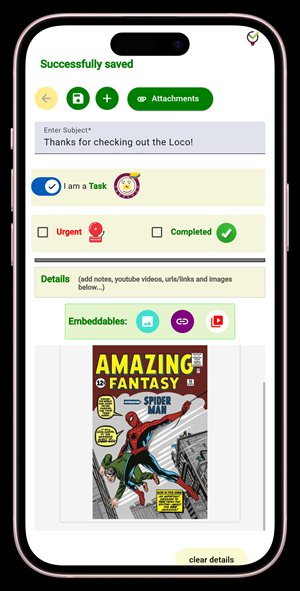
Physical sticky notes have real limits. They don't travel with you. They can't hold a photo, a PDF, or a link. They have no reminders. If you work across locations, or if your tasks involve files and references, the physical approach breaks down fast — you end up with a wall of notes at home and a completely separate mental system in your head when you're out.
This is where a digital visual tool earns its keep. The key is finding one that preserves the spatial, freeform quality of physical notes instead of just recreating a list in a prettier container. A lot of 'visual' apps are really just Kanban boards with fixed columns — which is better than a flat list, but still structured around someone else's categories rather than your own thinking.
The features worth looking for in a digital visual system: the ability to place notes freely rather than forcing them into fixed lanes, file attachments so context lives with the task instead of in a separate folder, push notification reminders that deep-link directly back to the relevant note (so you land exactly where you need to be, not at an app home screen), and cross-device sync so the same board you arranged on your computer is exactly what you see on your phone.
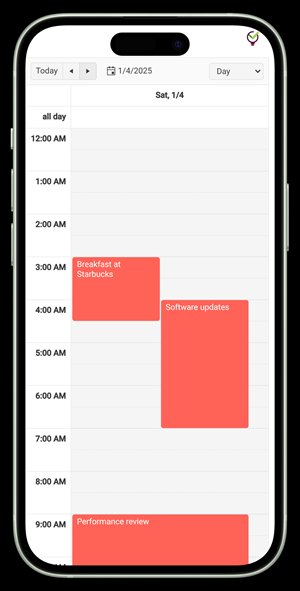
Color-coding, search, and a calendar view that ties deadlines to your visual workspace are also meaningful — especially once your board grows beyond a few dozen notes. The calendar view in particular closes the gap between visual task management and time management, which is where most linear to-do apps completely fall apart.
TaskLoco: A Digital Sticky-Note Wall That Travels With You
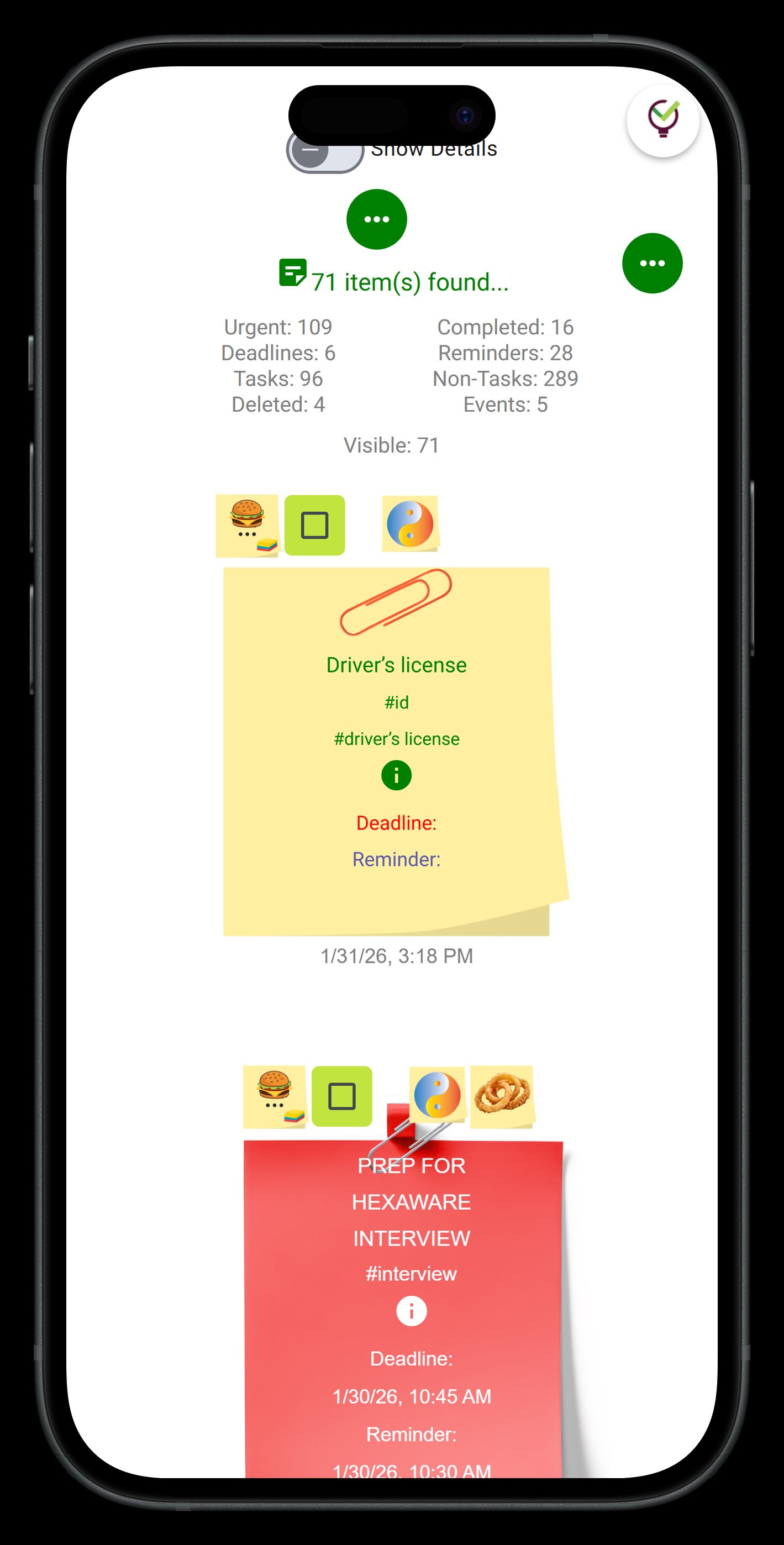
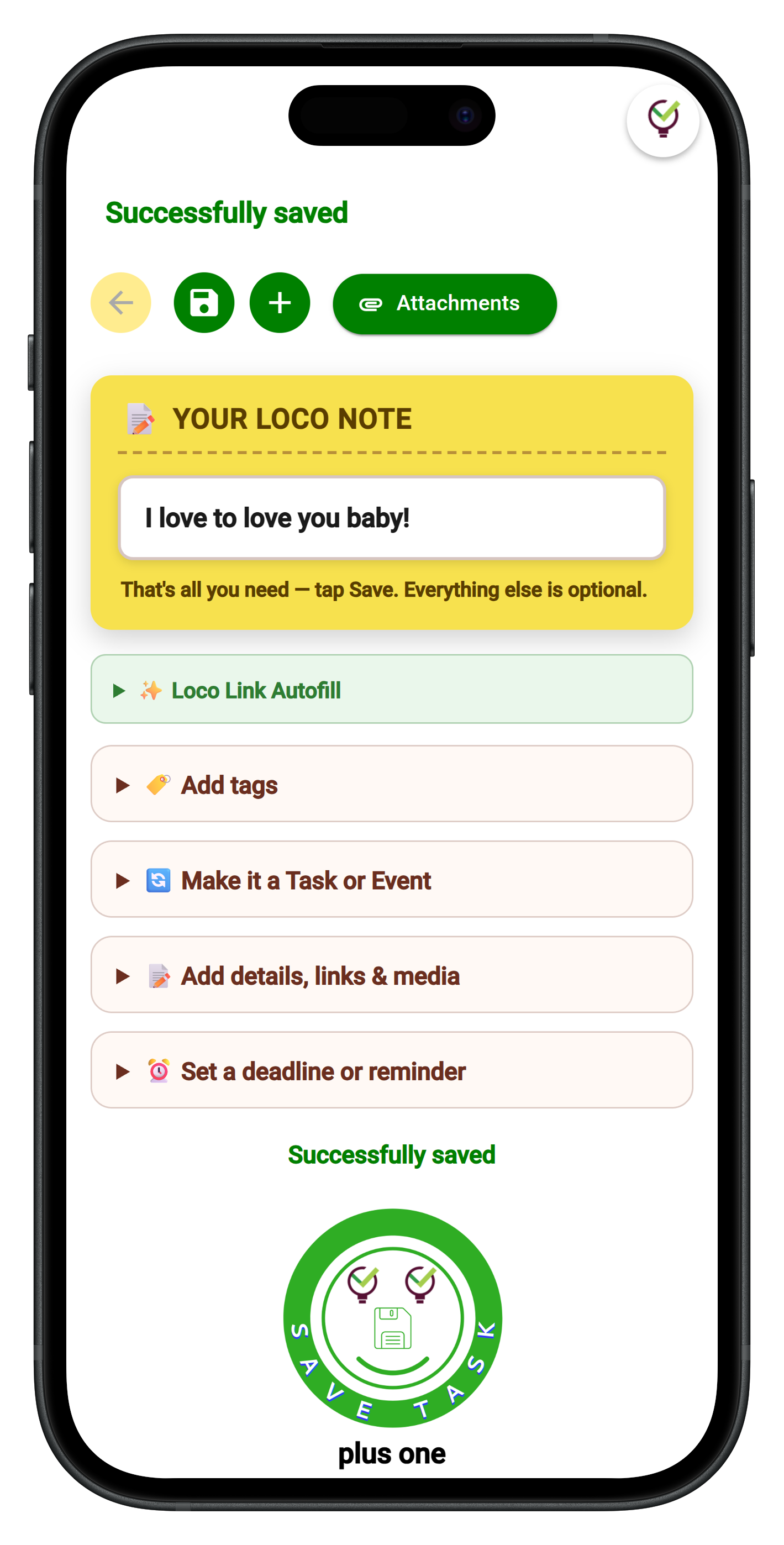
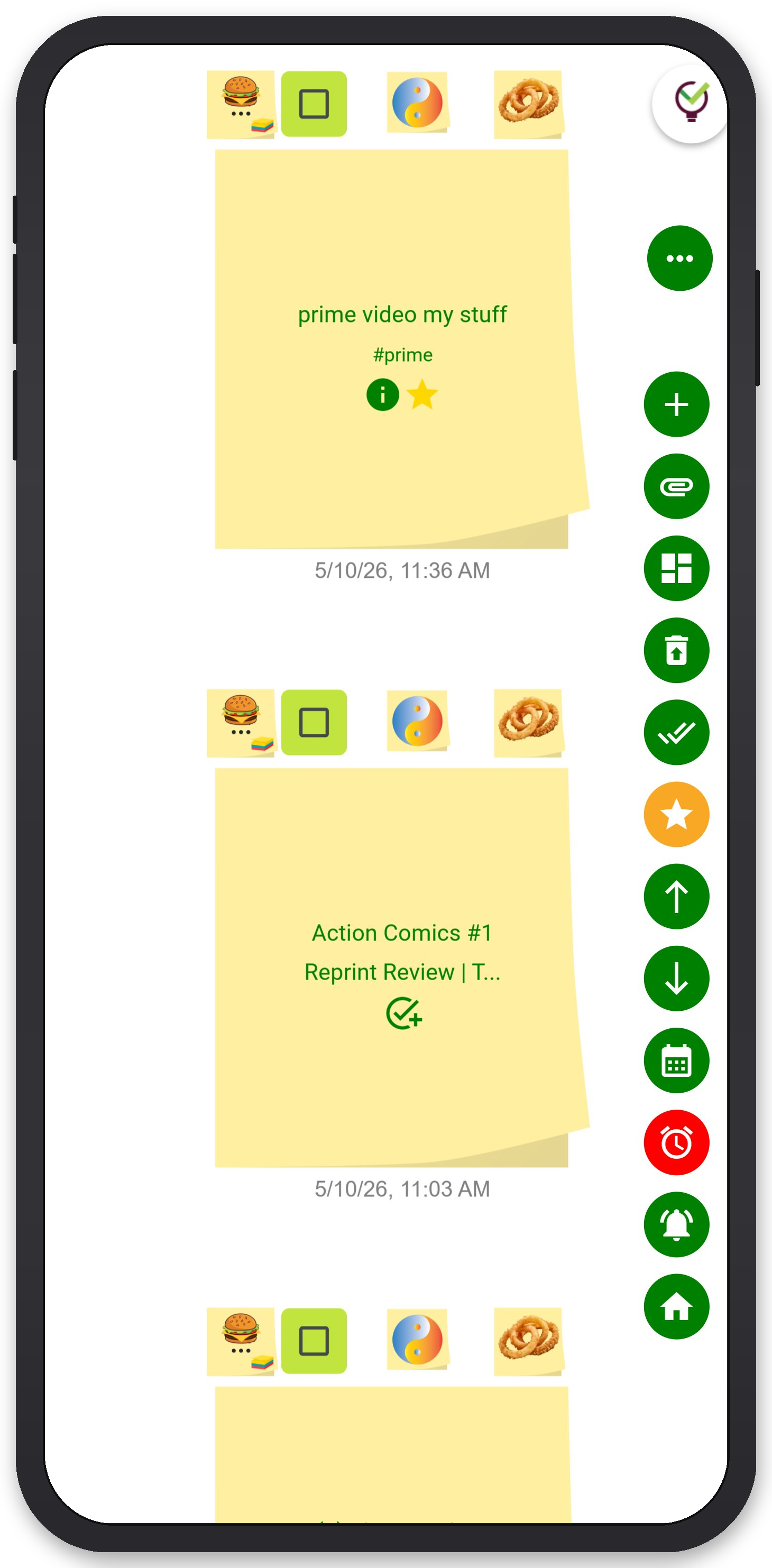
TaskLoco was built around exactly this idea — a visual sticky-note wall that behaves like the physical version but without the limitations. Notes are freeform and spatial. You place them where they make sense to you, group them how you think, and color-code them to build your own visual grammar. There are no forced columns, no rigid project structures, no enterprise org charts to maintain.
Premium adds the features that make a digital visual system genuinely useful beyond the basics: unlimited notes, file attachments with 10GB of storage, a calendar view that connects your visual board to actual deadlines, and reminders delivered as push notifications directly to your phone and computer — each one deep-linking straight back to the original note so you never lose the thread. Optional email and SMS notifications are available too, but the push notification is the default, and it works exactly the way a tap-to-open reminder should.
Team sharing works the way email works — you share a note, the recipient clones it and makes it their own. No permissions to configure, no access levels to manage, no admin overhead. It's fast, and it keeps everyone's visual workspace their own even when working on shared projects.
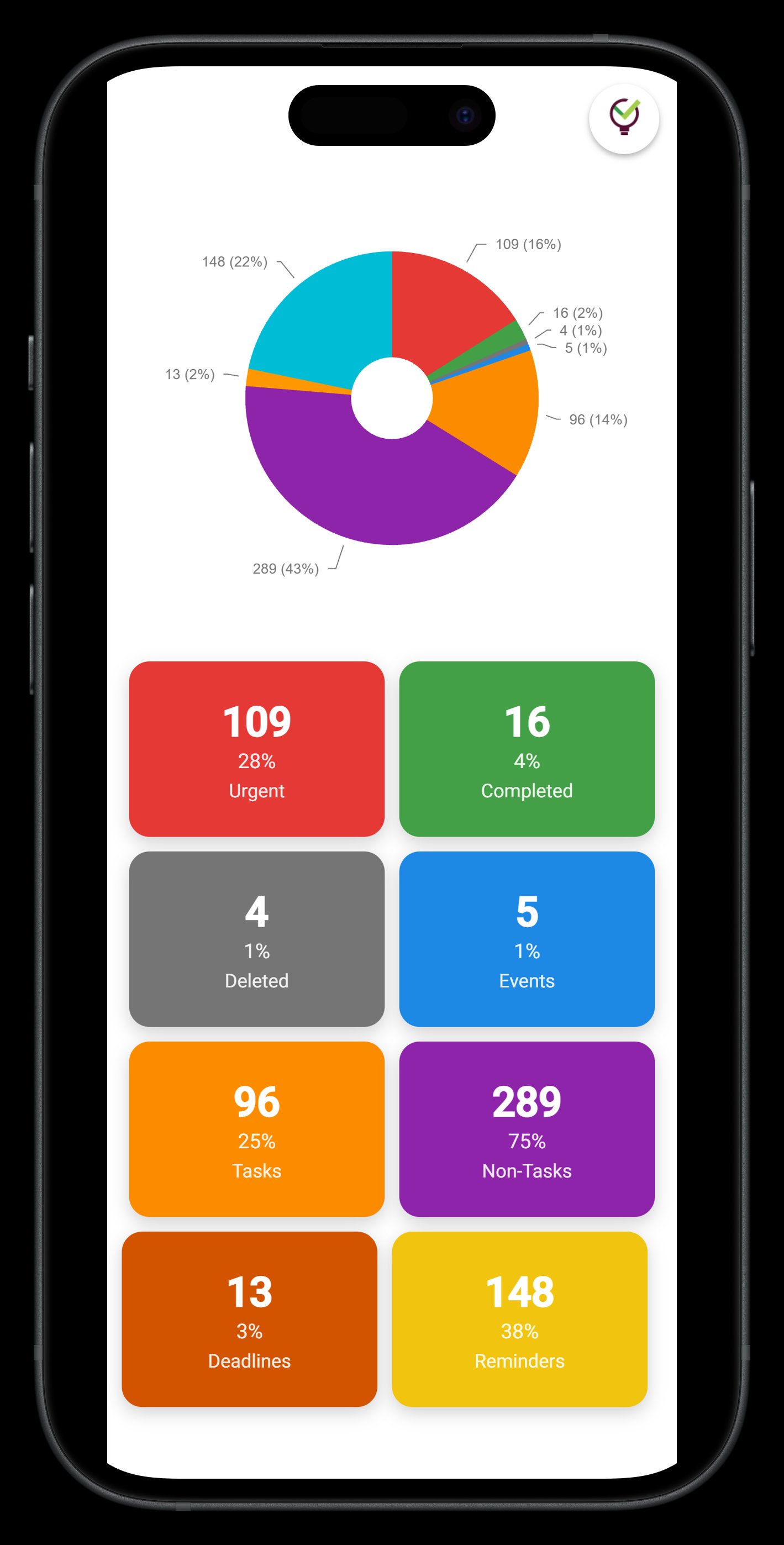
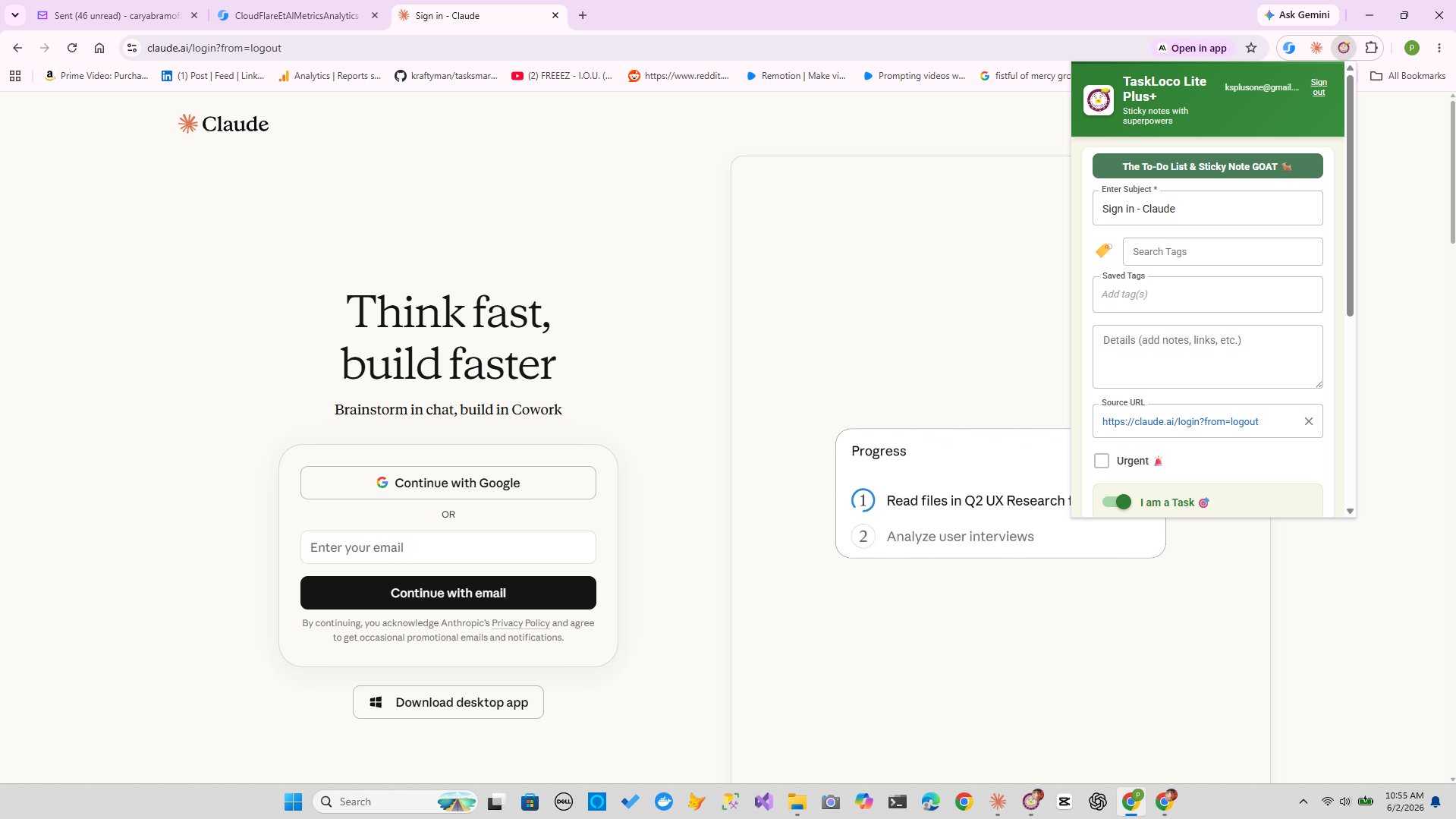
TaskLoco Lite is a free native app for iPhone and Android — completely anonymous, no sign-in required, stores up to 20 notes directly on your device. It's a no-friction way to get started. TaskLoco Lite Plus+ is a free web app with a Chrome extension that syncs up to 30 notes across all your devices and lets you capture any webpage in one click — useful for building a visual research board. Premium is where the full visual system lives: unlimited notes, files, reminders, calendar, and team sharing, all in one place.
TaskLoco Premium is regularly $9.99/month per person. Right now, charter members can lock in 50% off the regular price — forever. That means $4.99/month per person today. And if our price ever goes up, you still pay half. Always.
Code CHARTER50 auto-applies at checkout. First 500 spots only — once they're gone, this offer is gone permanently. Act fast while spots last.
Every Premium subscription includes unlimited notes, 10GB file storage, reminders, calendar, and team sharing. Each team member requires a separate subscription. 7-day free trial — no charge until day 8. Cancel anytime.
Free Options: TaskLoco
TaskLoco Lite
- Native iPhone & Android app
- Completely anonymous — no sign-in
- Data stays on your device
- Up to 20 notes
- Free forever
TaskLoco Lite Plus+
- Web app + Chrome extension
- Sign in with Google
- Wall syncs across all devices
- Up to 30 notes
- Free forever
Lock In 50% Off — Forever
7-day free trial. No charge until day 8. CHARTER50 auto-applies at checkout.
🔒 Lock In My Charter SpotSee TaskLoco in Action
Frequently Asked Questions
Why is a visual to-do system better than a list?
Lists give every task equal visual weight, forcing you to mentally re-prioritize every time you look at them. A visual layout uses spatial position, color, and grouping to communicate priority and relationships before you read a single word — which means less cognitive overhead and faster decisions about what to do next.
Can I use a visual task system without buying any app?
Yes. Physical sticky notes on a wall or whiteboard divided into zones (Today, This Week, Waiting On, Someday) is the original visual task system and still works extremely well. Use one note per task, assign colors a consistent meaning, and do a five-minute reset each morning to move things around. The physical act of moving a note carries its own motivational value.
What makes sticky-note style organization different from Kanban?
Kanban boards use fixed columns (usually To Do, In Progress, Done) that work well for tracking workflow stages. Sticky-note style organization is more freeform — you place notes wherever they make sense to you, create your own groupings, and arrange by any logic you choose rather than a pre-defined pipeline. For personal productivity, the freeform approach usually matches how people actually think better than fixed columns.
How does color-coding help in visual task management?
Color works as a pre-attentive visual cue — your brain notices it before conscious reading begins. When you assign consistent meaning to colors (for example, yellow for work, blue for personal, pink for blocked tasks), scanning your board becomes nearly automatic. The key is consistency: color has to carry the same meaning every time, or it stops being a signal and becomes noise.
How does TaskLoco handle reminders for visual notes?
TaskLoco Premium delivers reminders as push notifications to your phone and computer. Each reminder deep-links directly back to the original note — so when you tap the notification, you land exactly on the relevant task, not at a home screen. Optional email and SMS notifications are also available as additional channels.
What's the difference between TaskLoco Lite, Lite Plus+, and Premium?
TaskLoco Lite is a free native iPhone and Android app — completely anonymous, no sign-in, stores up to 20 notes on your device only. TaskLoco Lite Plus+ is a free web app with a Chrome extension that syncs up to 30 notes across all your devices and lets you capture any webpage in one click. TaskLoco Premium unlocks unlimited notes, 10GB file attachments, push notification reminders, a calendar view, and full team sharing. $9.99/month per person (currently $4.99/month per person for first 500 charter members with code CHARTER50)
Is a visual task system good for teams, or just individuals?
Both. For individuals, the benefit is faster daily orientation and fewer dropped tasks. For teams, a shared visual board creates a common picture of who's working on what — without anyone having to attend a status meeting to find out. The key for teams is choosing a system where everyone's view stays personal and editable rather than a single locked board that becomes read-only in practice.
Born in Brooklyn. Powered by AWS. Your data stays yours.
TaskLoco is available on iPhone, Android, Chrome, and every web browser.