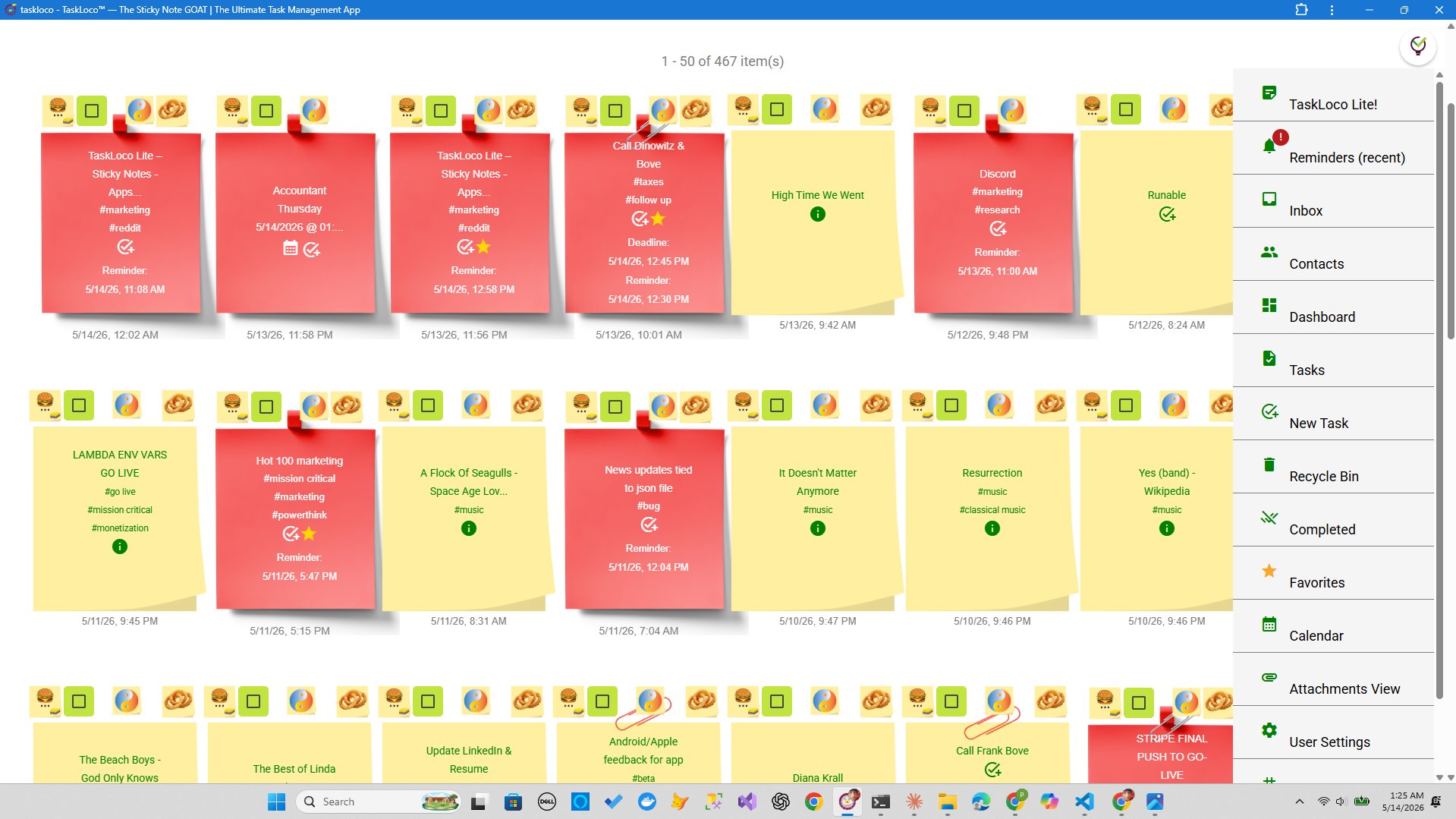
Most task lists die the same death. You start organized, then life happens — you dump tasks in fast, skip the labels, and two weeks later you're scrolling through a wall of undifferentiated to-dos trying to remember what "follow up" even means. The fix isn't a new app. It's a weekly ritual called a batch tag audit, and it takes about fifteen minutes.
The idea is simple: once a week, you sit down with your full task list and apply consistent, meaningful tags to every item that's missing one. You're not doing the tasks — you're organizing the attack surface. When Monday hits, you know exactly which tasks belong to which project, which client, which urgency tier. Batch tagging is the line audit equivalent for your brain: a structured sweep that turns noise into signal.
What to Look For in a Task System Built for Batch Tagging
Before any specific tool enters the picture, it helps to understand what a task system actually needs to support a batch tagging workflow. Not every productivity app is built for this. Some make tagging so buried in menus that the habit never sticks. Others cap your note count before your task list gets interesting. Here are the three criteria that actually matter:
- Speed of bulk action. If tagging a single note takes three taps, you'll abandon the habit by week two. The system needs to let you move through notes quickly — open, label, next. Friction is the enemy of consistency.
- Search and filter that actually works. Tags are only useful if you can surface them instantly. Full-text search across all notes and attachments, combined with tag filtering, is the minimum bar. If you have to remember the exact tag spelling to find anything, the system is broken.
- No artificial note limits during the audit. A batch tag audit means touching every open task — sometimes that's 40, sometimes it's 200. A system that cuts you off at 20 or 30 notes can't support a real audit. Unlimited capacity is a hard requirement, not a nice-to-have.
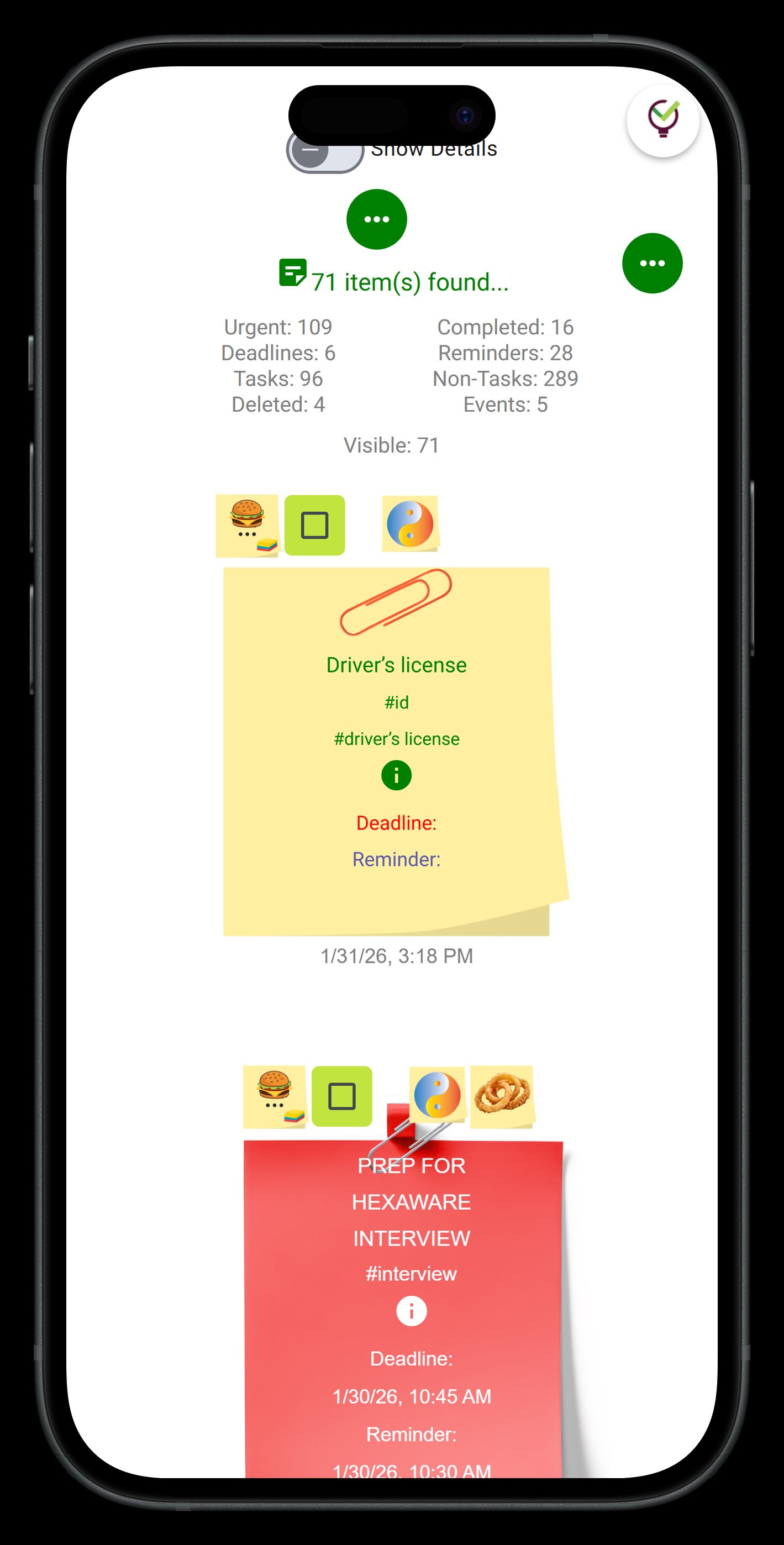
How to Run a Weekly Batch Tag Audit (The Actual Method)
A batch tag audit isn't a vague concept — it's a repeatable process you run on the same day every week. Here's how it works in practice:
Step 1: Open everything. Pull up your full, unfiltered task list. Don't filter by project or date yet. You want the raw pile — every open note, every lingering task, every "I'll deal with this later" item that's been sitting there for two weeks.
Step 2: Triage by context first. Before you assign status tags, assign context. Context tags answer the question: what environment or resource do I need to do this? Common contexts include @computer, @phone, @meeting, @waiting. These are the tags that let you actually use your list in the moment — when you have ten minutes at your desk, you filter to @computer and work from there.
Step 3: Add project tags. Every task should belong somewhere. If it doesn't, it's either orphaned (assign it to a project now) or it's not a real task (delete it). Project tags make the calendar view meaningful — you can see at a glance which projects have task density this week and which are starved.
Step 4: Apply urgency or priority markers. This is last for a reason. If you do this first, everything feels urgent. After context and project are clear, urgency becomes easier to assess honestly. Use a simple three-tier system: #now, #this-week, #someday. Resist the urge to create ten priority levels — you'll never maintain them.
Step 5: Set reminders on anything tagged #now. Don't leave the audit without attaching a reminder to every task that genuinely needs to happen today or tomorrow. A reminder that deep-links back to the original note means you get nudged at the right moment and land directly in context — no hunting, no searching.
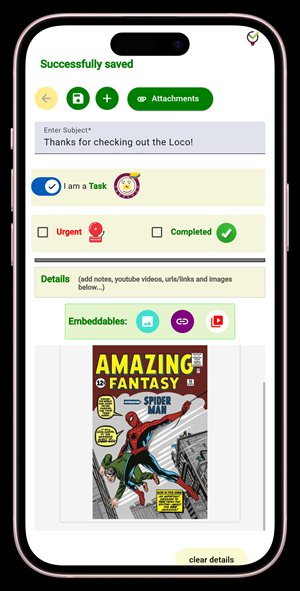
Why TaskLoco Premium Is Built for This Workflow
TaskLoco was designed around the sticky note metaphor — the idea that tasks should be fast to create, easy to scan, and frictionless to reorganize. That philosophy maps almost perfectly onto a batch tagging workflow.
Unlimited notes mean unlimited scope. TaskLoco Premium removes the ceiling entirely. Your weekly audit covers your full task universe, not a truncated slice of it. Whether you're auditing 30 tasks or 300, the system doesn't push back.
Full-text search across notes and attachments. After you tag, you need to find. TaskLoco's search covers everything — note titles, body text, and file attachments. When you filter to a project tag and need to find the brief you attached three weeks ago, it's there in one search.
Reminders that deep-link to the note. This is the detail that makes the audit worth doing. When you tag a task #now and set a reminder, TaskLoco delivers a push notification — to your phone and your computer — that drops you directly into the tagged note when you tap it. No context switching, no re-reading, no "wait, which version of this document was I on." The reminder is a portal back to exactly the right place.
Team sharing that actually shares. When your batch audit surfaces a task that belongs to someone else on your team, you can share the note directly. Recipients get the full note and can clone it as their own — no permissions to configure, no access levels to manage. It works like forwarding an email, except the recipient gets a living, editable task they own immediately.
File attachments for task-level context. The 10GB of included storage means you can attach the relevant file — the brief, the screenshot, the spec — directly to the task note. Your tagged task is now self-contained. During the audit, you can see which tasks have supporting materials and which are floating without context.
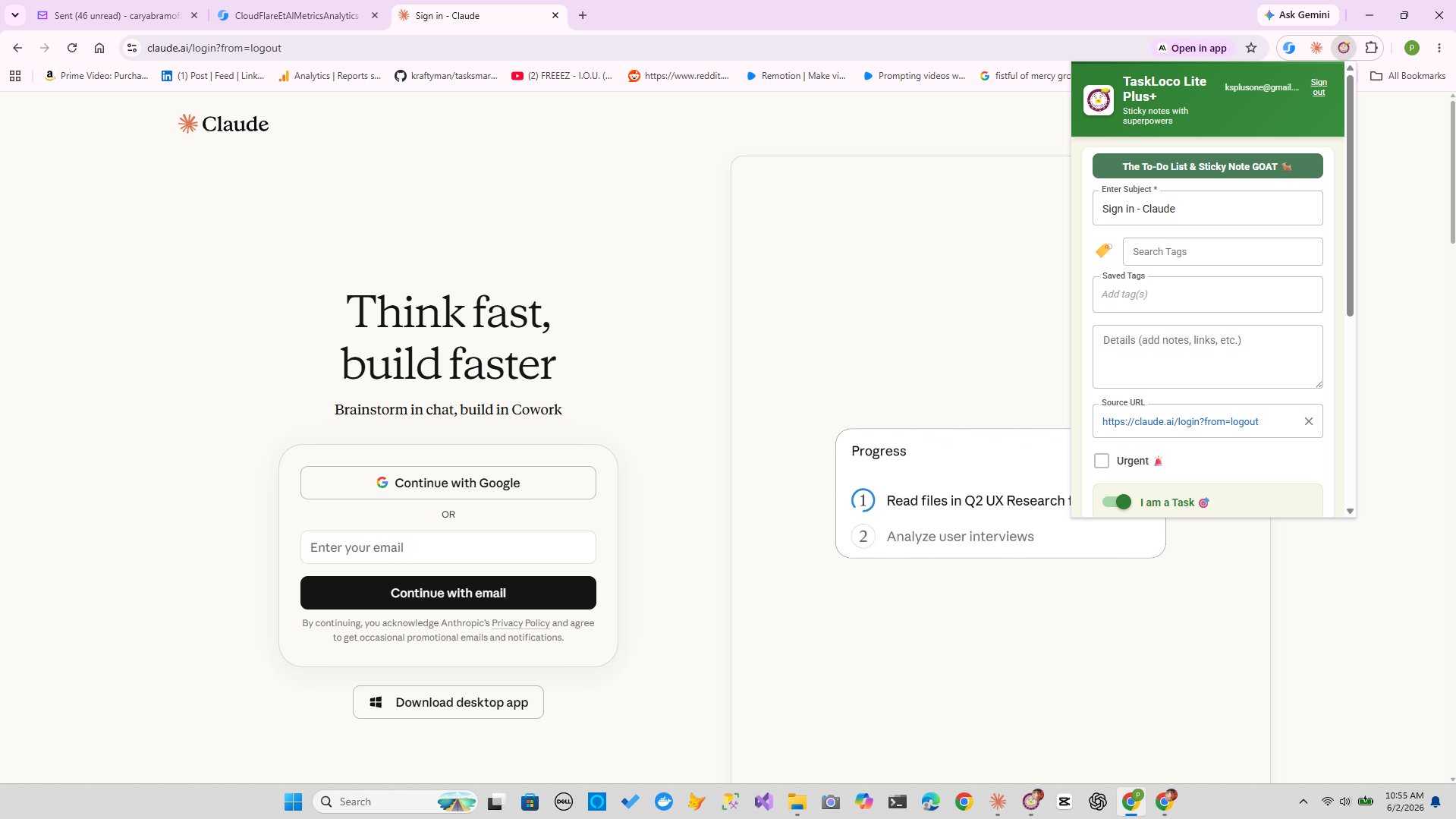
The Chrome extension catches tasks at capture speed. Part of why batch tagging is necessary is that tasks come in from everywhere — emails, articles, Slack messages, random browser tabs. The Chrome extension lets you clip any webpage into a TaskLoco note in one click, so the capture is fast enough that nothing gets lost before the audit. One click, it's in the system, you tag it Friday.
Building the Tag Taxonomy That Actually Lasts
The biggest reason batch tagging systems collapse is taxonomy creep. You start with three tags, add four more for a special project, invent two exceptions, and six months later you have 47 tags and no idea which ones are still active. The audit becomes harder than the work itself.
The rule of three contexts. Pick three context tags and hold the line. @computer, @calls, @errands. Or @deep-work, @admin, @waiting. The specific labels matter less than the discipline of stopping at three. If a task doesn't fit, it goes in the closest one. The system is a filter, not a filing cabinet.
One tag per project, not per sub-project. Tag the project, not the phase. If you have a client called Meridian, the tag is #meridian — not #meridian-phase2, #meridian-design, and #meridian-revisions. Sub-project organization lives inside the note itself, not in the tag structure. Keep the taxonomy flat.
Archive tags on a quarterly schedule. Every three months, run a tag audit alongside your task audit. Identify which tags have zero active tasks assigned to them and retire them. A pruned taxonomy is a usable taxonomy. Add this to your calendar now — it takes five minutes and saves hours of confusion later.
Shared taxonomies for teams. If you're using TaskLoco's team sharing feature, align on tag conventions before the first audit. When everyone on the team uses #client-review instead of #client review, #clientreview, and #for-client, the filter actually works for the whole team. Put the agreed tag list in a shared TaskLoco note and pin it. Review it at the start of each quarter.
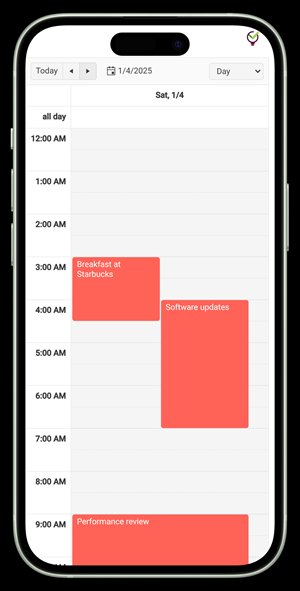
TaskLoco's calendar view adds one more layer here: when your project tags are consistent, the calendar doesn't just show you when things are due — it shows you which projects are load-bearing this week. That's the audit's ultimate output: a clear picture of where your time actually needs to go.
TaskLoco Premium is regularly $9.99/month per person. Right now, charter members can lock in 50% off the regular price — forever. That means $4.99/month per person today. And if our price ever goes up, you still pay half. Always.
Code CHARTER50 auto-applies at checkout. First 500 spots only — once they're gone, this offer is gone permanently. Act fast while spots last.
Every Premium subscription includes unlimited notes, 10GB file storage, reminders, calendar, and team sharing. Each team member requires a separate subscription. 7-day free trial — no charge until day 8. Cancel anytime.
Free Options: TaskLoco
TaskLoco Lite
- Native iPhone & Android app
- Completely anonymous — no sign-in
- Data stays on your device
- Up to 20 notes
- Free forever
TaskLoco Lite Plus+
- Web app + Chrome extension
- Sign in with Google
- Wall syncs across all devices
- Up to 30 notes
- Free forever
Lock In 50% Off — Forever
7-day free trial. No charge until day 8. CHARTER50 auto-applies at checkout.
🔒 Lock In My Charter SpotSee TaskLoco in Action
Frequently Asked Questions
What is batch tagging for tasks?
Batch tagging is the practice of sitting down once a week and applying consistent labels — context tags, project tags, and priority markers — to every open task in your system at once. Instead of tagging in the moment (which rarely happens), you block a short window and audit the whole list in a single sweep. The result is a filterable, searchable task system that actually reflects where your attention belongs.
How long should a weekly task audit take?
Fifteen minutes is the target. If it's consistently running longer, your tag taxonomy is too complex — you're making decisions instead of applying labels. Simplify your tag set to three context tags, one tag per project, and a three-tier priority system. The audit should feel like a sweep, not a review meeting.
How many tags should I use per task?
Three is a practical ceiling for most tasks: one context tag (where/how you'll do it), one project tag (what it belongs to), and one priority marker (when it needs to happen). More than three tags per task usually means you're using tags to document complexity that should live in the note body itself. Keep the tags as a filter layer, not a filing system.
What is TaskLoco and how does it support batch tagging?
TaskLoco is a productivity app built around the sticky note metaphor — fast to capture, easy to organize, and built for the way tasks actually flow. TaskLoco Premium includes unlimited notes (so your audit has no ceiling), full-text search across all notes and attachments, a calendar view that makes tagged projects visible at a glance, and reminders that deep-link back to the original note so you land in context when the push notification fires. The Chrome extension also makes capture fast enough that nothing gets lost before the weekly audit. $9.99/month per person (currently $4.99/month per person for first 500 charter members with code CHARTER50)
Does batch tagging work for teams, not just individuals?
Yes, and it works better on teams when everyone aligns on the same tag conventions before the first audit. With TaskLoco Premium, you can share notes directly with teammates — recipients can clone the note and own it immediately, no permissions to configure. Agree on a shared tag list at the start of each quarter, put it in a pinned shared note, and the team's filter results actually mean something.
What's the difference between TaskLoco Lite, Lite Plus+, and Premium for task organization?
TaskLoco Lite is the free native iPhone and Android app — completely anonymous, no sign-in, stores up to 20 notes on your device only, and never syncs. It has no reminders, no attachments, and no team sharing, which means it can't support a real batch tagging workflow at scale. TaskLoco Lite Plus+ is the free web app (plus Chrome extension) — you sign in with Google, get up to 30 synced notes across devices, and one-click webpage capture via the extension, but still no reminders, no attachments, and no sharing. TaskLoco Premium removes all limits: unlimited notes, 10GB file storage, reminders with push notifications, calendar view, team sharing, and full-text search. For a weekly batch tag audit, Premium is the only tier with the headroom to actually do it.
How do I stop my tag system from getting out of control over time?
Run a tag audit every quarter alongside your weekly task audit. Identify any tags with zero active tasks and retire them. Hold a hard line on the number of tags per task (three maximum) and one tag per project — no sub-project tags. If your team uses TaskLoco, maintain a shared note with the agreed tag list and review it at the start of each quarter. Pruning is just as important as the initial setup. A tag system that never gets cleaned becomes a search problem instead of a search solution.
Born in Brooklyn. Powered by AWS. Your data stays yours.
TaskLoco is available on iPhone, Android, Chrome, and every web browser.