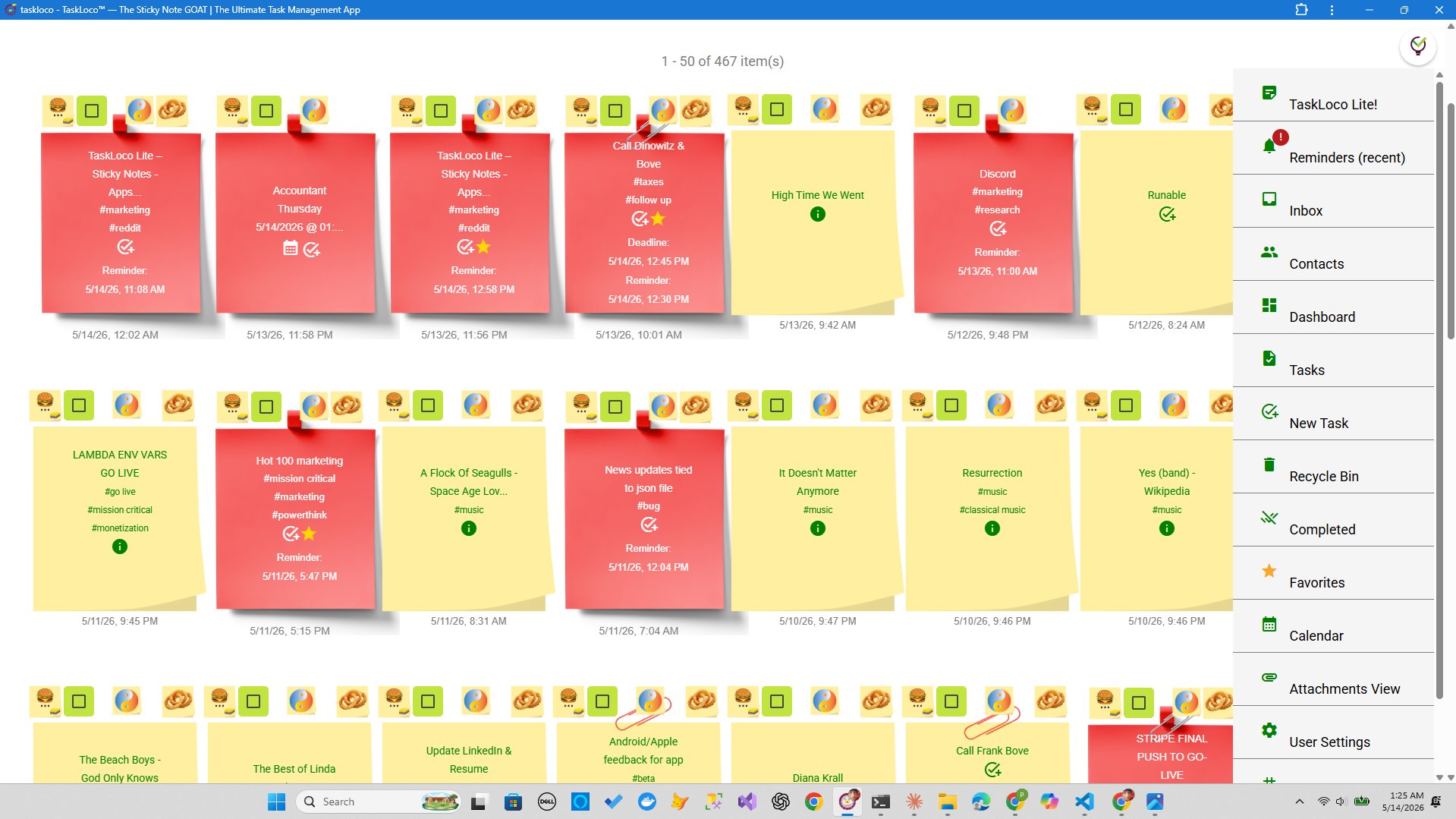
Factory floors figured this out a century ago: when work moves through a defined sequence of stages — and everyone can see where everything is — output goes up and bottlenecks become obvious fast. The same principle works for knowledge work. The problem is most productivity apps bury tasks in lists so long you stop reading them. A wall full of sticky notes, arranged by stage, does the opposite: you see the whole pipeline at a glance.
TaskLoco takes the physical sticky note wall and makes it digital — without stripping away the simplicity that makes sticky notes work in the first place. Arrange your notes in columns, drag them forward as work progresses, attach supporting files, and let reminders push you back to the right note at the right moment. This guide walks through exactly how to set that up.
What Makes a Visual Task Wall Actually Work
Before diving into TaskLoco specifically, it helps to understand what separates a useful visual task wall from a cluttered digital corkboard nobody checks after day three. The concept — moving cards or notes through stages — sounds simple, but the execution determines whether it becomes a habit or a chore.
Three criteria matter most. First, the stages have to be yours. Generic columns like "To Do / Doing / Done" work for some workflows and are useless for others. A content team might need "Brief / Draft / Review / Published." A developer might want "Backlog / Blocked / In Progress / QA / Shipped." The wall has to reflect how your actual work moves, not a consultant's idea of how work should move.
Second, the notes have to carry real information. A sticky note that says "write report" is not useful. A note that says "write Q3 report" with the brief attached, a deadline reminder set, and a link to the source data is a complete unit of work you can hand off or pick up without a briefing. That's the difference between decoration and a real workflow tool.
Third, friction has to be nearly zero. If adding a note takes more than ten seconds, you'll stop adding notes. If moving a note requires navigating menus, you'll stop moving them. The best task walls feel more like picking up a pen than opening a project management suite.
How to Set Up Your Assembly Line in TaskLoco
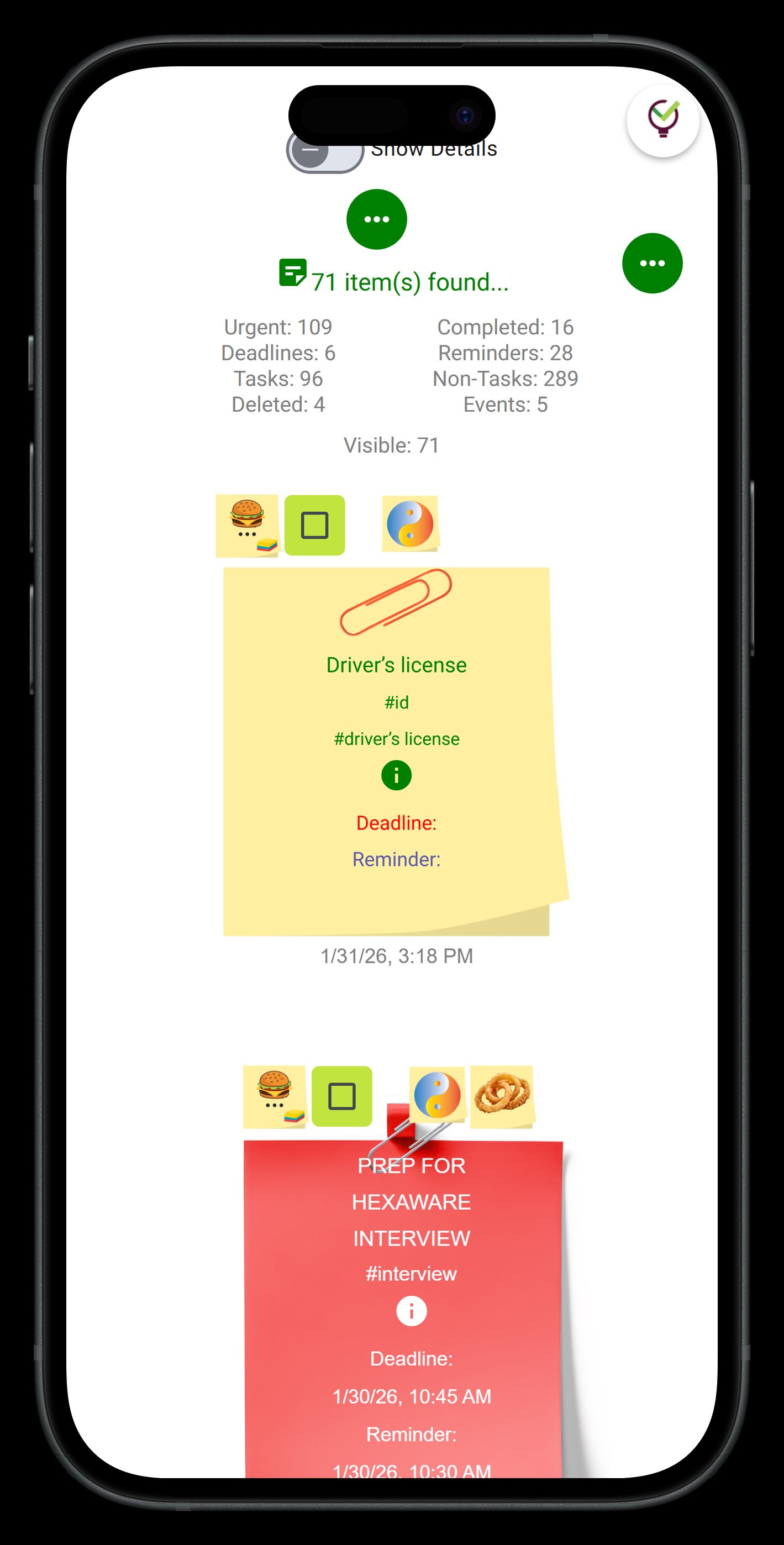
TaskLoco's wall is a free-form canvas of sticky notes. The assembly line setup is a convention you impose on it — and that's a feature, not a limitation. You define your stages, you name your columns, and you own the system entirely.
Step 1 — Define your stages before you open the app. Grab a physical sticky note (ironic, but useful) and write down the stages a task moves through in your specific workflow. Keep it to five or fewer. More than five stages usually means you're tracking sub-tasks, not stages — and sub-tasks belong inside the note, not as separate columns.
Step 2 — Create a note for each stage header. In TaskLoco, create a note for each column label — "Backlog," "This Week," "In Progress," "Review," "Done" — and pin them in a horizontal row across the top of your wall. Give them a distinct color so they read as headers, not tasks.
Step 3 — Create task notes and park them under the right header. Each new task gets its own note. Keep the title tight — one action, one outcome. Use the body of the note for context: links, reference text, questions that need answering before the task can move forward. Drag the note to its current stage column.
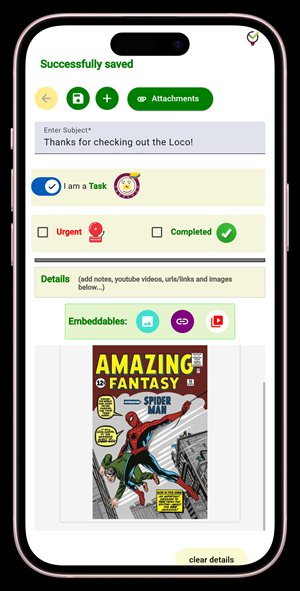
Step 4 — Attach the files that live with the task. TaskLoco Premium includes 10GB of file storage. Attach the brief, the design comp, the spreadsheet, the reference photo — whatever a person picking up that task would need. The note becomes a self-contained work packet, not a pointer to files scattered across three other apps.
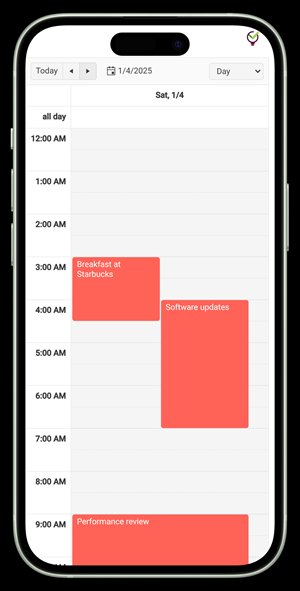
Step 5 — Set a reminder on any note that has a deadline or a follow-up. The reminder fires as a push notification to your phone and computer and deep-links straight back to the note — so you land exactly where you need to be, not on a generic dashboard you have to navigate from. Email and SMS notifications are available as optional add-ons if you want them.
Making the Wall Work for a Team, Not Just Solo
The assembly line model gets more powerful when more than one person feeds into it. TaskLoco Premium's team sharing is built to match the way sticky notes actually get handed off — you share a note with someone, they clone it and make it their own, and both of you have full ownership of your respective copies. No permissions configuration, no access levels, no admin panel to dig through. It works the way sharing a physical note works, but with sync and file attachments included.
This model is particularly clean for handoff-heavy workflows. A designer finishes a mockup, attaches the file to a note, moves it to "Ready for Dev," and shares it. The developer clones the note, moves it to "In Progress" on their own wall, and picks up exactly where the designer left off. No Slack thread explaining where the file lives. No email chain. The note is the handoff.
Real-time sync means every team member sees the wall as it actually is. If someone moves a task to "Blocked" and adds a note explaining why, that update appears immediately for anyone sharing that note. The wall stays accurate without anyone having to remember to update a spreadsheet or send a status message.
Reminders ensure nothing falls through the cracks during handoffs. Set a reminder on a note before you share it — the recipient gets a push notification that deep-links directly to the note, so their first interaction with the task lands them inside the full context you've built for them.
Keeping the Wall From Becoming a Junkyard
Every visual task wall eventually faces the same failure mode: notes accumulate in "Done" until the wall is 80% archive and 20% live work, and the whole system feels overwhelming. A few habits prevent this.
Run a weekly archive pass. At the end of each week, delete or archive everything in "Done." If you need a record of completed work, TaskLoco's full-text search makes it easy to find notes by keyword — you don't need them cluttering the active wall. A clean wall is a usable wall.
Cap your "In Progress" column. This is the most important constraint in any assembly line system. Decide on a limit — three tasks, five tasks, whatever fits your actual capacity — and enforce it. If you want to pull something new into "In Progress," something else has to move to "Done" or go back to "Backlog" first. This single rule prevents the wall from becoming a wish list disguised as a workflow.
Use color intentionally. TaskLoco lets you color-code notes. A simple system goes a long way: red for blocked, yellow for waiting on someone else, green for moving forward. You can read the health of the pipeline in under five seconds without opening a single note.
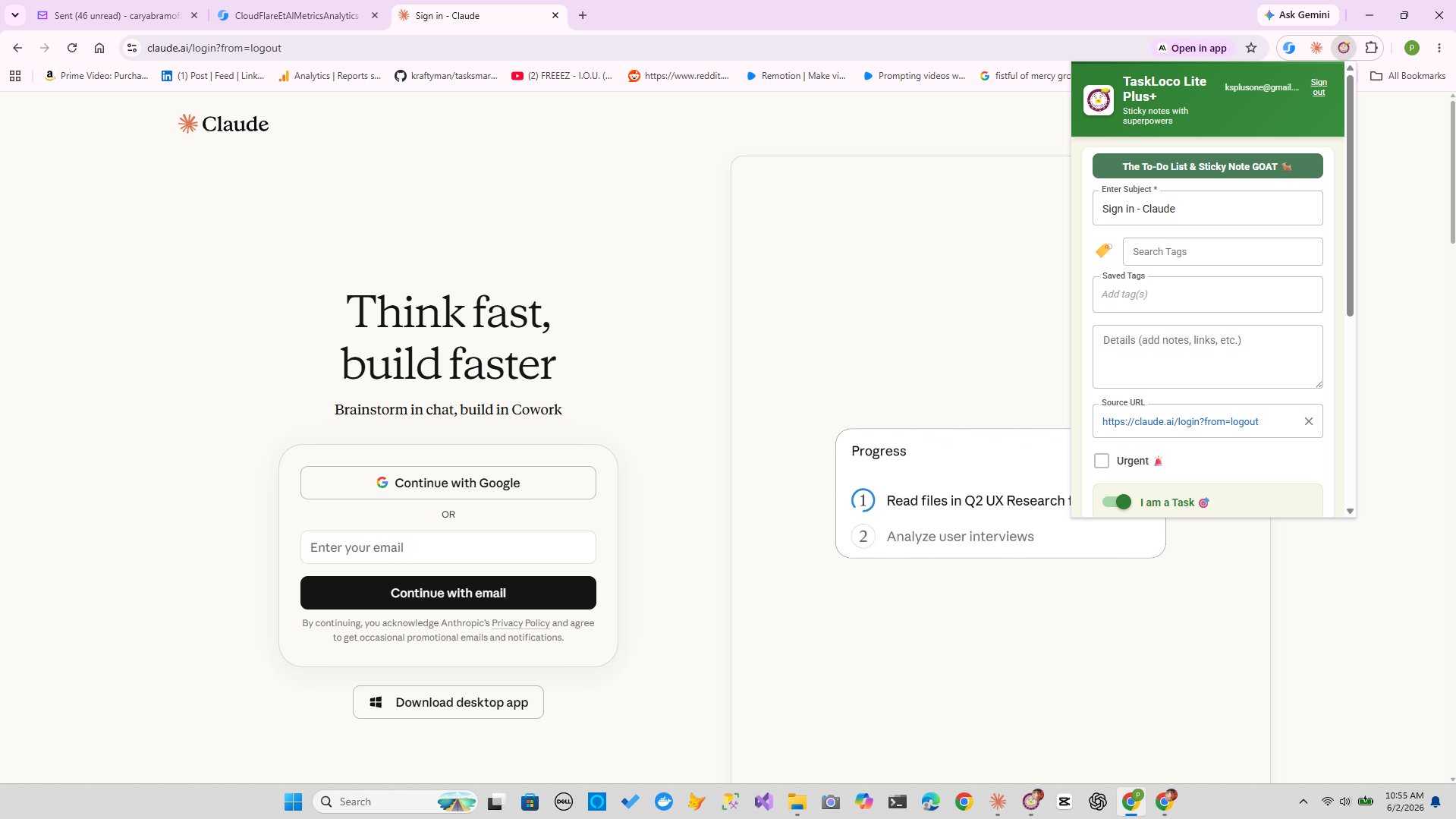
Let the Chrome extension feed the wall. TaskLoco's Chrome extension captures any webpage in one click — useful when a task originates from something you're reading online. Instead of copying and pasting a URL into a note, you clip the page directly into a new note and drop it into the right column immediately. The capture cost drops to nearly zero, which means more tasks actually make it onto the wall instead of living in a browser tab graveyard.
The assembly line model is self-correcting when you trust it. A bloated "In Progress" column tells you you're overcommitted. A full "Backlog" tells you you need to prioritize. A clean path from left to right tells you work is actually moving. The wall doesn't lie — and that honesty is the whole point.
TaskLoco Premium is regularly $9.99/month per person. Right now, charter members can lock in 50% off the regular price — forever. That means $4.99/month per person today. And if our price ever goes up, you still pay half. Always.
Code CHARTER50 auto-applies at checkout. First 500 spots only — once they're gone, this offer is gone permanently. Act fast while spots last.
Every Premium subscription includes unlimited notes, 10GB file storage, reminders, calendar, and team sharing. Each team member requires a separate subscription. 7-day free trial — no charge until day 8. Cancel anytime.
Free Options: TaskLoco
TaskLoco Lite
- Native iPhone & Android app
- Completely anonymous — no sign-in
- Data stays on your device
- Up to 20 notes
- Free forever
TaskLoco Lite Plus+
- Web app + Chrome extension
- Sign in with Google
- Wall syncs across all devices
- Up to 30 notes
- Free forever
Lock In 50% Off — Forever
7-day free trial. No charge until day 8. CHARTER50 auto-applies at checkout.
🔒 Lock In My Charter SpotSee TaskLoco in Action
Frequently Asked Questions
What is a sticky note wall assembly line for tasks?
It's a workflow system where you arrange digital sticky notes in columns representing stages — Backlog, In Progress, Review, Done — and move each note forward as the work progresses. The visual layout makes the state of every task immediately readable without opening a single menu or running a status report. TaskLoco's wall view is built for exactly this kind of arrangement.
How do I create columns in TaskLoco's wall view?
TaskLoco's wall is a free-form canvas — you define the columns yourself by placing header notes in a horizontal row and grouping task notes beneath each one. Assign distinct colors to your header notes so they read as column labels. Drag task notes between columns as work moves through stages. There's no rigid column structure to configure, which means your stages can reflect how your work actually flows.
Can I share my task wall with my team in TaskLoco?
Yes. TaskLoco Premium includes full team sharing. You share a note with a team member — they receive it, clone it, and own their copy. Both of you have full access to all the content and attachments in the note. Changes sync in real time. There are no permission levels or access configurations to manage. Each team member needs their own separate Premium subscription.
Does TaskLoco have reminders for tasks on the wall?
Yes — TaskLoco Premium includes reminders that fire as push notifications to your phone and computer and deep-link straight back to the original note. Optional email notifications and an optional SMS add-on are also available if you want additional notification channels. Reminders are a Premium feature and are not available on Lite or Lite Plus+.
What is the difference between TaskLoco Lite, Lite Plus+, and Premium for this workflow?
TaskLoco Lite is a native iPhone and Android app — anonymous, no sign-in, no sync, up to 20 notes stored on your device only. It's useful for simple note-taking but too limited for an assembly line workflow. TaskLoco Lite Plus+ is the web app and Chrome extension — free, sign in with Google, up to 30 notes, syncs across all your devices. The Chrome extension lets you clip webpages into notes in one click. TaskLoco Premium adds unlimited notes, 10GB file storage, reminders, calendar view, and team sharing — everything you need to run a full task pipeline. $9.99/month per person (currently $4.99/month per person for first 500 charter members with code CHARTER50)
How do I keep my TaskLoco wall from getting cluttered over time?
Run a weekly archive pass and clear everything out of your Done column. Use color coding to signal status at a glance. TaskLoco's full-text search covers all your notes and attachments, so archived or deleted notes are still findable by keyword when you need them.
Does the Chrome extension work with this assembly line setup?
Yes — the TaskLoco Chrome extension (included free with Lite Plus+ and Premium) captures any webpage into a new note in one click. When a task originates from something you're reading online — a client email, a reference article, a brief in a Google Doc — you clip it directly into a note and drop it into the right column on your wall immediately. It eliminates the browser-tab-as-to-do-list problem and keeps your assembly line fed without breaking your reading flow.
Born in Brooklyn. Powered by AWS. Your data stays yours.
TaskLoco is available on iPhone, Android, Chrome, and every web browser.