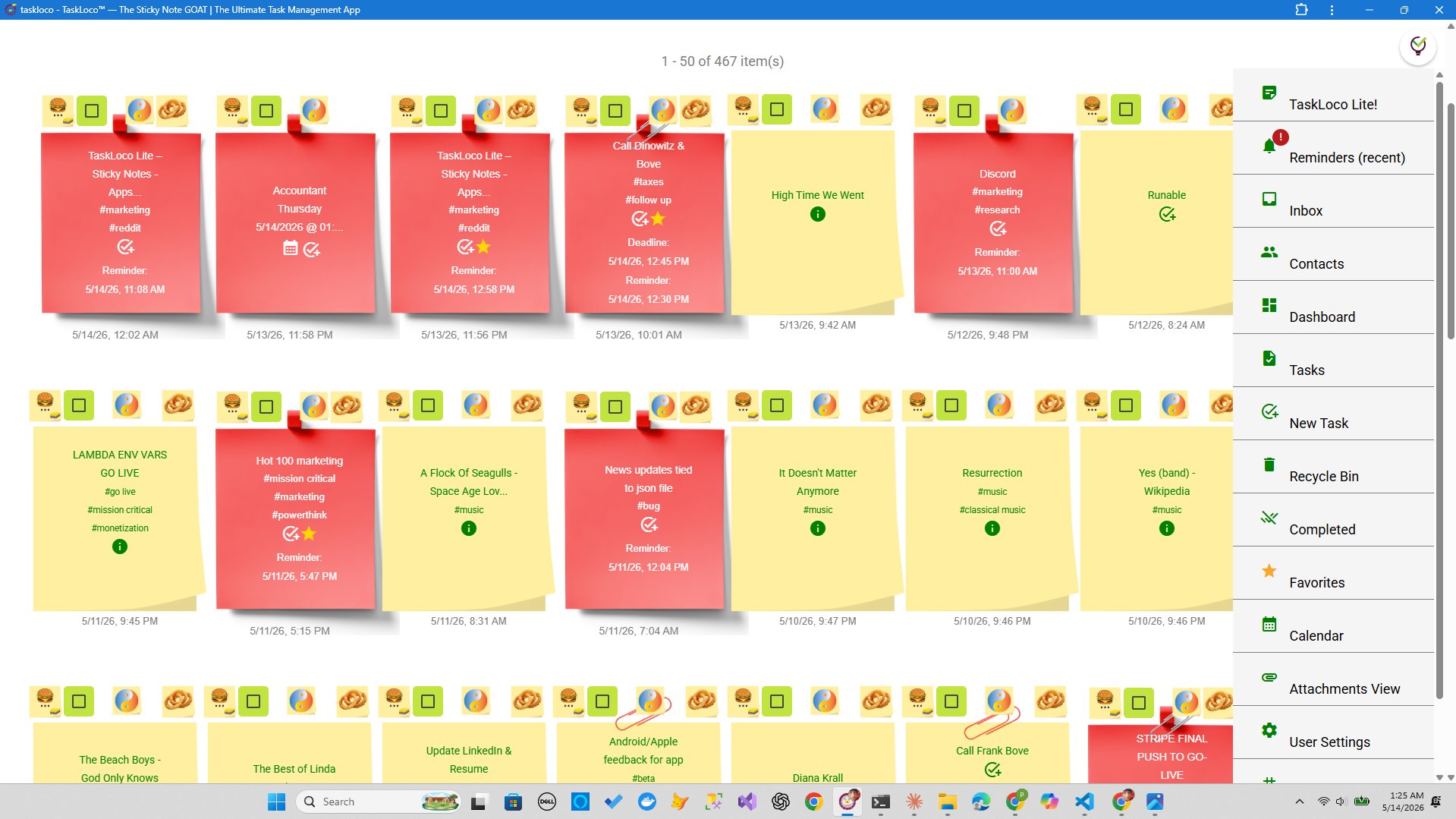
There's a moment every list-maker knows: you open your to-do app, scan forty items, feel vaguely overwhelmed, close it, and go check your email instead. The list isn't broken. The format is. A linear list forces your brain to process tasks one at a time, sequentially, even when your actual work doesn't move that way. An assembly line doesn't work like a list — it works like a wall. Each station is visible, each handoff is obvious, and nobody has to read the instructions to know what happens next.
Visual task management — organizing work spatially on a board or wall rather than in a ranked list — has decades of cognitive science behind it. Kanban boards, storyboards, war rooms covered in sticky notes: these aren't aesthetic choices. They're how humans actually track parallel work. This article breaks down what a task wall is, who benefits most from one, and what to look for when choosing a tool built around that model.
What to look for in a visual task wall tool
Before any specific product enters the conversation, it helps to define what actually makes a visual task wall work — because not every Kanban-style board delivers the same thing. There are three criteria that separate genuinely useful wall tools from ones that just look good in a screenshot.
1. Spatial freedom without friction. A wall lives and dies by how fast you can place, move, and rearrange things. If creating a new card takes four clicks or requires filling out a form, the wall stops being a wall and starts being a database with a prettier skin. The best tools let you drop a new note in under two seconds and drag it somewhere else in one. The physical sticky note is still the gold standard for speed — a great digital wall matches that feeling.
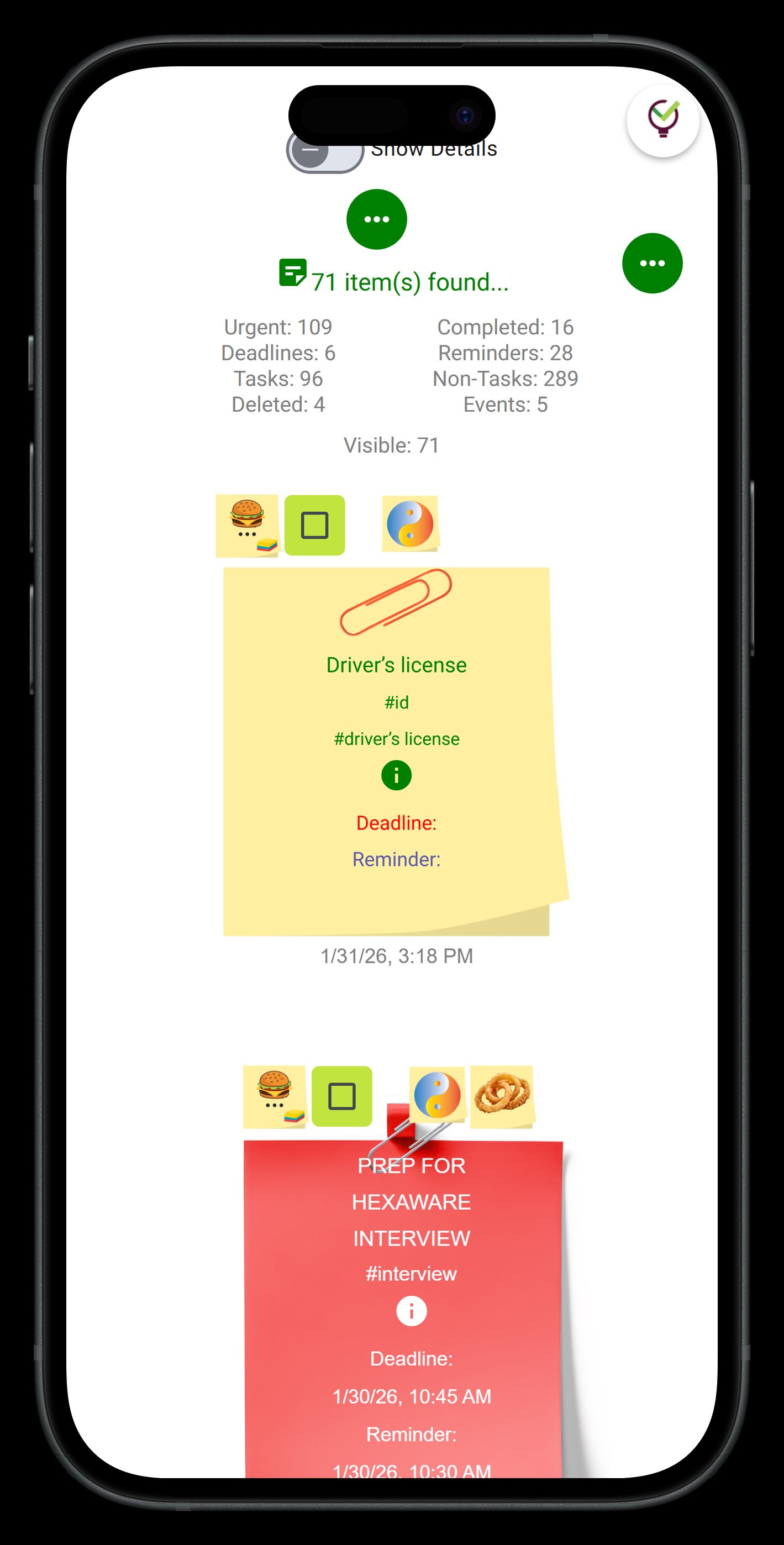
2. Glanceability — the whole picture at once. The point of a wall is that you can see everything without scrolling, clicking, or filtering. Color coding, size variation, and spatial grouping should do the organizational work your brain would otherwise have to do consciously. If you have to open individual cards to understand your workload, the wall isn't working. Look for tools that surface status, priority, and context through visual design rather than through metadata fields buried inside each task.
3. Reminders and files attached to the note itself, not filed separately. A task wall fails the moment the actual work — the brief, the attachment, the deadline — lives somewhere else. The note on the wall should be the single source of truth. That means file attachments directly on the card, reminders that deep-link back to the exact note when they fire, and enough room on each card to hold real context, not just a title.
Why lists fail parallel work (and walls don't)
Lists are great for grocery shopping. They're genuinely bad for knowledge work, creative projects, or anything where multiple threads run simultaneously. The core problem is cognitive: a list implies a sequence. Item one, then item two, then item three. But most real work isn't sequential. You're waiting on a client response for task A, actively working on task B, and need to start task C before task D can move. A list can't show you that picture — it just shows you four items in an order that doesn't reflect what's actually happening.
A wall externalizes the state of your work. Instead of holding the mental model in your head — where is each thing, what's blocked, what's next — you put it on the board and let your eyes do the processing. Cognitive load research consistently shows that visual-spatial information is processed faster and retained longer than sequential text. This is why pilots use instrument panels instead of checklists during a landing, and why film productions use physical storyboard walls instead of shot lists during pre-production.
The assembly line analogy is apt for another reason: it makes handoffs obvious. When a note moves from a 'drafting' column to a 'review' column, everyone who can see the board knows something changed. No status update meeting required. No 'can you check on where that is?' email. The wall communicates passively, continuously, to everyone who looks at it.
What makes TaskLoco's wall different
TaskLoco was built around the sticky note as the atomic unit of work — not the list item, not the row in a database, not the card in a project management hierarchy. That distinction matters more than it sounds. A sticky note has edges. It's a bounded object. When your task wall is made of sticky notes rather than rows, you're forced to be concise, and the board stays readable even when it's full.
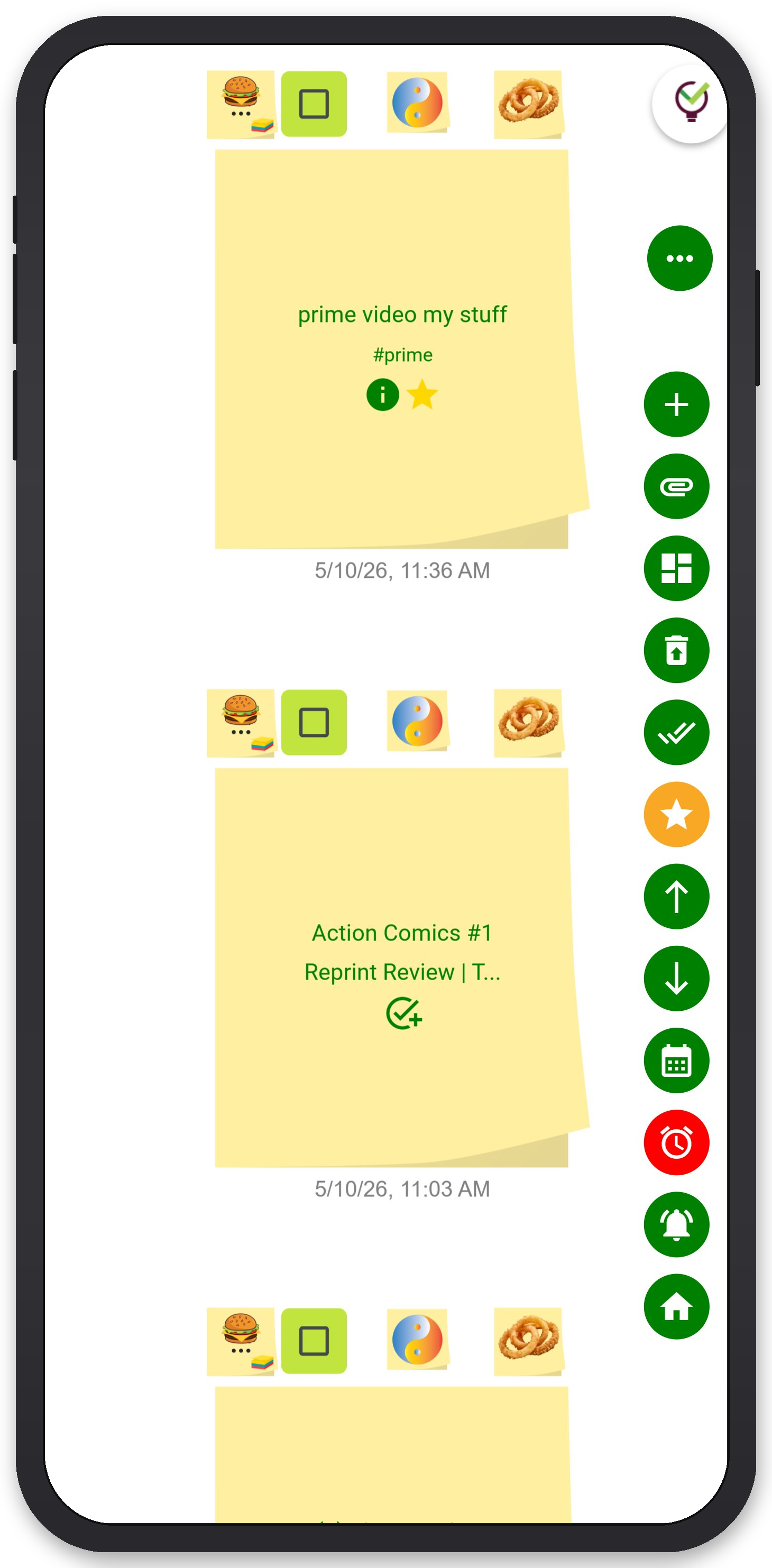
The web wall view in TaskLoco lets you arrange notes spatially, color-code them by project or priority, and see reminders and attached files directly on the card face. When a reminder fires, it arrives as a push notification to your phone and computer — and tapping it deep-links you straight back to the original note, not to a generic notification screen or an inbox you have to dig through. Optional email and SMS notifications are available on top of that, but the push notification is the core mechanic: you get pulled directly back into the work, zero navigation required.
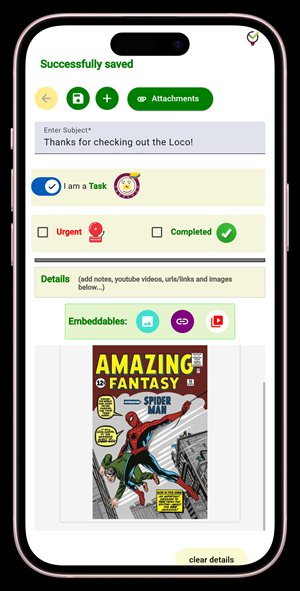
File attachments live on the note itself. With TaskLoco Premium's 10GB of included storage — expandable with add-on tiers up to 1TB — the brief, the image, the spreadsheet, and the reference doc all live on the card where the task lives. The wall doesn't link out to a folder somewhere else. Everything is on the board.
For teams, shared notes work the way email does: a recipient gets the note, can clone it, and makes it their own copy to work from. No permissions matrices, no access levels to configure, no 'viewer vs. editor' debates. The note arrives, you own it, you work it. Real-time sync keeps everyone's wall current automatically.
Building your own assembly line in TaskLoco
The assembly line isn't a metaphor TaskLoco imposes on you — it's a pattern you build with the wall. The most common setup is three columns: Queued, In Progress, and Done. Notes move left to right as work advances. Color coding separates projects or clients. Reminders on individual notes surface the ones that need attention today without burying the rest.
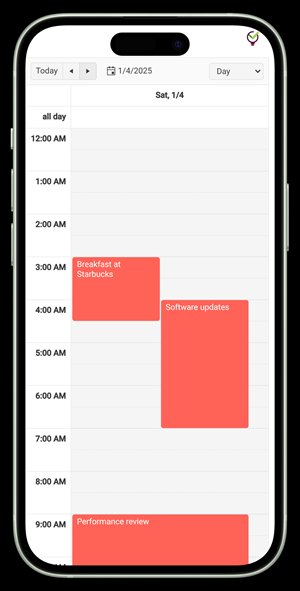
But the wall is flexible. Creative teams often run it as a storyboard — each note is a scene, a slide, or a deliverable, and the spatial arrangement reflects the actual sequence of the final product. Operations teams use it as a status board — one column per team member, notes represent active tasks, and the wall replaces the weekly stand-up. Solo users often run a simple priority wall: urgent notes at the top, everything else sorted below, with the Calendar view in Premium showing the time dimension alongside the spatial one.
What doesn't change across any of these setups: the note is always the single source of truth. The file is on the note. The reminder fires back to the note. The team member receives the note. The wall shows all the notes. Nothing is hidden in a sidebar or buried in a notification log. The assembly line is visible, the work is moving, and you can see exactly where everything is without asking anyone.
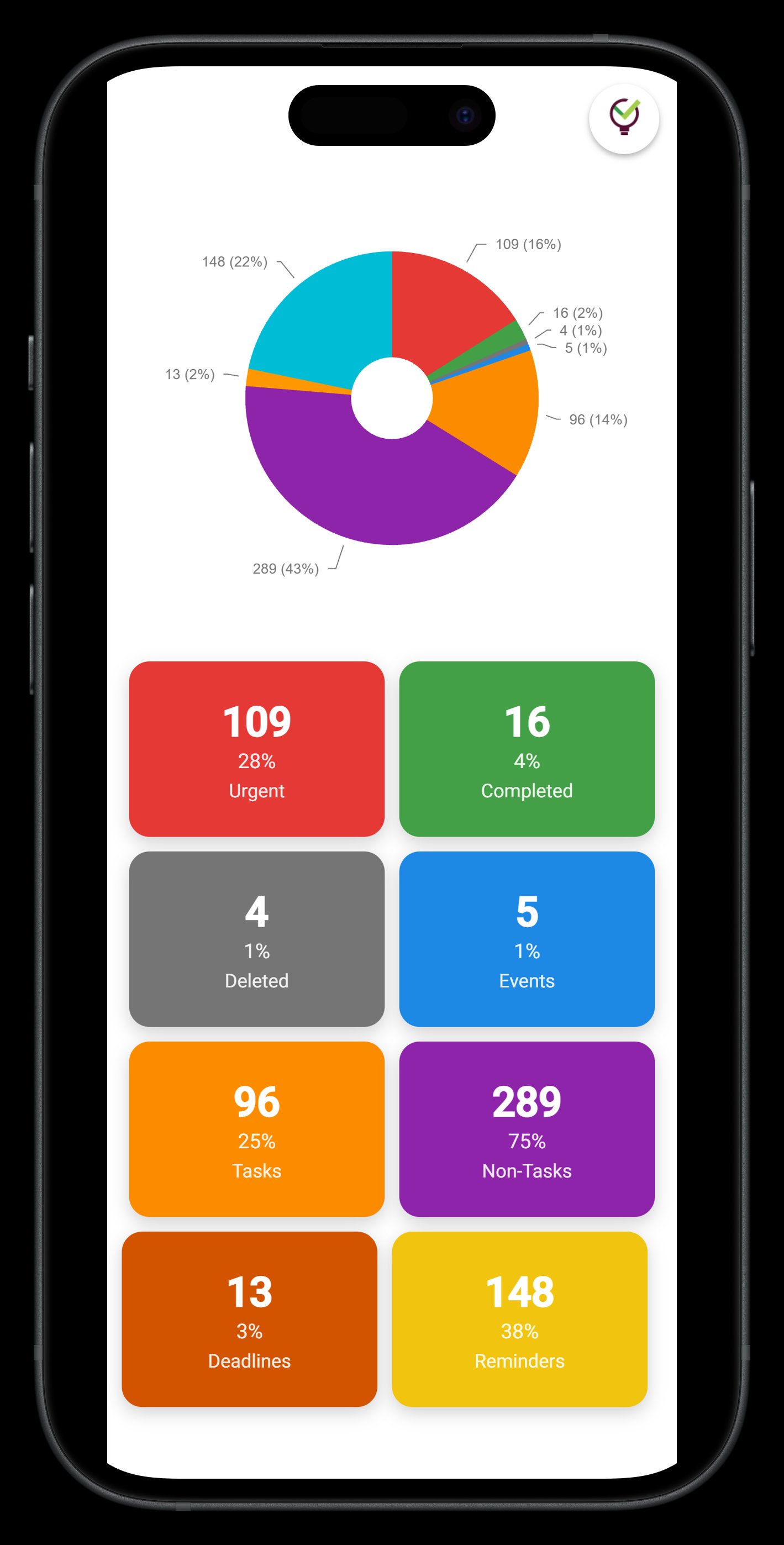
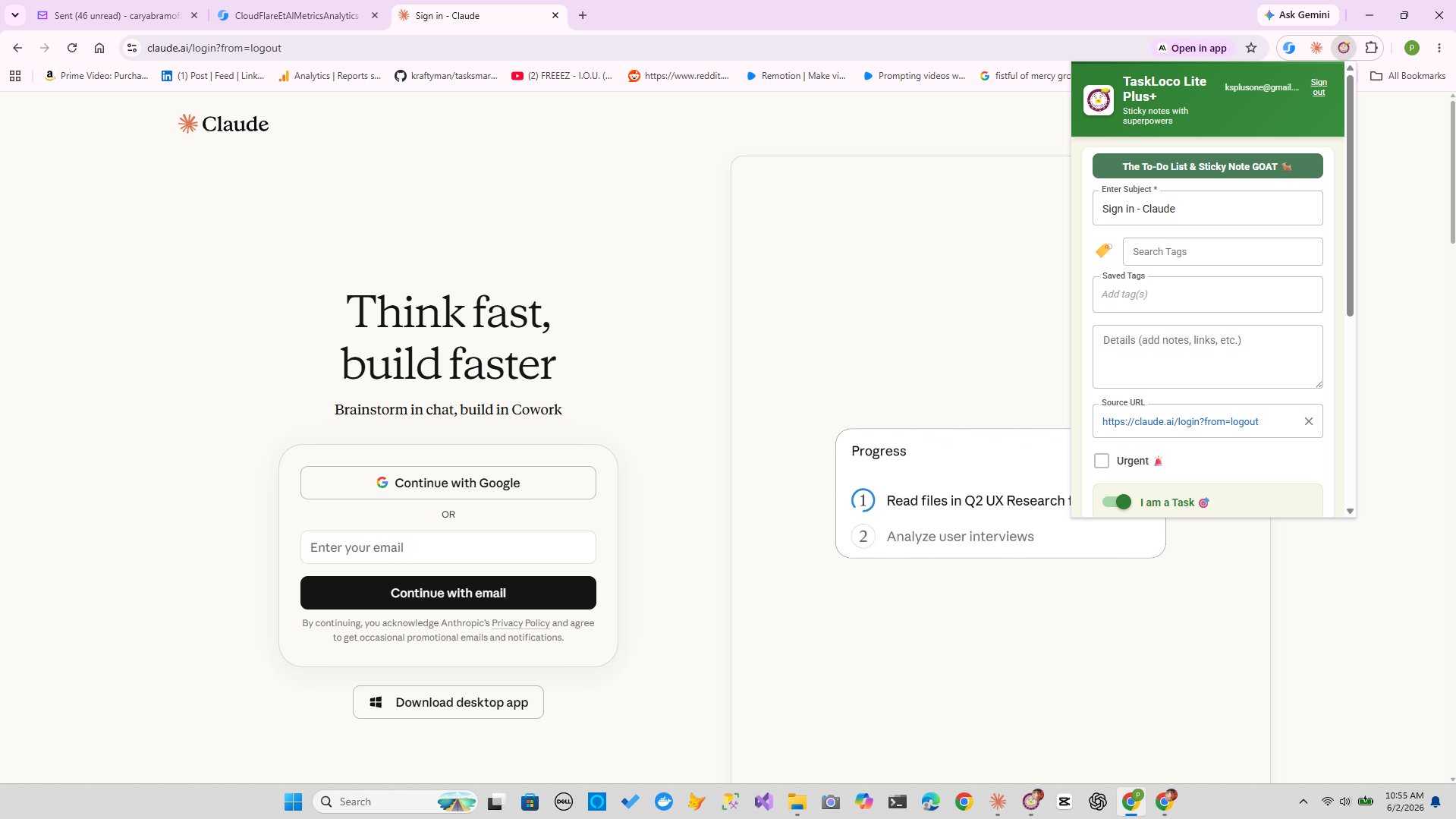
TaskLoco Lite Plus+ — free, no credit card, sign in with Google — gives you up to 30 synced notes across all your devices and the Chrome extension for one-click capture. It's the fastest way to try the wall format with zero commitment. When your work outgrows 30 notes or you need reminders, files, and team sharing, Premium is the next step.
TaskLoco Premium is regularly $9.99/month per person. Right now, charter members can lock in 50% off the regular price — forever. That means $4.99/month per person today. And if our price ever goes up, you still pay half. Always.
Code CHARTER50 auto-applies at checkout. First 500 spots only — once they're gone, this offer is gone permanently. Act fast while spots last.
Every Premium subscription includes unlimited notes, 10GB file storage, reminders, calendar, and team sharing. Each team member requires a separate subscription. 7-day free trial — no charge until day 8. Cancel anytime.
Free Options: TaskLoco
TaskLoco Lite
- Native iPhone & Android app
- Completely anonymous — no sign-in
- Data stays on your device
- Up to 20 notes
- Free forever
TaskLoco Lite Plus+
- Web app + Chrome extension
- Sign in with Google
- Wall syncs across all devices
- Up to 30 notes
- Free forever
Lock In 50% Off — Forever
7-day free trial. No charge until day 8. CHARTER50 auto-applies at checkout.
🔒 Lock In My Charter SpotSee TaskLoco in Action
Frequently Asked Questions
What is a visual task wall and how is it different from a to-do list?
A visual task wall arranges tasks spatially — on a board, in columns, or grouped by project — so you can see everything at once without reading through a ranked list. The key difference is glanceability: a list makes you process tasks sequentially, one by one. A wall lets your eyes scan the whole picture in seconds, showing you what's in progress, what's blocked, and what's next without any mental translation. TaskLoco's wall is built on sticky notes, which keeps the board readable and forces useful conciseness on every card.
Is a Kanban board the same as a task wall?
Kanban is one specific implementation of the visual wall concept — typically three or more columns (To Do, In Progress, Done) through which cards flow left to right. A task wall is broader: it includes Kanban-style column layouts but also freeform spatial boards, storyboards, priority grids, and any other arrangement where tasks occupy physical space rather than a linear list. TaskLoco supports both structured column arrangements and freeform spatial organization, so you can run a Kanban-style flow or build any other pattern that fits your work.
Who benefits most from a wall-based task system instead of a list?
Anyone running multiple parallel workstreams at once — which is most knowledge workers, most of the time. Lists work well when tasks are genuinely sequential and one thing follows another. They break down when you have five active projects, each at a different stage, each with different blockers. Writers, designers, marketers, operations teams, and product builders all tend to benefit more from a wall because their work isn't linear. Solo users with complex personal projects also find walls dramatically reduce the mental overhead of remembering where everything stands.
Does TaskLoco have a free version I can try?
Yes — two of them. TaskLoco Lite is a completely free native iPhone and Android app: no sign-in, no account, completely anonymous. It stores up to 20 notes in a file on your device. Sign in with Google and you get up to 30 notes synced across all your devices, plus one-click webpage capture from the Chrome extension. Neither free tier includes reminders, file attachments, or team sharing — those are Premium features. Lite Plus+ is the best way to experience the wall format before upgrading.
How do reminders work in TaskLoco?
TaskLoco reminders are delivered as push notifications to your phone and computer. The key feature is that tapping a reminder deep-links you directly back to the original note — not to a generic inbox or notification screen, but to the exact card the reminder belongs to. Optional email notifications are available at no extra cost. Optional SMS notifications are available as an add-on. Reminders are a Premium-only feature and are not available in Lite or Lite Plus+.
Can I attach files to notes on the TaskLoco wall?
Yes, with TaskLoco Premium. Every Premium subscription includes 10GB of file storage, and attachments live directly on the note — not in a separate folder or linked storage system. The brief, the image, the spreadsheet, and the reference document are all right there on the card, visible on the wall. Storage add-ons are available in 10GB, 50GB, 200GB, and 1TB tiers, stackable up to 100x for high-volume needs. File attachments are not available in Lite or Lite Plus+.
What is TaskLoco Premium and what does it include?
$9.99/month per person (currently $4.99/month per person for first 500 charter members with code CHARTER50)
Born in Brooklyn. Powered by AWS. Your data stays yours.
TaskLoco is available on iPhone, Android, Chrome, and every web browser.