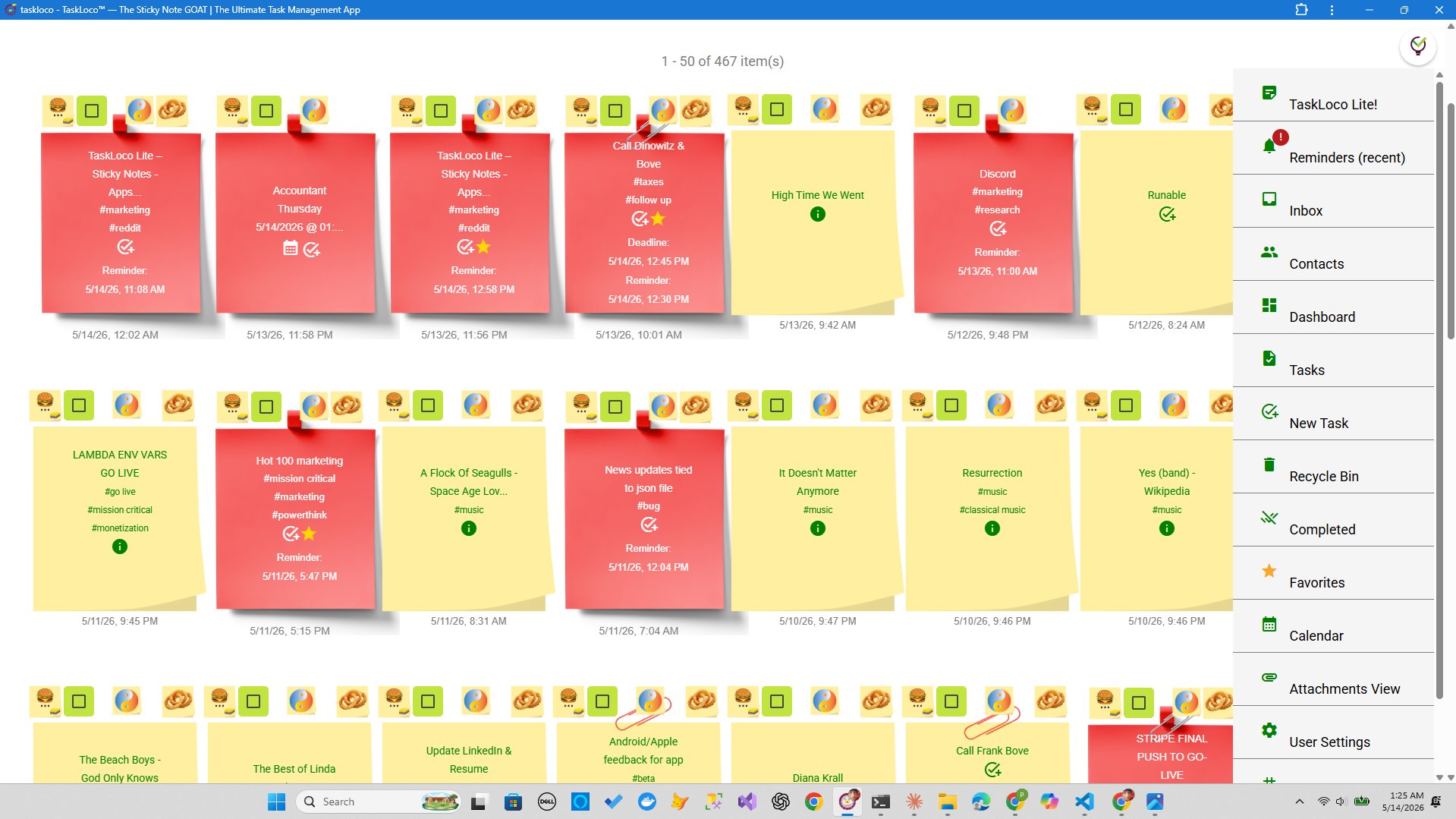
You took the notes. You were there. You wrote things down. And now, three weeks before the exam, you cannot find that one diagram about the Krebs cycle or the professor's exact wording on the essay prompt. The notes exist — somewhere — buried in a folder inside a folder, or split across three different apps, or photographed and sitting in your camera roll with no label.
This is not a memory problem. It is a system problem. Good lecture note organization is not about buying the right notebook or downloading the prettiest app — it is about building a structure that makes retrieval effortless, because the moment you took the note is not the moment you need it. That gap, between capture and retrieval, is where most note systems fall apart. Fix the system and the notes take care of themselves.
What to Look for in a Lecture Note System
Before any specific app or method enters the conversation, it helps to understand what a lecture note system actually needs to do. Most students pick a tool based on aesthetics or because a friend uses it — then wonder why they still can't find anything at exam time. The criteria that actually matter are simpler than you'd expect.
Speed of capture. During a lecture, you do not have time to navigate menus, create new folders, or decide which category a note belongs to. The best systems let you get a thought down in under three seconds and sort it later. If capture is slow or requires decisions upfront, you will miss things or revert to a random scratchpad that never gets organized.
Searchability. Structure helps, but search saves you when structure breaks down — and it always breaks down eventually. A good system indexes everything: note titles, body text, tags, and ideally the content of any attached files. If you can type a keyword and surface the right note in under five seconds, your system is working. If you have to remember which folder you put something in, it is not.
Retrieval that connects to context. A note without context is almost useless. The best systems let you link a note back to its source — a lecture date, a course, a reading — so when you find it, you immediately know what it belongs to. Reminders and calendar views that anchor notes to dates are especially powerful here. Without that connective tissue, even well-organized notes feel like loose pages from someone else's notebook.
Build a Structure You'll Actually Maintain
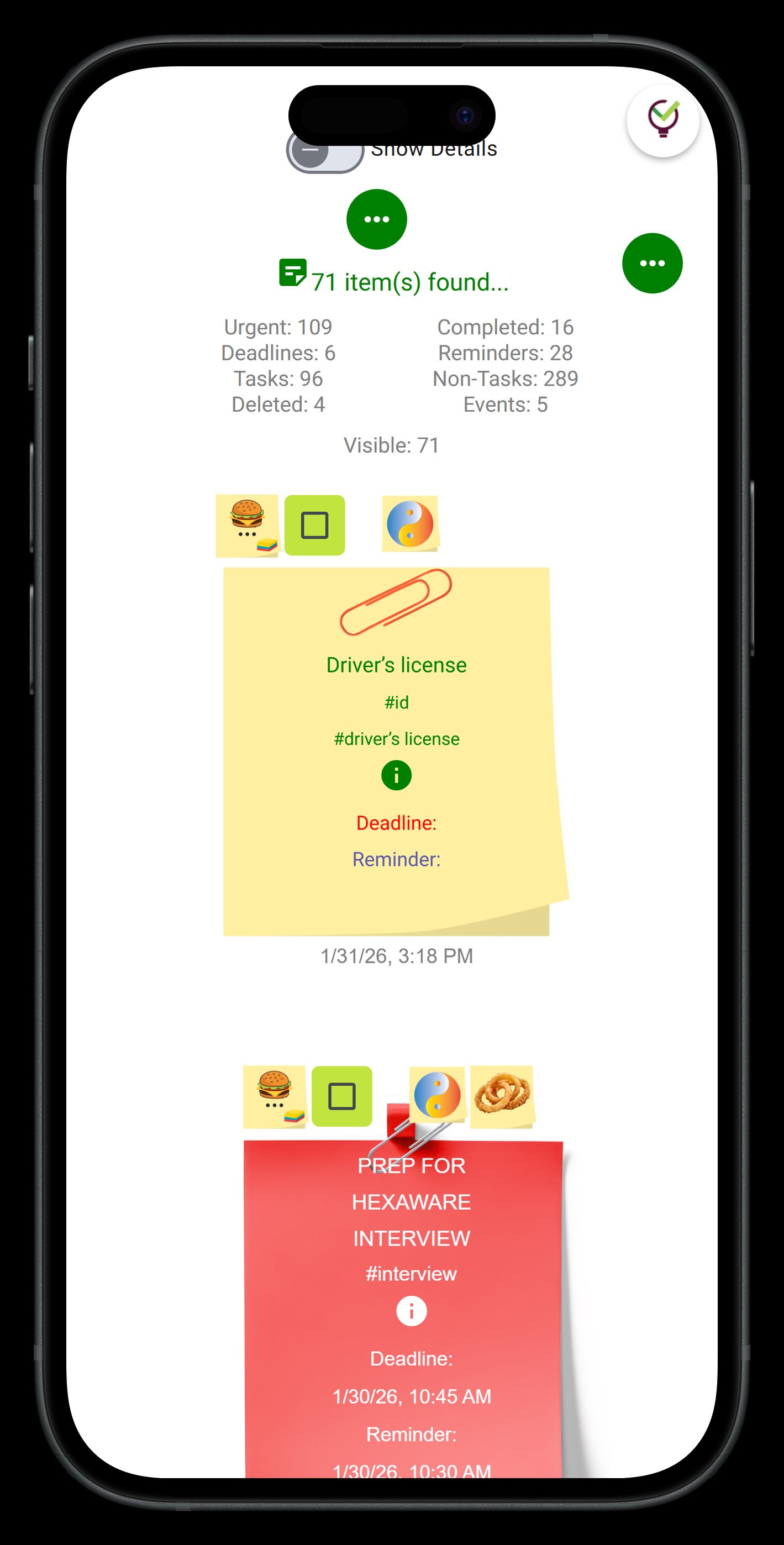
The most common mistake in lecture note organization is over-engineering upfront. Students create elaborate folder hierarchies — Subject → Semester → Week → Topic → Subtopic — and then abandon the whole thing by week three because it takes longer to file a note than to write it. Good structure has to be shallow enough that filing is automatic.
A proven approach: one note per lecture, named with the course and date. That is it for the filing decision. Everything from that lecture goes into that note — your typed text, photos of the whiteboard, the PDF the professor uploaded, the question you forgot to ask. One container, one decision per class. At the end of the week, you spend five minutes adding tags or linking related notes. That maintenance window is where the real organization happens, not during the lecture itself.
Tags beat folders for lecture notes because a single note can belong to multiple contexts. A note on regression analysis might belong to your stats course, your research methods course, and your thesis project simultaneously. Nested folders cannot handle that. Tags can. Use course codes as primary tags, then add topic tags for anything that crosses subject lines.
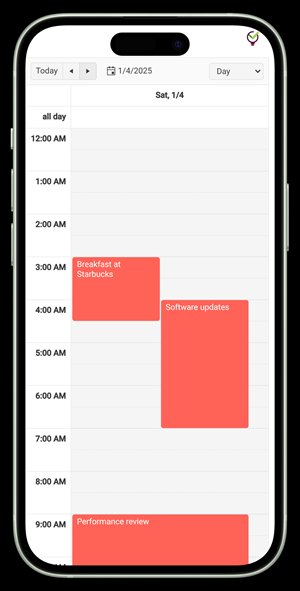
Date anchoring is underrated. Lectures happen in a linear sequence, and your brain encodes information partly by when it happened. A calendar view that shows which notes belong to which date lets you reconstruct the sequence of a course the way it was actually taught — which is often how exam questions are structured. If your note system does not have a calendar view, you are losing that temporal scaffold entirely.
Capture Everything: Text, Photos, and Files in One Place
Lecture notes are not just text anymore. Professors write on whiteboards. They project slides. They hand out physical sheets. They paste links in the chat. A note system that only handles typed text forces you to manage these other formats separately — which means you will eventually lose one of them, usually the most important one.
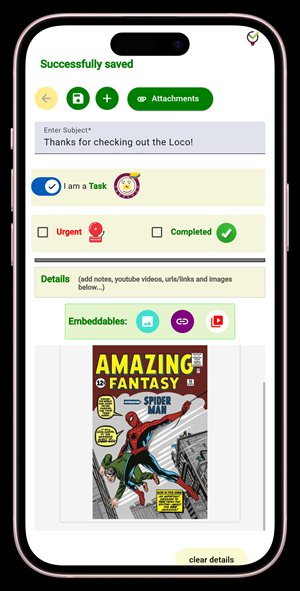
The right move is to attach everything to the lecture note it belongs to, right when you capture it. Photograph the whiteboard and attach it directly. Download the slide deck and attach it. Paste the URL. When you come back to that note before the exam, everything from that lecture is in one place. You do not have to remember which folder in your Downloads the PDF went to.
TaskLoco Premium includes 10GB of file storage per person, which is enough for an entire academic year of lecture materials without worrying about space. You can embed photos directly into a note and attach files of any type. The note stays the single source of truth for that lecture — text, images, attachments, and all.
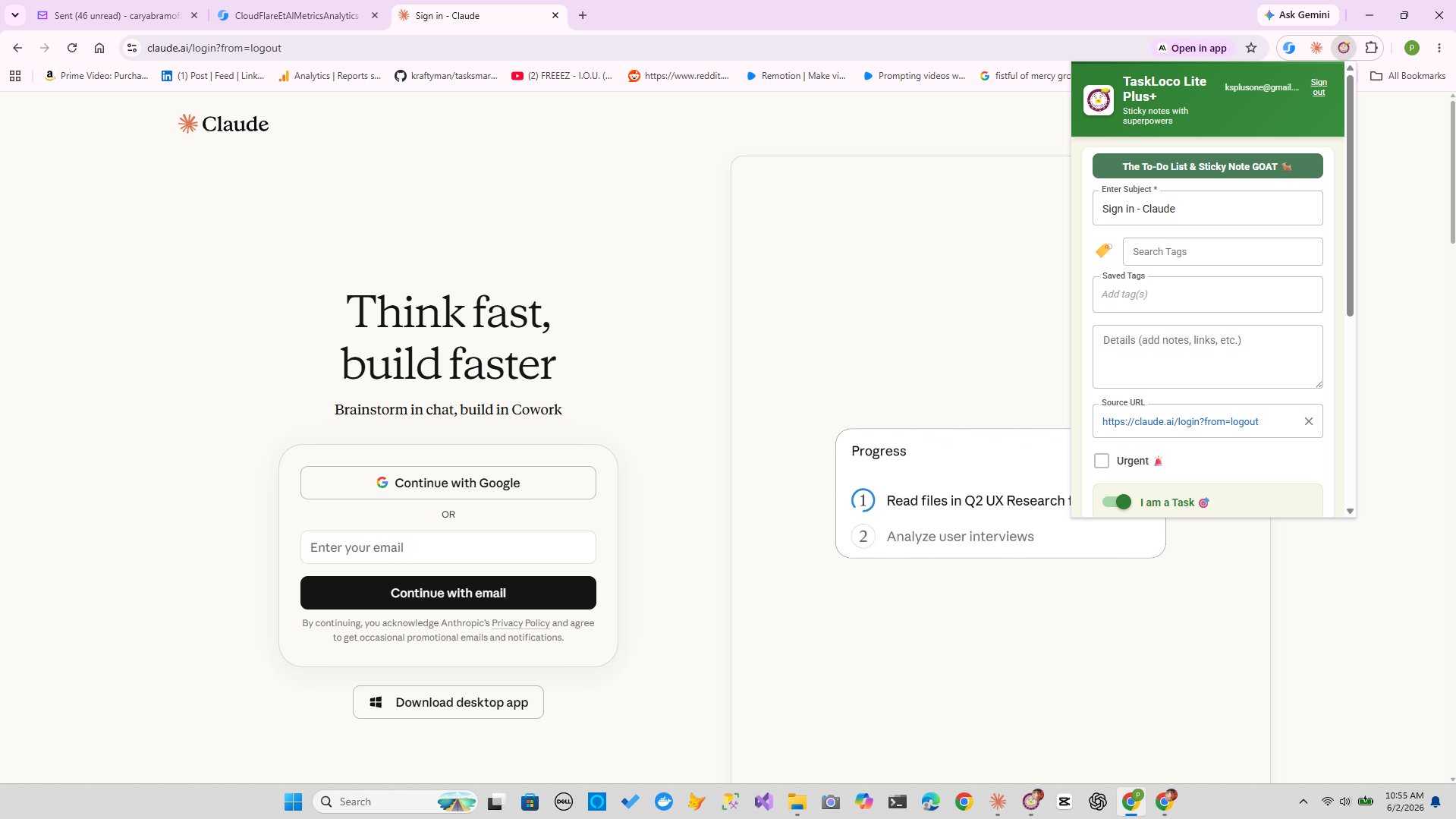
TaskLoco also lets you capture web content in one click through the Chrome extension. If your professor links to an article or a dataset during class, you can clip the page straight into a note without breaking your flow. That clipped note syncs across all your devices immediately, so it is waiting for you when you sit down to review later.
Make Notes Findable: Search, Reminders, and the Deep-Link Advantage
Organization is only half the job. The other half is retrieval — getting back to the right note at the right time without friction. Two features make that happen: search and reminders.
Full-text search should be non-negotiable in any note system you commit to. TaskLoco searches across all your notes and attachments, so whether you remember writing 'opportunity cost' in week two or you just know it came up during the supply-and-demand lecture, you can surface it in seconds. No folder-diving. No scrolling through a flat list hoping to recognize something.
Reminders in TaskLoco do something most note apps miss: each reminder is delivered as a push notification to your phone and computer, and it deep-links directly back to the original note. That means when your phone buzzes the night before a quiz with 'Review cellular respiration,' tapping the notification opens that exact lecture note — not the app home screen, not a list of all notes, the specific note. That one feature collapses the gap between 'I set a reminder' and 'I actually reviewed the material.' Optional email notifications are available as an additional channel, and SMS is available as an add-on.
TaskLoco Lite Plus+ is free, requires only a Google sign-in, and syncs up to 30 notes across all your devices. For most students starting out, that is enough to test the system. When your note count grows past 30 or you need reminders, file attachments, and calendar view, TaskLoco Premium picks up exactly where Lite Plus+ leaves off — no relearning the interface, no migrating to a different app.
TaskLoco Premium is regularly $9.99/month per person. Right now, charter members can lock in 50% off the regular price — forever. That means $4.99/month per person today. And if our price ever goes up, you still pay half. Always.
Code CHARTER50 auto-applies at checkout. First 500 spots only — once they're gone, this offer is gone permanently. Act fast while spots last.
Every Premium subscription includes unlimited notes, 10GB file storage, reminders, calendar, and team sharing. Each team member requires a separate subscription. 7-day free trial — no charge until day 8. Cancel anytime.
Free Options: TaskLoco
TaskLoco Lite
- Native iPhone & Android app
- Completely anonymous — no sign-in
- Data stays on your device
- Up to 20 notes
- Free forever
TaskLoco Lite Plus+
- Web app + Chrome extension
- Sign in with Google
- Wall syncs across all devices
- Up to 30 notes
- Free forever
Lock In 50% Off — Forever
7-day free trial. No charge until day 8. CHARTER50 auto-applies at checkout.
🔒 Lock In My Charter SpotSee TaskLoco in Action
Frequently Asked Questions
What is the best way to organize lecture notes by subject?
Use one note per lecture, tagged with the course code. Avoid deep folder hierarchies — they slow down capture and get abandoned. Tags let a single note belong to multiple subjects simultaneously, which is essential when course material overlaps. A calendar view that shows notes by date helps you follow the sequence of a course the way it was actually taught.
How do I find a specific lecture note quickly?
Full-text search is the most reliable retrieval method. If your note app searches body text and attachments, you can find anything by keyword without remembering where you filed it. TaskLoco searches across all your notes and attached files, so a single term surfaces the right note in seconds.
Should I take notes on my phone or laptop during lectures?
It depends on your typing speed and the course format. Laptops are faster for dense text-heavy lectures. Phones are better when you need to photograph a whiteboard or capture something quickly mid-discussion. The ideal system supports both — your phone and laptop notes should sync automatically so you always have one unified record of each lecture. TaskLoco Lite Plus+ and Premium sync across devices in real time through the web app.
How do I organize notes from the same course across an entire semester?
Tag every note with the course code and the week or unit. At the end of each week, spend five minutes reviewing the week's notes and adding any cross-topic tags. Use a calendar view to preserve the chronological sequence — exams often follow the order lectures were given, and being able to reconstruct that timeline is a significant study advantage. TaskLoco Premium's calendar view shows notes anchored to dates, making end-of-semester review much faster.
What should I do with photos of whiteboards and handouts?
Attach them directly to the lecture note they belong to — not a separate photo album or folder. An attached whiteboard photo that lives inside the lecture note is instantly findable. The same photo sitting in your camera roll with a generic timestamp is effectively lost. TaskLoco Premium lets you embed photos and attach files of any type directly to notes, with 10GB of storage included per person.
How do reminders help with lecture note review?
The most useful reminders do not just ping you — they take you directly to the right note. TaskLoco reminders are delivered as push notifications to your phone and computer, and each one deep-links back to the original note. Tapping the notification opens that specific lecture note immediately. Optional email notifications are available as an additional channel, and SMS is available as an add-on.
Is TaskLoco free for students?
$9.99/month per person (currently $4.99/month per person for first 500 charter members with code CHARTER50)
Born in Brooklyn. Powered by AWS. Your data stays yours.
TaskLoco is available on iPhone, Android, Chrome, and every web browser.