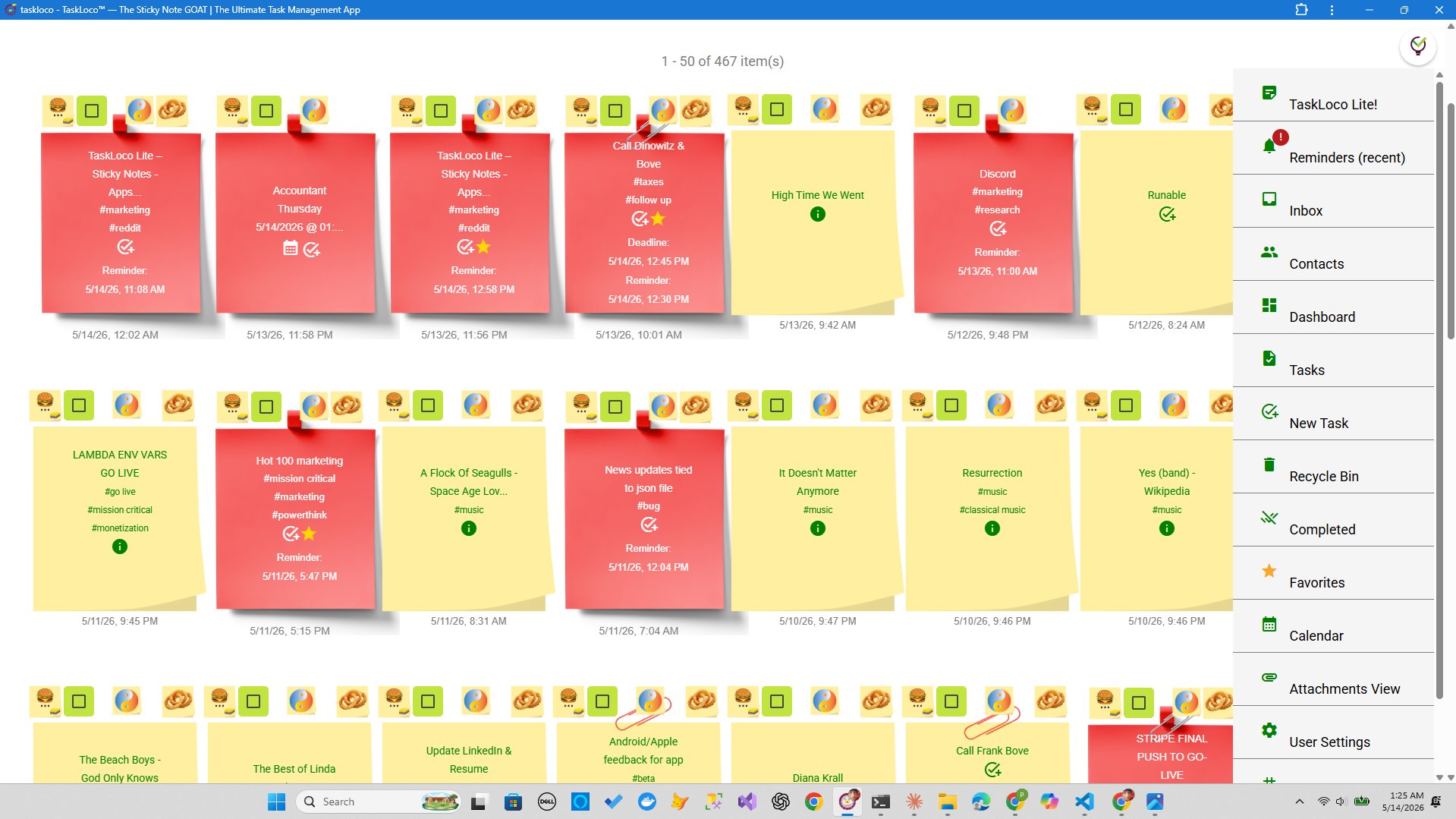
Finals week has a way of turning a manageable semester into a wall of anxiety. Three exams, two papers, a group project, and a lab report — all landing within five days of each other. The students who get through it without a meltdown aren't necessarily smarter. They're better organized, and almost always visual. They can see the week.
A visual study wall is exactly what it sounds like: every subject, every deadline, every task pinned in front of you at once. No hunting through a buried calendar, no scrolling past irrelevant notes. The goal is a single surface that tells you, at a glance, what needs to happen today — and what's waiting for tomorrow. This article walks through how to build one that actually works, and why the right digital tool makes it far more powerful than paper ever could.
What Makes a Visual Study Wall Actually Work
Before any app enters the picture, it helps to understand what a visual study wall is trying to do — and why most students get it wrong. The point is not decoration. It's not a mood board. A study wall works when it reduces the number of decisions you have to make during the week. Every open question — what do I study next? when is that due? where did I save that reading? — is cognitive overhead that drains focus you need for actual learning.
A wall that works has three qualities:
- Completeness. Every deadline and every task is on it. A wall with gaps is just a false sense of security. If you have to remember things that aren't on the wall, the wall isn't working.
- Visibility. You can see the whole week — or the whole exam period — without clicking, scrolling, or switching tabs. The moment you have to navigate to find something, it stops being a wall and becomes just another app.
- Proximity to the material. The best study walls connect the task to the resource. A sticky note that says "review Ch. 7" is less useful than one that links directly to your annotated PDF or the lecture slide you flagged. Distance between the task and the material costs time.
Paper whiteboards and cork boards get visibility right but fail on proximity and completeness — you can't attach a PDF to a sticky note on your bedroom wall. Digital tools get proximity right but often fail on visibility, burying tasks inside menus, filters, or project views that require navigation. The ideal tool gives you a genuine wall view — notes arranged spatially — while also letting you attach files, set reminders, and sync across devices. That combination is rarer than it should be.
How to Build Your Study Wall — Subject by Subject
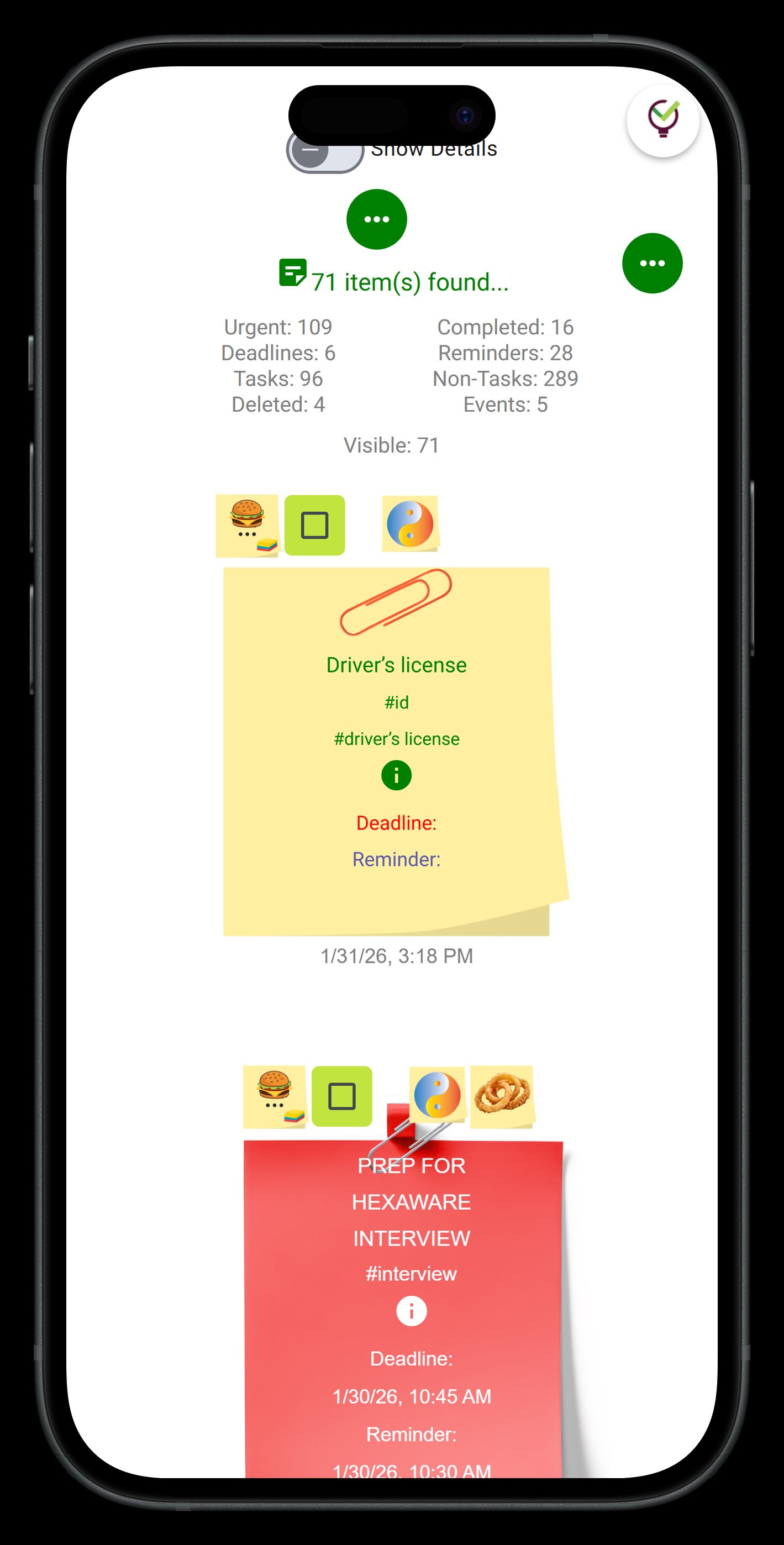
The most common mistake is starting with tasks. Start with subjects. Create one note — one anchor — for each course you're studying for. Give each a distinct color. Color is not cosmetic here; it's how your brain processes the wall in under a second without reading every word. Blue for biology, yellow for economics, red for history. Whatever you choose, keep it consistent for the whole exam period.
Under each subject anchor, build out three categories of notes:
- Deadlines. Exam date, paper due date, any submission cutoff. One note per deadline, date prominent at the top. These are fixed points — the wall is built around them.
- Topics to cover. Break each subject into discrete chunks — chapter by chapter, concept by concept. Each chunk gets its own note. This is where the wall pays off: when you can see twenty topic notes for a subject and you've been checking them off, you know exactly where you stand.
- Resources. Lecture slides, recorded sessions, your own notes, a textbook chapter — attach them directly to the relevant topic note. Don't make yourself search for a file when it's time to study it.
Once the wall is populated, arrange it chronologically. Exams soonest go to the top-left. Exams furthest out go to the bottom-right. Work across the wall each day, pulling the nearest deadlines into a "today" column. By day three of finals week, you should be able to look at the wall for ten seconds and know exactly what you're doing for the next eight hours.
Why TaskLoco Is the Right Tool for This
TaskLoco was built around the sticky note as a first-class object — not as a tag or a label, but as the actual unit of work. That matters for a study wall. When notes are the primary thing, the wall view feels natural. You arrange them, color-code them, and scan them the same way you'd scan a physical board — except every note can also hold a file, a reminder, and a direct link back to the material.
Here's what makes TaskLoco specifically useful during finals:
- Unlimited notes with Premium. You're not rationing. One note per topic, one note per deadline, as granular as you want. During finals week, granular wins.
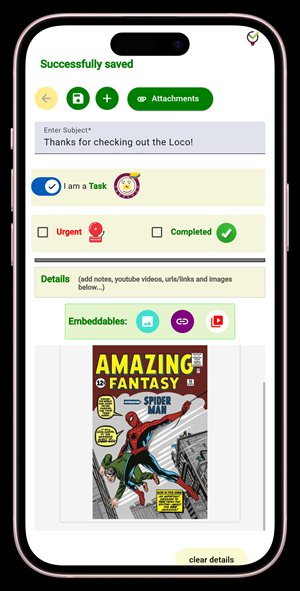
- 10GB file storage. Attach lecture slides, annotated PDFs, recorded lectures, practice exams — directly to the note they belong to. No separate folder, no searching Drive or Dropbox. The resource lives inside the task.
- Reminders that push to your phone and computer. Set a reminder on an exam-day note and it arrives as a push notification — deep-linking straight back to that note, not to a generic inbox. You tap the notification and you're already looking at the right thing.
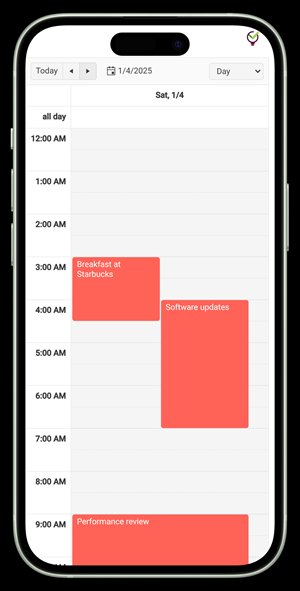
- Calendar view. Flip from wall view to calendar view and see the whole exam period laid out by date. Deadlines appear where they actually fall. Use this to spot the brutal days early and redistribute study time before the week begins.
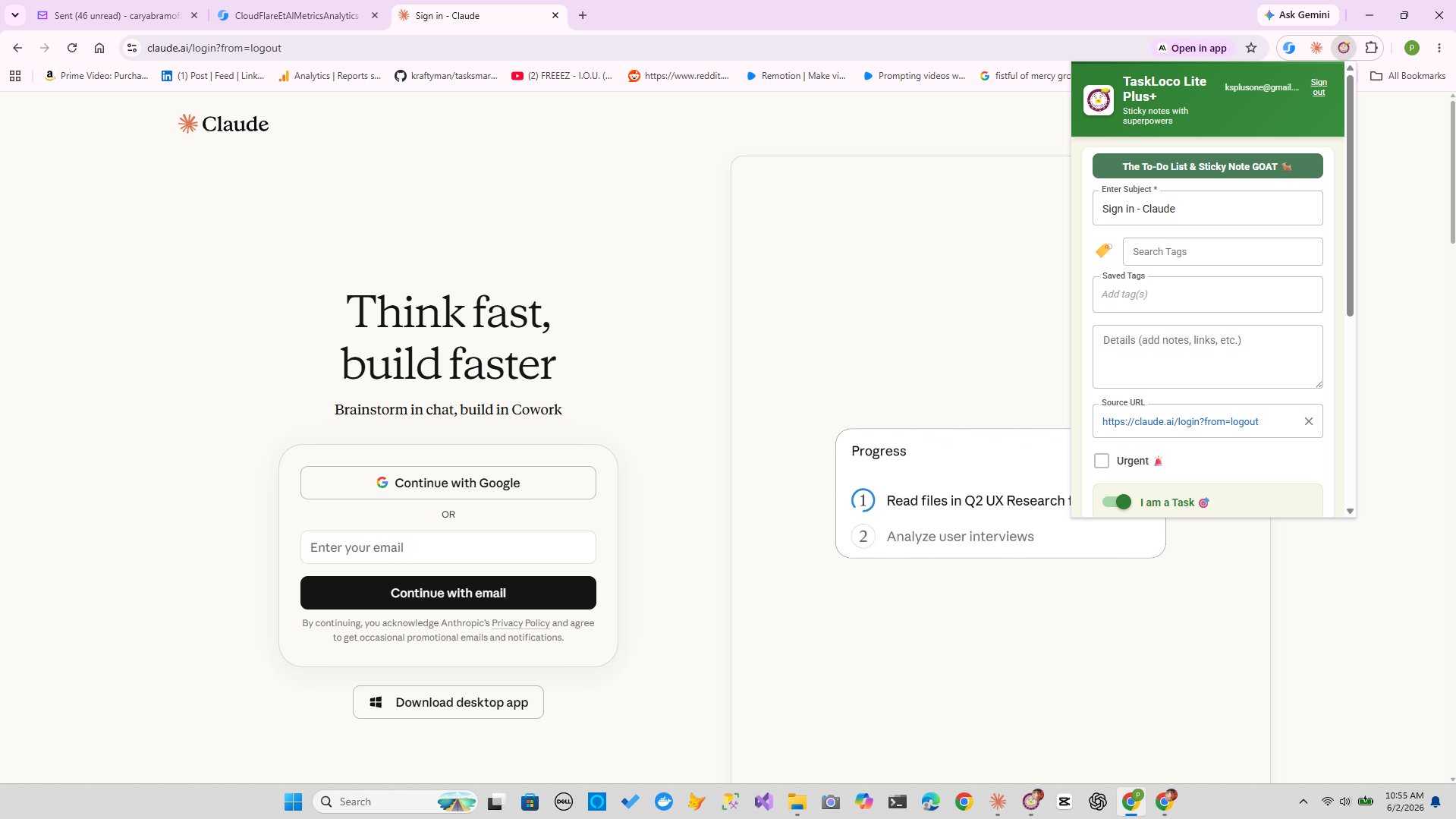
- Chrome extension. See a study resource online — a journal article, a professor's posted slides, a video — and clip it directly into a note in one click. No copy-pasting URLs, no "I'll come back to that."
- Syncs across devices. Build the wall on your laptop in the library. Check it on your phone between classes. Everything is current.
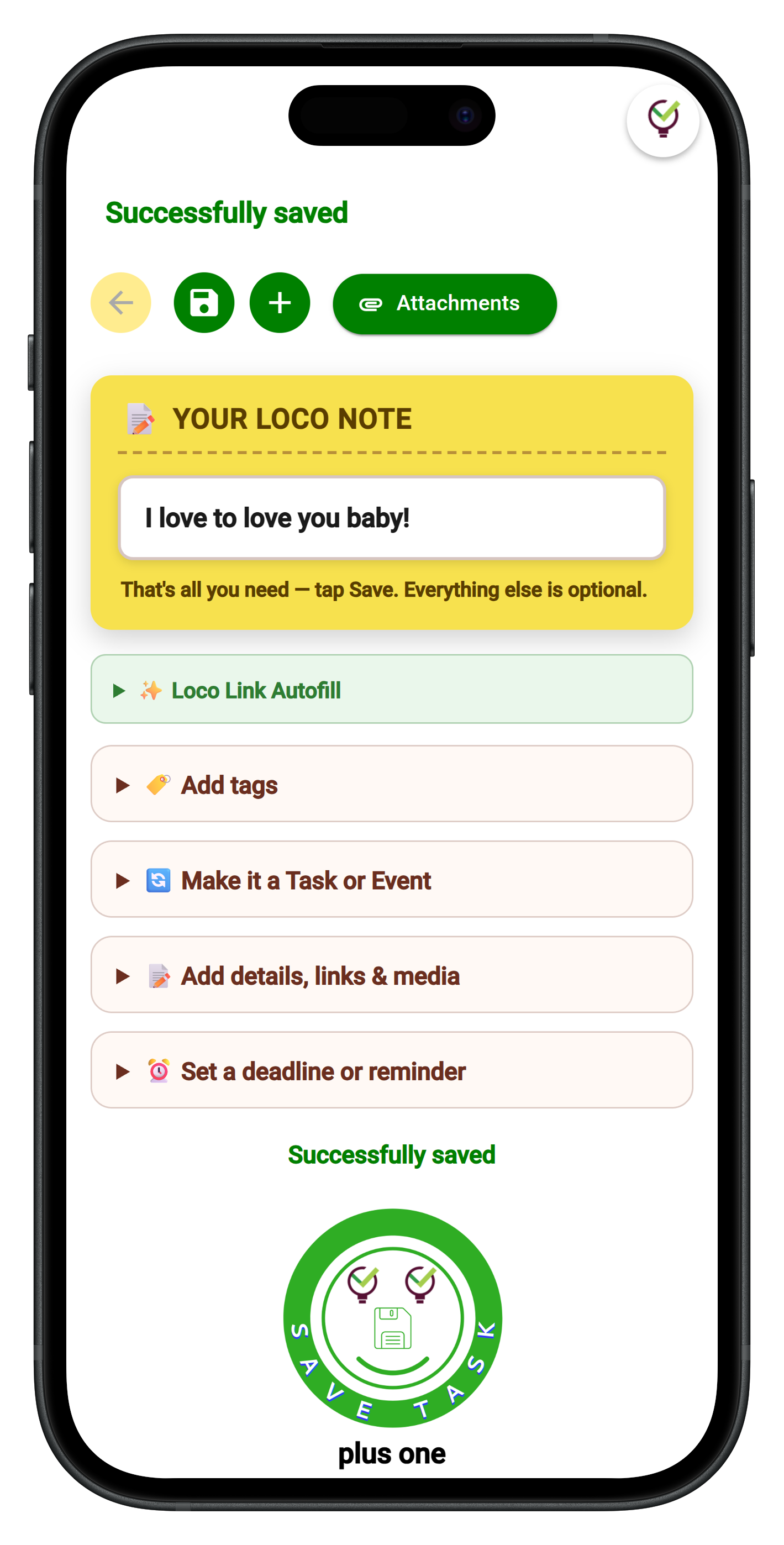
TaskLoco Lite (the native iPhone and Android app) is free and anonymous — no sign-in required, stores up to 20 notes on your device. It's a solid quick-capture tool for jotting ideas during a lecture. For a full study wall with files and reminders, you'll want Premium running in your browser, where the wall view and calendar live.
Capture, Attach, Remind — The Finals Week Workflow
The study wall only survives the week if it stays current. A wall you stop updating by Wednesday is just a monument to good intentions. The workflow that keeps it alive has three moves: capture, attach, remind.
Capture immediately. When a professor drops a hint about what's on the exam, when you find a great resource, when you realize you've misunderstood a concept — don't batch these. The Chrome extension lets you clip a webpage into a note in one click. The mobile web app lets you add a note between classes. Immediate capture keeps the wall honest.
Attach everything relevant. Every topic note should link to at least one resource before you start studying it. If you're opening a note to study a topic and the resource isn't there, add it before you close the note. The friction of searching for a file next time costs more than thirty seconds of attaching it now.
Set a reminder for every exam. Not just a note — a reminder. It arrives as a push notification that deep-links back to the exam note. Set it for the morning of the exam, when you want to do a final review. Set another one the evening before. You're not going to forget an exam, but you might forget that your notes and last-minute review materials are already organized and waiting for you in TaskLoco.
The last thing to do before finals week starts: share the wall. If you're studying with a group, TaskLoco's team sharing works like a shared note that each person can clone and make their own — no permissions to configure, no access levels to manage. One person builds the master subject breakdown, shares it, and everyone else has their own editable copy as a starting point. That's a real time-saver when five people are trying to divide up a hundred pages of reading.
TaskLoco Premium is regularly $9.99/month per person. Right now, charter members can lock in 50% off the regular price — forever. That means $4.99/month per person today. And if our price ever goes up, you still pay half. Always.
Code CHARTER50 auto-applies at checkout. First 500 spots only — once they're gone, this offer is gone permanently. Act fast while spots last.
Every Premium subscription includes unlimited notes, 10GB file storage, reminders, calendar, and team sharing. Each team member requires a separate subscription. 7-day free trial — no charge until day 8. Cancel anytime.
Free Options: TaskLoco
TaskLoco Lite
- Native iPhone & Android app
- Completely anonymous — no sign-in
- Data stays on your device
- Up to 20 notes
- Free forever
TaskLoco Lite Plus+
- Web app + Chrome extension
- Sign in with Google
- Wall syncs across all devices
- Up to 30 notes
- Free forever
Lock In 50% Off — Forever
7-day free trial. No charge until day 8. CHARTER50 auto-applies at checkout.
🔒 Lock In My Charter SpotSee TaskLoco in Action
Frequently Asked Questions
What is a visual study wall and why does it help during finals?
A visual study wall is a single surface — physical or digital — where every subject, deadline, and task is visible at once. It works because it eliminates the cognitive overhead of remembering what you need to do. When your brain doesn't have to hold the list, it can focus on the actual material. During finals, when the stakes are high and the volume is heavy, having everything visible in one place is the difference between a manageable week and a chaotic one.
How do I organize a study wall by subject?
Start with one anchor note per subject, each in a distinct color. Under each anchor, create separate notes for deadlines, topics to study, and key resources. Arrange the wall chronologically — soonest exams at the top, furthest deadlines at the bottom. As you complete topics, move their notes to a "done" column. The visual progress is motivating and keeps you honest about what's left.
Can I attach files to my study notes in TaskLoco?
Yes — TaskLoco Premium includes 10GB of file storage. You can attach lecture slides, PDFs, practice exams, and any other study material directly to the relevant note. That means when it's time to study a topic, everything you need is already there. No hunting through folders or cloud drives.
How does TaskLoco's reminder system work for exam deadlines?
In TaskLoco Premium, reminders are delivered as push notifications to your phone and your computer. Each reminder deep-links directly back to the note it was set on — so tapping the notification takes you straight to your exam prep note, not to a generic inbox. Optional email notifications are also available, and SMS notifications are an optional add-on.
What is the free version of TaskLoco and is it enough for finals week?
TaskLoco has two free options. TaskLoco Lite is the native iPhone and Android app — completely anonymous, no sign-in, stores up to 20 notes on your device. It's good for quick capture during class. TaskLoco Lite Plus+ is the web app and Chrome extension — free, sign in with Google, up to 30 notes synced across all your devices, with one-click webpage capture. Neither free tier includes reminders, file attachments, or unlimited notes. For a full study wall with files, reminders, and calendar view, Premium is the right choice.
Can I study with a group using TaskLoco?
Yes. TaskLoco Premium includes team sharing. It works like sharing a note via email — the recipient can clone it and make it their own. One person in the group builds the master subject breakdown, shares it, and everyone else gets their own editable copy as a starting point. No permissions to configure, no access levels to manage. Each person needs their own Premium subscription.
How is the calendar view useful for finals week planning?
The calendar view in TaskLoco Premium shows all your deadlines and events laid out by date. Before finals week even starts, flip to calendar view and look at the full exam period. You'll immediately spot the brutal days — two exams back to back, a paper due the same morning as a final — and you can redistribute your study time before the crunch hits. It's a ten-second sanity check that saves hours of panic later in the week.
Born in Brooklyn. Powered by AWS. Your data stays yours.
TaskLoco is available on iPhone, Android, Chrome, and every web browser.