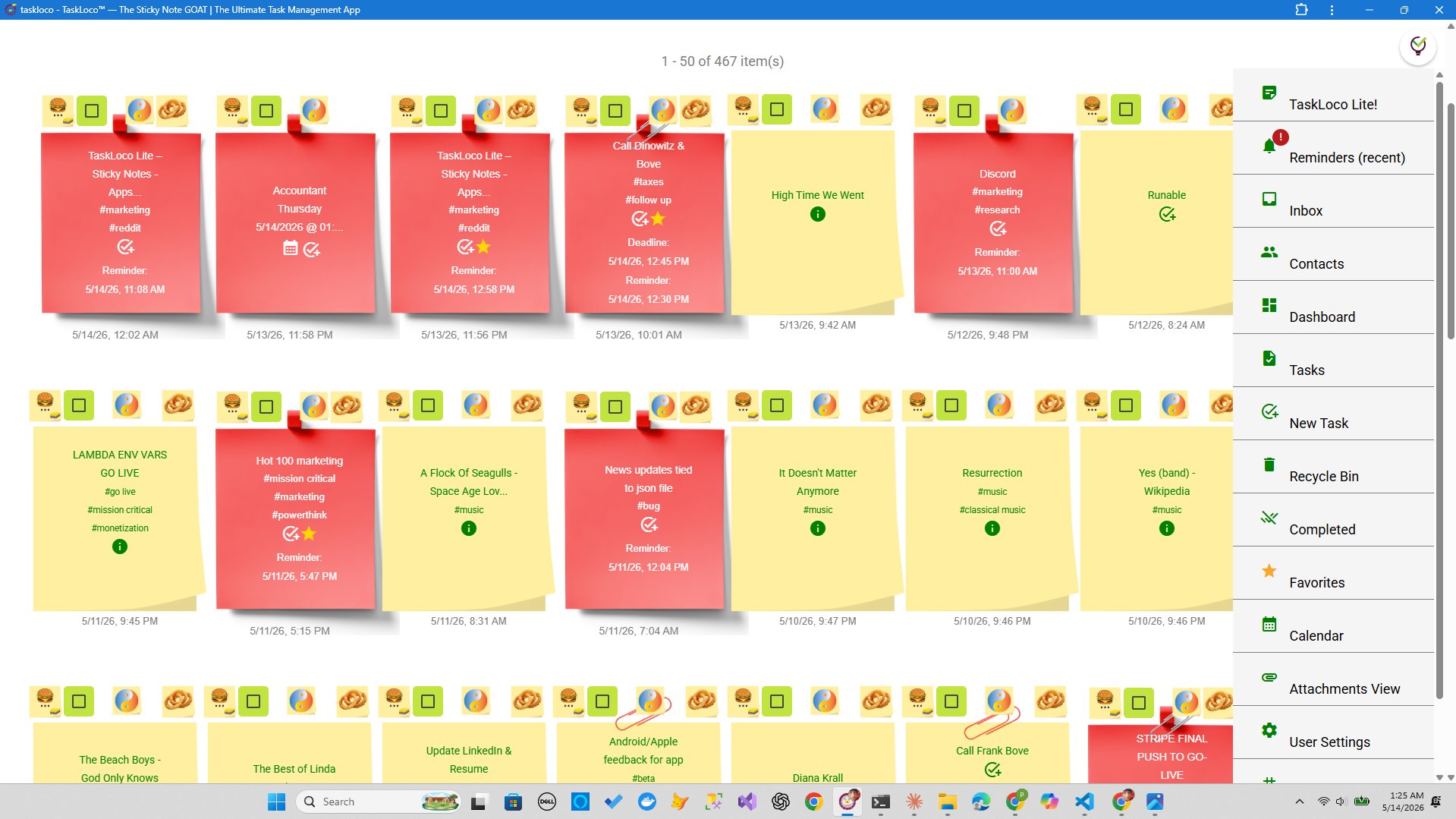
Every novelist eventually hits the same wall — not writer's block, but structural blindness. You're 60,000 words in, something feels off, and you can't see the problem because the story only exists as a linear document scrolling past your eyes. A visual plot wall fixes that. It pulls every scene off the page and pins it in space, so you can step back and read your story the way a reader will experience it — as a whole shape, not a sequence of chapters.
The technique is old. Index cards on a corkboard. Post-its across a dining room table. Color-coded pushpins. What's changed is that your workspace is no longer necessarily physical, and a digital wall done right can give you everything the corkboard does — plus search, attachments, reminders that bring you back to a specific scene, and a version you can access from any device through a browser.
What to Look for in a Visual Plot Wall Tool
Before we get into any specific app, it's worth being clear about what a plot wall actually needs to do — because most productivity tools are built around task completion, not story structure. A novelist's wall has different requirements.
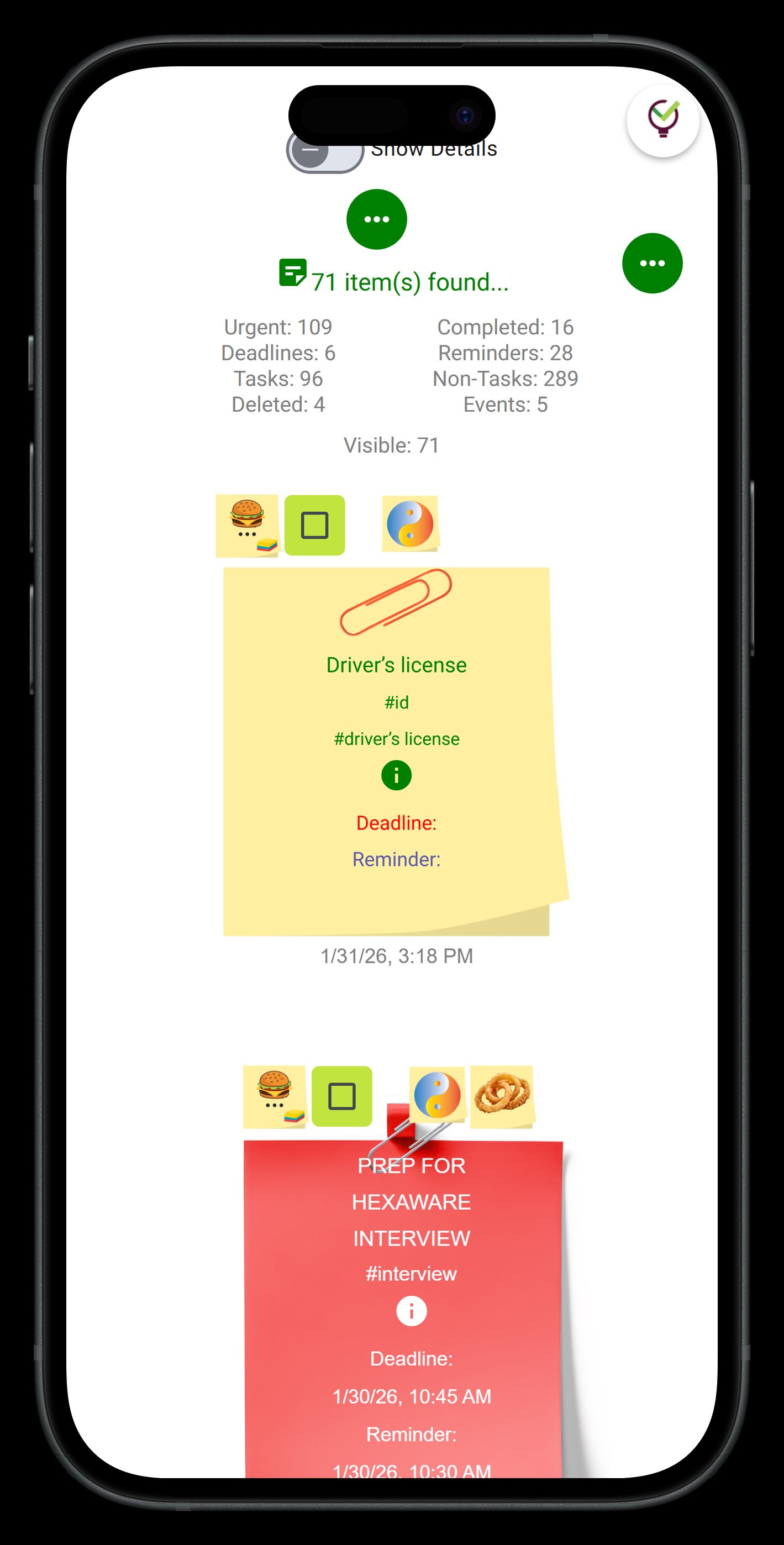
1. Spatial freedom, not forced hierarchy. Project management tools want you to put things in lists, sprints, or boards with fixed columns. A plot wall needs to let you place a note anywhere — because the relationship between a scene in Act One and a scene in Act Three might be diagonal, not vertical. The best tools feel more like a physical desktop than a database. You drag things around until the layout itself starts telling you something.
2. Enough note real estate to hold a scene summary, not just a title. A sticky note that can only hold five words is useless for plotting. You need room for the scene's inciting event, the POV character, the emotional turn, and whatever you want to remember to fix in revision. At the same time, the note should stay compact enough that 80 of them fit on one screen without becoming unreadable.
3. Visual differentiation — color at minimum. Act breaks, character POV, subplot threads, scenes flagged for revision — these all need to be distinguishable at a glance. Color-coding is the minimum. The ability to attach images or reference files to individual notes is a significant upgrade, because you may want a character reference photo pinned to every scene that character appears in.
Secondary considerations include whether the tool syncs across devices (so you can capture a scene idea on your phone and see it on your desktop wall), whether it has search across all notes (critical once your wall has 100+ cards), and whether it supports file attachments so your research lives next to your structure.
Building Your Plot Wall: The Method That Actually Works
The physical corkboard method has been described by everyone from John Irving to Blake Snyder, but the core process is always the same: one card per scene, laid out in story order, then rearranged until the structure holds. Here's how to make that work on a digital wall.
Start with acts, not chapters. Pin three anchor cards — Act One, Act Two, Act Three — or whatever structural framework you're using. These are fixed landmarks. Everything else will cluster around them. If you're writing in a two-timeline structure or a non-linear narrative, those anchors might be timeline labels instead.
One note per scene, not per chapter. Chapters are editorial containers. Scenes are the actual units of story. A chapter might hold two or three scenes; a scene might get cut and moved to a different chapter in revision. Build your wall at the scene level so you have genuine flexibility to restructure without it feeling catastrophic.
Use color to carry information. Pick one axis to color-code first — POV character is usually the most useful because it immediately shows you if one character is dominating too many consecutive scenes. Then consider a second color layer for subplot. More than two axes and the colors stop meaning anything.
Write the scene's emotional turn on every card, not just the plot event. The plot event is what happens. The emotional turn is what changes — in a character, in a relationship, in the reader's understanding. If you can't name the emotional turn, the scene probably doesn't belong in the book. The wall will show you those empty cards fast.
Add a revision flag. Use a specific color or a tag for scenes you know are broken, scenes you haven't written yet, and scenes that depend on a decision you haven't made. The wall should show you not just what the story is, but what it still needs.
Why TaskLoco Works for Novel Structure
TaskLoco was built around the sticky note as a first-class object — not a widget bolted onto a project management system. That distinction matters for novelists. When the note is the product, the tool is designed to make notes fast to create, easy to scan, and genuinely flexible in how they relate to each other. You're not fighting the app's native metaphor the way you are when you try to use a Kanban board or a spreadsheet to map story structure.
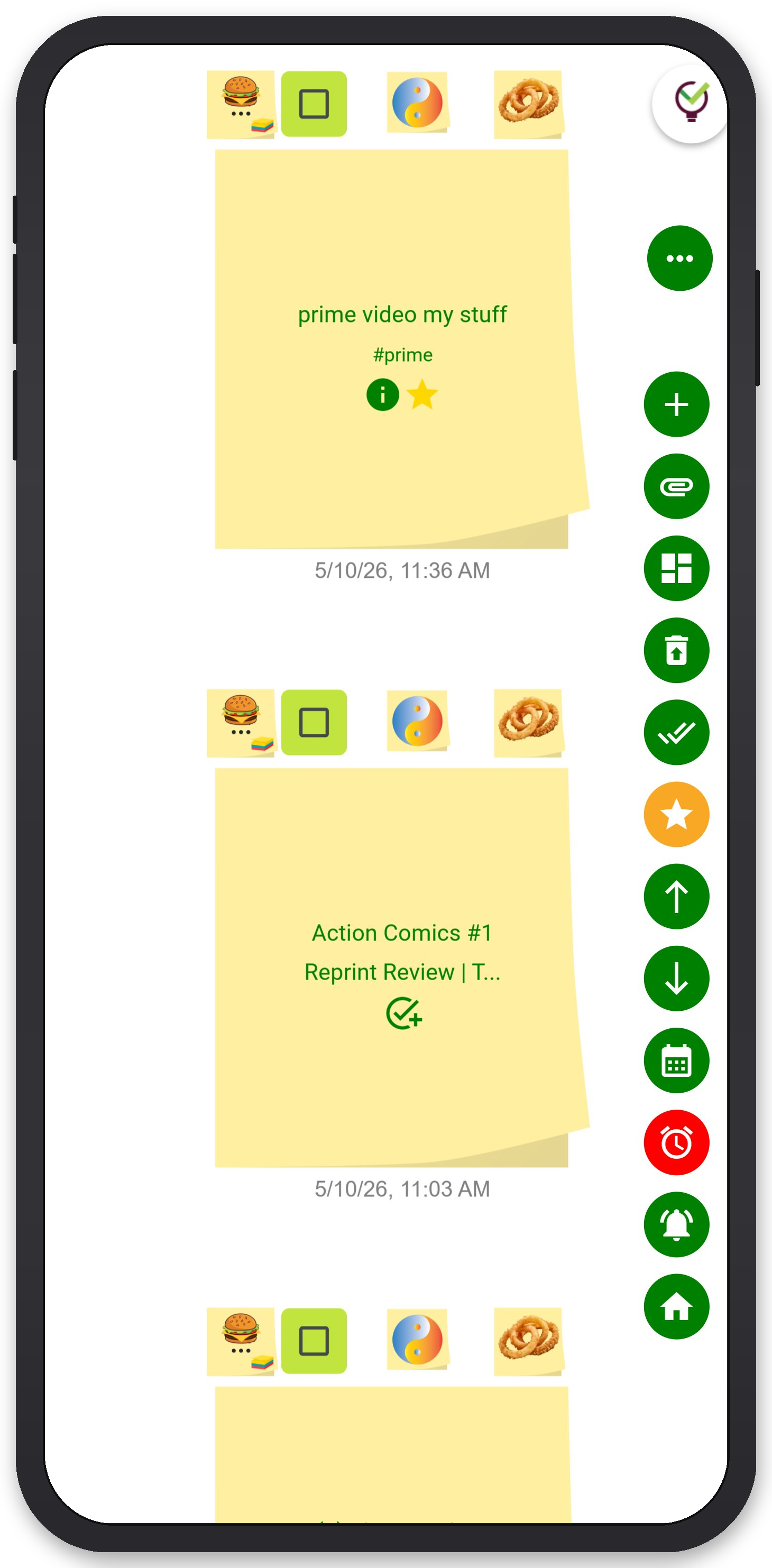
The wall view in TaskLoco is spatial. You place notes where you want them, not where the tool thinks they should go. That means your Act Two midpoint can sit visually between your Act One break and your Act Two break, your B-plot can run as a parallel row underneath your main plot, and your flagged-for-revision scenes can cluster in a corner where they're visible but not in your way.
Unlimited notes with Premium means you never have to decide whether a scene warrants its own card. A 90,000-word novel broken down to scene level might have 80 to 120 cards. With a note cap, you'd be making arbitrary cuts. With unlimited notes, you make story decisions instead.
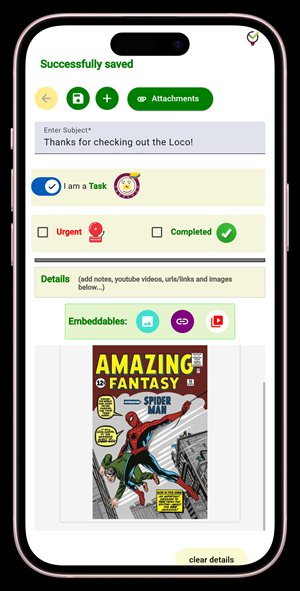
File attachments (10GB included) let you pin your research directly to the scenes that need it. A period photograph attached to your Act One setting scene. A character's physical description attached to every scene in their POV. An audio clip of a location you visited for the book. The research doesn't live in a separate folder that you have to go find — it lives on the card.
Reminders that deep-link back to the original note are genuinely useful for revision workflow. You finish a session with a note half-drafted, set a reminder, and the next day's push notification takes you directly back to that scene — not to your home screen or your note list, but to the exact card. That single feature saves the ten minutes of reorientation that kills writing momentum at the start of every session.
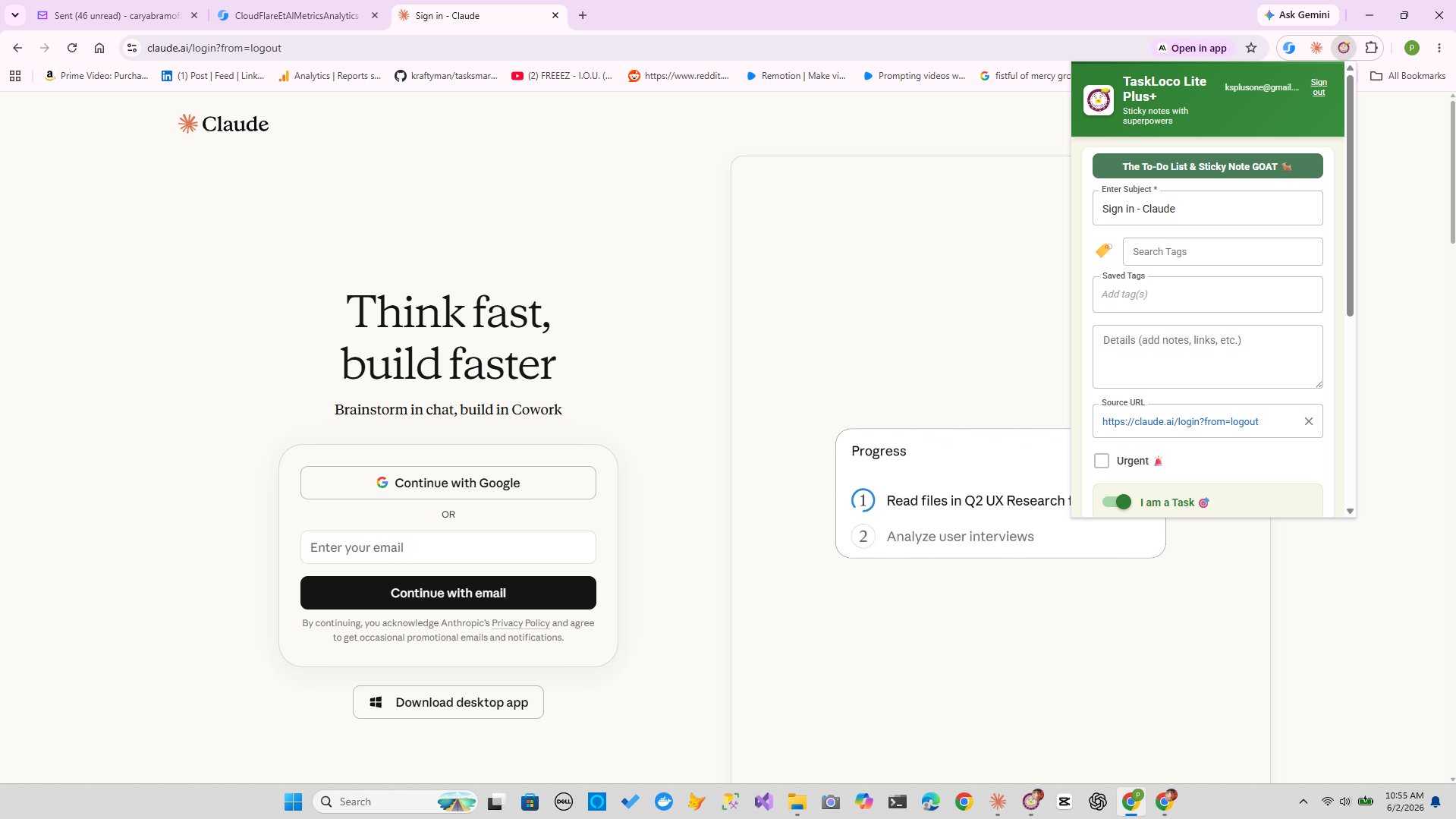
The Chrome extension is also worth mentioning for research-heavy novels. Find a newspaper archive from the period you're writing about — one click saves it to a note. Find a map, a floor plan, a photograph — same thing. The research capture is frictionless enough that you actually do it instead of bookmarking things and forgetting them.
Taking Your Wall From Outline to Revision
A plot wall isn't just for the planning phase. The novelists who get the most out of it use it all the way through drafting and revision — which means the tool has to keep up with a document that's constantly changing.
During drafting: As you complete a scene, mark it done on the card. Don't delete it — you want the full picture of what exists. Add a word count note if that helps you track progress. If drafting a scene reveals that an earlier scene needs to change, go back to that card and flag it. The wall becomes a live map of where you actually are in the manuscript, not just where you planned to be.
During revision: This is where the wall earns its keep. Read your draft, then come back to the wall and ask: does the sequence of emotional turns on these cards tell a coherent story? Are there three consecutive scenes where nothing changes for your protagonist? Is your antagonist disappearing for forty cards at a stretch? The wall shows you structural problems that are almost impossible to see inside the document itself.
For series writers: Keep a separate wall per book, and a master wall for the series. The master wall holds only the major structural beats — the events that matter across books. Individual book walls hold scene-level detail. TaskLoco's unlimited notes mean you can maintain all of these without hitting a ceiling.
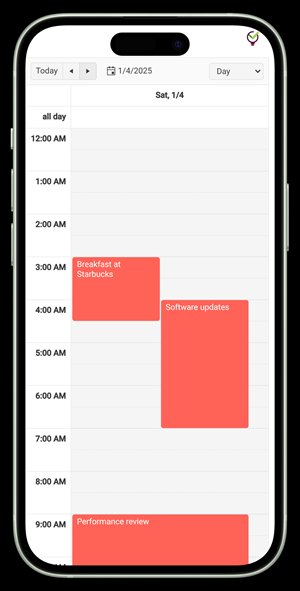
The practical workflow looks like this: the desktop wall is your primary workspace for structural thinking. Your phone gives you access to individual cards when you're away from your desk and an idea or a revision note hits. The Chrome extension captures research the moment you find it. Reminders bring you back to specific scenes when you're ready to write or revise them, with a push notification that opens the card directly. Everything stays connected without requiring a separate organizational system layered on top of your creative work.
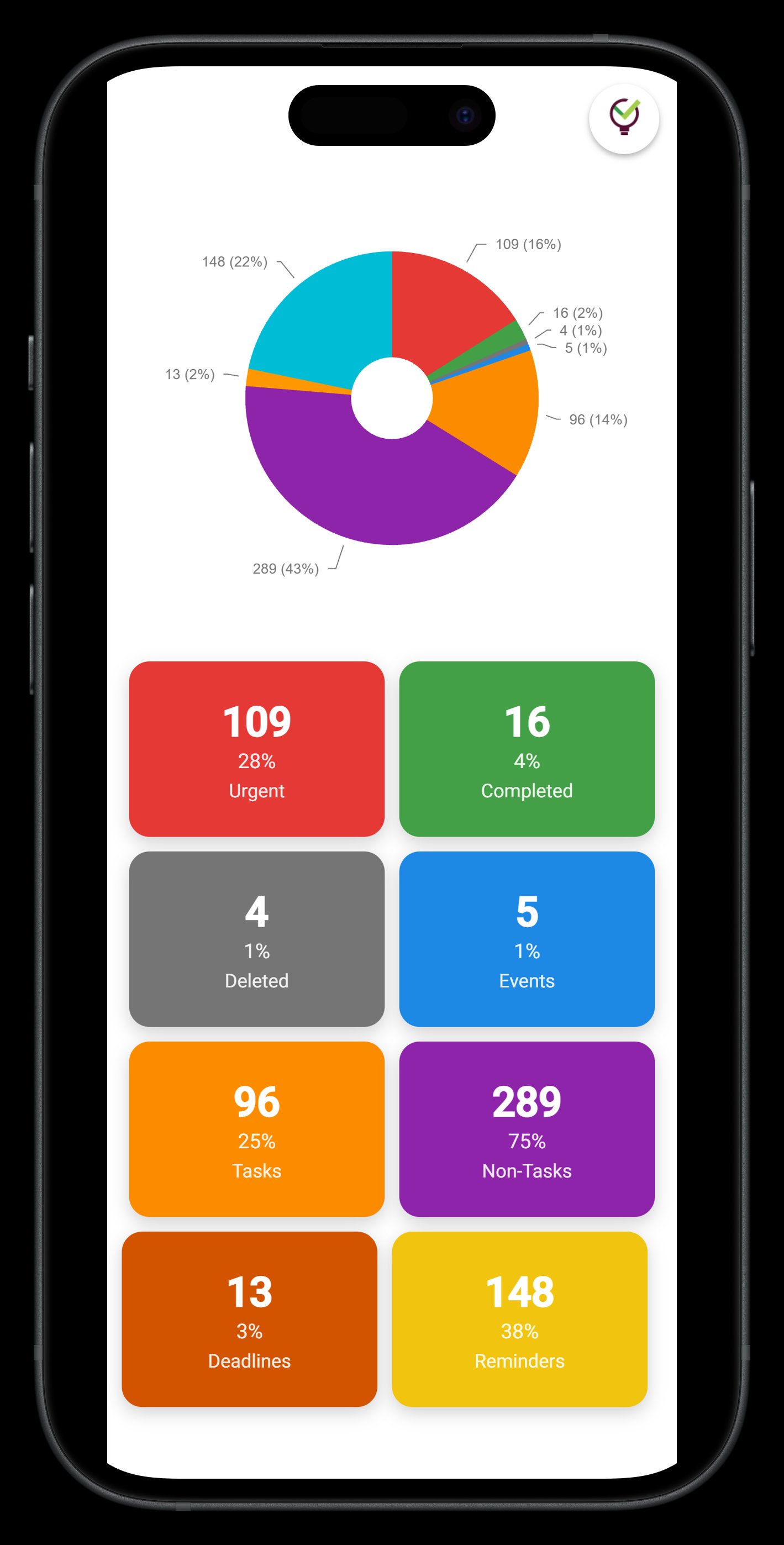
TaskLoco Premium is regularly $9.99/month per person. Right now, charter members can lock in 50% off the regular price — forever. That means $4.99/month per person today. And if our price ever goes up, you still pay half. Always.
Code CHARTER50 auto-applies at checkout. First 500 spots only — once they're gone, this offer is gone permanently. Act fast while spots last.
Every Premium subscription includes unlimited notes, 10GB file storage, reminders, calendar, and team sharing. Each team member requires a separate subscription. 7-day free trial — no charge until day 8. Cancel anytime.
Free Options: TaskLoco
TaskLoco Lite
- Native iPhone & Android app
- Completely anonymous — no sign-in
- Data stays on your device
- Up to 20 notes
- Free forever
TaskLoco Lite Plus+
- Web app + Chrome extension
- Sign in with Google
- Wall syncs across all devices
- Up to 30 notes
- Free forever
Lock In 50% Off — Forever
7-day free trial. No charge until day 8. CHARTER50 auto-applies at checkout.
🔒 Lock In My Charter SpotSee TaskLoco in Action
Frequently Asked Questions
What is a visual plot wall for a novel?
A visual plot wall is a spatial layout of your novel's scenes — one card or sticky note per scene, arranged in story order so you can see the whole structure at once. It's used to spot pacing problems, POV imbalances, missing turning points, and structural gaps that are nearly impossible to see inside a linear document. The technique comes from physical corkboards and index cards but works equally well on a digital wall with sticky notes.
How many cards should my plot wall have?
One card per scene, not per chapter. A typical novel has between 50 and 120 scenes depending on length and pacing — so plan for a wall that can hold at least that many cards without becoming unreadable. Shorter, faster-paced thrillers tend toward the higher end; quieter literary novels might have fewer but longer scenes. The key is building at the scene level so you can move things around independently of chapter breaks, which are editorial containers you'll probably rearrange anyway.
What should I write on each scene card?
At minimum: the scene's location, the POV character, the main plot event, and — most importantly — the emotional turn. The emotional turn is what changes by the end of the scene: in a character, a relationship, or the reader's understanding. If you can't name the emotional turn, the scene may not be earning its place in the story. You can also add a word count target, a revision flag, or a note about what the scene depends on from earlier in the book.
Should I build my plot wall before or after writing the first draft?
Both approaches work, and many novelists use the wall at both stages. A pre-draft wall is your structural plan — it lets you test whether the story holds together before you invest 80,000 words in it. A post-draft wall is a diagnostic tool — you build it from what you've actually written to see where the structure drifted from intention. Some writers do a light pre-draft wall, draft freely, then rebuild the wall from the finished draft to guide revision. The wall is a thinking tool, not a contract.
Can TaskLoco handle a plot wall with 100+ scene cards?
Yes. TaskLoco Premium includes unlimited notes, so a 120-card plot wall for a single book plus separate walls for other projects or series books all coexist without hitting a ceiling. The wall view is spatial — you arrange cards freely — and full-text search works across all notes, so you can find a specific scene by character name, location, or any keyword in the card body. $9.99/month per person (currently $4.99/month per person for first 500 charter members with code CHARTER50)
How do I use TaskLoco's reminders for novel writing?
When you finish a writing or revision session on a specific scene, set a reminder on that note. The reminder fires as a push notification to your phone and computer, and tapping it deep-links directly back to that scene card — not your note list, not your home screen, but the exact card you were working on. This eliminates the reorientation time at the start of every session. Optional email notification is also available, and SMS is available as an optional add-on.
What's the best color-coding system for a plot wall?
Pick one axis first and color-code it consistently. POV character is usually the most revealing — it immediately shows you if one character is dominating consecutive scenes or if another character is disappearing for long stretches. Once that layer is working, consider adding a second color axis for subplot or act. More than two color axes tends to make the wall harder to read at a glance rather than easier. Use a specific color for scenes flagged for revision so they're always visible without being disruptive.
Born in Brooklyn. Powered by AWS. Your data stays yours.
TaskLoco is available on iPhone, Android, Chrome, and every web browser.