Most reminder lists fail before they even start. Not because people forget to add things — but because the reminder fires, you dismiss it, and then you spend three minutes trying to remember what you actually needed to do. A ping without context is just noise.
This article breaks down what a genuinely useful reminder list looks like, the criteria that separate a system that works from one that piles up ignored alerts, and how to build or choose a setup that keeps you moving forward instead of just feeling busy.
What Makes a Reminder List Actually Useful
A reminder list is exactly what it sounds like: a collection of time-based or event-based prompts designed to surface the right information at the right moment. But the difference between a list that helps and one that you mute lies in a few specific qualities.
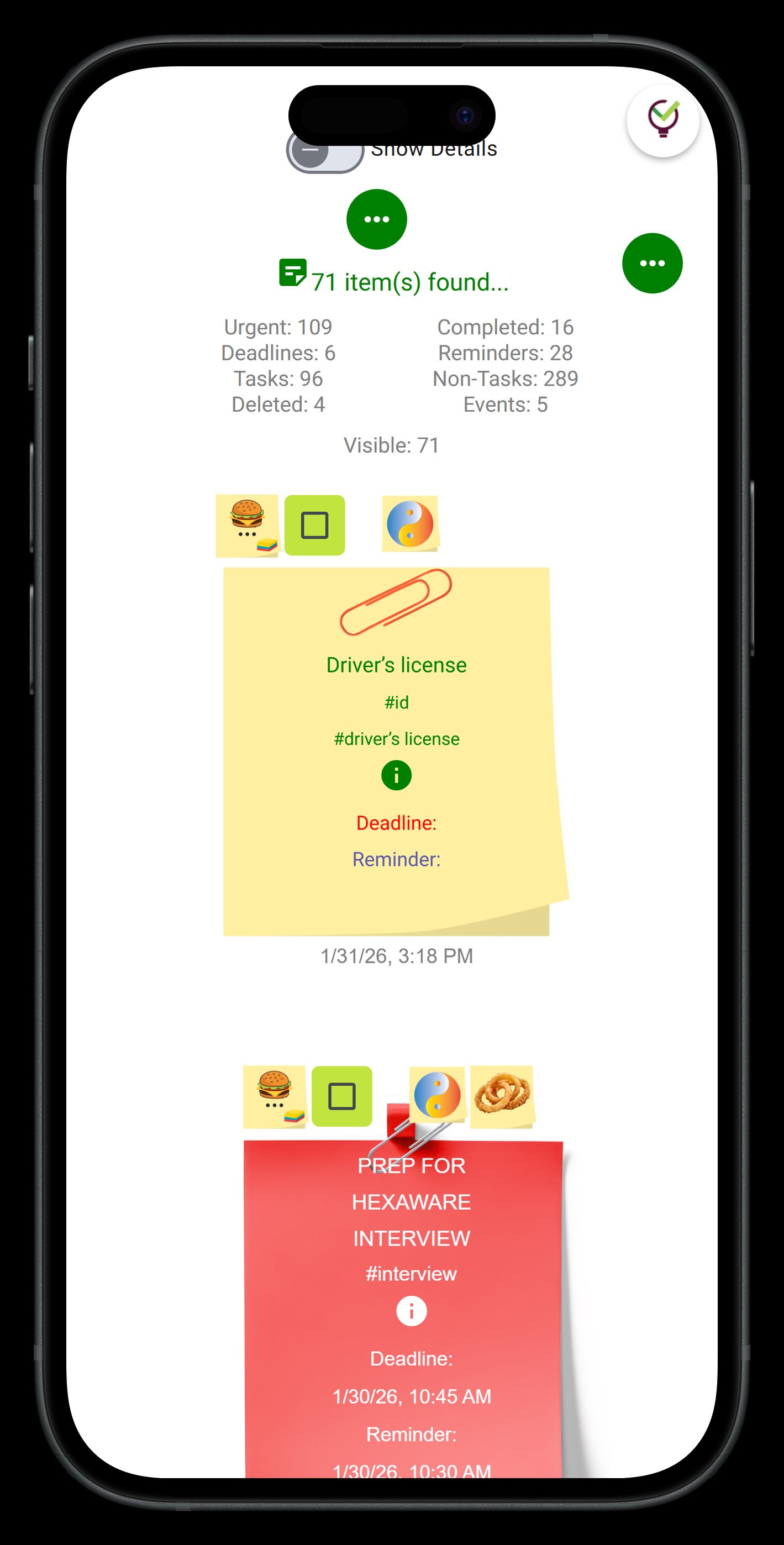
1. Context is attached. A reminder that says "Call Marcus" is useful. A reminder that says "Call Marcus" and opens directly to your note with his number, the talking points, and the background file — that's the one you'll actually act on. The best reminder systems link the alert to the underlying material, not just a label.
2. Delivery reaches you where you are. If reminders only fire in one place — say, only in a browser tab you might not have open — they get missed. The strongest setups push notifications to your phone and your computer, with optional email or SMS as backup channels for anything truly critical.
3. The list is easy to update. Friction kills reminder hygiene. If adding, editing, or dismissing a reminder takes more than a few seconds, the list decays. You stop maintaining it, and then it stops being useful. Capture speed matters as much as delivery.
How to Structure Your Reminder List
Before choosing a tool, it helps to know what you're actually trying to build. Reminder lists tend to fall into a few natural categories, and mixing them without structure is where most systems fall apart.
Time-sensitive commitments — calls, meetings, deadlines. These need to be airtight. Miss one and there's a real cost. They belong at the top of any list and should be the first thing your reminder system handles well.
Action-dependent follow-ups — waiting on a reply, checking back on a project, circling back with someone. These are easy to lose because they don't have a hard deadline. They need their own section, and ideally they're attached to a note that has the full thread of context.
Recurring maintenance tasks — things that need to happen regularly but don't have a specific external deadline. Reviewing your finances, clearing your inbox, checking in with your team. These benefit from being on a list precisely because they're easy to defer indefinitely without one.
Aspirational or low-priority items — things you want to do but aren't urgent. These should live at the bottom or in a separate capture area. The danger is letting them crowd out the time-sensitive tier.
The structural principle: keep each tier visually or spatially separated so that the urgency of the top tier doesn't get diluted by the volume of the bottom tier.
Why TaskLoco Is Built for This
TaskLoco approaches reminders differently from most tools, and that difference matters for anyone who takes their reminder list seriously.
In TaskLoco Premium, every reminder is a push notification — fired to your phone and your computer — that deep-links directly back to the original note. You tap the notification, and you're instantly in the note with everything attached: the task, the file, the context, the history. No hunting. No switching apps. No re-reading old threads to remember where you left off.
That's the core mechanic: the reminder and the content are the same object. You're not maintaining a separate reminder list alongside your notes — the reminder is embedded in the note itself. Add an optional email notification or an SMS add-on for anything that absolutely cannot be missed, but push notifications handle the daily workflow cleanly on their own.
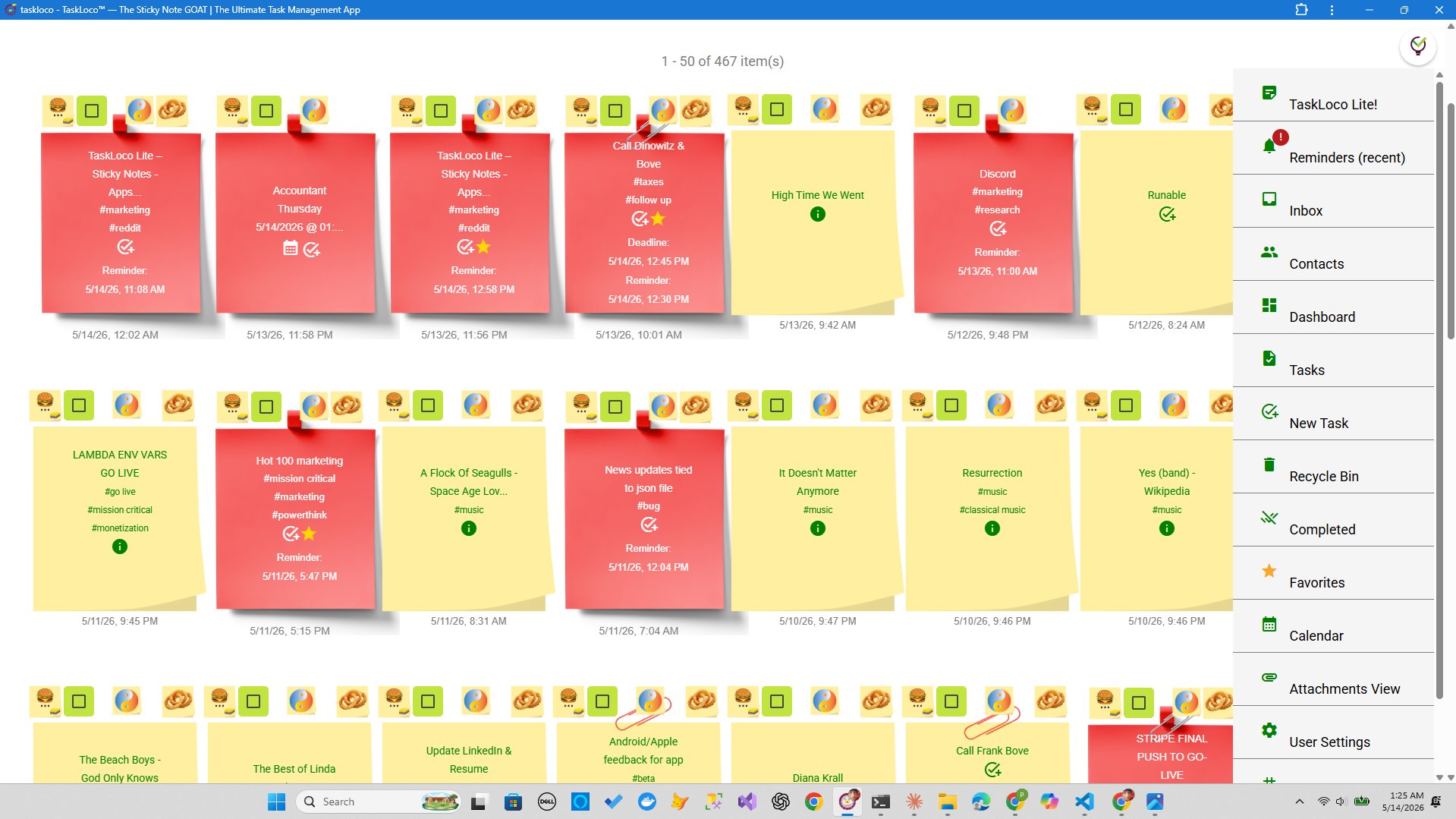
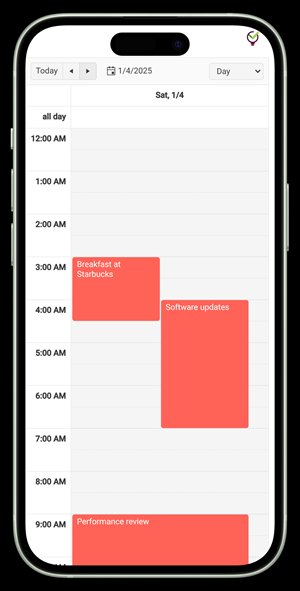
Beyond reminders, Premium gives you unlimited notes, a calendar view to see all your upcoming reminders and events at a glance, 10GB of file storage, and full team sharing. Shared notes work the way email does — recipients clone the note and make it their own, no permissions or access levels to manage.
If you want to try before committing, TaskLoco Lite Plus+ is free, syncs across all your devices, and lets you keep up to 30 notes. It doesn't include reminders — those are Premium — but it's a real way to get a feel for how TaskLoco organizes information before you decide to upgrade.
Building Your List: A Practical Starting Point
Theory aside, here's a concrete way to build a reminder list that you'll actually maintain.
Start with a brain dump. Write down everything you need to remember — no filtering, no prioritizing. The goal is to get it out of your head and into a system. In TaskLoco, this is a note. One giant capture note to start.
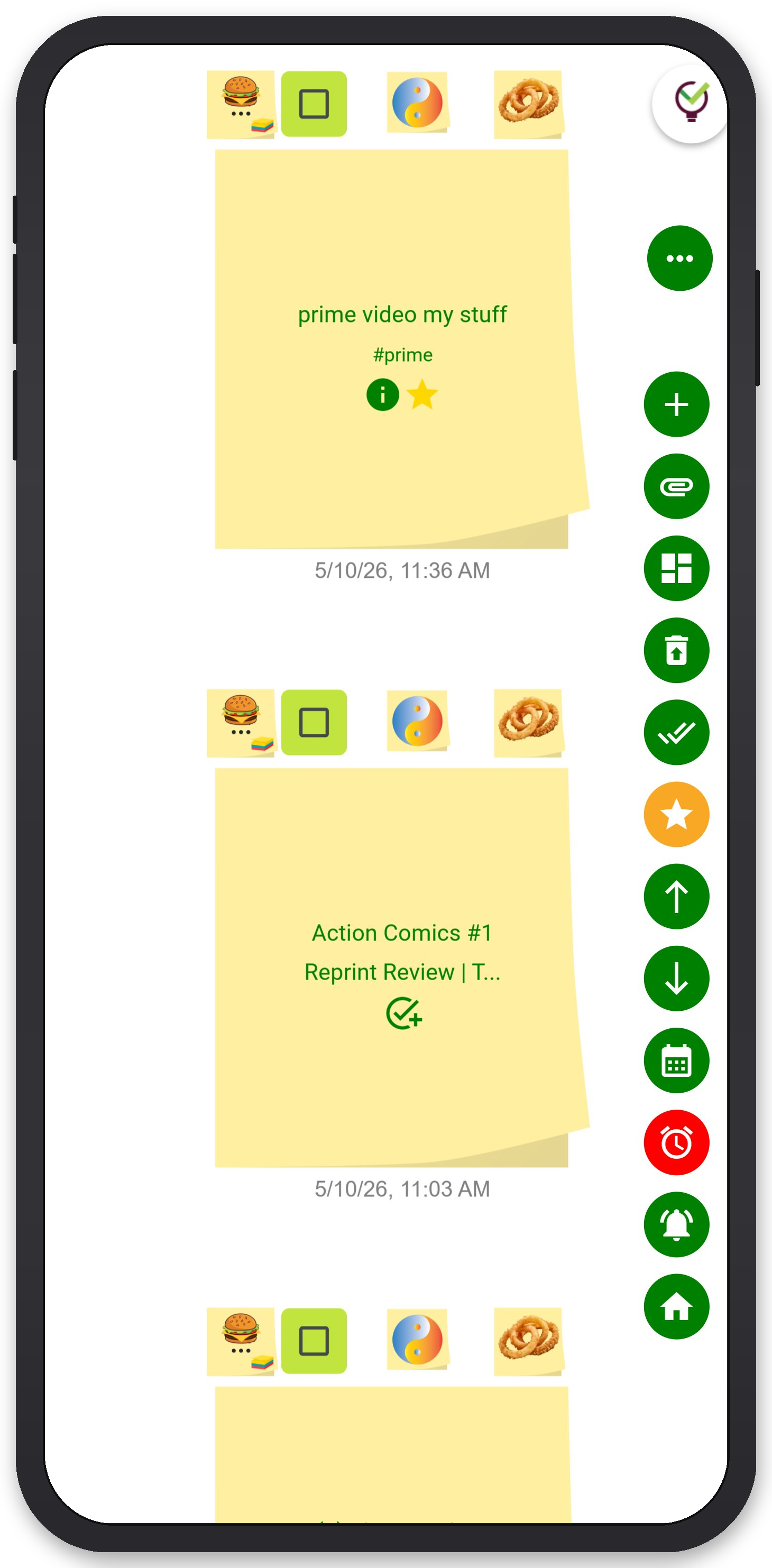
Break it into separate notes by category. Time-sensitive commitments get their own note. Follow-ups get their own note. Recurring tasks get their own note. In TaskLoco, each of these becomes a sticky note on your wall — you can see all of them at once without digging through folders.
Set reminders on the things that have real deadlines. In Premium, you attach a reminder directly to the note. When the push notification fires, you're one tap away from the full note with everything you need to act. No context gap.
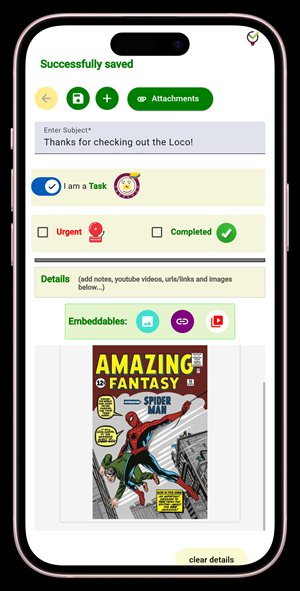
Attach supporting files where they exist. If a reminder is about reviewing a contract, attach the contract to the note. If it's about a call, paste in the notes from the last conversation. 10GB of file storage in Premium means you don't have to be selective.
Review the list weekly. The categories that matter most — follow-ups and recurring tasks — need a weekly pass. Set a reminder for the review itself. It's the one meta-reminder that keeps the whole system honest.
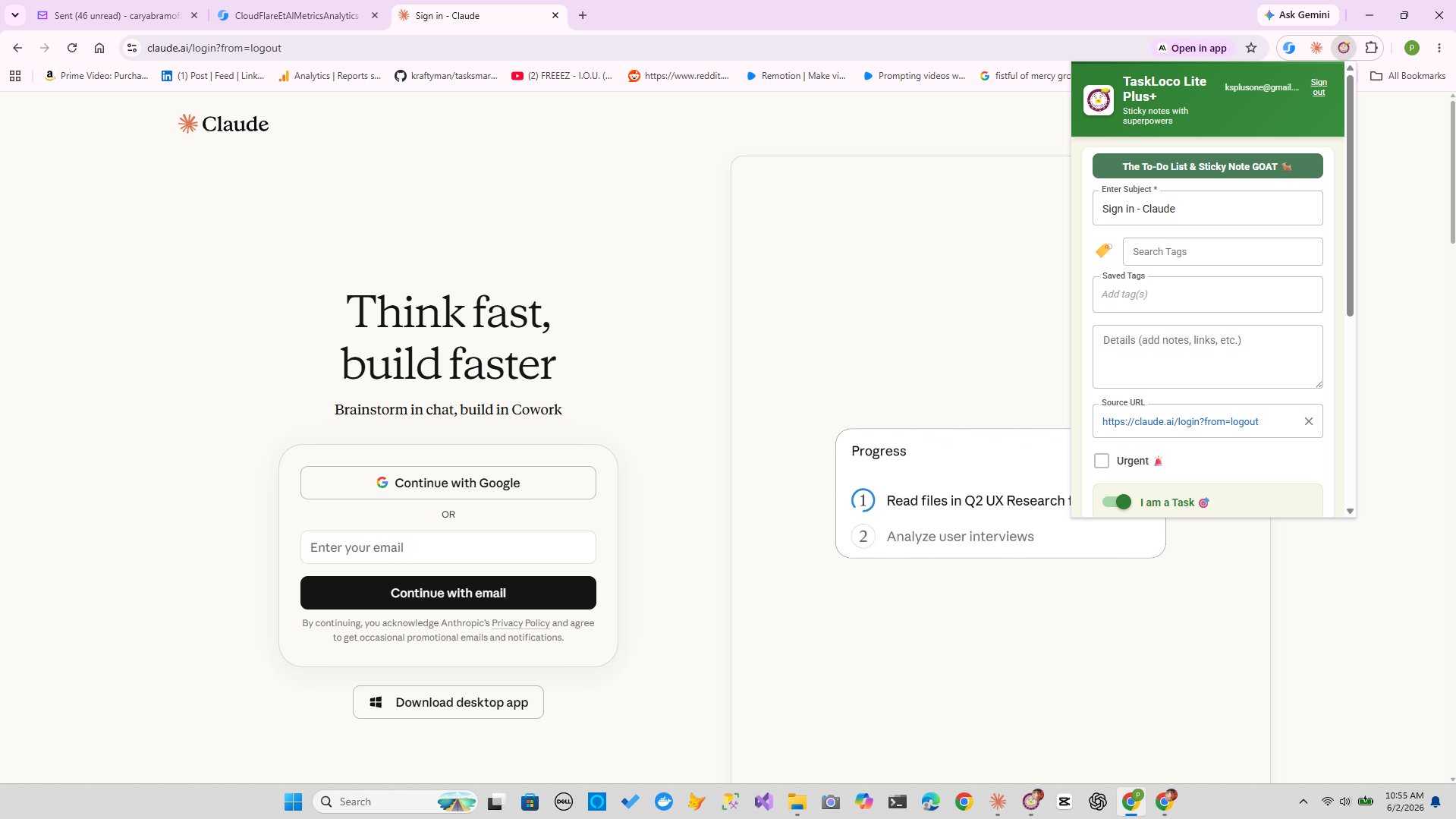
The Chrome extension is worth mentioning here: if you find a webpage you need to remember — a reference article, a job posting, a product you're tracking — one click captures it as a note in TaskLoco. That note can then get a reminder attached to it. The whole capture-to-reminder loop takes under ten seconds.
TaskLoco Premium is regularly $9.99/month per person. Right now, charter members can lock in 50% off the regular price — forever. That means $4.99/month per person today. And if our price ever goes up, you still pay half. Always.
Code CHARTER50 auto-applies at checkout. First 500 spots only — once they're gone, this offer is gone permanently. Act fast while spots last.
Every Premium subscription includes unlimited notes, 10GB file storage, reminders, calendar, and team sharing. Each team member requires a separate subscription. 7-day free trial — no charge until day 8. Cancel anytime.
Free Options: TaskLoco
TaskLoco Lite
- Native iPhone & Android app
- Completely anonymous — no sign-in
- Data stays on your device
- Up to 20 notes
- Free forever
TaskLoco Lite Plus+
- Web app + Chrome extension
- Sign in with Google
- Wall syncs across all devices
- Up to 30 notes
- Free forever
Lock In 50% Off — Forever
7-day free trial. No charge until day 8. CHARTER50 auto-applies at checkout.
🔒 Lock In My Charter SpotSee TaskLoco in Action
Frequently Asked Questions
What should I put on a reminder list?
Focus on four categories: time-sensitive commitments with hard deadlines, follow-up items where you're waiting on someone else, recurring maintenance tasks, and lower-priority aspirational items. Keep them in separate sections so urgent items don't get buried under volume. The key is attaching enough context to each reminder that when the alert fires, you know exactly what to do — no re-reading required.
What's the best way to organize a reminder list?
Organize by urgency tier first, then by topic or project within each tier. Time-sensitive deadlines sit at the top. Follow-ups go in their own section. Recurring tasks stay separate so they don't clutter your active list. Visually separating these tiers — whether through folders, labels, or spatially distinct areas — keeps the high-priority tier from being diluted by volume.
How do I stop ignoring my reminders?
The most common reason people dismiss reminders without acting is that the alert gives them no context. You see a ping that says 'email draft' and you have no idea which draft, what stage it's at, or what you actually need to do. The fix: attach context to every reminder. In TaskLoco, a reminder is embedded in the note itself, so the push notification deep-links directly back to the note, the attached file, and everything you need to take action immediately.
How does TaskLoco deliver reminders?
TaskLoco Premium delivers reminders as push notifications to your phone and your computer. Each notification deep-links back to the original note so you have full context in one tap. You can also add an optional email notification or an SMS add-on for anything that needs an extra channel. Push notifications are the core delivery method.
Is there a free way to manage notes and reminders with TaskLoco?
TaskLoco has two free tiers. Lite is a native iPhone and Android app — fully anonymous, no sign-in, up to 20 notes stored on-device. Lite Plus+ is the web app and Chrome extension — free, sign in with Google, up to 30 notes synced across all your devices. Reminders are a Premium feature and are not included in either free tier. $9.99/month per person (currently $4.99/month per person for first 500 charter members with code CHARTER50)
Can I share my reminder list with my team?
Yes, with TaskLoco Premium. Team sharing works like email — you share a note and the recipient clones it and makes it their own. No permissions to manage, no access levels to configure. Each team member sets their own reminders on their own copy of the note. Every team member needs their own individual Premium subscription.
What's the difference between TaskLoco Lite, Lite Plus+, and Premium for reminders?
TaskLoco Lite (native app, no sign-in) has no reminders and no sync — it stores up to 20 notes on your device only. Lite Plus+ (web app, free, synced across devices) also has no reminders. Reminders are exclusively a TaskLoco Premium feature. With Premium, every reminder fires as a push notification that deep-links back to the original note, with optional email and SMS channels available. $9.99/month per person (currently $4.99/month per person for first 500 charter members with code CHARTER50)
Born in Brooklyn. Powered by AWS. Your data stays yours.
TaskLoco is available on iPhone, Android, Chrome, and every web browser.