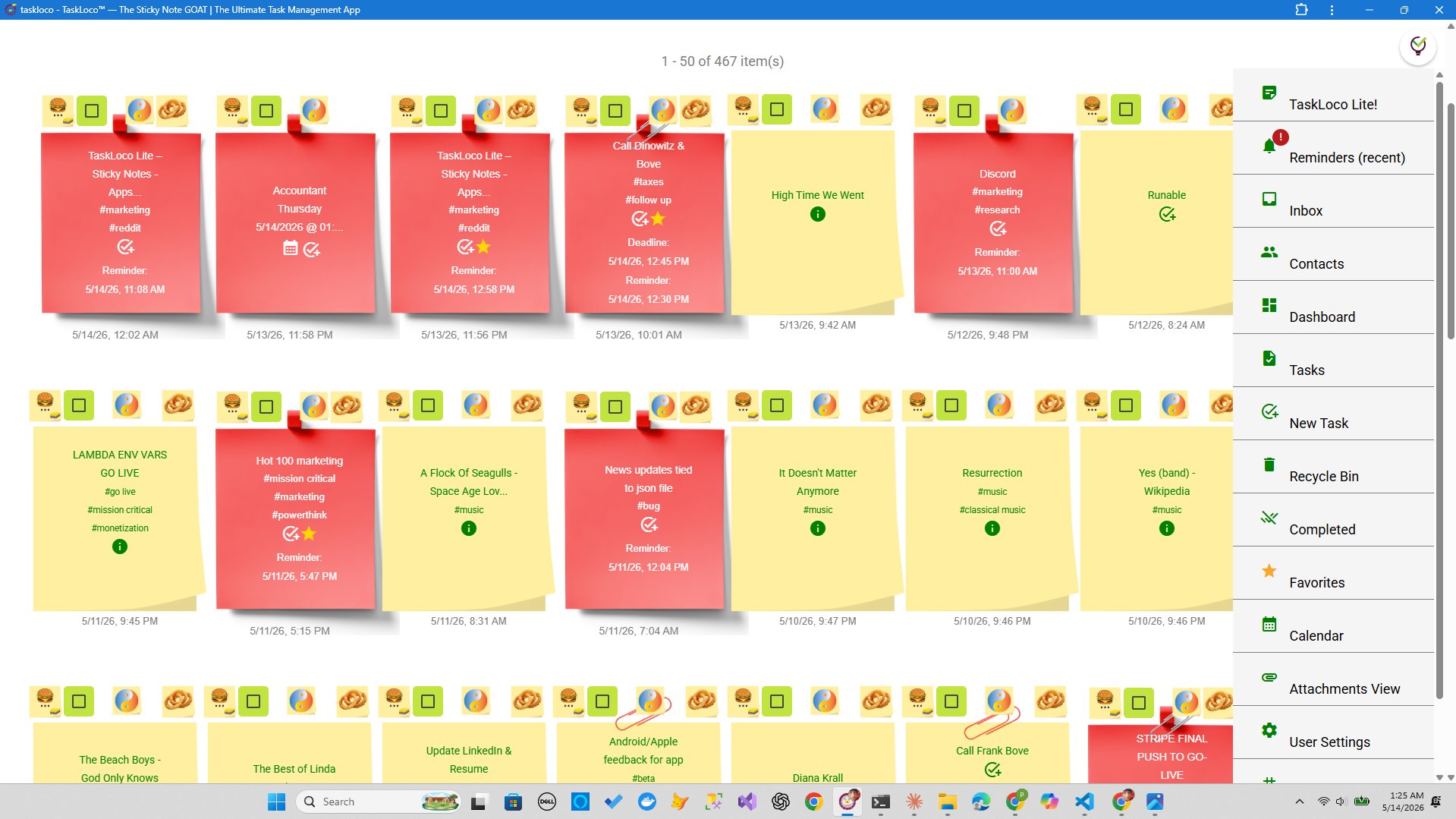
A wall covered in sticky notes looks like chaos. But rearrange those same notes into columns, and suddenly you can see your entire project at a glance — what's waiting, what's moving, what's done. That shift from pile to board is one of the most powerful things you can do for your own productivity, and it takes about ten minutes to set up.
This isn't a complicated methodology. It's a visual trick your brain already understands. Work moves left to right. Stuck work stays visible. Nothing hides in a list you stop scrolling. Here's exactly how to build one — starting with nothing but sticky notes and a flat surface.
Step 1 — Define Your Columns Before You Place a Single Note
The most common mistake people make is grabbing sticky notes and sticking them everywhere before deciding what the columns mean. Fix that first.
For most projects, three columns are all you need:
- To Do — everything that hasn't started yet
- In Progress — work that is actively happening right now
- Done — completed tasks, kept visible for reference and morale
If your project has a review or approval step, add a fourth column between In Progress and Done: Review or Waiting. On a physical wall, use a long strip of tape or a darker-colored sticky note as the header. On a whiteboard, draw vertical lines and write the column names at the top in marker. This structure is what transforms a pile of notes into something you can actually read.
Step 2 — Write Notes That Actually Work on a Board
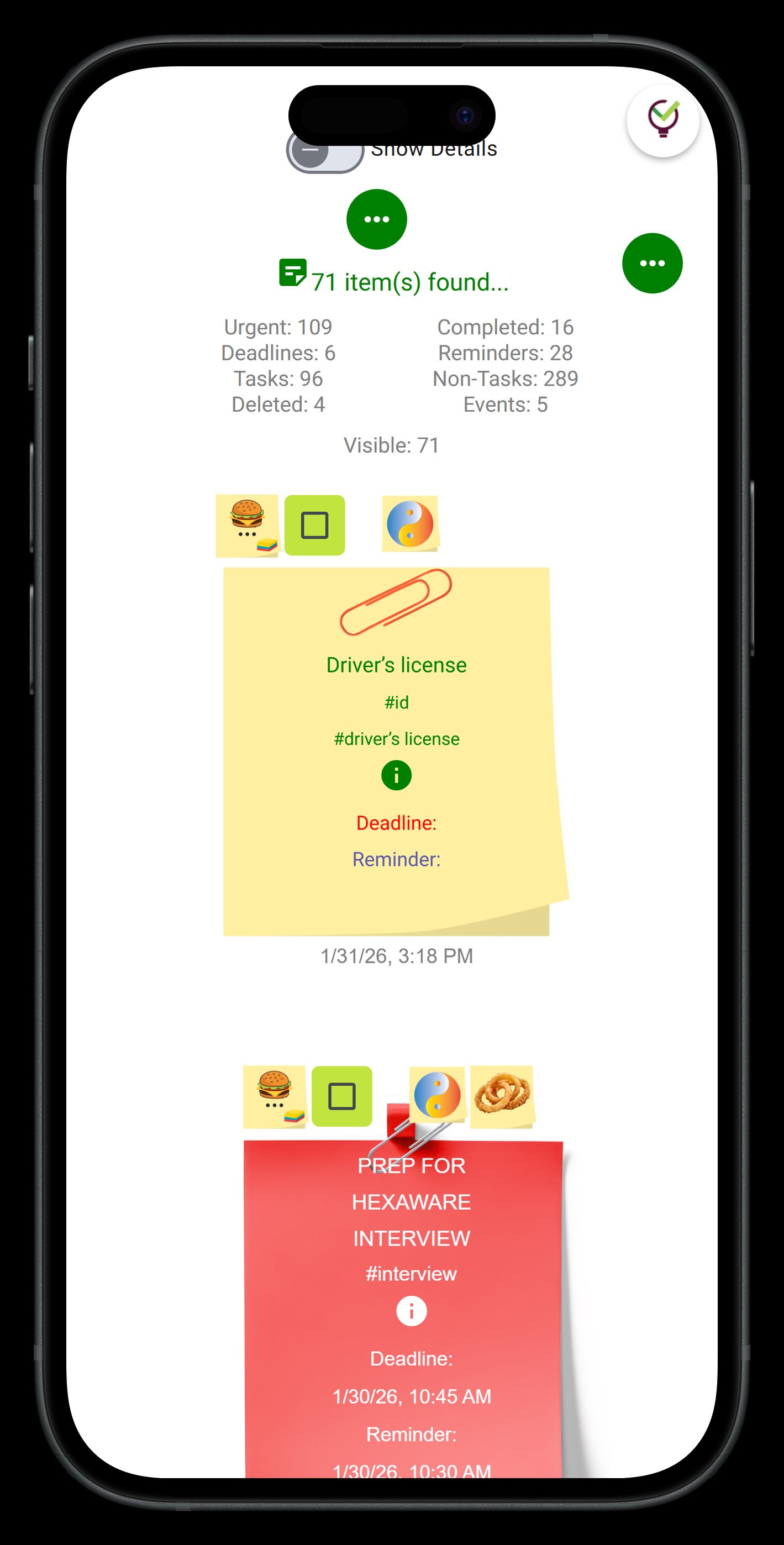
One note, one task. That's the rule. If you write "Marketing" on a sticky note, it's not a task — it's a category. Tasks are specific actions: Write Q3 product brief, Send contractor invoice, Review homepage copy. If you can't tell when the task is done, the note is too vague.
Keep each note to one or two lines. You're writing for a board you'll read from across a room, not a journal. If a task requires more context, write the short label on the front and attach a detail slip behind it — or link to a document. The board is a navigation system, not storage.
Use color intentionally, not decoratively:
- Yellow — standard tasks
- Pink or red — blocked or urgent
- Green — external dependencies (waiting on someone else)
- Blue — reference notes or decisions, not action items
You don't need all four colors. Even just flagging blocked tasks in a different color means you can scan your board in five seconds and know exactly where the friction is.
Step 3 — Run the Board as a Habit, Not a One-Time Setup
A project board only works if it moves. The biggest failure mode is setting it up once, feeling great about it, and then letting it sit untouched while the actual work happens somewhere else. The board has to become the source of truth.
Build two rituals around it:
- Daily: a 5-minute standup. Look at In Progress. Did anything move yesterday? Is anything blocked? Move notes accordingly. If you're working solo, this is just a quiet scan before you start your day.
- Weekly: a 15-minute review. Are there notes that haven't moved all week? That's a signal — either the task is too big and needs to be broken down, or it's genuinely blocked and needs attention.
When a task is done, don't just pull the note off the board and throw it away. Move it to Done first and leave it there through the week. Seeing a growing Done column is one of the best motivators in project work — it makes progress visible in a way that a checkbox list never does.
If your board gets stale — notes that haven't moved in two weeks, columns that have stopped meaning anything — that's not a board problem. That's a sign the project needs a conversation, not a reorganization.
How TaskLoco Brings This Same Method to Any Screen
If your project runs longer than a sprint, involves people in different locations, or needs to survive a trip through an airport, a physical sticky note board has obvious limits. Notes fall off walls. Photos of whiteboards go stale. You can't get a push notification from a Post-it.
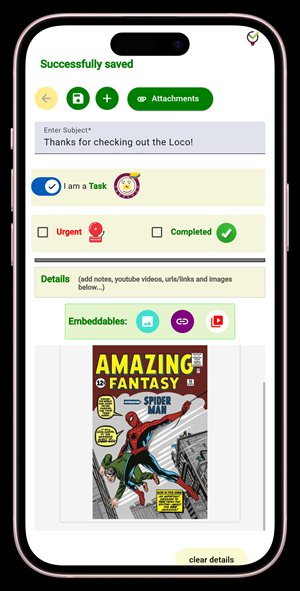
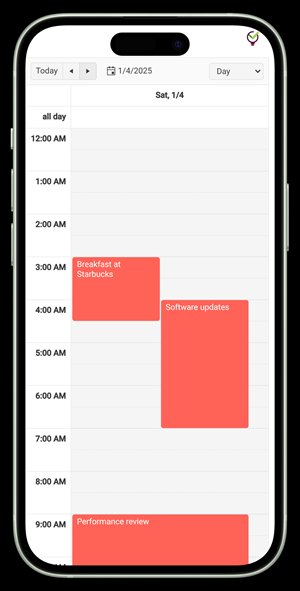
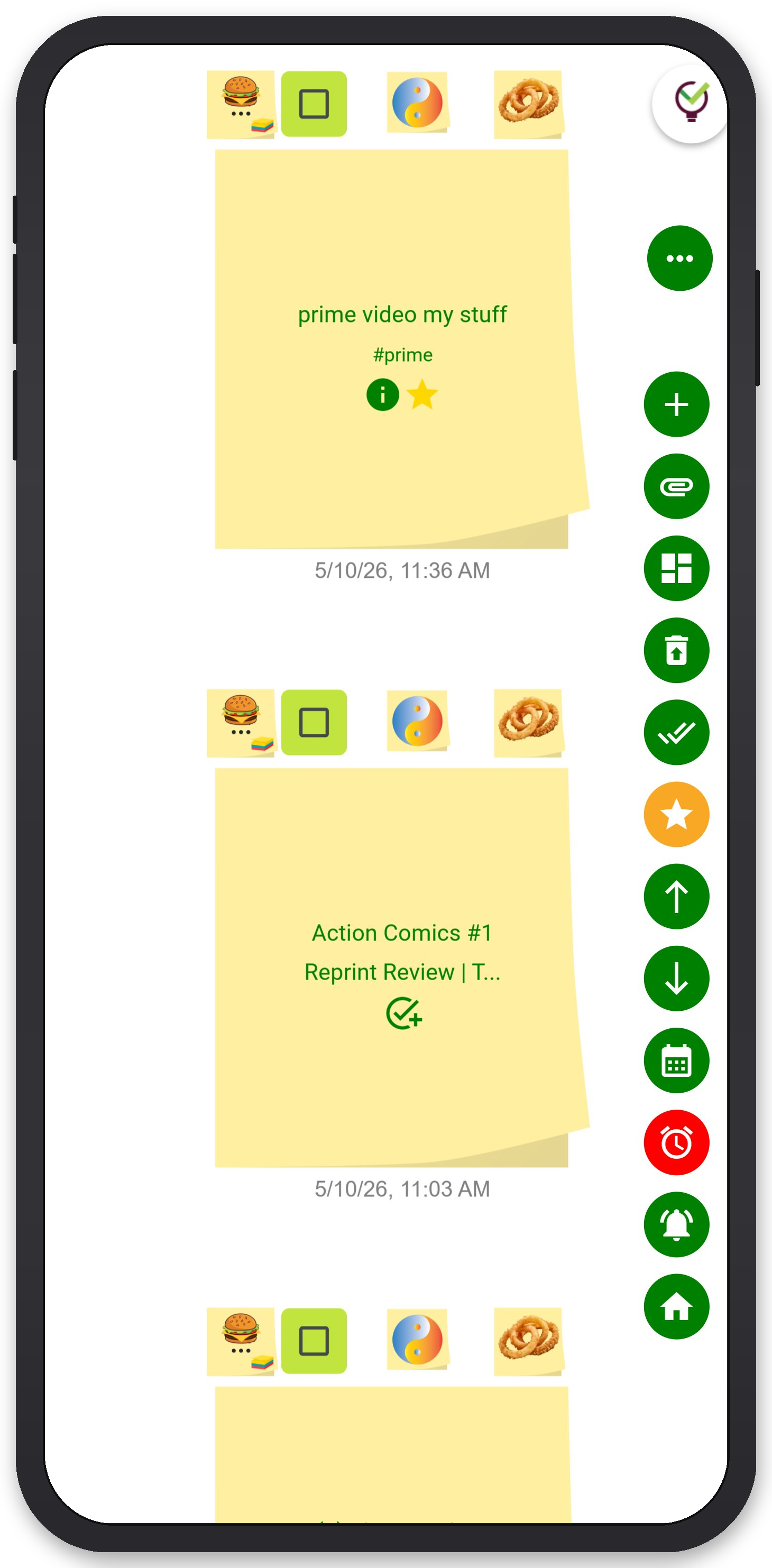
TaskLoco's wall view is built on the same spatial logic as a physical board. Each note is a card. You arrange them yourself — there's no auto-sorting algorithm rearranging your thinking. You decide what goes where, just like you would with physical notes. The difference is that your board lives across all your devices, your files can be attached directly to the relevant note (up to 10GB of storage with Premium), and reminders deep-link back to the original note so you land exactly where you need to be when the notification fires.
Team sharing works the way email works — a shared note lands with the recipient, who can clone it and make it their own. No permissions to configure, no access levels to manage. The note just arrives.
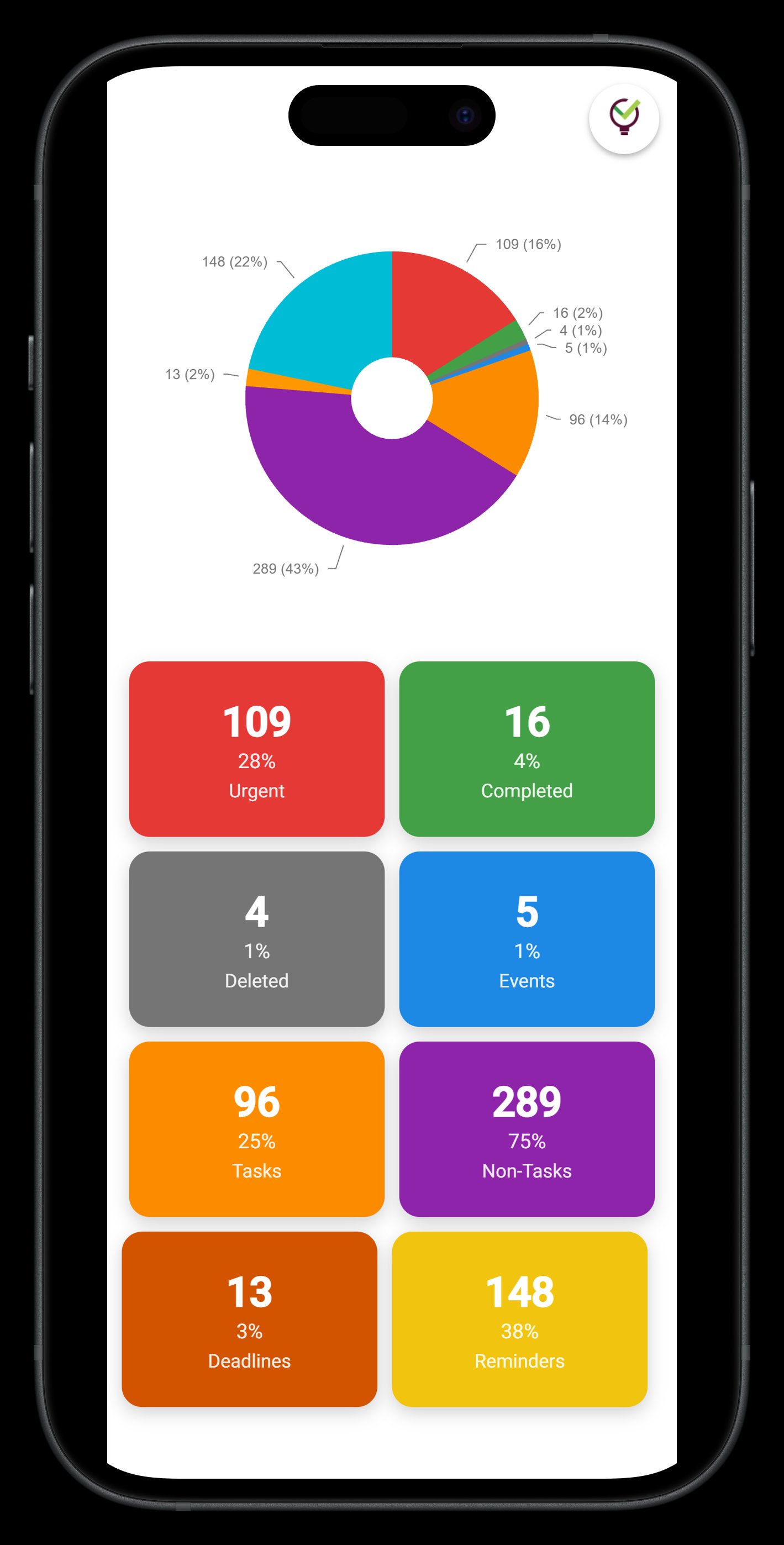
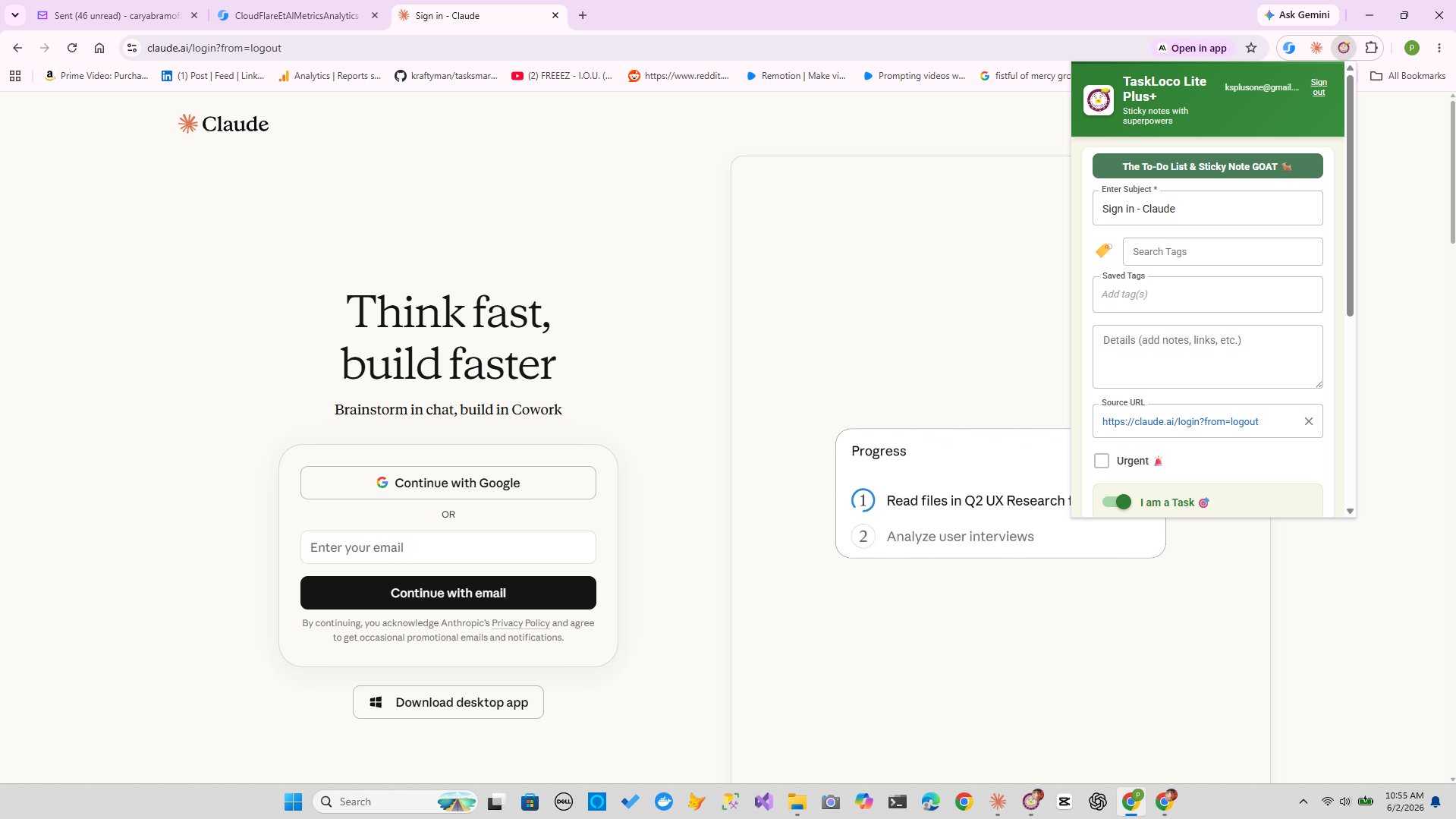
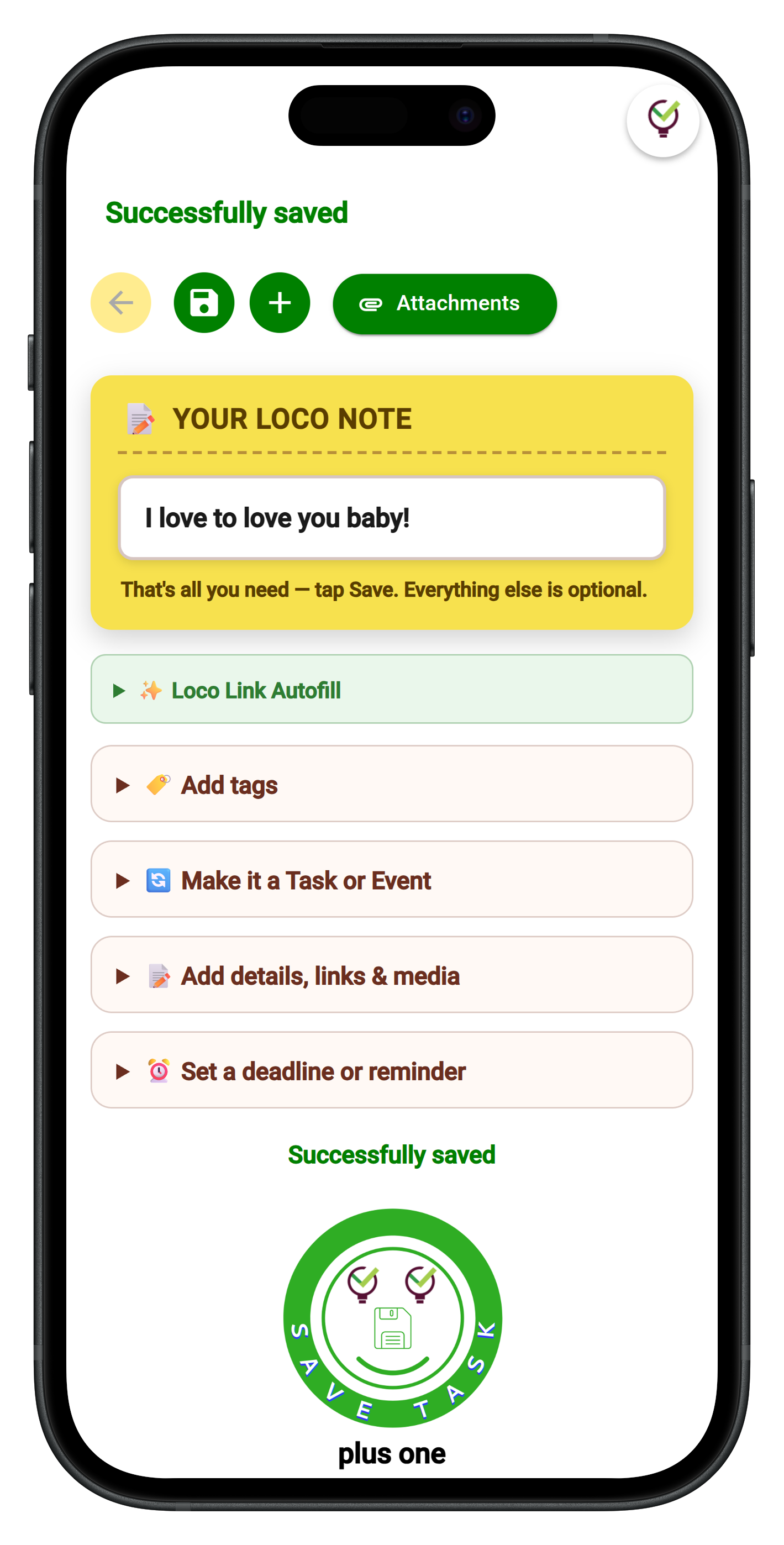
TaskLoco Lite is free, native on iPhone and Android, completely anonymous — no sign-in required, up to 20 notes stored on your device. It's a fast way to capture tasks before you build them into a proper board. TaskLoco Lite Plus+ (free, web app and Chrome extension) gives you 30 synced notes across devices with one-click webpage capture from the browser. TaskLoco Premium is where the full board experience lives — unlimited notes, reminders with push notifications to your phone and computer, file attachments, calendar view, and team sharing.
TaskLoco Premium is regularly $9.99/month per person. Right now, charter members can lock in 50% off the regular price — forever. That means $4.99/month per person today. And if our price ever goes up, you still pay half. Always.
Code CHARTER50 auto-applies at checkout. First 500 spots only — once they're gone, this offer is gone permanently. Act fast while spots last.
Every Premium subscription includes unlimited notes, 10GB file storage, reminders, calendar, and team sharing. Each team member requires a separate subscription. 7-day free trial — no charge until day 8. Cancel anytime.
Free Options: TaskLoco
TaskLoco Lite
- Native iPhone & Android app
- Completely anonymous — no sign-in
- Data stays on your device
- Up to 20 notes
- Free forever
TaskLoco Lite Plus+
- Web app + Chrome extension
- Sign in with Google
- Wall syncs across all devices
- Up to 30 notes
- Free forever
Lock In 50% Off — Forever
7-day free trial. No charge until day 8. CHARTER50 auto-applies at checkout.
🔒 Lock In My Charter SpotSee TaskLoco in Action
Frequently Asked Questions
What is a sticky note project board?
A sticky note project board is a visual management system where each sticky note represents a single task, and notes are arranged in columns — typically To Do, In Progress, and Done — to show the status of work at a glance. It's based on the Kanban method developed in manufacturing and now used widely in software, creative, and personal productivity contexts. The board works because it makes invisible work visible: you can see everything in progress, everything waiting, and everything finished without opening a single file.
How many columns should a sticky note board have?
Three is the right starting point for most projects: To Do, In Progress, and Done. If your workflow has a review or approval step, add a fourth column — Review or Waiting — between In Progress and Done. Avoid adding columns just to feel organized. Every column you add is another place work can stall. Start with three, add a fourth only when you find yourself needing it, and resist the urge to go beyond five. The more columns you have, the harder the board is to read at a glance, which defeats the purpose.
What color system works best for sticky note boards?
Use color to signal status or urgency, not just to make the board look interesting. A practical system: yellow for standard tasks, pink or red for blocked or urgent items, green for tasks waiting on an external person or dependency, and blue for reference notes or decisions that aren't action items. You don't need all four — even just one contrasting color for blocked tasks dramatically speeds up your daily scan. The goal is to be able to look at the board from across the room and immediately know where the problems are.
How do I stop my project board from going stale?
Build two recurring rituals: a 5-minute daily scan to move notes based on what actually happened yesterday, and a 15-minute weekly review to catch tasks that haven't moved in too long. The board should feel like a live document, not a decoration. If it feels like a decoration, the team has stopped trusting it, and that's the real problem to fix.
When should I switch from a physical board to a digital one?
Switch when the physical board starts creating friction instead of reducing it. The clearest triggers: your team is working from different locations, your project runs longer than two or three weeks, you need to attach files or links to tasks, or you need to set reminders that follow you beyond the room. A photo of a whiteboard is not a digital board — it's just a snapshot that goes stale immediately. A proper digital board stays live, syncs across devices, and lets you act on tasks wherever you are.
Can I use a sticky note board for solo projects, not just teams?
Absolutely — solo boards often work better than team boards because there's no coordination overhead. One person, one board, full visibility into your own work. The most common solo setup is a simple three-column board for your current project, plus a separate "backlog" area off to the side for tasks that aren't active yet. The daily scan becomes a private habit: five minutes each morning to move notes and decide what In Progress actually means for today. Many people find that the act of physically moving a note from In Progress to Done at the end of the day is more satisfying than checking a checkbox.
How does TaskLoco work as a digital sticky note board?
TaskLoco's wall view uses the same spatial logic as a physical board — you place and arrange notes yourself, in whatever layout makes sense for your project. Premium adds the features a physical board can't offer: reminders delivered as push notifications that deep-link back to the original note, file attachments (10GB storage included), calendar view, and team sharing where notes land with recipients the same way an email does. There's a free native app (TaskLoco Lite, iPhone and Android, no sign-in needed, up to 20 notes) and a free web tier with sync (Lite Plus+, up to 30 notes). $9.99/month per person (currently $4.99/month per person for first 500 charter members with code CHARTER50)
Born in Brooklyn. Powered by AWS. Your data stays yours.
TaskLoco is available on iPhone, Android, Chrome, and every web browser.