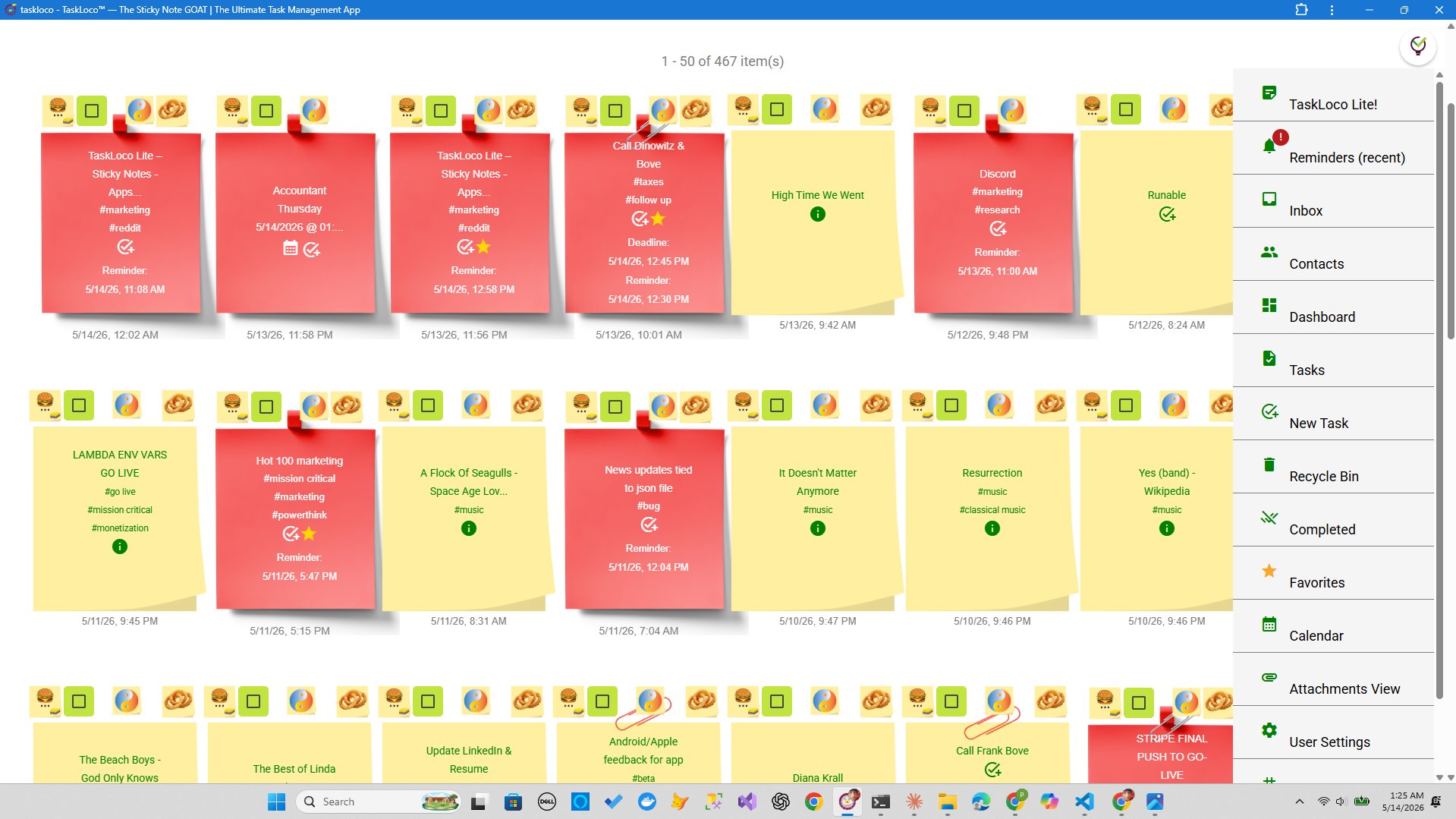
Windows has its own built-in Sticky Notes app, and Android has a dozen note-taking options. The problem: none of them talk to each other natively. So your grocery list lives on your laptop, your meeting reminders are on your phone, and you spend more time hunting for notes than acting on them.
The good news is you don't need a paid subscription to fix this. There are a few solid approaches — and one genuinely free option that handles the sync automatically. This guide walks through each method so you can pick the one that fits how you actually work.
Why Windows Sticky Notes Don't Sync to Android (and What Actually Does)
Microsoft's Sticky Notes app does sync — but only to other Microsoft surfaces. If you're signed into the same Microsoft account on Windows and on an Android device that has the Microsoft Launcher or OneNote installed, your notes can appear there. That's the official free path Microsoft offers, and for many people it works fine.
Here's the catch: Microsoft Sticky Notes on Android requires the OneNote app as a companion, and the experience is buried inside a section called "Sticky Notes" within OneNote — not a standalone, always-visible sticky note interface. You're essentially using OneNote with a sticky-notes filter. Some people love it. Others find it clunky.
If you want a true cross-platform sticky note experience — meaning notes that look and feel the same on your Windows browser and your Android browser — you need a web-based app. Web apps run in Chrome, Firefox, or any browser, which means the same app you open on your Windows laptop is the exact same app on your Android phone. Your notes sync because they live on a server, not on your device.
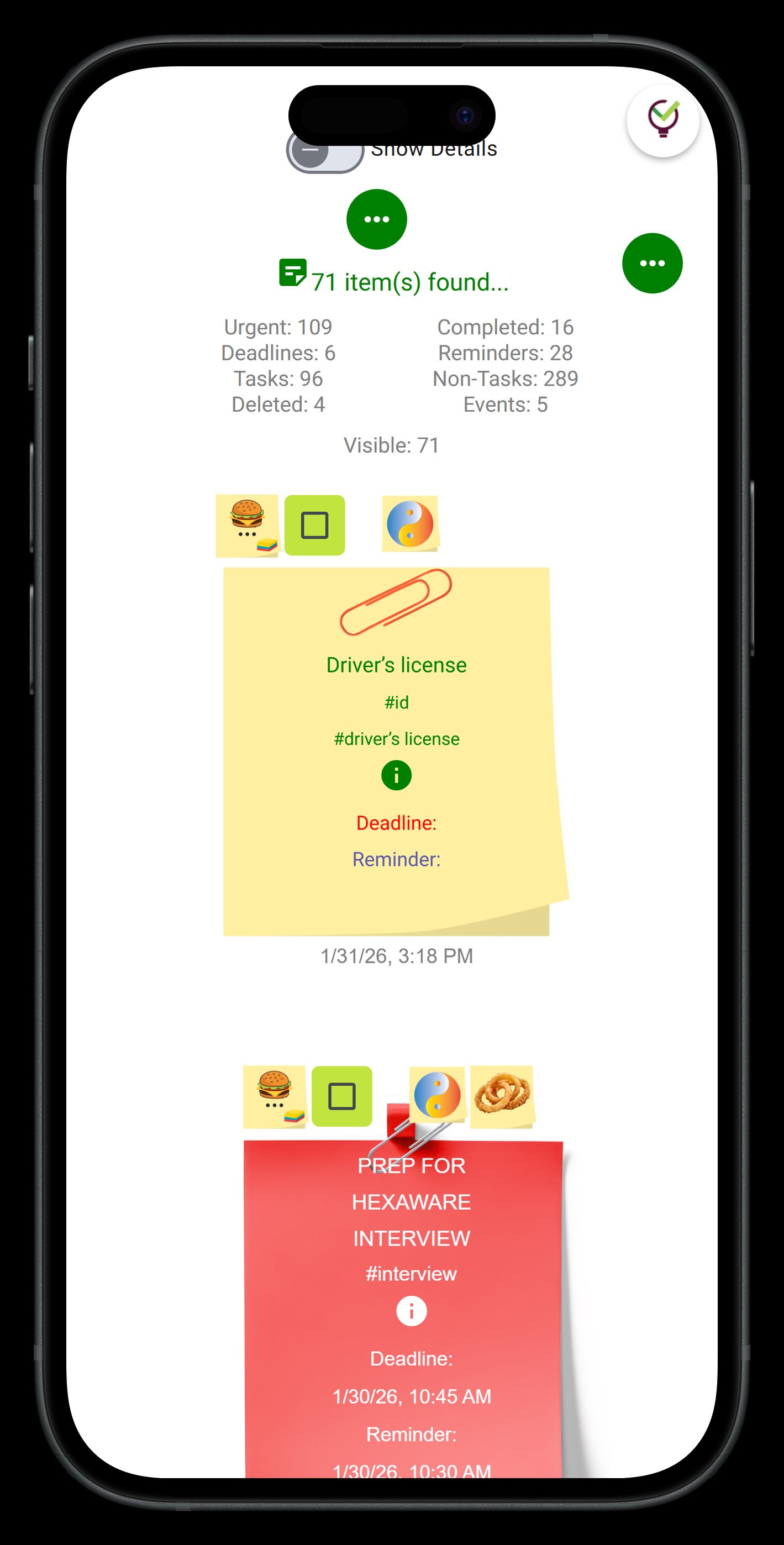
Method 1 — Use Microsoft's Own Sync (Free, Requires Microsoft Account)
This is the most direct path if you're already inside the Microsoft ecosystem. Here's exactly how to set it up:
- Step 1: Open Sticky Notes on Windows and make sure you're signed in with a Microsoft account. Look for the sign-in prompt in the top-right corner of the app.
- Step 2: On your Android phone, install Microsoft OneNote from the Play Store (free).
- Step 3: Sign into OneNote with the same Microsoft account.
- Step 4: Inside OneNote, tap the pencil icon or go to the main menu and look for "Sticky Notes." Your Windows sticky notes should appear there within a minute or two.
New notes you create in the Sticky Notes section of OneNote on Android will sync back to your Windows Sticky Notes app. The sync is two-way. It works over any internet connection.
What you give up: The Android experience lives inside OneNote, so you're navigating an app designed for long-form notes just to see your quick reminders. There's no floating sticky note widget and no push notification reminders unless you manually set them in a separate app. If that friction doesn't bother you, this method costs nothing and requires no new software beyond what Microsoft already provides.
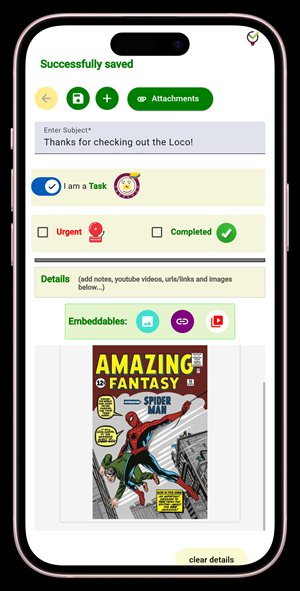
Method 2 — Use Any Free Web-Based Note App (No Microsoft Account Needed)
If you'd rather not tie your notes to a Microsoft account, or if the OneNote path feels like too many steps, a web-based sticky note app solves the problem more directly. The logic is simple: open the same URL on your Windows browser and your Android browser, sign in once with a Google account or email, and your notes are the same everywhere.
Several apps offer a free tier that's genuinely useful — not just a 7-day trial. What to look for in a free plan:
- At least 20–30 notes included (enough for real daily use)
- Sign-in with Google so you're not creating yet another password
- True cross-device sync, not just export/import
- A clean interface that doesn't require training to use
The trade-off with most free web-based apps is a note limit. Free tiers typically cap you at somewhere between 20 and 50 notes. That's enough for most people's active list of tasks and reminders — but if you archive everything and never delete, you'll hit the ceiling eventually.
The key step on Android: Once you're signed in via your Android browser, use your browser's "Add to Home Screen" option. This puts a shortcut icon on your Android home screen that opens the web app directly — it looks and launches almost exactly like a native app, but no Play Store install is required.
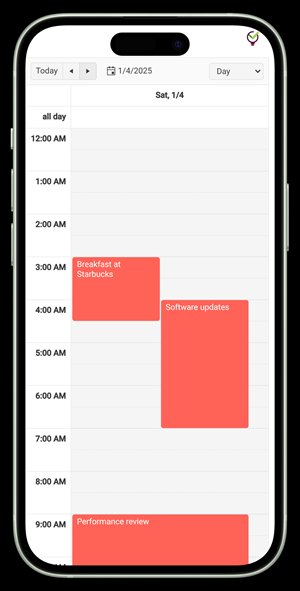
One Free Option Worth Trying: TaskLoco Lite Plus+
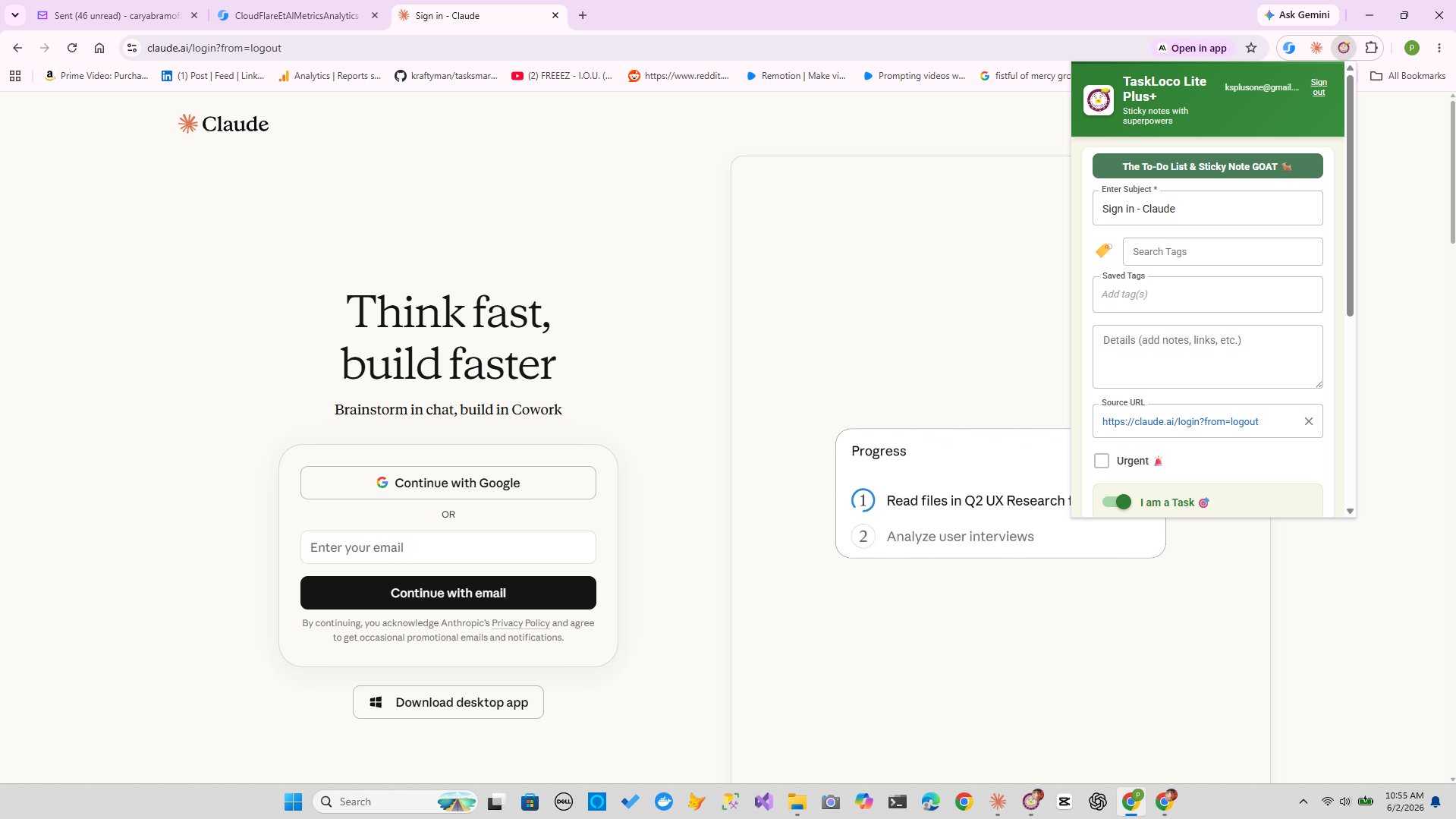
If you want a sticky-note-style app built specifically around this use case, TaskLoco Lite Plus+ is a free tier worth knowing about. It's not a native Android app — it runs as a web app and through a Chrome extension, which is exactly what makes cross-device sync possible on the free plan.
Here's what Lite Plus+ includes at no cost: sign in with Google, sync up to 30 notes across every device you use, and capture any webpage in one click using the Chrome extension on Windows. Open the same app in Chrome on your Android phone and all 30 notes are right there.
The Chrome extension is particularly useful on Windows. When you're reading something — an article, a product page, a recipe — one click saves it as a note without breaking your flow. Those captures sync immediately and appear on your Android phone the next time you check the app.
What Lite Plus+ doesn't include: reminders, file attachments, and unlimited notes are reserved for TaskLoco Premium. But if your goal is simply syncing sticky notes between Windows and Android for free, the 30-note limit covers most active to-do lists comfortably, and the sync is instant and automatic.
For teams or anyone who needs reminders that fire as push notifications directly to their phone, or file attachments stored alongside notes, that's where Premium comes in. But that's a separate conversation from syncing your sticky notes for free — and the free tier genuinely delivers on the core promise.
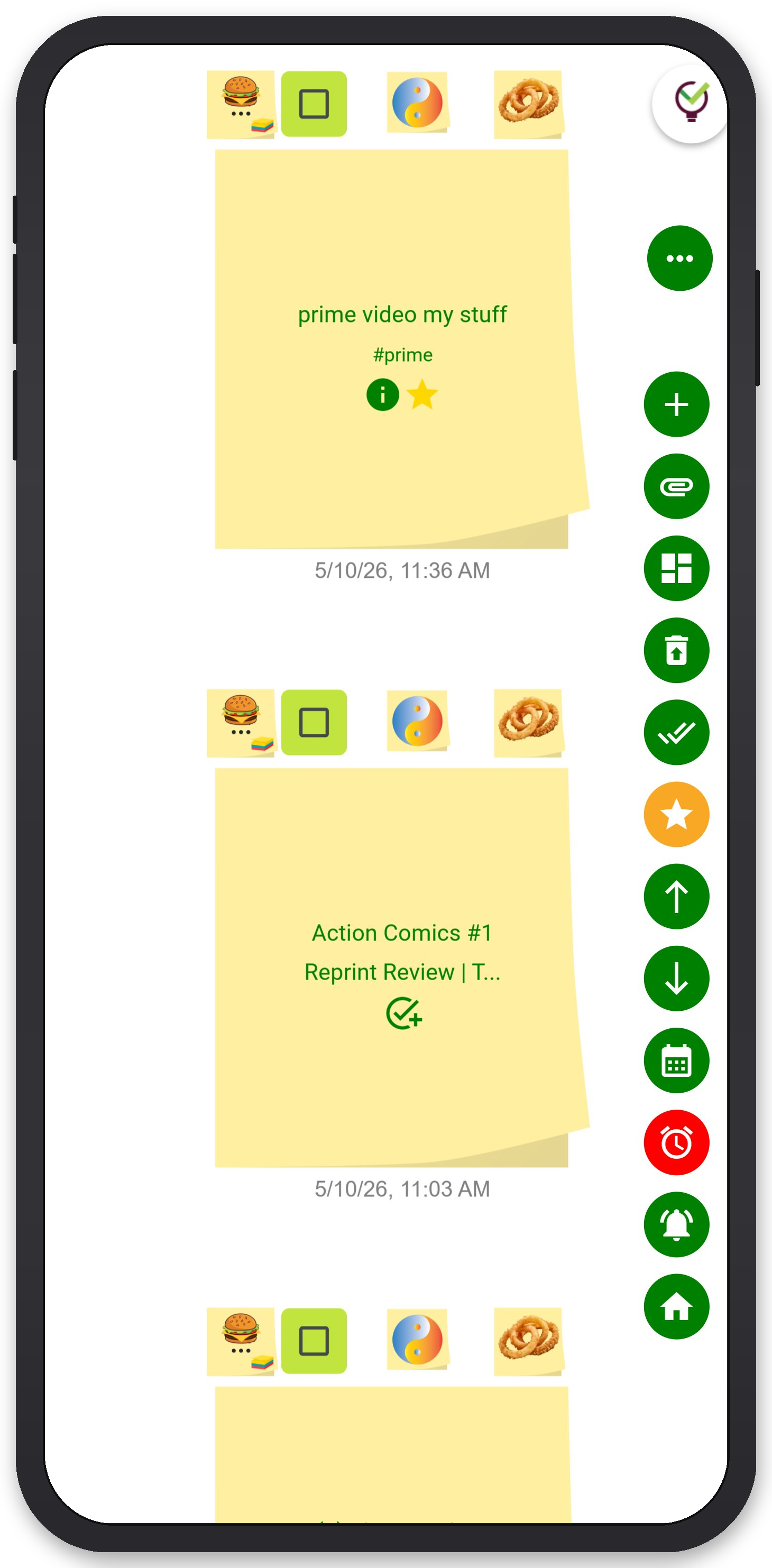
TaskLoco Premium is regularly $9.99/month per person. Right now, charter members can lock in 50% off the regular price — forever. That means $4.99/month per person today. And if our price ever goes up, you still pay half. Always.
Code CHARTER50 auto-applies at checkout. First 500 spots only — once they're gone, this offer is gone permanently. Act fast while spots last.
Every Premium subscription includes unlimited notes, 10GB file storage, reminders, calendar, and team sharing. Each team member requires a separate subscription. 7-day free trial — no charge until day 8. Cancel anytime.
Free Options: TaskLoco
TaskLoco Lite
- Native iPhone & Android app
- Completely anonymous — no sign-in
- Data stays on your device
- Up to 20 notes
- Free forever
TaskLoco Lite Plus+
- Web app + Chrome extension
- Sign in with Google
- Wall syncs across all devices
- Up to 30 notes
- Free forever
Lock In 50% Off — Forever
7-day free trial. No charge until day 8. CHARTER50 auto-applies at checkout.
🔒 Lock In My Charter SpotSee TaskLoco in Action
Frequently Asked Questions
Can I sync Windows Sticky Notes to Android without OneNote?
Yes. Microsoft Sticky Notes uses OneNote as the Android companion app, but you don't have to use that path. Any free web-based note app that runs in a browser will sync between Windows and Android without requiring OneNote or a Microsoft account. Sign in with Google, open the same URL on both devices, and your notes are there.
Is there a free app that syncs sticky notes between all my devices automatically?
TaskLoco Lite Plus+ is free and syncs up to 30 notes across all your devices through the web app and Chrome extension. Sign in with Google, open the app in any browser on Windows or Android, and your notes are the same everywhere. No note limit increase, no reminders, and no file attachments on the free tier — but the sync itself is fully free.
Does Microsoft Sticky Notes sync to Android?
Yes, but only through the OneNote app on Android. Sign into both apps with the same Microsoft account, then look for the Sticky Notes section inside OneNote. Notes you create on Windows appear there, and notes created on Android sync back to Windows. It's free but requires the OneNote app as the Android host.
What is the best free sticky note app for Windows and Android?
It depends on whether you're already in the Microsoft ecosystem. If you are, Microsoft Sticky Notes plus OneNote is zero-friction and free. If you'd prefer something Google-account-based with a true web app interface, TaskLoco Lite Plus+ syncs 30 notes across all devices at no cost and includes a Chrome extension that captures webpages as notes in one click.
How do I add a web app to my Android home screen so it acts like a real app?
Open the web app in Chrome on Android, then tap the three-dot menu in the top-right corner. Look for "Add to Home screen" and tap it. Android will place an icon on your home screen. Tapping that icon opens the web app directly, full-screen, without the browser toolbar — it behaves almost exactly like a native app. This works for any web-based note app including TaskLoco.
Do I need to pay anything to sync notes between Windows and Android?
No. Both methods described here — Microsoft Sticky Notes via OneNote, and TaskLoco Lite Plus+ — are free. You only need a paid plan if you want features beyond basic synced notes, such as push notification reminders, file attachments, more than 30 notes, or team sharing. $9.99/month per person (currently $4.99/month per person for first 500 charter members with code CHARTER50)
What happens if I need more than 30 notes or want reminders on my phone?
TaskLoco Premium removes the note limit entirely and adds push notification reminders that deep-link back to the exact note that triggered them, so you land in the right place with one tap. It also includes 10GB of file storage, a calendar view, and team sharing. There's a 7-day free trial, and the first 500 subscribers can lock in the charter rate for life. $9.99/month per person (currently $4.99/month per person for first 500 charter members with code CHARTER50)
Born in Brooklyn. Powered by AWS. Your data stays yours.
TaskLoco is available on iPhone, Android, Chrome, and every web browser.