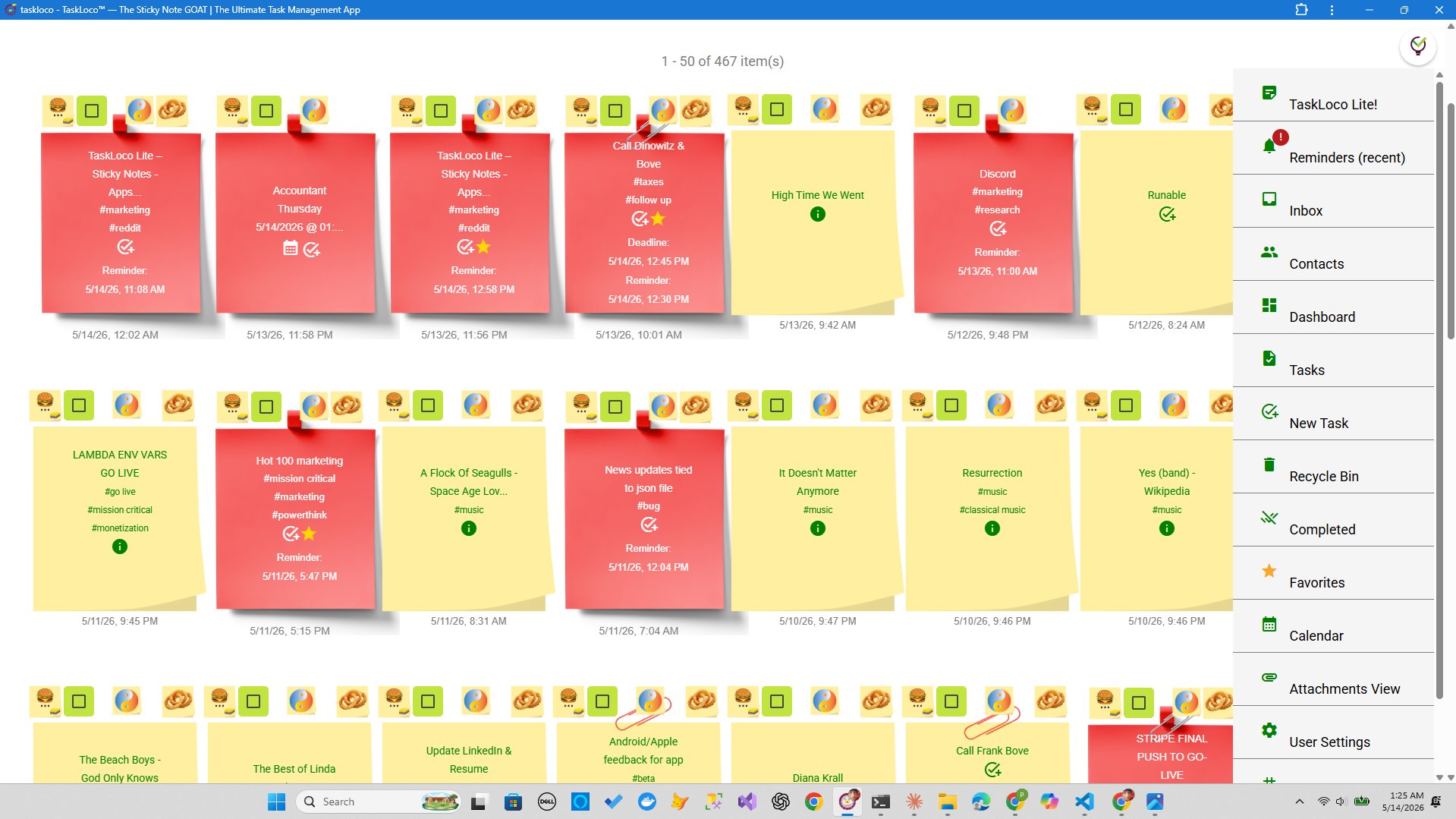
Most people pay for reminder features they could get for free. Your phone, your browser, and your inbox already have everything you need to repeat a reminder daily, weekly, or monthly without spending a cent.
This guide covers the best free methods, what each one is actually good for, and where they fall short. If you eventually outgrow them, there's one paid option worth knowing — but the free methods alone will handle the majority of what most people need.
Method 1: Use Your Phone's Built-In Clock or Calendar
< Every iPhone and Android phone ships with a clock app that supports repeating alarms, and a calendar app that supports recurring events. Neither costs anything.iPhone — Clock App (for time-based repeats):
- Open the Clock app and tap Alarm.
- Tap the + to add a new alarm, set your time.
- Tap Repeat and check every day of the week you want the reminder to fire.
- Give it a label so you know what it's for.
- Save. Done.
iPhone — Calendar App (for date-based repeats):
- Open Calendar, tap + to create a new event.
- Set the date and time.
- Tap Repeat and choose Daily, Weekly, Every 2 Weeks, Monthly, or Yearly.
- Scroll down and tap Alert to add a notification before the event.
- Save.
Android — Google Calendar:
- Open Google Calendar, tap + then Event.
- Set the date and time.
- Tap Does not repeat and choose your recurrence — daily, weekly, monthly, or a custom interval.
- Add a notification at the bottom of the form.
- Save.
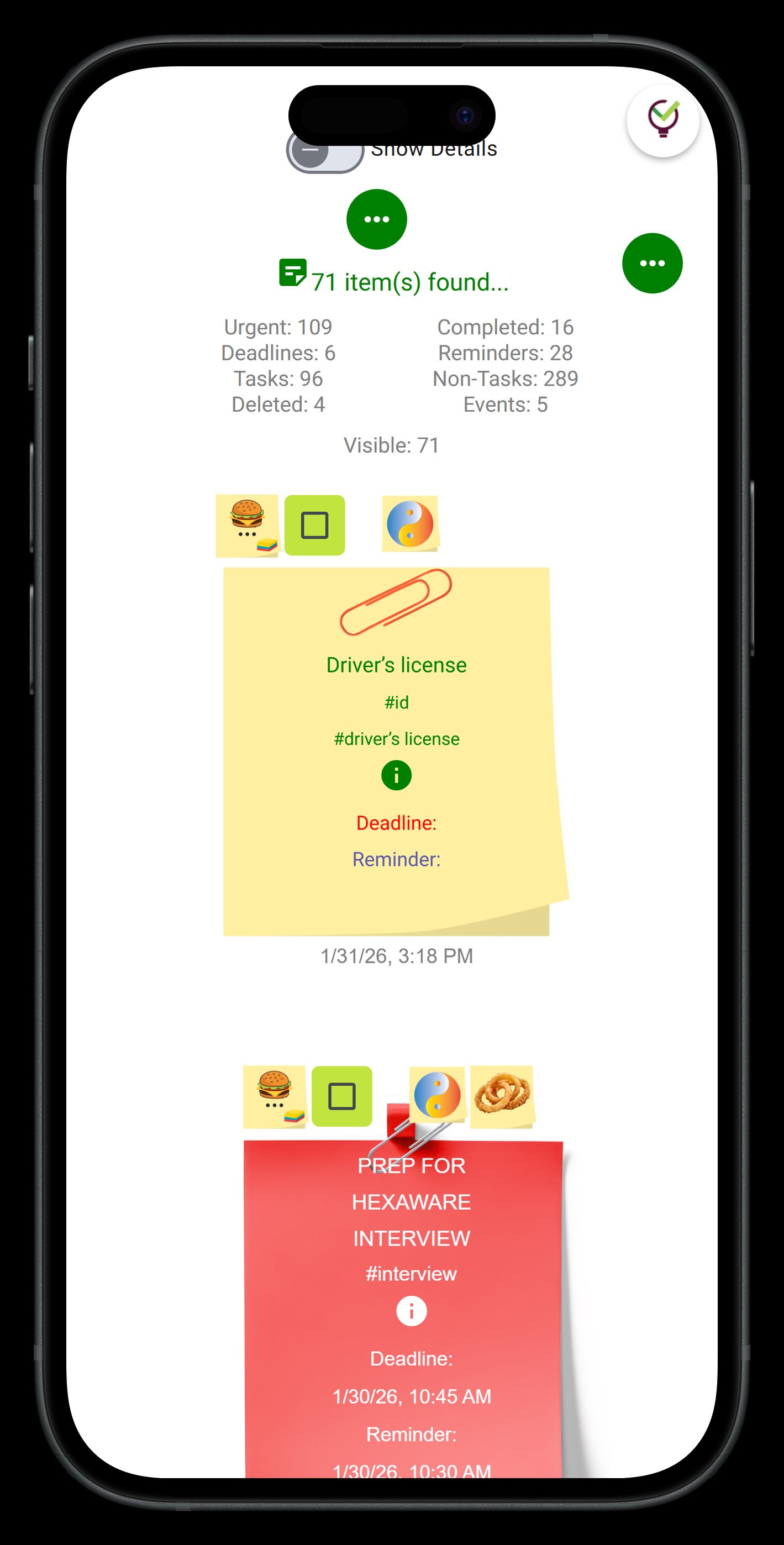
Method 2: Google Calendar on the Web (Free, Syncs Everywhere)
<<
- Go to calendar.google.com and click on a date.
- Click More options to get the full event editor.
- Set your title, date, and time.
- Click Does not repeat and choose a recurrence pattern. Click Custom for intervals like every 2 weeks or every third Monday.
- Under Notification, add how far in advance you want the alert — 10 minutes, 1 day, 1 week, etc.
- Click Save.
Google Calendar also has a Tasks panel on the right side. You can add tasks with due dates and they'll appear inline on your calendar. These don't repeat on their own, but for one-time reminders linked to a checklist item, it works well.
Google Keep Reminders (a hidden gem): If you use Google Keep for notes, you can set a time-based reminder directly on a note — tap the bell icon. The reminder fires as a push notification on your phone and links you back to the note. It's free. It's not technically recurring without a workaround, but for notes-based reminders, it's the closest free equivalent to a premium feature.
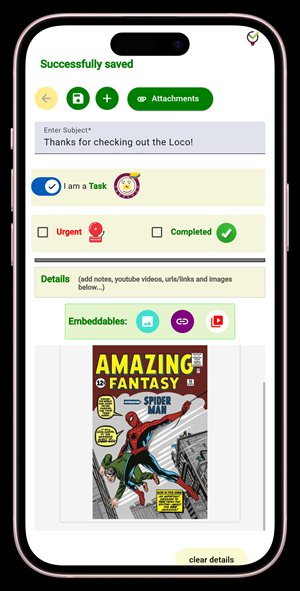
Method 3: Email and Browser-Based Free Tools
Sometimes you want a reminder that arrives in your inbox rather than on your phone. Here are the best free ways to make that happen.
Gmail + Google Calendar: Create a recurring calendar event and set the notification type to Email. Google will send you an email reminder on schedule. This is completely free and works without opening any app — the reminder lands in your inbox.
Boomerang for Gmail (free tier): Boomerang lets you schedule an email to return to your inbox at a set time. The free tier has monthly message limits, so it's best for low-frequency reminders.
IFTTT (free tier): IFTTT lets you build simple automations like "every Monday at 9am, send me an email with this subject line. Setup takes about 5 minutes.
Where these methods fall short: None of these connect a reminder to an actual note or task. The alarm fires, you see a generic notification or email, and then you have to go find whatever it was you needed to remember. That gap — between the reminder and the thing it's reminding you about — is where most free tools lose you.
When Free Isn't Enough: Reminders That Deep-Link to Your Notes
Free reminder tools are great at telling you when to do something. They're bad at telling you what to do and showing it to you immediately. If your reminder fires and you have to hunt through a calendar, a notes app, and a folder to find the relevant document, you've lost the efficiency you were trying to gain.
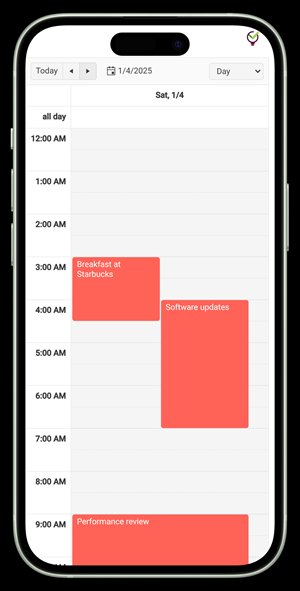
This is where TaskLoco Premium earns its place. When you set a reminder on a TaskLoco note, the push notification that fires on your phone or computer deep-links directly back to that note — you tap the notification and you're looking at exactly what you need to act on. No hunting. No context-switching.
Reminders in TaskLoco are delivered as push notifications to your phone and computer. You can optionally add email notifications at no extra cost, and SMS notifications are available as an add-on. The push notification is the default — it's immediate, and it goes directly to the note.
For file-heavy work, TaskLoco Premium also includes 10GB of file storage, so the note your reminder surfaces can have the relevant documents attached to it. The reminder, the note, and the file are all in the same place.
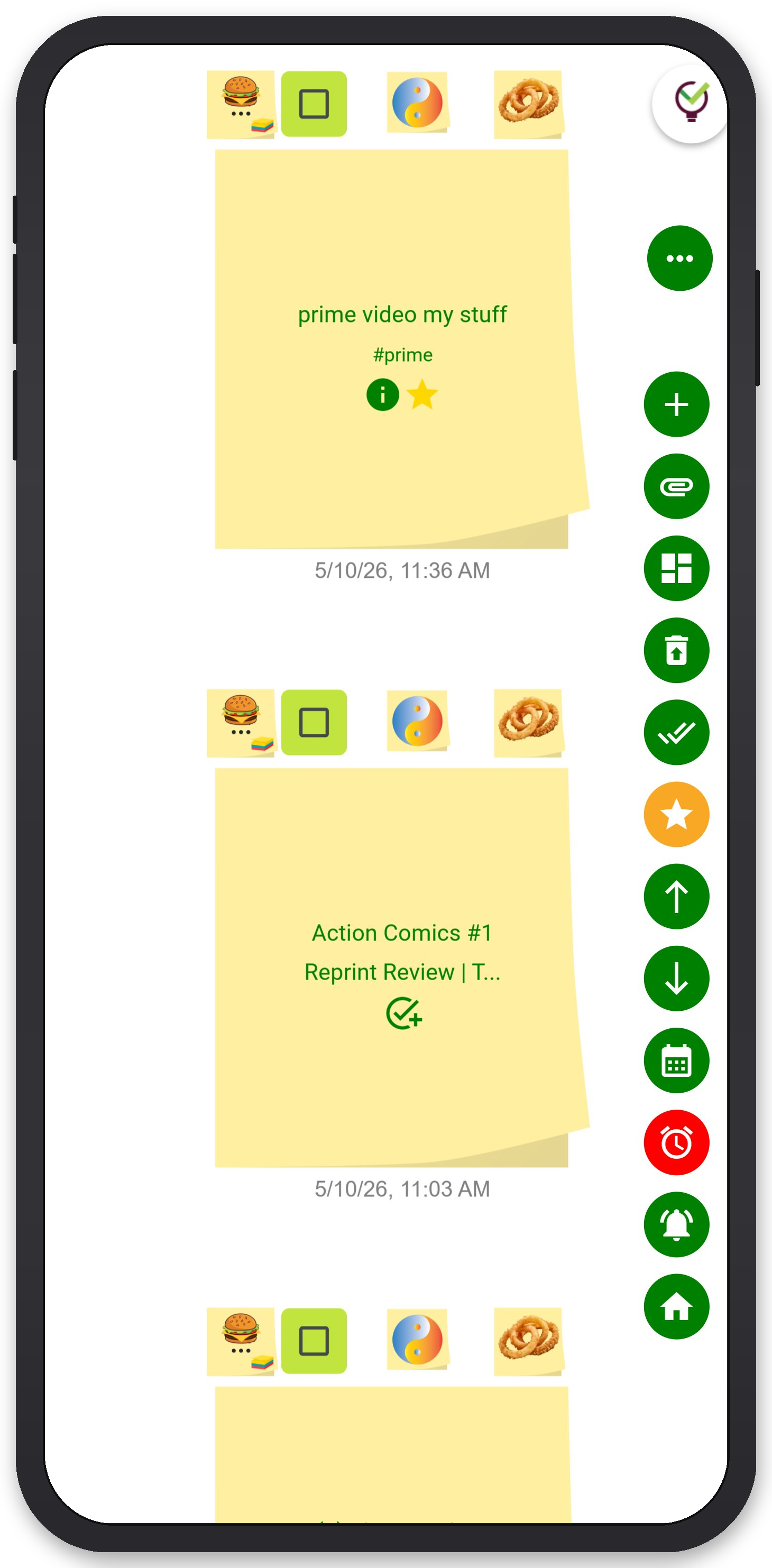
TaskLoco Premium is regularly $9.99/month per person. Right now, charter members can lock in 50% off the regular price — forever. That means $4.99/month per person today. And if our price ever goes up, you still pay half. Always.
Code CHARTER50 auto-applies at checkout. First 500 spots only — once they're gone, this offer is gone permanently. Act fast while spots last.
Every Premium subscription includes unlimited notes, 10GB file storage, reminders, calendar, and team sharing. Each team member requires a separate subscription. 7-day free trial — no charge until day 8. Cancel anytime.
Free Options: TaskLoco
TaskLoco Lite
- Native iPhone & Android app
- Completely anonymous — no sign-in
- Data stays on your device
- Up to 20 notes
- Free forever
TaskLoco Lite Plus+
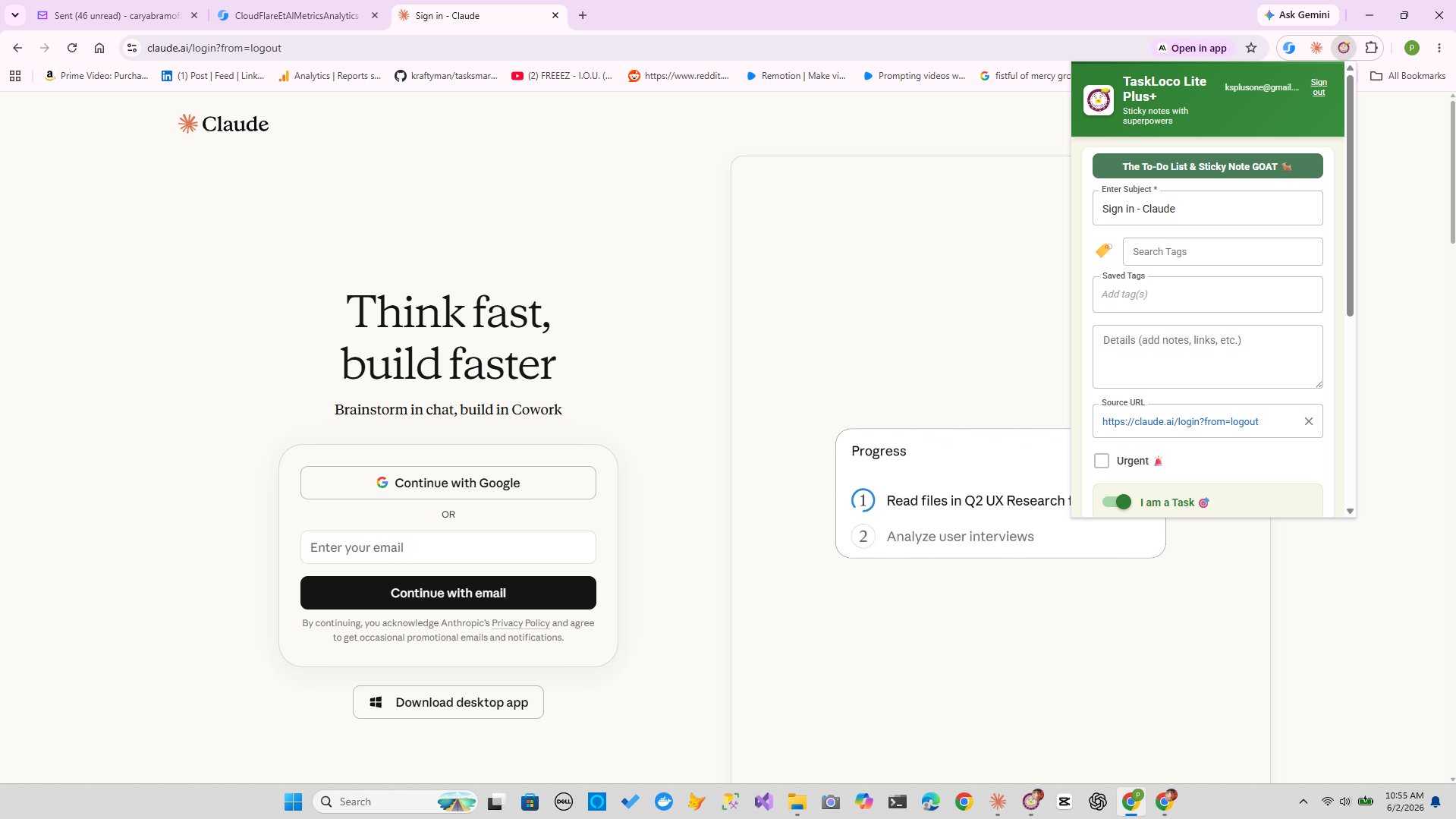
- Web app + Chrome extension
- Sign in with Google
- Wall syncs across all devices
- Up to 30 notes
- Free forever
Lock In 50% Off — Forever
7-day free trial. No charge until day 8. CHARTER50 auto-applies at checkout.
🔒 Lock In My Charter SpotSee TaskLoco in Action
Frequently Asked Questions
Can I set a recurring reminder on my iPhone for free?
Yes. Open the Clock app, tap Alarm, add a new alarm, then tap Repeat to choose which days it fires. For date-based recurrence, use the Calendar app — create an event, tap Repeat, and choose daily, weekly, monthly, or yearly. Both are completely free and built into iOS.
How do I set a recurring reminder in Google Calendar?
Create a new event in Google Calendar, click 'More options' to open the full editor, then click 'Does not repeat' to choose your recurrence pattern. For custom intervals — like every two weeks or every third Friday — click 'Custom.' Add a notification at the bottom of the form and save. It's free and syncs to every device tied to your Google account.
What's the best free recurring reminder app?
For most people, Google Calendar is the best free option — it has flexible recurrence patterns, syncs everywhere, and can send push notifications or email alerts. If you're already on iPhone, the native Clock and Calendar apps cover the basics without any sign-in required. For notes-linked reminders, TaskLoco Premium adds the ability to have the notification take you directly to the relevant note. $9.99/month per person (currently $4.99/month per person for first 500 charter members with code CHARTER50)
Can I get recurring reminders without creating an account anywhere?
Yes. The iPhone Clock app and Android's default clock both support repeating alarms with no account, no sign-in, and connection required — they run entirely on the device. TaskLoco Lite also requires no account and no sign-in, but it's designed purely as a note-taking tool for up to 20 notes, not a reminder app — reminders are not available in Lite.
How do I make a Google Calendar reminder repeat every two weeks?
Open Google Calendar, create or edit an event, and click 'Does not repeat.' In the dropdown, choose 'Custom.' Set the recurrence to 'Weeks' and the interval to 2. You can also choose which days of the week it applies. Click Done, then save your event. The reminder will repeat every two weeks on the schedule you set.
What's the difference between an alarm and a calendar reminder?
An alarm fires at a specific time and makes noise — it's designed to interrupt you. A calendar reminder fires at a set time and shows a notification, often with a link back to the event. Alarms are better for habits and time-sensitive tasks. Calendar reminders are better for anything that benefits from context — a meeting, a deadline, a recurring review. For reminders tied directly to notes and tasks, a dedicated tool like TaskLoco lets the notification deep-link to the exact note you need.
Do I need to pay for an app to get reminders on my computer?
No. Google Calendar sends browser notifications to your desktop as long as you've allowed them in your browser settings. You can also set calendar event notifications to email, which lands in your inbox whether or not your browser is open. $9.99/month per person (currently $4.99/month per person for first 500 charter members with code CHARTER50)
Born in Brooklyn. Powered by AWS. Your data stays yours.
TaskLoco is available on iPhone, Android, Chrome, and every web browser.