Physical sticky notes are great right up until you need to reference a 12-page contract while staring at a two-inch square of yellow paper. Digital sticky notes solve part of the problem — but most free ones still can't hold a file. So what actually works?
This guide covers every real method for attaching or linking a PDF to a sticky note — from zero-cost workarounds using tools you already have, to proper file attachment in a notes app built for it. No Adobe subscription required for any of it.
Method 1: Turn Your PDF Into a Link (Works Everywhere, Completely Free)
This is the fastest approach and requires nothing beyond a free cloud storage account. The idea: host the PDF somewhere accessible, grab the shareable link, and paste it into whatever sticky note app you use — digital or physical (QR code, more on that below).
- Google Drive: Upload the PDF → right-click → Share → Change to "Anyone with the link" → Copy link. Paste that URL into your note. Done.
- Dropbox: Same flow. Upload → Share → Create link → Copy. Works identically.
- OneDrive: Upload → Share → Copy link. One extra step: click the gear icon and set permissions to "Anyone" if you need others to open it.
- PDF.host or Adobe Express free tier: Drag and drop your PDF, get a public link instantly. No account required on PDF.host.
The link method works in Apple Sticky Notes, Microsoft Sticky Notes, Google Keep, and any plain text editor. The downside: the PDF lives somewhere else. If you delete it from Drive or the link expires, the note becomes a dead end. Keep that in mind if you're archiving anything important.
Method 2: Paste the PDF Content Directly Into the Note
If the PDF is text-based (not a scanned image), you can extract the text and paste the relevant parts straight into the note body. No file needed, no link to go stale.
How to extract text from a PDF without Adobe:
- Google Chrome: Open the PDF in Chrome, press Ctrl+A (or Cmd+A on Mac) to select all, then Ctrl+C to copy. Paste into your note. Works for most text-layer PDFs.
- Google Drive viewer: Upload the PDF to Drive, open it, and Drive will render the text. Select and copy from there.
- Smallpdf.com or ILovePDF.com: Both free, both browser-based. Upload your PDF, use the "PDF to Word" or "PDF to Text" conversion, download the result, copy what you need.
- macOS Preview: Open the PDF, use the text selection tool, copy the passage you want.
This works best for short reference content — a key clause from a contract, the main specs from a product sheet, the three numbers from a financial summary. Paste the essential excerpt into the note, then add the Drive link below it as a fallback to the full document.
For scanned PDFs (photographed pages, not digital text), you'll need OCR. Google Drive does this automatically: upload a scanned PDF, right-click, choose "Open with Google Docs" — Drive converts the image to editable text at no cost. Then copy and paste as above.
Method 3: QR Code on a Physical Sticky Note
If you're working with actual paper sticky notes and want to point someone to a PDF, a QR code is surprisingly practical. Print or hand-write a QR code that links directly to the hosted PDF, and stick it on the note.
Generate a free QR code:
- Go to qr-code-generator.com or QRCode Monkey — both free, no account needed.
- Paste your PDF's shareable link (from Drive, Dropbox, etc.).
- Download the QR image as PNG.
- Print it on a label or a small piece of paper and attach it to the sticky note.
This sounds low-tech, but it's genuinely useful in physical workspaces: equipment binders, lab notebooks, retail pricing sheets, on-site construction notes. Anyone with a phone camera can scan and open the full document instantly.
You can also use this approach with digital sticky note apps that support image embedding — paste the QR code image into the note so anyone reading the note on-screen can scan it.
A Cleaner Way: Attach the Actual PDF to the Note
Links and pastes work, but they're workarounds. If you regularly attach files to notes — contracts, specs, invoices, reference sheets — a notes app with real file attachment support is worth using. That means the PDF lives inside the note itself, not somewhere else on the internet hoping the link still works in six months.
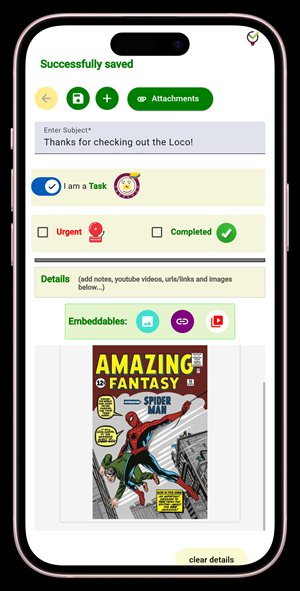
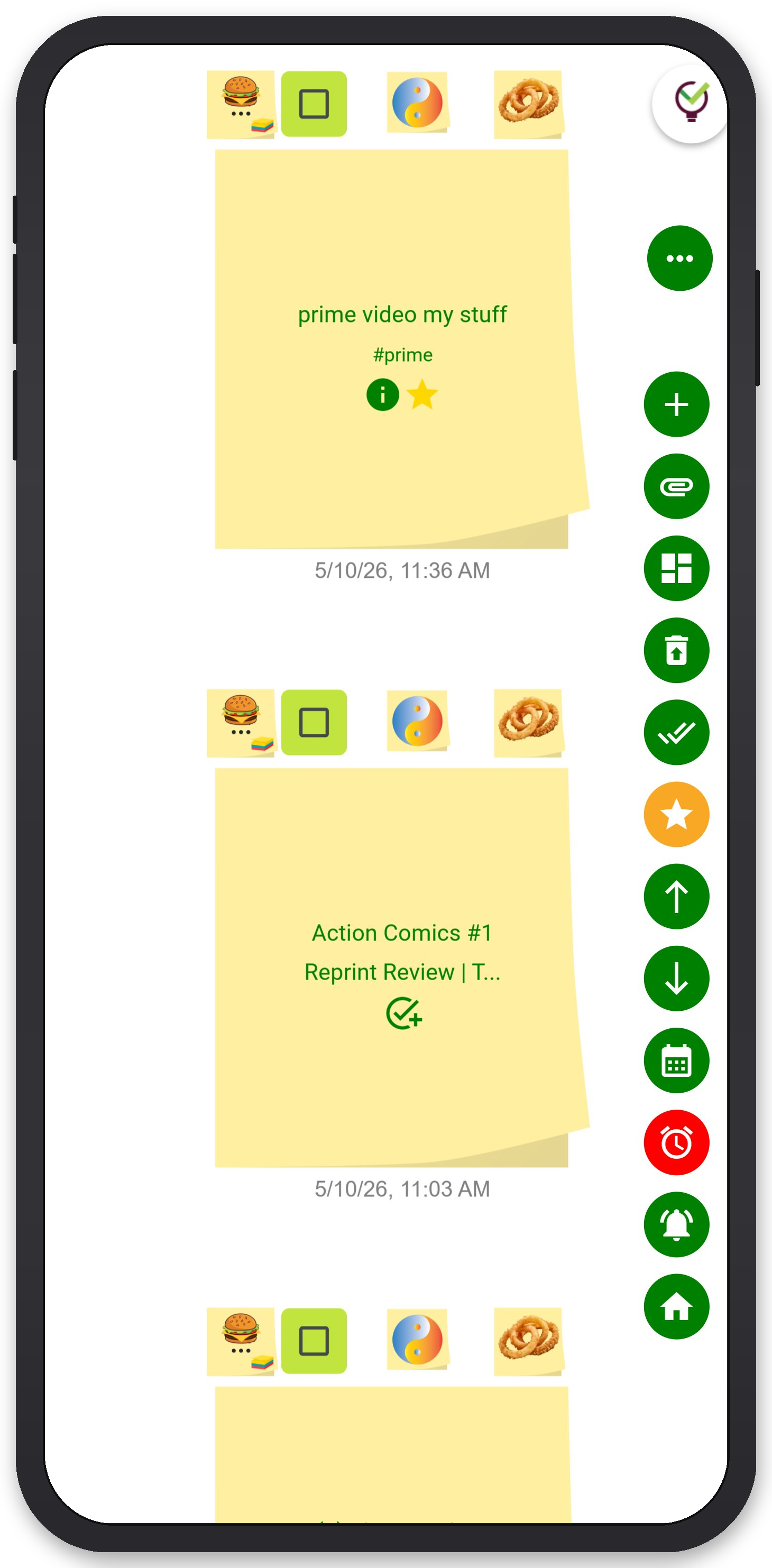
TaskLoco Premium lets you attach files directly to any note, with 10GB of storage included. The note and the file are one unit — share the note with a teammate and the attachment comes with it. No separate Drive permission to manage, no "you need access" error when someone clicks the link.
The attachment system in TaskLoco is built for exactly this use case: you create a note about a project, attach the relevant PDF, set a reminder that deep-links back to that note when it fires, and share the whole package with whoever needs it. The reminder push notification takes you straight back to the note — and the file is right there.
For teams, this matters more than it sounds. When a note and its attachments travel together, context doesn't get lost. The person receiving the shared note gets a full clone they can make their own — no permissions to configure, no access levels to set.
TaskLoco Premium is regularly $9.99/month per person. Right now, charter members can lock in 50% off the regular price — forever. That means $4.99/month per person today. And if our price ever goes up, you still pay half. Always.
Code CHARTER50 auto-applies at checkout. First 500 spots only — once they're gone, this offer is gone permanently. Act fast while spots last.
Every Premium subscription includes unlimited notes, 10GB file storage, reminders, calendar, and team sharing. Each team member requires a separate subscription. 7-day free trial — no charge until day 8. Cancel anytime.
Free Options: TaskLoco
TaskLoco Lite
- Native iPhone & Android app
- Completely anonymous — no sign-in
- Data stays on your device
- Up to 20 notes
- Free forever
TaskLoco Lite Plus+
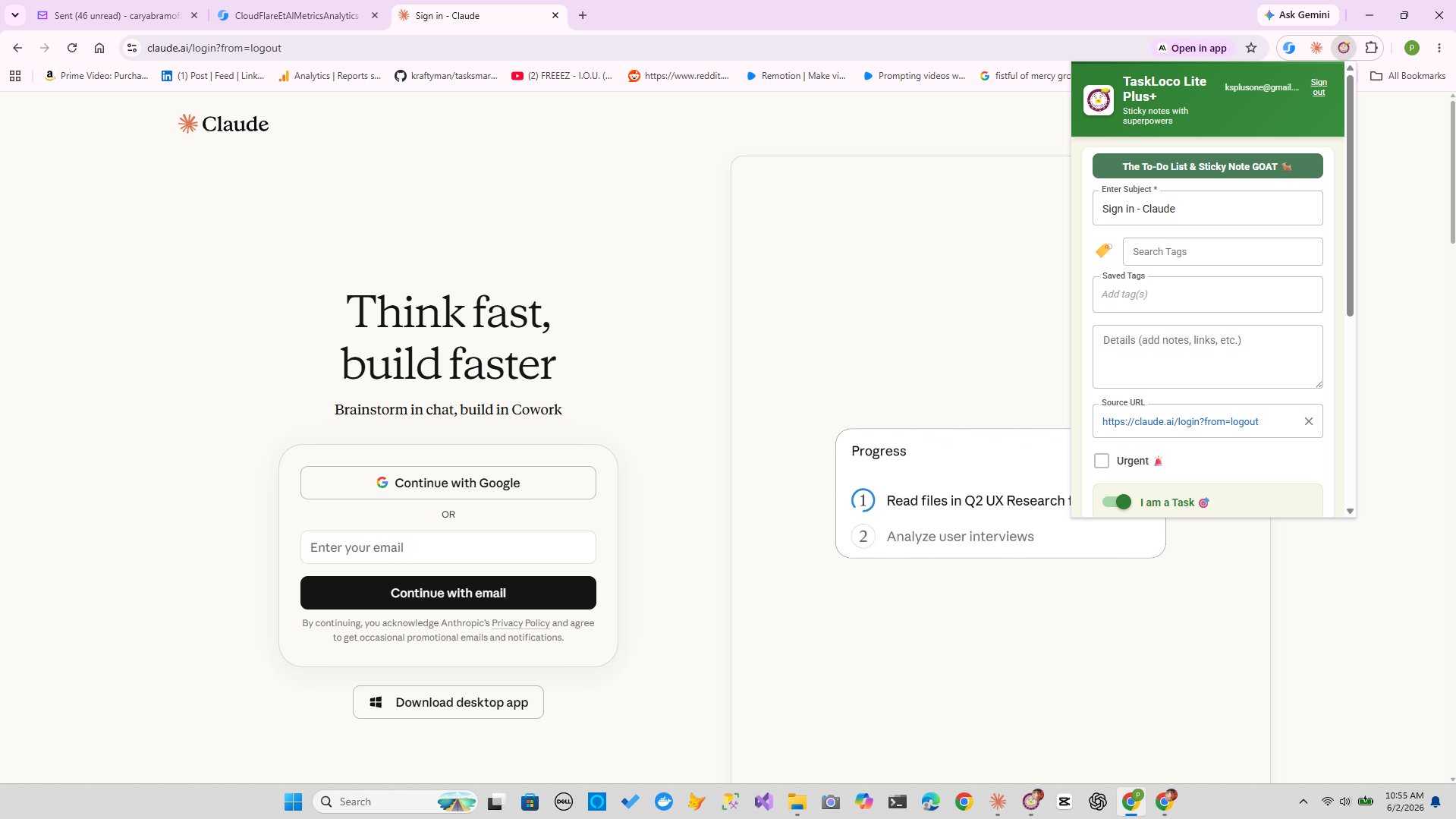
- Web app + Chrome extension
- Sign in with Google
- Wall syncs across all devices
- Up to 30 notes
- Free forever
Lock In 50% Off — Forever
7-day free trial. No charge until day 8. CHARTER50 auto-applies at checkout.
🔒 Lock In My Charter SpotSee TaskLoco in Action
Frequently Asked Questions
Can you actually embed a PDF inside a sticky note?
Not embed in the traditional sense — no sticky note format supports a fully rendered, scrollable PDF inside the note body. What you can do: paste a link to the PDF, extract and paste the key text, attach the file (in apps that support attachments like TaskLoco Premium), or embed a QR code image that links to the hosted document.
How do I attach a PDF to a note without Adobe?
You don't need Adobe for any of this. Host the PDF on Google Drive, Dropbox, or OneDrive and paste the shareable link into your note. Or use a notes app with native file attachment support — TaskLoco Premium includes 10GB of file storage and lets you attach PDFs directly to any note.
How do I get text out of a PDF for free?
Open the PDF in Google Chrome and press Ctrl+A then Ctrl+C to copy all text. For scanned PDFs, upload to Google Drive, right-click, and choose 'Open with Google Docs' — Drive runs free OCR and converts the image to editable text. Smallpdf.com and ILovePDF.com also offer free PDF-to-text conversion in the browser.
What's the best free tool to convert PDF to a shareable link?
Google Drive is the most reliable: upload the PDF, set sharing to 'Anyone with the link,' and copy the URL. PDF.host is another option — drag and drop your file and get a public link with no account needed. Both are free.
Can I put a PDF on a physical sticky note?
Yes, with a QR code. Upload the PDF to Google Drive or Dropbox, get the shareable link, then generate a free QR code at qr-code-generator.com or QRCode Monkey. Print the QR code, cut it out, and attach it to the sticky note. Anyone with a phone camera can scan and open the full document.
Does TaskLoco let you attach files to notes?
Yes — TaskLoco Premium includes 10GB of file storage and lets you attach any file, including PDFs, directly to a note. The note and its attachments stay together when you share with teammates. Additional storage is available in tiers up to 1TB. $9.99/month per person (currently $4.99/month per person for first 500 charter members with code CHARTER50)
What happens to my PDF link if I delete the file from Google Drive?
The link breaks immediately. Anyone who clicks it gets a 'file not found' error. This is the core risk of the link method. If you need the PDF to stay accessible long-term, either keep the Drive file permanently, or use a notes app with native file attachments so the file is stored in the app itself rather than depending on an external service.
Born in Brooklyn. Powered by AWS. Your data stays yours.
TaskLoco is available on iPhone, Android, Chrome, and every web browser.