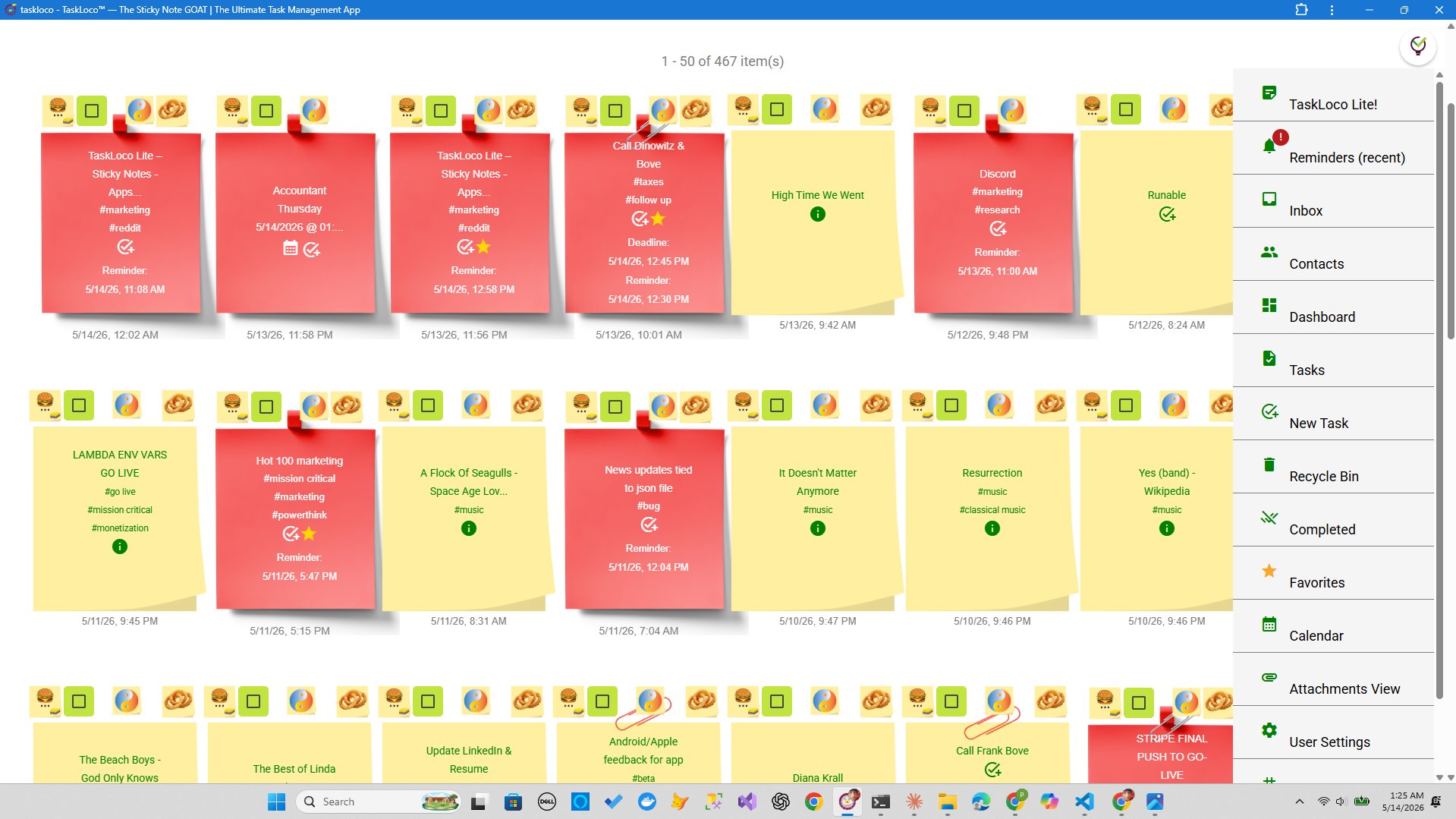
There is something genuinely useful about planning a trip with sticky notes that no spreadsheet quite replaces. You can see everything at once, drag a note from Tuesday to Thursday without redoing a formula, and add a new idea without disturbing the rest. It is also fast — you can go from blank wall to rough itinerary in under an hour.
This guide walks through the full method: how to set up your board, which categories to use, what belongs on each note, and how to turn a messy pile of ideas into a trip you can actually hand off to the people coming with you. A reusable template is included so you can skip the setup and start planning.
The Five-Column Method (Your Free Template)
Set up five columns, either on a wall with physical notes or on a flat surface. Label each column with a header note in a distinct color. Every other note in that column gets one item only — never two. The moment you put two items on one note, you lose the ability to move them independently.
- Column 1 — Flights & Transport: One note per leg of the journey. Include departure time, confirmation number, and terminal if you have it. Use a red or orange note so transport stands out at a glance.
- Column 2 — Accommodation: One note per place you are staying. Address, check-in time, and any quirks (early check-in fee, no elevator). Yellow notes work well here.
- Column 3 — Activities: This is your biggest column and the most fluid. Write each activity, restaurant, or experience on its own note — even tentative ideas. Green notes. Nothing is committed yet; that is the point.
- Column 4 — Packing: One note per category (toiletries, electronics, documents, clothing). You will consolidate these into a single list later, but keeping them separate during planning makes it easy to add items as you think of them.
- Column 5 — Budget: One note per estimated cost. Flight, hotel nights, activities. A running total note at the bottom of the column gives you an instant reality check.
How to Build the Board Step by Step
Start with a brain dump, not with the template. Spend five minutes writing every idea, worry, and thing-you-must-do on individual notes without sorting them. Flights you need to book, restaurants someone recommended, the fact that you need to renew your travel adapter — all of it goes on the wall in one unsorted pile first.
Once the brain dump is done, sort each note into one of the five columns. Notes that do not fit anywhere yet get a sixth holding area on the right side labeled Unsorted. Do not force-sort them; they will find a home later.
Now sequence the Activities column by day. Write a small day number in the corner of each activity note (Day 1, Day 2, etc.) and arrange them vertically in order. You will immediately see if Day 2 is overloaded and Day 4 is empty. Shift notes accordingly. This is the step that physically cannot be done in a spreadsheet without deleting and re-entering data.
Finally, draw a simple timeline on a strip of tape or a long piece of paper below the columns. Map each day as a horizontal slot. Place the activity notes roughly in their time slots. You now have a visual itinerary that the whole group can read, challenge, and rearrange in real time.
Common Mistakes That Make the Board Useless
The method breaks down in predictable ways. Here is what to watch for:
- Putting too much on one note. If you write "Book flights, check passport expiry, call hotel" on a single note, you cannot move any one of those tasks without moving all of them. Split ruthlessly.
- Skipping the brain dump. Going straight to sorting feels efficient but usually means you miss things. The unsorted chaos of a brain dump is where the important-but-easy-to-forget items live.
- Treating the board as final. The board is a working document, not a plan. Notes should move, get discarded, and get added throughout the trip planning process. If you are reluctant to change it because it looks neat, you have made the form more important than the function.
- No single owner for each note. When you are traveling with other people, every note in the Transport and Accommodation columns should have someone's initials in the corner. That person owns that booking. Unnamed notes become no one's job.
- Losing the board. Physical sticky notes fall off walls, get knocked around, and disappear. Take a photo of the full board at the end of every planning session. Do it every time without exception.
Taking Your Sticky Note Board Digital with TaskLoco
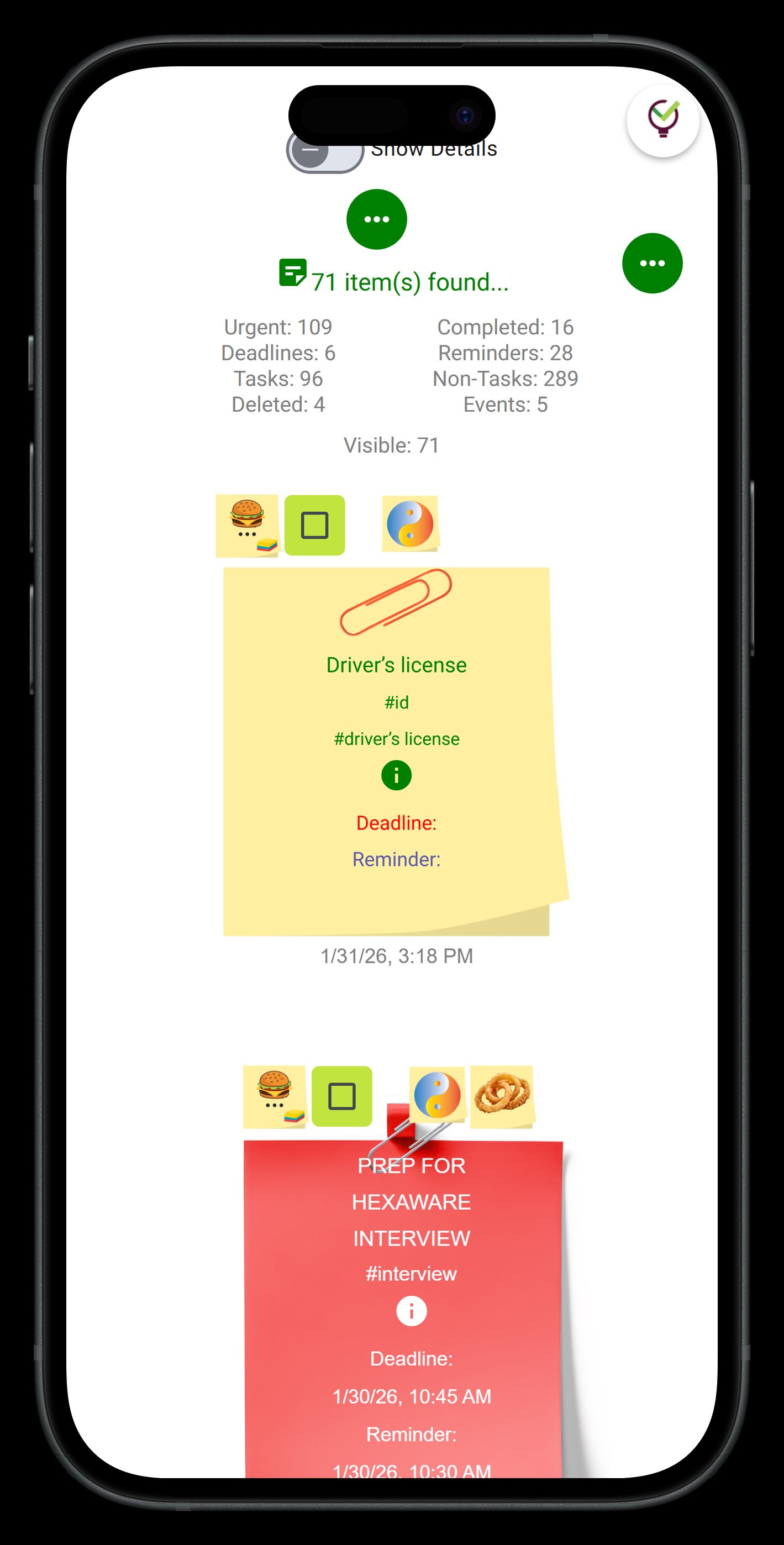
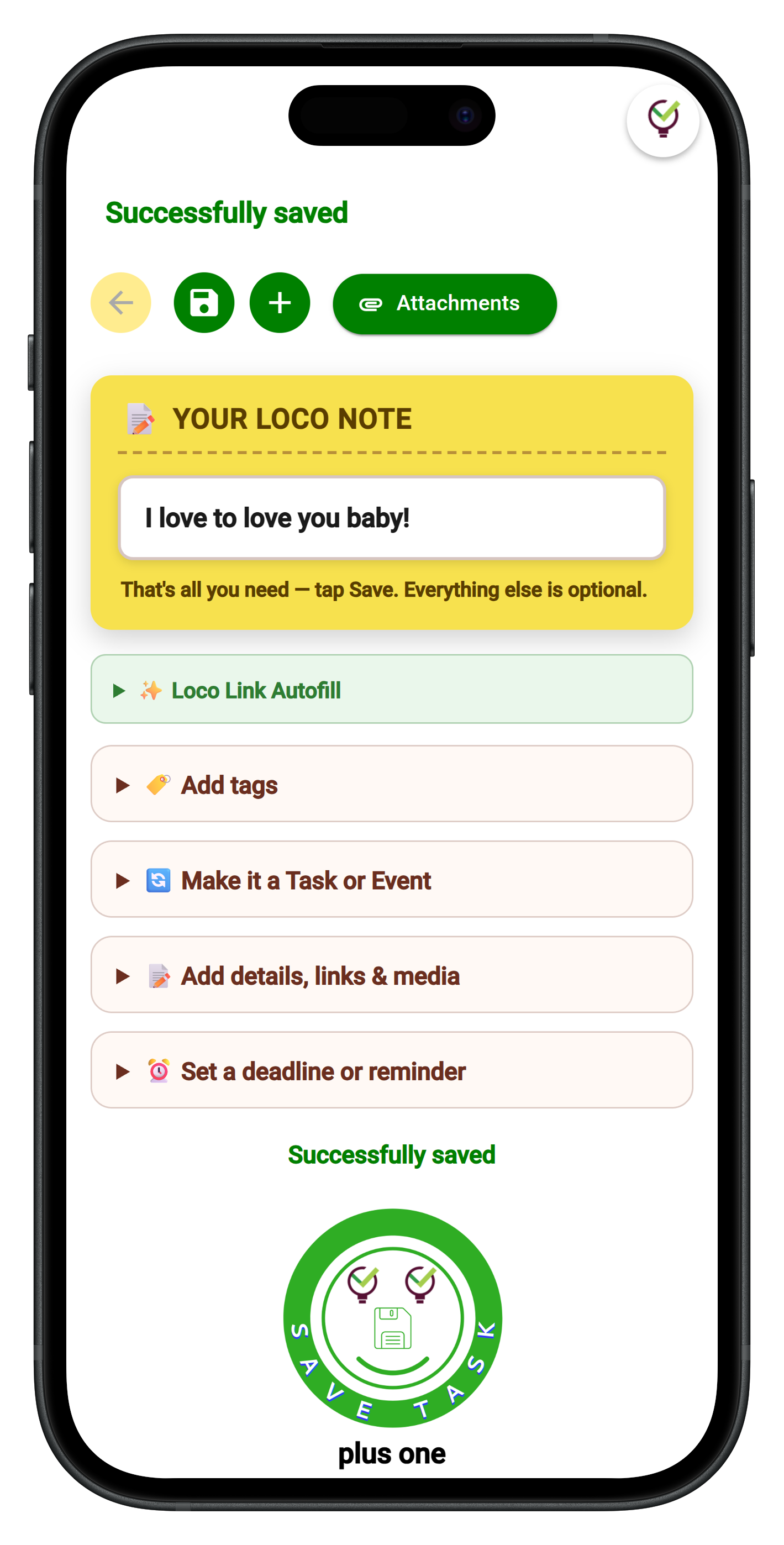
If you are planning with other people who are not in the same room, or if you want your board accessible on your phone during the trip itself, TaskLoco is a direct digital translation of this exact method. Each sticky note on your physical board becomes a note in TaskLoco. Each column becomes a section on your wall view. You can rearrange notes the same way — drag and drop — and changes sync to everyone on the trip instantly.
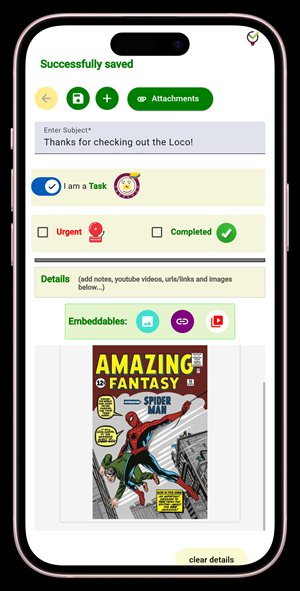
The features that matter most for trip planning specifically: reminders are delivered as push notifications directly to your phone and deep-link back to the original note, so tapping the reminder about a restaurant reservation takes you straight to the note with the address and booking details. File attachments let you pin confirmation PDFs and hotel vouchers directly to the relevant note rather than hunting through email. And team sharing works like email — the people you share a note with can clone it and make it their own, no permissions setup required.
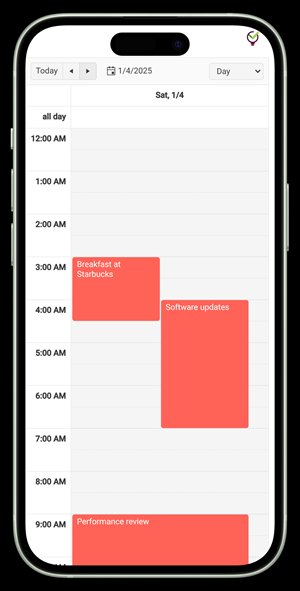
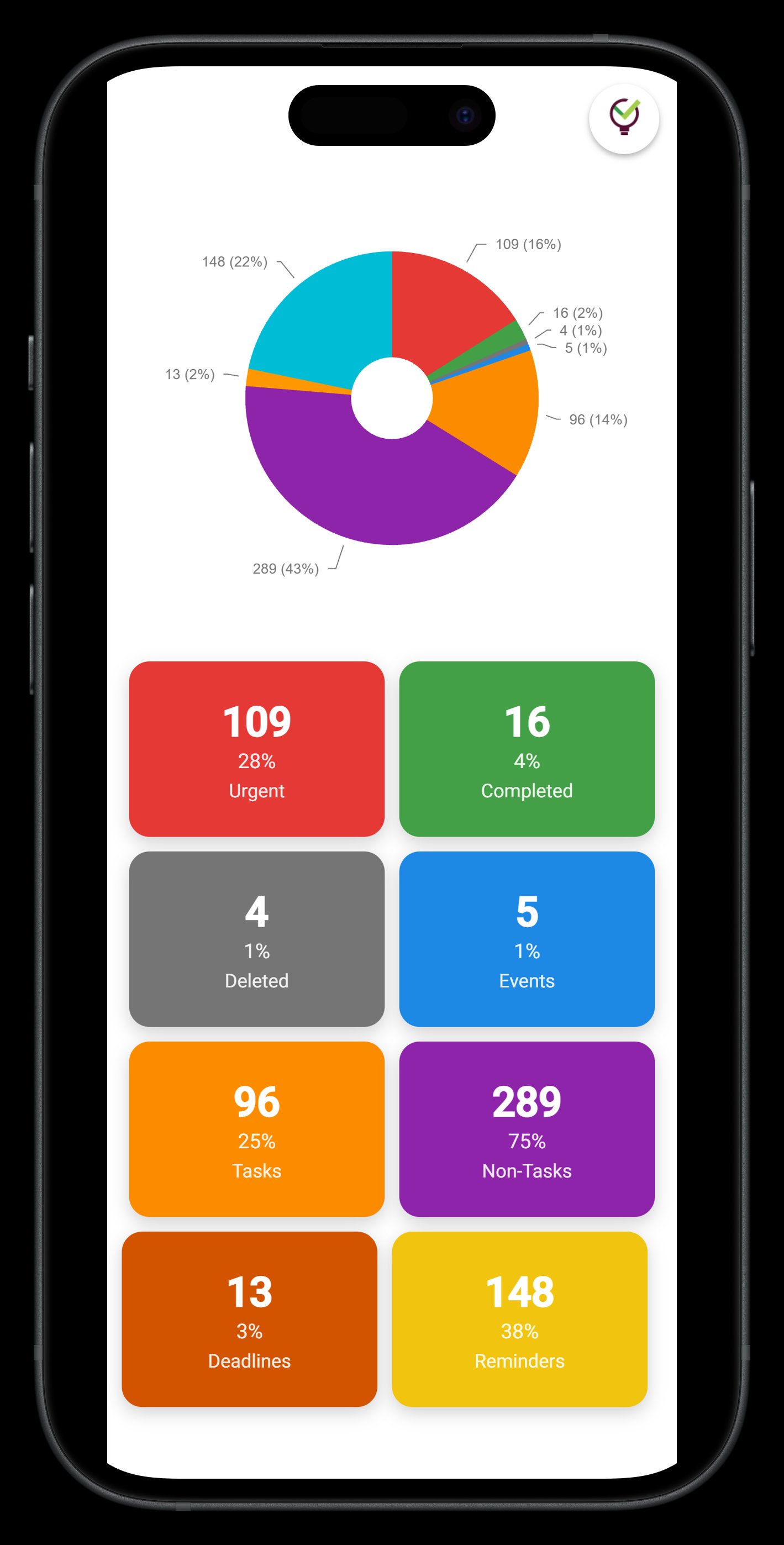
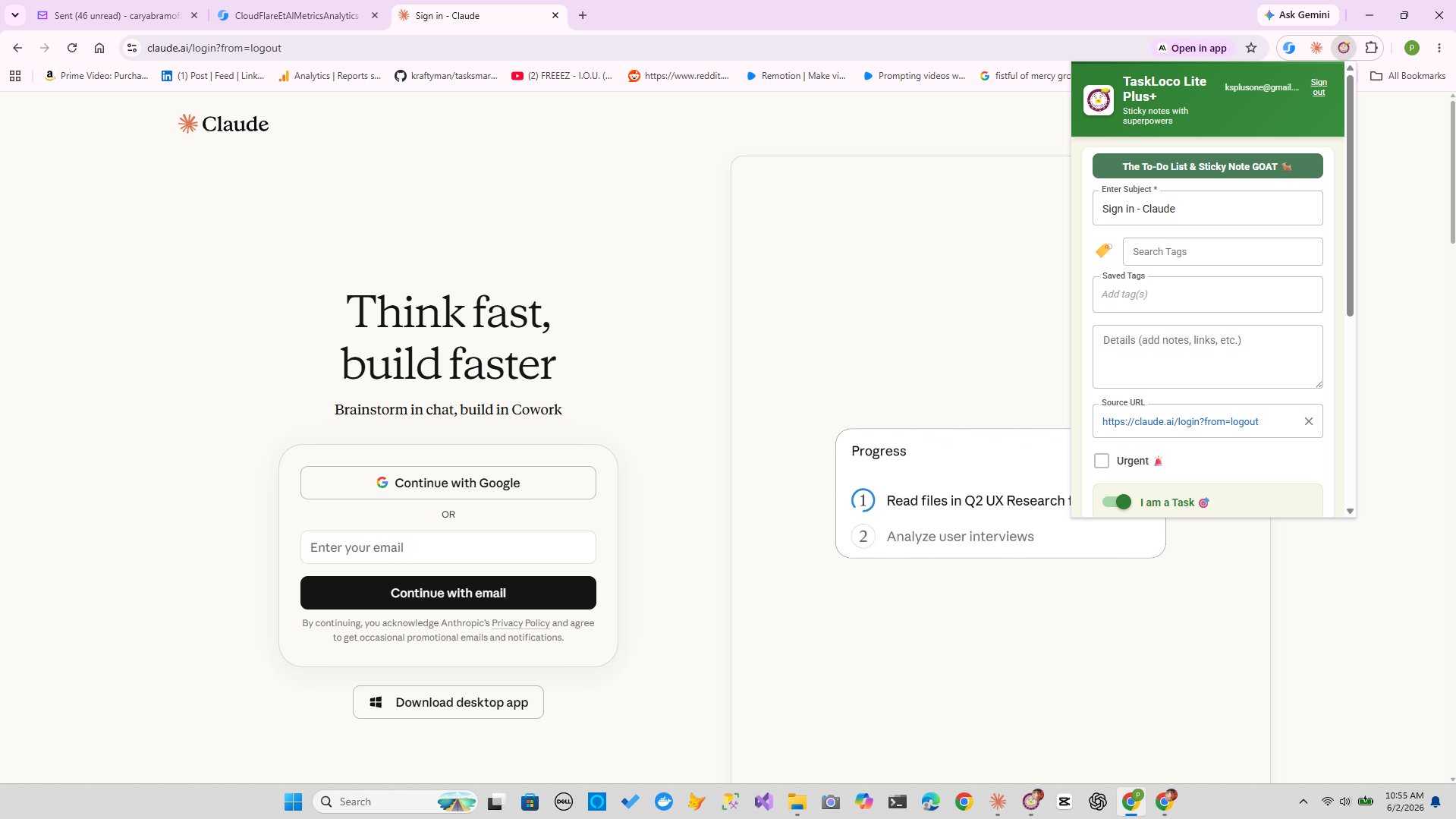
TaskLoco Lite (free, no sign-in required) is a native iPhone and Android app that stores up to 20 notes on your device — enough to cover a short trip if you are traveling solo and want something simple with zero friction. TaskLoco Lite Plus+ is free with a Google sign-in and syncs up to 30 notes across all your devices through the web app and Chrome extension, which is useful for capturing hotel and activity pages directly from your browser in one click. TaskLoco Premium removes the note limit entirely, adds reminders, 10GB of file storage for confirmations and documents, a calendar view, and full team sharing — all the things that matter when a trip gets complicated.
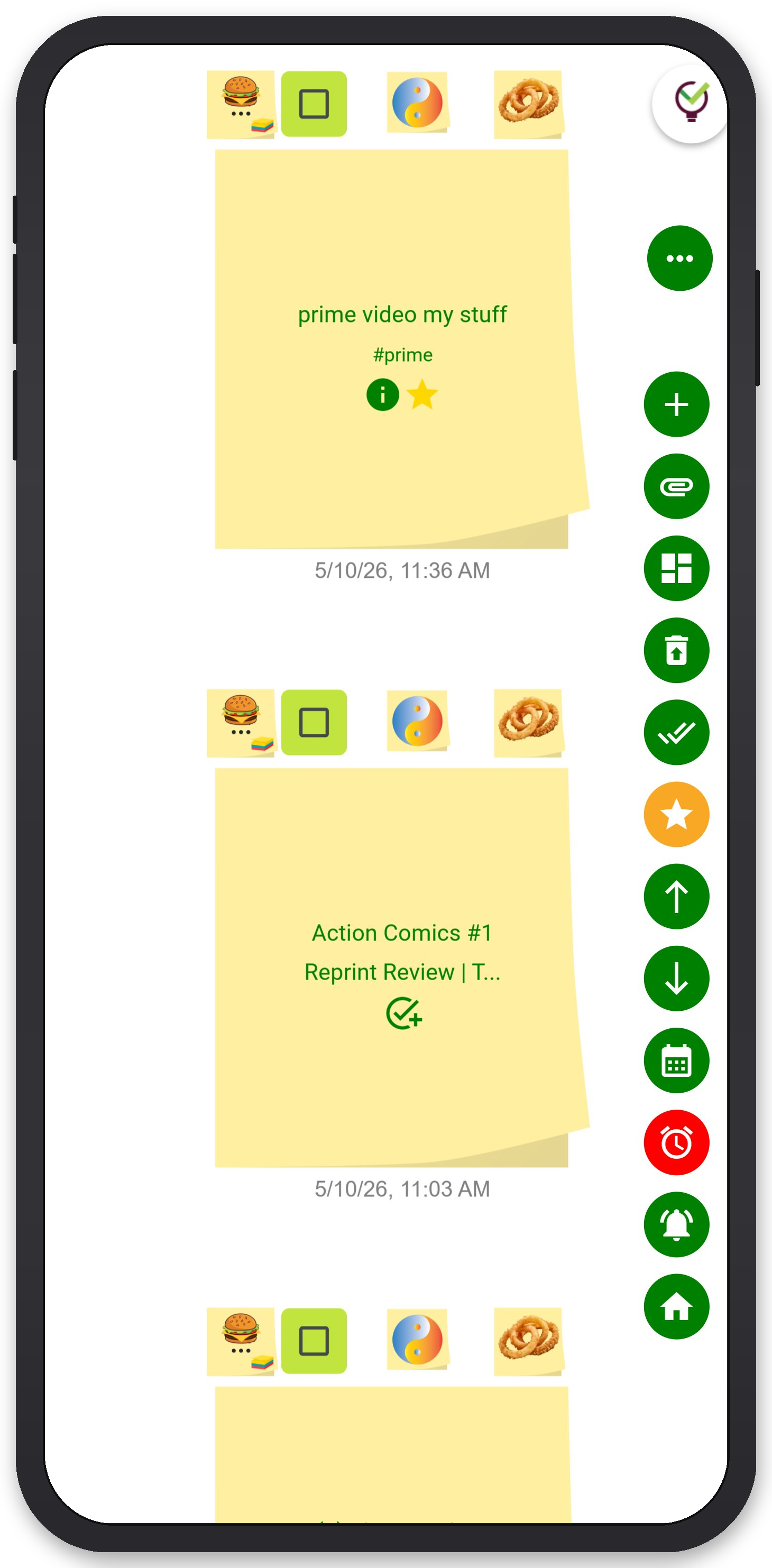
TaskLoco Premium is regularly $9.99/month per person. Right now, charter members can lock in 50% off the regular price — forever. That means $4.99/month per person today. And if our price ever goes up, you still pay half. Always.
Code CHARTER50 auto-applies at checkout. First 500 spots only — once they're gone, this offer is gone permanently. Act fast while spots last.
Every Premium subscription includes unlimited notes, 10GB file storage, reminders, calendar, and team sharing. Each team member requires a separate subscription. 7-day free trial — no charge until day 8. Cancel anytime.
Free Options: TaskLoco
TaskLoco Lite
- Native iPhone & Android app
- Completely anonymous — no sign-in
- Data stays on your device
- Up to 20 notes
- Free forever
TaskLoco Lite Plus+
- Web app + Chrome extension
- Sign in with Google
- Wall syncs across all devices
- Up to 30 notes
- Free forever
Lock In 50% Off — Forever
7-day free trial. No charge until day 8. CHARTER50 auto-applies at checkout.
🔒 Lock In My Charter SpotSee TaskLoco in Action
Frequently Asked Questions
How many sticky notes do I actually need to plan a trip?
For a 5–7 day trip with two or more people, expect 40–60 notes by the time you finish. Transport legs, accommodation stops, activities, packing categories, and budget items add up fast. That is not a problem — the density is what makes the board useful. Physical note pads come in packs of 100, which is plenty. If you go digital, TaskLoco Lite Plus+ gives you 30 free synced notes, and Premium removes the limit entirely.
What color coding system works best for trip planning?
Keep it simple: one color per column, not per priority. Red or orange for transport, yellow for accommodation, green for activities, blue for packing, pink for budget. If you introduce a second color-meaning system (like red also meaning urgent), the board becomes unreadable fast. Reserve colored dot stickers or corner folds for a single binary status: confirmed versus not yet booked.
Can I use sticky notes to plan a trip with a group?
Yes, and it is one of the best uses of the method. Gather everyone in the same space for the brain dump and sorting session — 30 minutes of shared chaos produces a better itinerary than one person building a spreadsheet alone. Assign initials to every Transport and Accommodation note so ownership is clear. If the group is remote, a digital board in TaskLoco Premium lets everyone add, move, and comment on notes in real time with full team sharing.
How do I stop my sticky note board from falling apart before the trip?
Photograph the board at the end of every planning session — this is non-negotiable. Use proper sticky note pads rather than generic craft-store versions; the adhesive quality matters. If the board lives on a smooth painted wall, a sheet of foam board or cardstock is a more reliable surface. Some planners tape the edges of each note lightly with a small piece of tape once the layout is finalized to lock it in place.
How is sticky note trip planning different from using a travel app?
A sticky note board is spatial and fluid in a way that apps typically are not. You can see every element of your trip simultaneously, move things across days instantly, and involve other people in the planning process just by standing in front of it together. Travel apps tend to lock you into their structure — a fixed itinerary view, a set list format. The sticky note method lets you define the structure yourself, which matters when every trip is different.
What goes on the Budget column exactly?
One note per cost category: flights, accommodation per night, travel insurance, airport transfers, estimated daily spending, activities you have already paid for, and activities you plan to pay at the door. Keep a running total note at the bottom. The goal is not a precise budget spreadsheet — it is a visible reality check. If the total note starts looking alarming, you can see exactly which activity notes to pull.
Is there a free digital version of this sticky note method?
$9.99/month per person (currently $4.99/month per person for first 500 charter members with code CHARTER50)
Born in Brooklyn. Powered by AWS. Your data stays yours.
TaskLoco is available on iPhone, Android, Chrome, and every web browser.