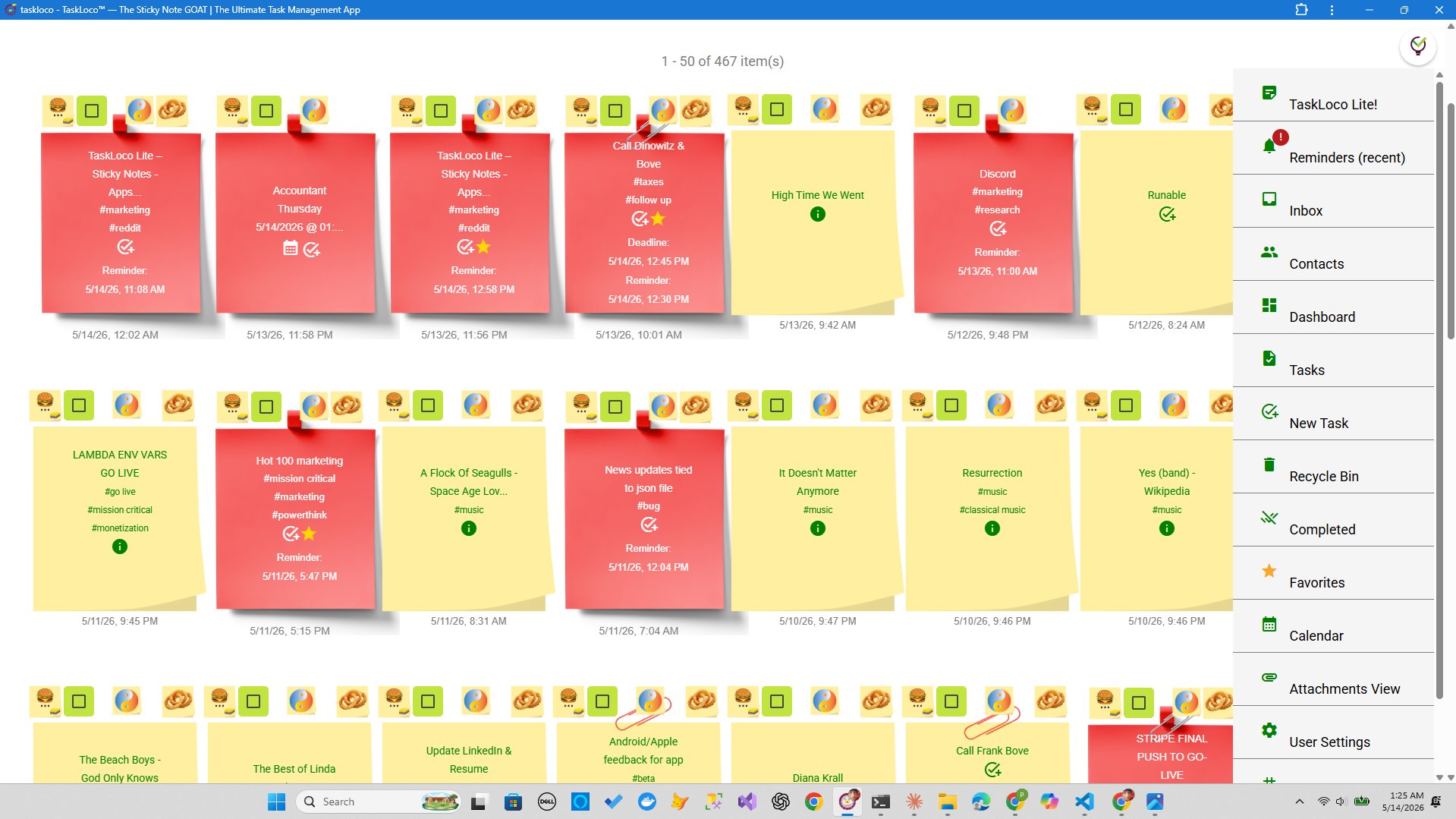
Paper sticky notes on a monitor bezel are charming until they fall behind the desk or you're working from a different room. Digital sticky notes solve the physical chaos, but just dumping tasks into an app doesn't give you a week — it gives you a pile. The difference between a pile and a plan is structure, and that structure takes about ten minutes to build.
This guide walks you through a complete weekly planning system built on digital sticky notes: how to set it up, how to run it each day, and how to keep it from collapsing by Thursday. The method works with any digital notes tool — or even paper — but if you want to see it in action with a purpose-built app, TaskLoco is worth a look at the end.
Step 1 — Build Your Seven-Column Wall
The foundation of this system is a visual wall divided into seven columns, one for each day of the week. Label them Monday through Sunday across the top. If your tool supports colors or swimlanes, use them. If it's just a grid of notes, titles work fine.
Within each column, you want three rows or zones:
- Must Do — non-negotiable commitments: meetings, deadlines, appointments
- Should Do — tasks you're targeting for that day but could move
- Nice to Do — low-priority work you'll grab if time opens up
This three-tier structure is the single most important thing you can do. Without it, everything looks equally urgent and nothing gets done in order. With it, you can glance at Monday and immediately know: there are two hard commitments, three real tasks, and two things that can wait.
Color coding adds another layer of clarity without any extra work. Pick a consistent scheme — for example: red for deadlines, blue for meetings, yellow for creative work, green for admin. You don't need to memorize it after the first week; the colors just register.
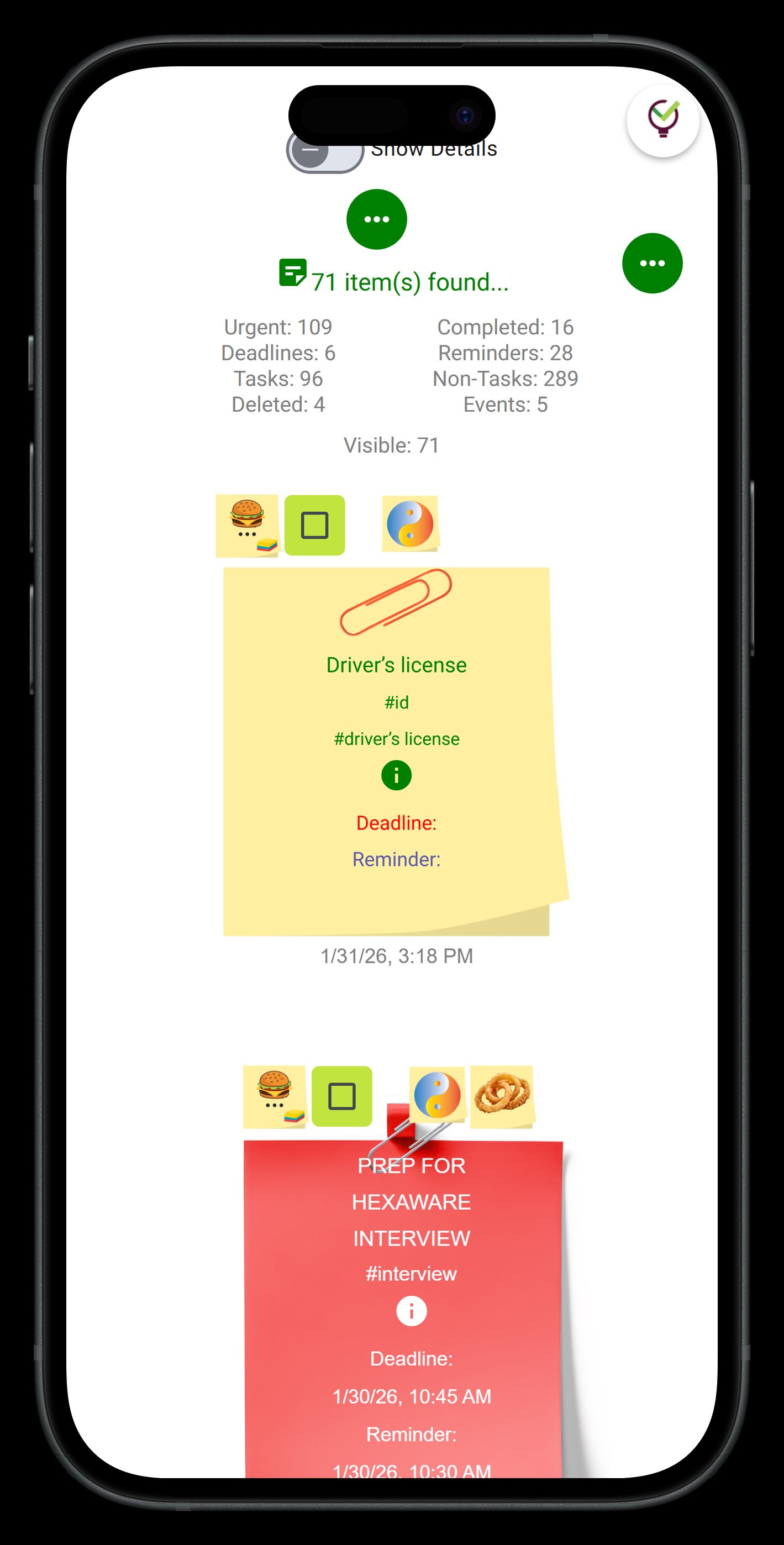
Step 2 — Load the Week on Sunday Night (This Takes 15 Minutes)
Sunday night is your weekly planning session. Block fifteen minutes — not on Sunday morning when the week feels abstract, and not Monday morning when you're already in it. Sunday night is the sweet spot: the week is real enough to plan but hasn't started yet.
Here's the sequence:
- Capture every commitment first. Pull up your calendar and copy every meeting, call, and deadline into the Must Do zone of the correct day. These are fixed. Don't think about them — just place them.
- List your open tasks. Everything on your to-do list, in your email, in your head. Don't assign days yet. Just get them out.
- Distribute the Should Do notes. Look at each day's Must Do load. A day with three meetings gets fewer Should Do notes. A clear day can absorb more. Spread realistically — not optimistically.
- Drop the leftovers into Nice to Do. Whatever doesn't fit into a realistic day goes into the Nice to Do rows. It's not forgotten; it's parked.
The whole wall is now loaded. You haven't done any work yet — you've just made the week visible. That visibility alone reduces anxiety significantly because the unknowns are now named.
One useful trick: create a Backlog column off to the side for things that have no assigned day yet. Notes live there until they earn a slot on a real day. This keeps the daily columns clean and prevents the wall from becoming a dumping ground.
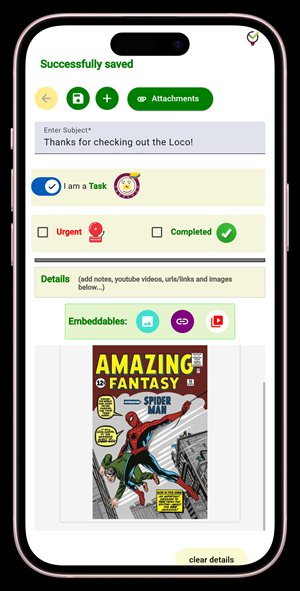
Step 3 — Run the Daily Review (5 Minutes Each Morning)
The system lives or dies on the daily review. Skip it and by Wednesday your wall is a fiction. Do it and the whole week stays accurate with almost no effort.
Each morning, before you open email or Slack:
- Look at yesterday's column. Move any undone Should Do notes forward to today or tomorrow. Don't delete them — reschedule them. If a note has moved three days in a row, it's either not important or it's being avoided. Either way, deal with it.
- Look at today's column. Confirm the Must Do items are still correct. Check whether the Should Do load is realistic given how the day is shaping up.
- Adjust. Add anything new that came in overnight. Move a note if you just learned today's schedule changed.
This review should take under five minutes. If it's taking longer, your notes are too vague or you have too many of them. Both are fixable.
At the end of each day — or the next morning — mark completed notes as done or delete them. The act of clearing a note is satisfying in a way that checking a checkbox on a list never quite matches. The wall empties visibly as the week progresses, and by Friday you can see the whole week's work at once.
Applying This System in TaskLoco
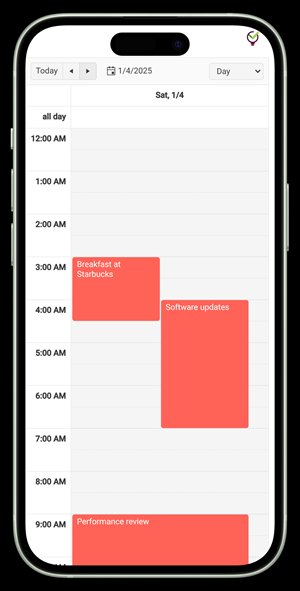
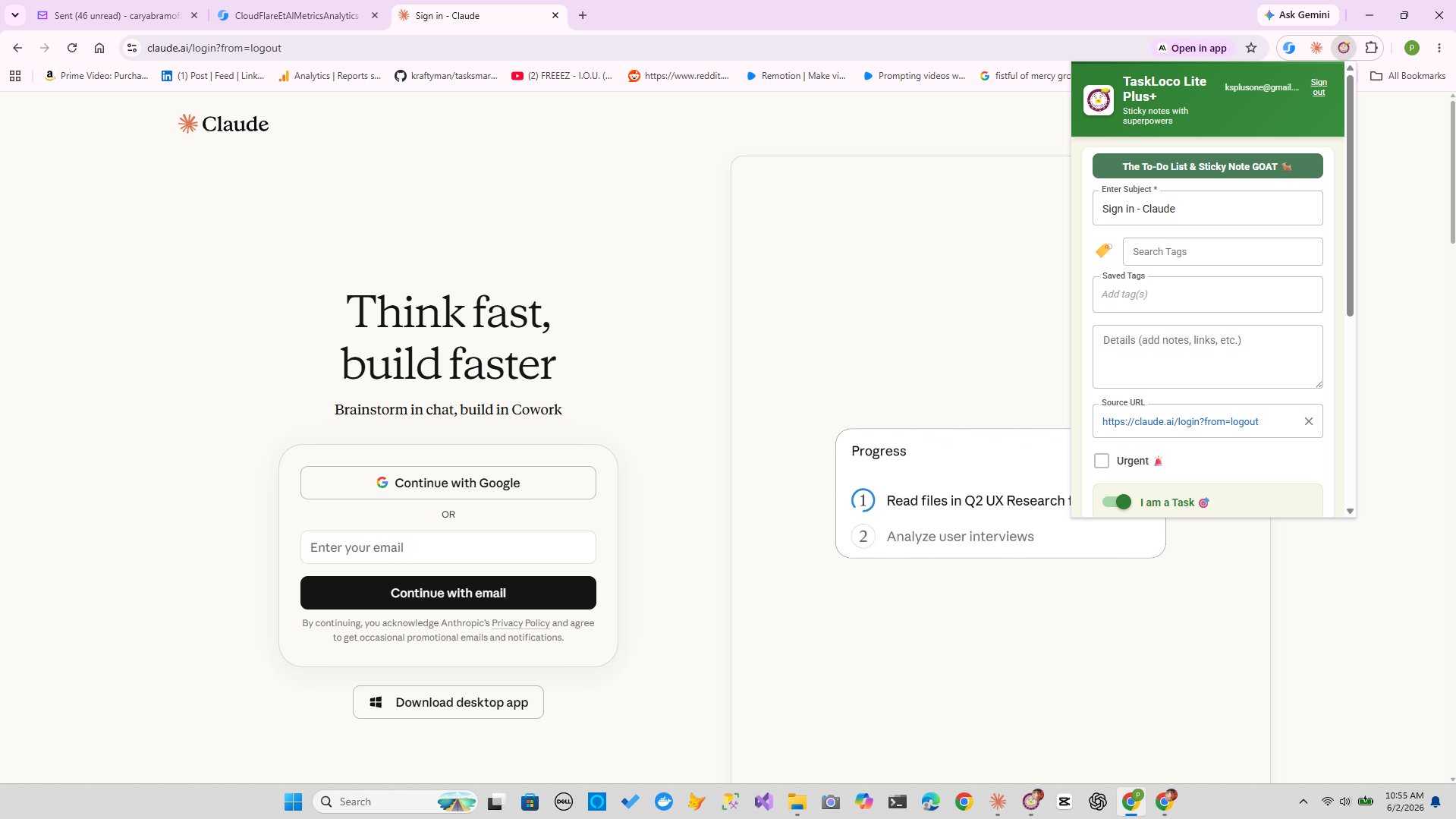
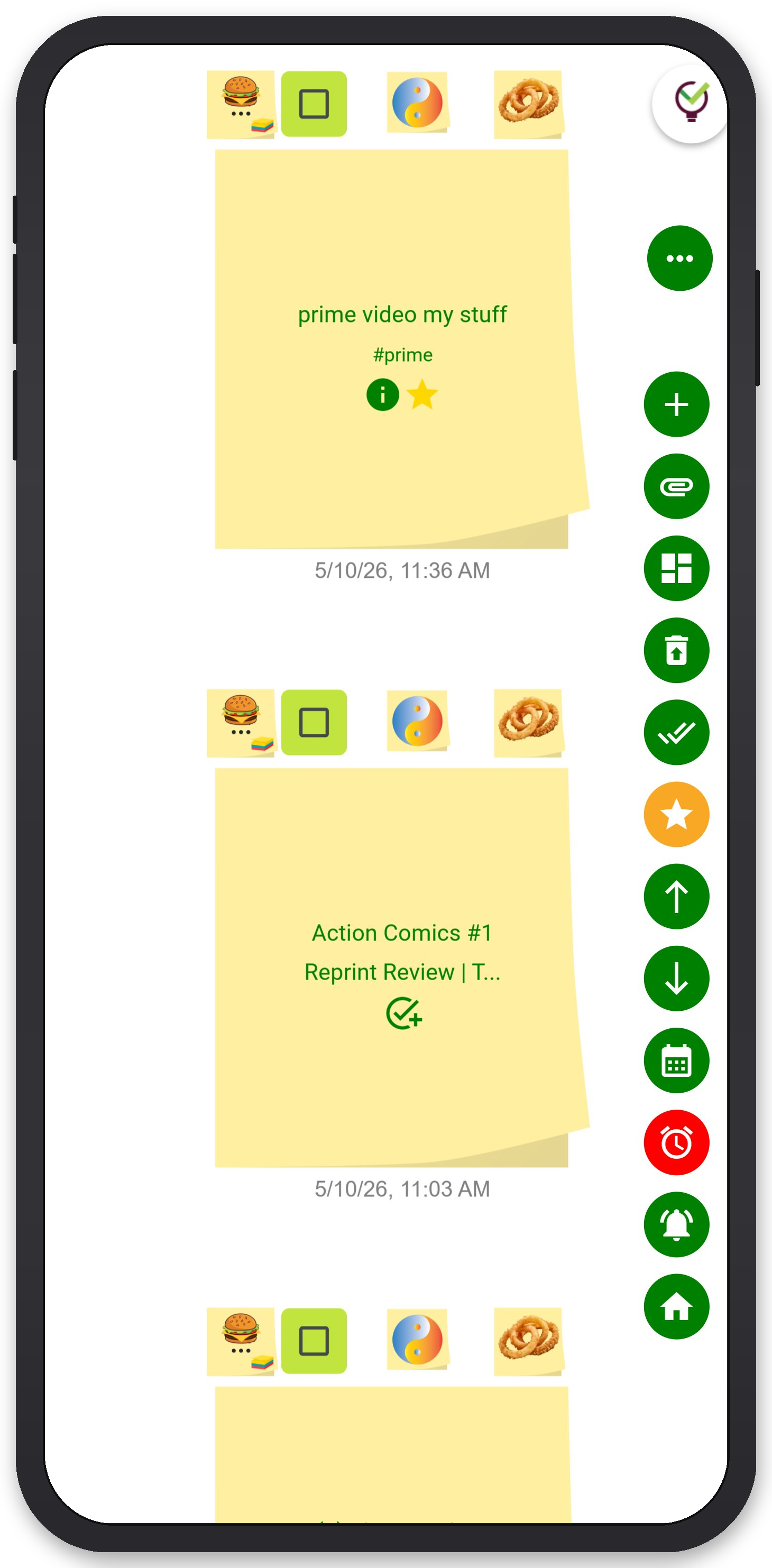
If you want a purpose-built environment for this exact workflow, TaskLoco's wall view is designed around it. You get a free-form canvas where notes can be arranged into any layout — including a seven-column weekly grid — with color coding, drag-and-drop repositioning, and a Chrome extension that captures any webpage into a note in one click (useful for quickly adding tasks from emails or articles without breaking your flow).
TaskLoco Premium adds the features that turn a visual plan into an active one: reminders that fire as push notifications directly to your phone and computer — and deep-link straight back to the original note so you land exactly where you need to be, not at a home screen. You can attach files to any note (10GB storage included), keeping reference documents, screenshots, and briefs right next to the task that needs them. The calendar view shows the same week through a time-based lens, which is useful for days with many timed commitments.
Team sharing works the way email does — you share a note, and the recipient clones it as their own. No permission levels, no access management overhead. Everyone owns their copy and works from it independently.
TaskLoco Lite (free, native iPhone and Android) stores up to 20 notes on your device with no sign-in required — a clean way to test the sticky-note habit before committing to anything. TaskLoco Lite Plus+ (free, web and Chrome extension) bumps that to 30 notes synced across all your devices. Neither free tier includes reminders, file attachments, or team sharing — those are Premium.

TaskLoco Premium is regularly $9.99/month per person. Right now, charter members can lock in 50% off the regular price — forever. That means $4.99/month per person today. And if our price ever goes up, you still pay half. Always.
Code CHARTER50 auto-applies at checkout. First 500 spots only — once they're gone, this offer is gone permanently. Act fast while spots last.
Every Premium subscription includes unlimited notes, 10GB file storage, reminders, calendar, and team sharing. Each team member requires a separate subscription. 7-day free trial — no charge until day 8. Cancel anytime.
Free Options: TaskLoco
TaskLoco Lite
- Native iPhone & Android app
- Completely anonymous — no sign-in
- Data stays on your device
- Up to 20 notes
- Free forever
TaskLoco Lite Plus+
- Web app + Chrome extension
- Sign in with Google
- Wall syncs across all devices
- Up to 30 notes
- Free forever
Lock In 50% Off — Forever
7-day free trial. No charge until day 8. CHARTER50 auto-applies at checkout.
🔒 Lock In My Charter SpotSee TaskLoco in Action
Frequently Asked Questions
How many notes should I put on each day's column?
Three to four Should Do notes per day is the practical ceiling for most people. Real workdays include meetings, interruptions, and unexpected tasks — leaving a cushion isn't laziness, it's accuracy. Overfilling Monday on Sunday night is one of the most common reasons weekly plans collapse by Tuesday.
What's the difference between a Must Do and a Should Do note?
A Must Do note has an external consequence if it doesn't happen — a meeting that starts without you, a deadline that passes, a client who is waiting. A Should Do note is a task you've committed to yourself for that day, but the world won't end if it moves. The distinction matters because it tells you, at a glance, which notes are immovable and which ones are negotiable under pressure.
What do I do with tasks that don't fit any specific day?
Create a Backlog column to the right of Sunday. Notes that have no clear day live there until they earn one. Review the Backlog during your Sunday planning session and promote any note that now has a realistic home. This keeps your daily columns clean and ensures nothing gets lost just because it doesn't belong to a specific day yet.
How do I handle tasks that carry over multiple days in a row?
If a note has moved forward three or more times, stop and ask why. Either the task is genuinely lower priority than it seemed — in which case it belongs in your Backlog or should be deleted — or it's something you're avoiding, in which case breaking it into smaller, more specific notes usually helps. A note that says 'work on presentation' will move forever. A note that says 'write the three key points for slide 4' has a clear finish line.
Can I use this weekly sticky note system for a team?
Yes, with one adjustment: each person should run their own personal weekly wall. Shared notes work best for handoffs — when one person needs to pass a task, context, or file to another. In TaskLoco Premium, sharing a note sends it to the recipient, who clones it and owns their copy. That keeps individual walls clean while still allowing coordination. Trying to run a team off a single shared wall usually creates noise rather than clarity.
What's the best way to handle recurring weekly tasks in this system?
During your Sunday planning session, create a template column — a set of notes for tasks that happen every week — and copy them into the appropriate days. This takes about two minutes and means you never forget standing tasks. In TaskLoco Premium, reminders deep-link back to the original note, so a recurring task reminder drops you directly into context without any hunting.
How is TaskLoco priced?
$9.99/month per person (currently $4.99/month per person for first 500 charter members with code CHARTER50)
Born in Brooklyn. Powered by AWS. Your data stays yours.
TaskLoco is available on iPhone, Android, Chrome, and every web browser.