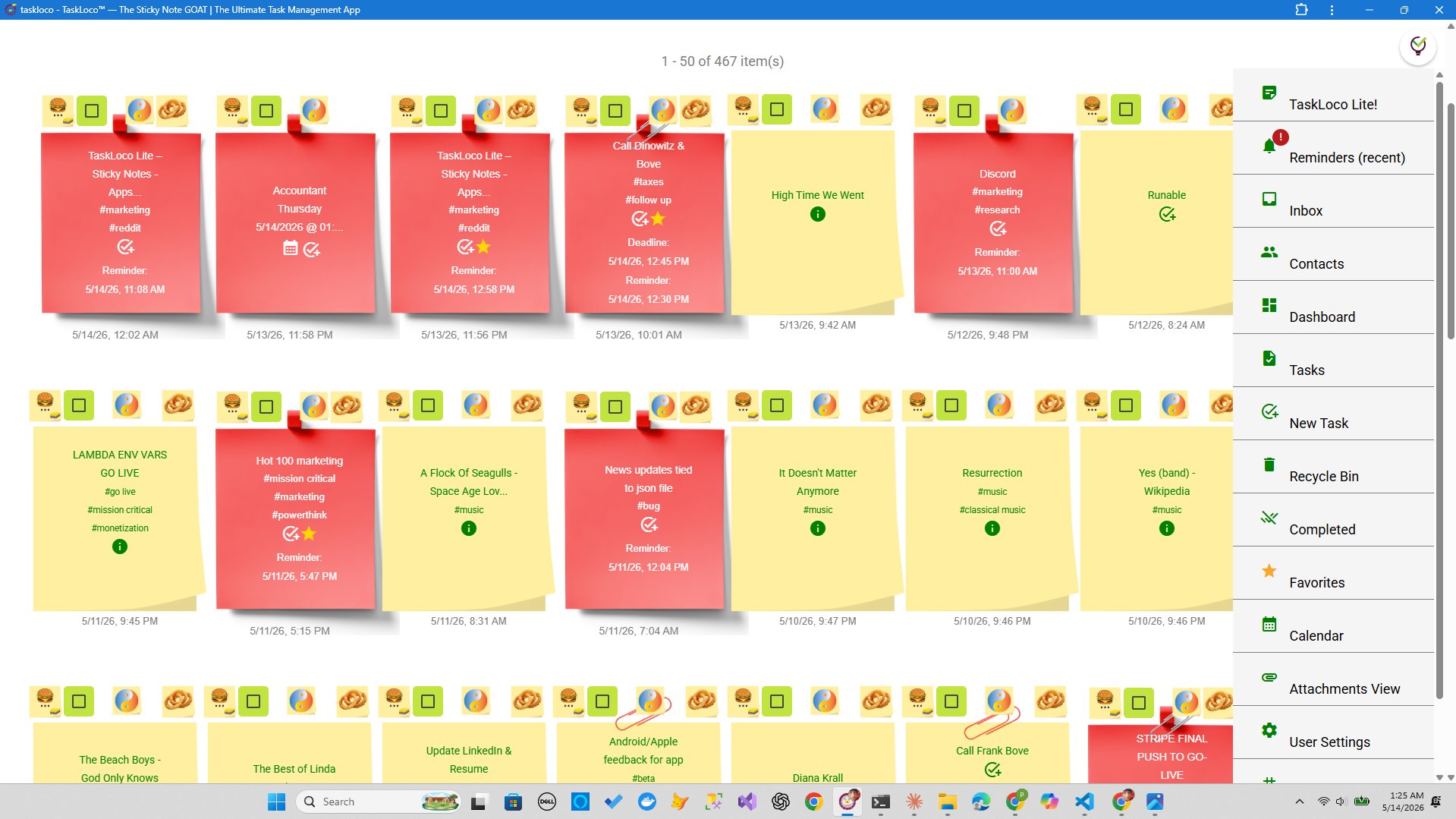
You typed something important into Windows Sticky Notes, closed your laptop, and now you're standing somewhere with only your Android phone — and that note is nowhere to be found. It's a frustrating gap in what seems like it should be a seamless system. The good news: Microsoft does have a sync path. The bad news: it's not obvious, it requires multiple apps, and it breaks more often than it should.
This guide walks you through the real method — step by step — including what to do when it doesn't work. And if you reach the end and decide the official route is too fragile for your needs, there's a section on alternatives that actually hold up day to day.
The Official Method: Microsoft OneNote on Android
Windows Sticky Notes are tied to your Microsoft account — they're not stored locally in any file you can easily move. The sync path Microsoft built runs through the cloud and surfaces on Android inside the Microsoft OneNote app, not through a dedicated Sticky Notes app for Android (that doesn't exist).
Here's exactly what to do:
- Step 1: On your Windows PC, open Sticky Notes and make sure you're signed in with a Microsoft account. Look for your name or profile photo in the top-right corner of the app. If you see a sign-in prompt, sign in first — unsigned notes won't sync.
- Step 2: On your Android phone, install Microsoft OneNote from the Google Play Store if you don't already have it.
- Step 3: Open OneNote and sign in with the exact same Microsoft account you use on your PC. A different account — even another Microsoft account — won't show your notes.
- Step 4: In OneNote, tap the Sticky Notes tab at the bottom of the screen. It looks like a small note icon. Your notes should appear here, synced from Windows.
- Step 5: Give it a minute. First sync can be slow depending on how many notes you have and your connection speed.
You can also create new sticky notes from OneNote on Android, and they'll appear in Windows Sticky Notes the next time you open it on your PC. Edits sync both ways.
When It Doesn't Work: The Most Common Fixes
The sync between Windows Sticky Notes and Android is real, but it's fragile. If your notes aren't showing up, here are the most common causes and what to actually do about each one.
- Signed into different accounts: This is the most common culprit. Check the account on your PC (open Sticky Notes, look at settings) and the account on OneNote Android. They must match exactly — same email, same Microsoft account.
- OneNote needs a sign-out/sign-in reset: On Android, go to OneNote settings, sign out completely, then sign back in. This forces a fresh sync and clears a lot of stuck states.
- The Sticky Notes tab isn't visible: In some older versions of OneNote for Android, the Sticky Notes tab doesn't appear. Update OneNote from the Play Store — Microsoft added the tab in a later release.
- Notes are stuck as local-only on Windows: If you used Sticky Notes before signing in, those notes may be stored locally and not yet uploaded. On Windows, open Sticky Notes, sign in, and wait for the app to upload them. You'll see a sync indicator.
- Background sync is disabled: Android aggressively kills background processes on some manufacturers (Samsung, Xiaomi, Huawei). Go to your phone's battery settings and disable battery optimization for OneNote specifically, then let it sync with the screen on.
- Sticky Notes was reset or reinstalled: If you reinstalled Windows or reset Sticky Notes, your notes may only exist in the cloud — sign in again to pull them back down.
If none of the above works, try opening outlook.com in a browser on your phone and looking for Sticky Notes there. Microsoft surfaces them in Outlook on the web as well, which can confirm whether your notes are actually in the cloud at all.
When the Official Method Isn't Enough
For a lot of people, the OneNote route works fine once it's set up. But if you find yourself constantly fighting sync delays, juggling apps, or wishing your notes had reminders and file attachments built in, it may be worth stepping back and asking whether Windows Sticky Notes is the right tool for notes you actually need with you on the go.
The honest limitations of the Windows + OneNote approach:
- There's no dedicated Android app for Sticky Notes — you're always inside OneNote, which is a much larger app built for a different purpose
- Sync can be slow and sometimes requires manual intervention
- You can't attach files to a sticky note
- There are no built-in reminders tied to individual notes
- The experience on Android feels like a secondary feature, not a first-class one
If those gaps matter to you — especially reminders and file attachments — a dedicated note app with real cross-device sync may serve you better than trying to stretch Windows Sticky Notes into a mobile workflow it wasn't designed for.
TaskLoco: Sticky Notes That Actually Follow You
If you've been through the troubleshooting above and still want something that just works across your PC, browser, and phone without jumping between apps — TaskLoco is worth a look.
TaskLoco Premium is built around the sticky note metaphor but syncs natively across all your devices through the web app. Open it on your PC, your Android browser, or your iPhone browser — your notes are there, in the same state, immediately. No OneNote detour required.
A few things that go beyond what Windows Sticky Notes can do:
- Reminders with push notifications — set a reminder on a note and it fires as a push notification on your phone and computer, deep-linking straight back to the note. Optional email and SMS add-ons are available too.
- File attachments — drag a file onto a note and it's there, accessible from any device. Premium includes 10GB of storage, with add-on tiers up to 1TB.
- Team sharing — share a note the way you'd share an email. The recipient can clone it and make it their own, no permissions setup needed.
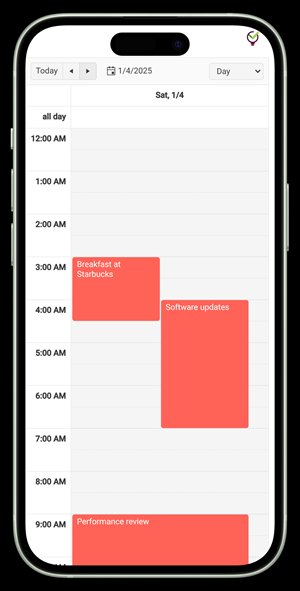
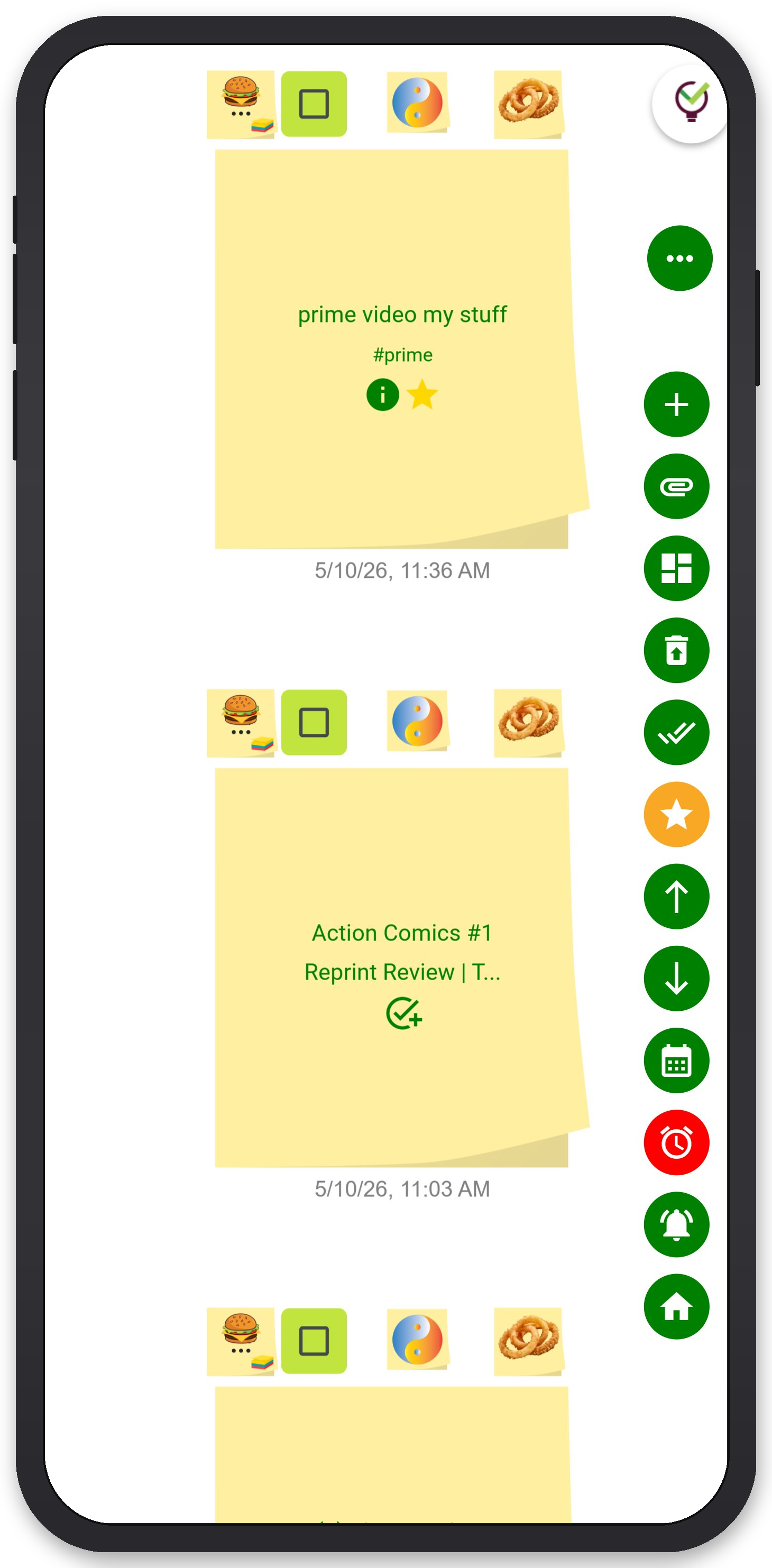
- Calendar view — see your notes and tasks on a calendar, not just a wall of colored squares.
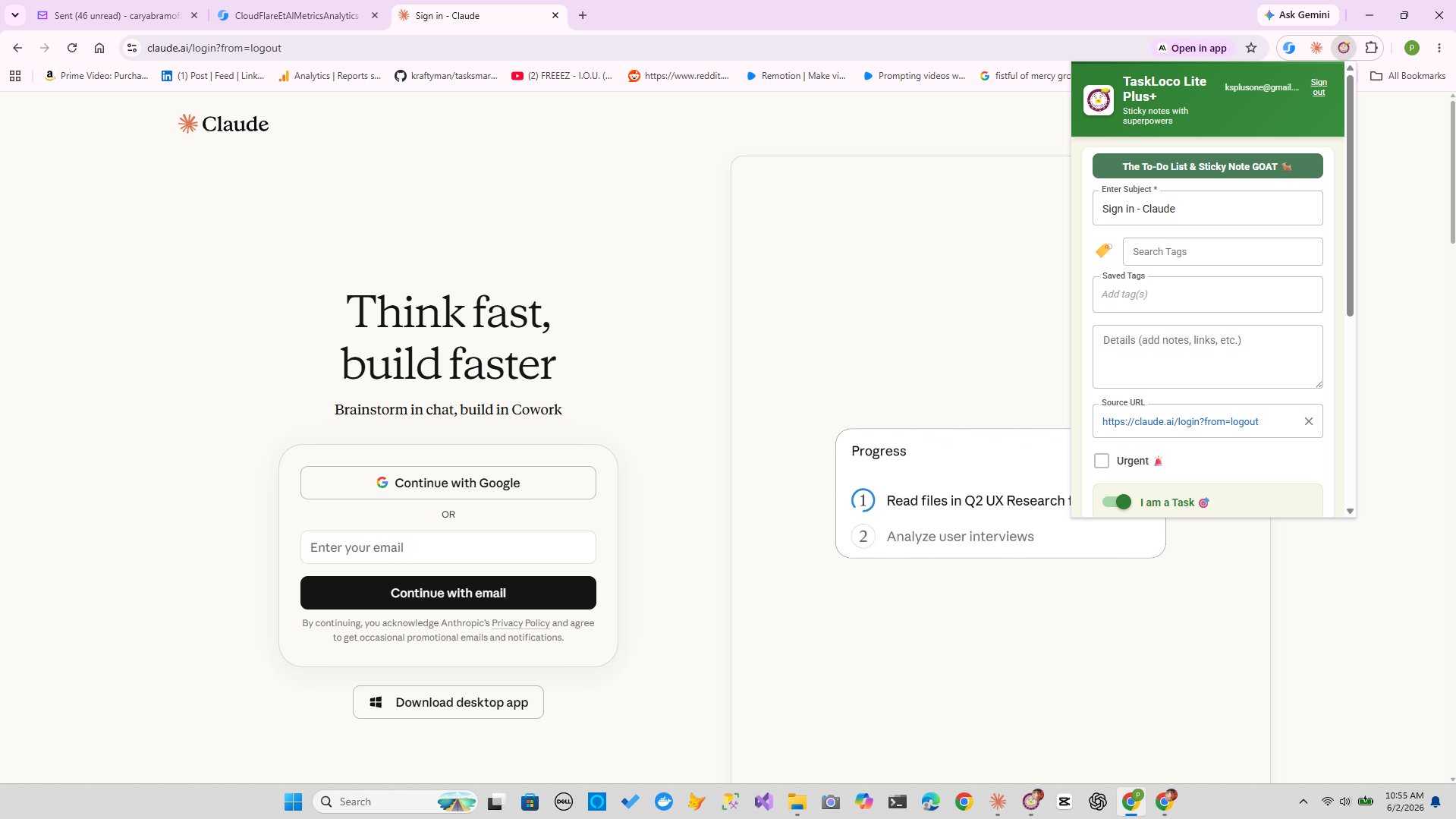
- Chrome extension — clip any webpage into a note in one click, from any device running Chrome.
There's also a free path in: TaskLoco Lite Plus+ is free, requires only a Google sign-in, syncs up to 30 notes across all your devices, and includes the Chrome extension. No reminders or attachments on the free tier, but it's a solid way to see if the approach clicks before going Premium.
The native app in the App Store and Google Play Store is TaskLoco Lite — fully anonymous, no sign-in required, stores up to 20 notes on your device. Great for quick local notes, but it doesn't sync. For synced notes on your Android phone, use TaskLoco Lite Plus+ or Premium through your phone's browser.

TaskLoco Premium is regularly $9.99/month per person. Right now, charter members can lock in 50% off the regular price — forever. That means $4.99/month per person today. And if our price ever goes up, you still pay half. Always.
Code CHARTER50 auto-applies at checkout. First 500 spots only — once they're gone, this offer is gone permanently. Act fast while spots last.
Every Premium subscription includes unlimited notes, 10GB file storage, reminders, calendar, and team sharing. Each team member requires a separate subscription. 7-day free trial — no charge until day 8. Cancel anytime.
Free Options: TaskLoco
TaskLoco Lite
- Native iPhone & Android app
- Completely anonymous — no sign-in
- Data stays on your device
- Up to 20 notes
- Free forever
TaskLoco Lite Plus+
- Web app + Chrome extension
- Sign in with Google
- Wall syncs across all devices
- Up to 30 notes
- Free forever
Lock In 50% Off — Forever
7-day free trial. No charge until day 8. CHARTER50 auto-applies at checkout.
🔒 Lock In My Charter SpotSee TaskLoco in Action
Frequently Asked Questions
Is there a Windows Sticky Notes app for Android?
No. Microsoft has not released a dedicated Sticky Notes app for Android. The only way to access your Windows Sticky Notes on Android is through the Microsoft OneNote app, which has a Sticky Notes tab when you're signed into the same Microsoft account.
Why aren't my Sticky Notes showing up in OneNote on Android?
The most common reasons are: you're signed into a different Microsoft account on Android versus Windows, your notes were created before you signed into Sticky Notes on PC (so they're still local-only), or Android's battery optimization is blocking OneNote from syncing in the background. Sign out and back in to OneNote on Android, then check that battery optimization is disabled for the app.
Can I edit Windows Sticky Notes from my Android phone?
Yes — through the Sticky Notes tab in Microsoft OneNote on Android. Changes you make on Android will sync back to Windows Sticky Notes on your PC, and vice versa, as long as both devices are connected and signed into the same Microsoft account.
Do Sticky Notes sync automatically, or do I have to do something?
Sync is automatic once you're signed into Sticky Notes on Windows and OneNote on Android with the same Microsoft account. However, Android's battery management can interrupt background sync. If notes seem stale, open OneNote manually and let it refresh with the screen on. Disabling battery optimization for OneNote helps keep it current.
What's a good alternative if Windows Sticky Notes sync keeps breaking?
If the Microsoft sync path is consistently unreliable for you, a dedicated cross-device note app is a more stable option. TaskLoco Lite Plus+ is free, syncs up to 30 notes across all your devices through the browser, and requires only a Google sign-in. TaskLoco Premium adds reminders (delivered as push notifications that deep-link back to the note), file attachments, unlimited notes, calendar view, and team sharing. $9.99/month per person (currently $4.99/month per person for first 500 charter members with code CHARTER50)
Can I access Windows Sticky Notes from a browser on my phone without the OneNote app?
Yes. Go to onenote.com or outlook.com in your phone's browser and sign into your Microsoft account. Your Sticky Notes are accessible through Outlook on the web under the Sticky Notes section. This is also a useful way to confirm your notes are actually saved to the cloud if sync seems broken.
Will my Sticky Notes be lost if I reinstall Windows or reset Sticky Notes?
Not if you were signed into a Microsoft account before the reset. Your notes are stored in Microsoft's cloud and will re-sync when you sign back into Sticky Notes after reinstalling. Notes created while not signed in are local only and cannot be recovered after a reset.
Born in Brooklyn. Powered by AWS. Your data stays yours.
TaskLoco is available on iPhone, Android, Chrome, and every web browser.