Google Drive is everywhere, but it's not always where you want your images to live. Maybe you're tired of the Drive permission dance — generating a shareable link, pasting it somewhere, then realizing the recipient still can't see it because of org restrictions. Maybe you just want a photo to be inside your note, not floating somewhere in a folder you'll forget about in a week.
The good news: embedding an image directly into a note — so it travels with the note, opens instantly, and never requires a login to view — is completely doable without touching Google Drive. This guide walks through how to do it across different note-taking scenarios, what each method actually involves, and when a dedicated app makes the whole thing automatic.
Method 1: Copy and Paste the Image Directly Into Your Note
The fastest method that works in most modern note editors is a straight copy-paste. Take a screenshot, copy an image from your browser, or open an image file and copy it — then paste it directly into your note. No uploading, no linking, no Drive involved.
This works natively in:
- Apple Notes — paste any image from your clipboard and it embeds inline immediately. It syncs via iCloud, not Drive.
- Notion — paste an image directly onto a page and it uploads to Notion's own servers, no Drive link needed.
- Obsidian — pasting an image saves it as a file inside your vault folder locally, then links it inline in your note's markdown.
- Bear — paste or drag images directly into any note; they're stored inside Bear's own database.
- Evernote — images pasted inline are stored in Evernote's own infrastructure, not Drive.
On mobile, the same principle applies. In Apple Notes on iPhone, tap the camera icon or use the Insert Photo option, and the image embeds directly from your camera roll without a Drive upload. In Notion's mobile app, tap the image block and choose from your library — it uploads to Notion, not Drive.
Method 2: Drag and Drop Into Desktop Note Apps
On a Mac or Windows machine, drag-and-drop is often even faster than paste. Open your image file in Finder or Explorer, then drag it directly into your open note. Most desktop apps handle this without any cloud upload step at all.
On macOS: Apple Notes, Craft, Bear, Obsidian, and Notion all support drag-and-drop image embedding. The image either becomes part of the note's local database or, in the case of Obsidian, gets saved as an asset file inside your vault. Either way, no Drive.
On Windows: Notion's desktop app, Obsidian, and OneNote all support drag-and-drop. OneNote is worth highlighting here — images dragged into OneNote are stored in Microsoft's own OneDrive infrastructure (not Google Drive), so if you're just trying to avoid Google specifically, OneNote handles it cleanly.
On Linux: Obsidian works well here. Joplin is another strong option — paste or drag images into any note, and they're stored as local attachments linked in the markdown. Fully portable, no cloud dependency unless you add one.
The important distinction: when an app stores the image in its own database or your local folder, the image is the note attachment. There's no external link to break. When an app uses Drive or Dropbox as its storage layer, you're one permission change away from a broken embed.
Method 3: Use a Note App That Handles File Attachments Natively
Copy-paste and drag-and-drop work well when you're at a keyboard. But if you want a consistent, permanent system where images are always part of the note — searchable, shareable with teammates, and attached in one tap on mobile — you want a tool that treats file attachments as a first-class feature, not an afterthought.
This is where purpose-built productivity apps have a real advantage over generic document editors. Rather than relying on a Google Drive integration (which requires a Drive account, proper sharing settings, and assumes everyone on your team has access), these apps store the attachment against the note itself inside the app's own infrastructure.
What to look for in an app that does this well:
- Native attachment support — images are stored by the app, not a third-party cloud folder. No external links.
- Mobile upload from camera roll — you should be able to snap a photo and attach it to a note in under five seconds.
- Attachment visibility in shared notes — if you share the note with a teammate, they see the image inline. No separate link to manage.
- Storage limits you can scale — a healthy allocation for daily use, with room to add more if your team is image-heavy.
TaskLoco Premium: Images Stay Inside the Note, Full Stop
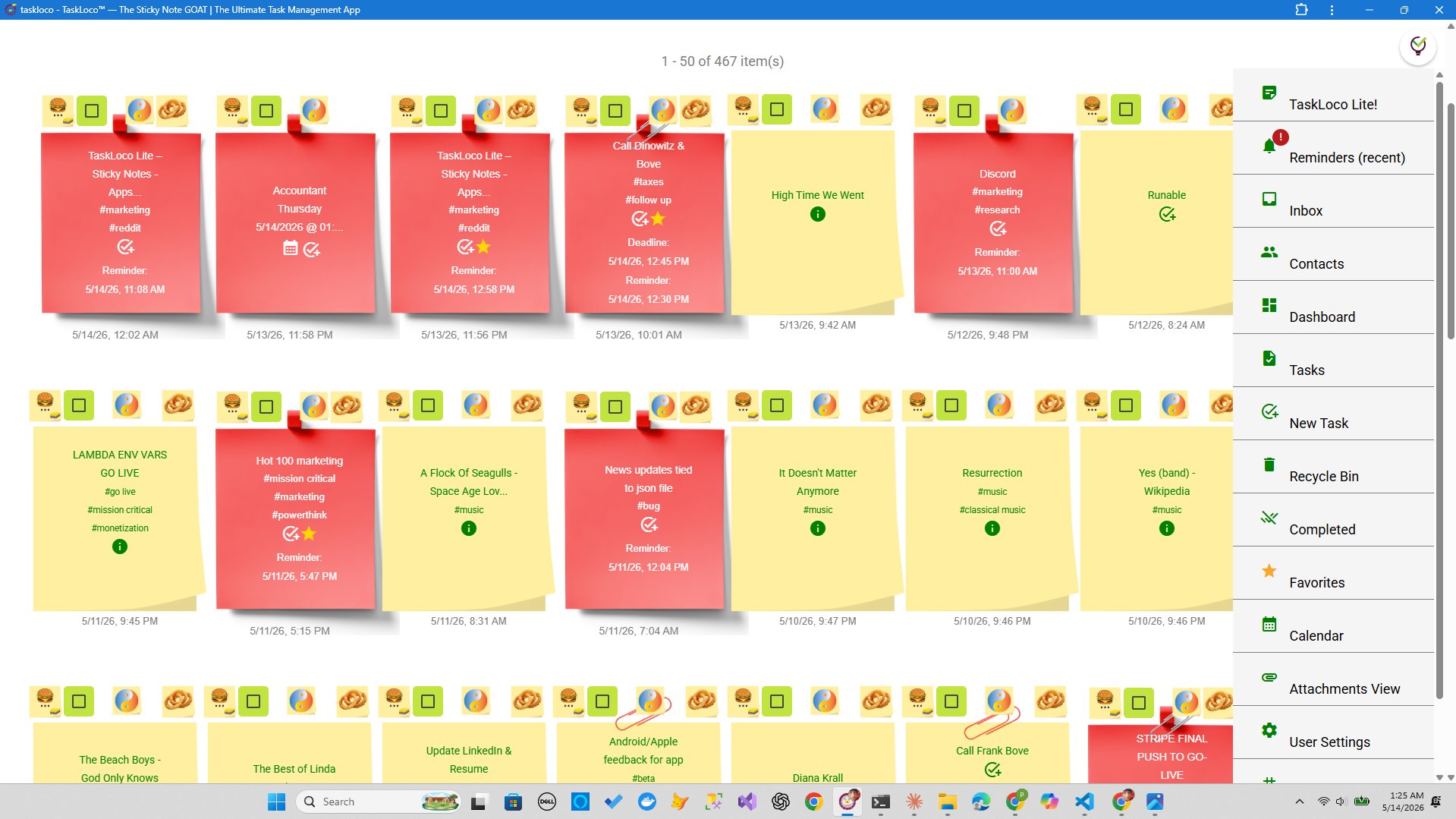
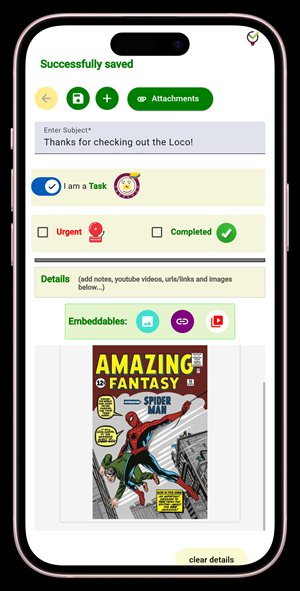
If you want a practical tool to apply everything above, TaskLoco Premium handles image attachments natively. Drop an image into a note from your camera roll or file system, and it lives inside that note — stored on TaskLoco's own servers, not in a Google Drive folder, not behind a separate link.
Every Premium account includes 10GB of file storage, and if you need more, additional storage tiers are available as add-ons. The attachment stays with the note permanently. When you share that note with a teammate, they see the image inline — no permissions to configure, no Drive link to paste, no access errors.
It works the way embedded images should work: open the note, see the image. That's it.
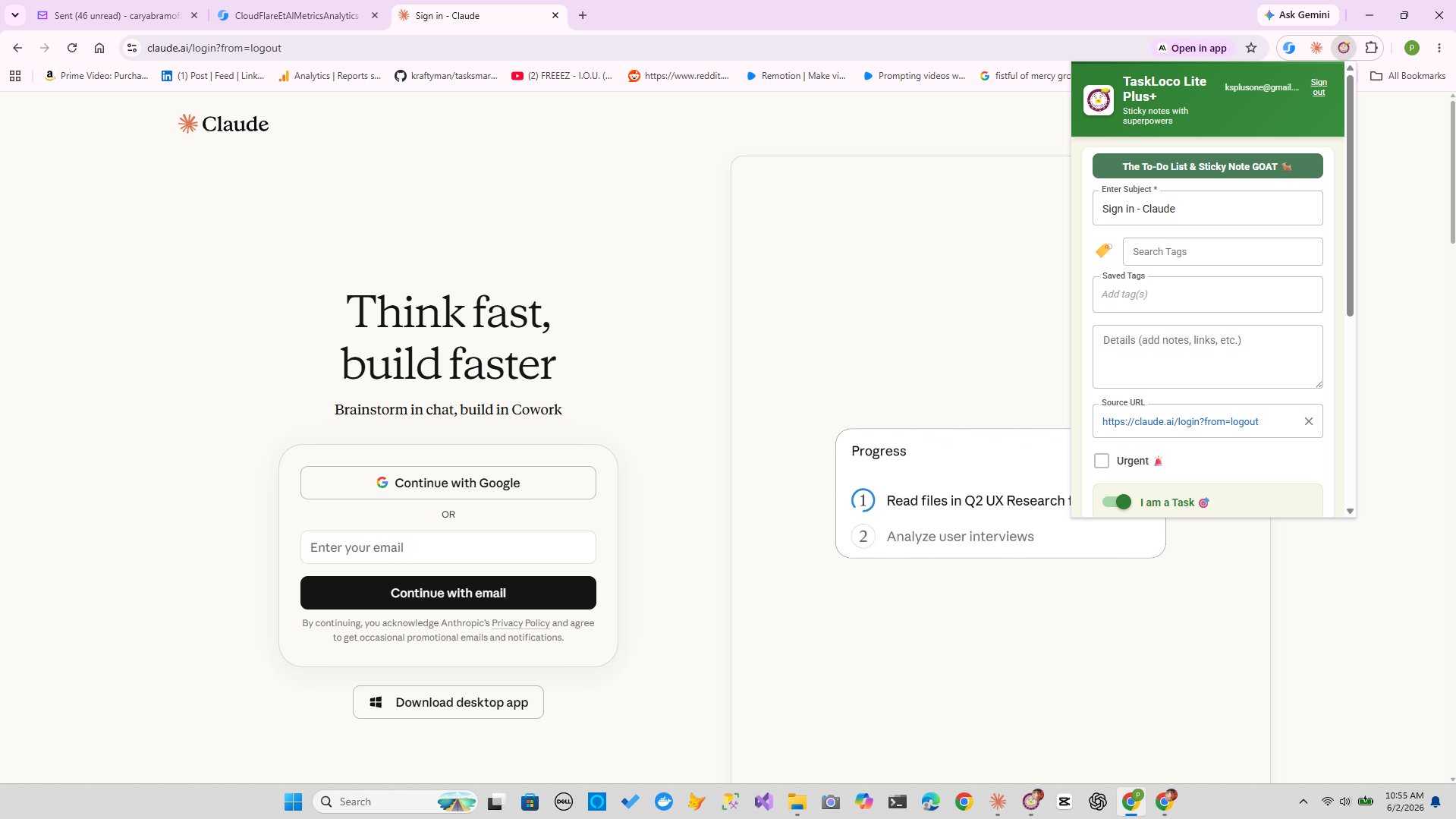
TaskLoco Lite Plus+ (free, web app) syncs notes across all your devices and includes the Chrome extension for one-click webpage capture — but file attachments and unlimited notes are Premium-only features. If attaching images to notes is the specific thing you're trying to solve, Premium is the tier that does it.
The Chrome extension is also worth mentioning here: if you're frequently embedding reference material — screenshots of websites, product images, visual research — the extension lets you capture any webpage in one click and bring it into a note immediately. That's a faster path than screenshot → save → find file → drag into note.

TaskLoco Premium is regularly $9.99/month per person. Right now, charter members can lock in 50% off the regular price — forever. That means $4.99/month per person today. And if our price ever goes up, you still pay half. Always.
Code CHARTER50 auto-applies at checkout. First 500 spots only — once they're gone, this offer is gone permanently. Act fast while spots last.
Every Premium subscription includes unlimited notes, 10GB file storage, reminders, calendar, and team sharing. Each team member requires a separate subscription. 7-day free trial — no charge until day 8. Cancel anytime.
Free Options: TaskLoco
TaskLoco Lite
- Native iPhone & Android app
- Completely anonymous — no sign-in
- Data stays on your device
- Up to 20 notes
- Free forever
TaskLoco Lite Plus+
- Web app + Chrome extension
- Sign in with Google
- Wall syncs across all devices
- Up to 30 notes
- Free forever
Lock In 50% Off — Forever
7-day free trial. No charge until day 8. CHARTER50 auto-applies at checkout.
🔒 Lock In My Charter SpotSee TaskLoco in Action
Frequently Asked Questions
Can I embed an image into a note without any cloud storage at all?
Yes. Apps like Obsidian and Joplin store images as local files inside your note vault on your own device. There's no cloud upload step unless you manually add a sync service. For a fully local setup with no cloud dependency, Obsidian with drag-and-drop image embedding is the most capable option available.
Why does pasting an image into Google Docs create a Drive link instead of an embed?
Google Docs stores images in your Google Drive account as part of how the document is structured. When you paste an image, it technically uploads to Drive and the doc references it. This is by design — the entire Google Workspace ecosystem uses Drive as its file layer. If you want images to be truly embedded without Drive involvement, you need a different tool: Apple Notes, Notion, Bear, Obsidian, or a productivity app like TaskLoco Premium that manages its own file storage.
Does Apple Notes embed images without using Google Drive?
Yes, completely. Apple Notes stores images inside its own database, synced via iCloud — not Google Drive. Paste or drag any image into a note and it embeds instantly. No Google account needed at any point. The image travels with the note and opens inline every time, on every Apple device signed into the same iCloud account.
What happens to an embedded image if I share the note with someone?
It depends on the app. In most Drive-based tools, the recipient needs Drive access to see the image, which is the problem people are trying to avoid. In apps that store attachments natively — like TaskLoco Premium, Notion, or Apple Notes — the image is part of the note data itself, so sharing the note shares the image. No separate permission step required.
How much storage do I get with TaskLoco Premium for image attachments?
$9.99/month per person (currently $4.99/month per person for first 500 charter members with code CHARTER50)
Can I embed images into notes on my phone without emailing them to myself first?
Absolutely. The email-to-yourself workaround is unnecessary with the right app. In Apple Notes on iPhone, tap the attachment icon and choose your camera roll — the image embeds directly. In TaskLoco Premium (web app accessed through your phone's browser), you can attach images from your camera roll to any note in the same step. No email, no intermediate upload, no Drive folder navigation.
Is there a way to capture a webpage image and embed it into a note in one step?
Yes. The TaskLoco Chrome extension does exactly this — click the extension icon on any webpage and the content gets captured into a note immediately. For visual research, product screenshots, or reference material, it eliminates the screenshot-save-attach workflow entirely. The extension is free with TaskLoco Lite Plus+ and Premium.
Born in Brooklyn. Powered by AWS. Your data stays yours.
TaskLoco is available on iPhone, Android, Chrome, and every web browser.