Notion is a genuinely impressive piece of software. It's also overkill for most people who just want to stop forgetting things. If you've ever opened Notion with the intention of 'setting up a task system' and closed it two hours later having built nothing, you're not alone. The tool has a learning curve steep enough that the setup itself becomes the project.
The good news: a working task system has almost nothing to do with the software. It has everything to do with a few basic principles — capture, prioritize, review. Once you understand those, you can build a system on a napkin, in a plain text file, or in an app that takes five minutes to start using. This guide walks you through all of it.
The Three Things Every Task System Actually Needs
Strip away every productivity framework, every app feature, every color-coded board — and a task system does three things: captures tasks before you forget them, tells you what to work on next, and lets you review and clear completed work. That's it. Everything else is decoration.
Capture: The moment you think of a task, it needs to go somewhere you'll look again. The medium doesn't matter. What matters is that the barrier to capture is so low you'll actually do it. A sticky note on your monitor, a note in your phone, a scrap of paper on your desk — all of these work if you actually use them. The biggest mistake people make is choosing a 'proper' system they then avoid because it takes too long to open.
Prioritize: A list of 47 things is just anxiety in list form. Your system needs a simple signal for what gets done today versus what can wait. The simplest method that actually works: pick three tasks each morning that must happen, and mark everything else as 'eventually.' Don't overthink the framework. The classic approach — Urgent/Important, High/Medium/Low, Today/This Week/Someday — all work. Pick one and stick with it for a month.
Review: Without a regular sweep through your list, old tasks pile up, important things get buried, and the system stops feeling trustworthy. A five-minute review at the end of each day — or a longer one on Fridays — is enough. The review doesn't need to be ceremonial. Just open the list, mark what's done, push back what needs moving, and identify tomorrow's three.
How to Build Your System Step by Step (No App Required)
Here's a method you can set up in under fifteen minutes using whatever you already have — paper, a notes app, a plain text file, anything.
Step 1 — Brain dump everything. Write down every open task, project, errand, and nagging thought you're currently carrying. Don't organize yet, just get it out. This usually takes ten to twenty minutes and is mildly uncomfortable. That discomfort means it's working.
Step 2 — Sort into three buckets. Go through your brain dump and sort each item into one of three piles: This Week (has a real deadline or must happen soon), Someday (real task, no urgency), or Delete (things you wrote down but will never actually do — be ruthless here). Most lists shrink by 30% just from the delete pass.
Step 3 — Give each This Week task a single day. Look at your This Week pile and assign each item to a specific day — Monday, Tuesday, and so on. Don't assign more than five or six tasks to any one day. If you run out of days, move items to Someday. This step forces you to be honest about your actual capacity.
Step 4 — Each morning, pick three. Look at today's tasks and circle the three that matter most. Work on those before anything else. If you finish them, great — pick more. If you don't, you've still moved the needle on the things that counted.
Step 5 — Review once a week. Every Friday (or Sunday evening, or whatever fits your rhythm), sweep through the whole list. Move completed items out of the way, promote Someday items that have become urgent, and reset next week's days. This takes fifteen minutes once you're in the habit.
When You're Ready to Go Digital (and What to Actually Look For)
Paper works. But at some point — when you're sharing tasks with someone else, attaching files to a project, or needing a reminder that fires while you're mid-task — a digital tool earns its place. The trap is jumping straight to the most powerful tool available. Notion, Airtable, ClickUp — these are tremendous if you need databases and custom workflows. If you just need tasks, reminders, and shared notes, they're like using a table saw to cut a birthday cake.
When evaluating a digital task tool for a simple system, look for: fast capture (how many taps to create a note?), cross-device sync (does your phone see what your laptop sees?), reminders that push to you (not buried in an email digest you check at 4pm), and sharing that doesn't require setting up permissions. That last one eliminates half the tools on the market immediately.
What you probably don't need for a simple system: project timelines, Gantt charts, custom fields, database relations, API access, or enterprise SSO. If a tool leads with those features, it's built for a different problem than yours.
How TaskLoco Fits Into a Simple Task System
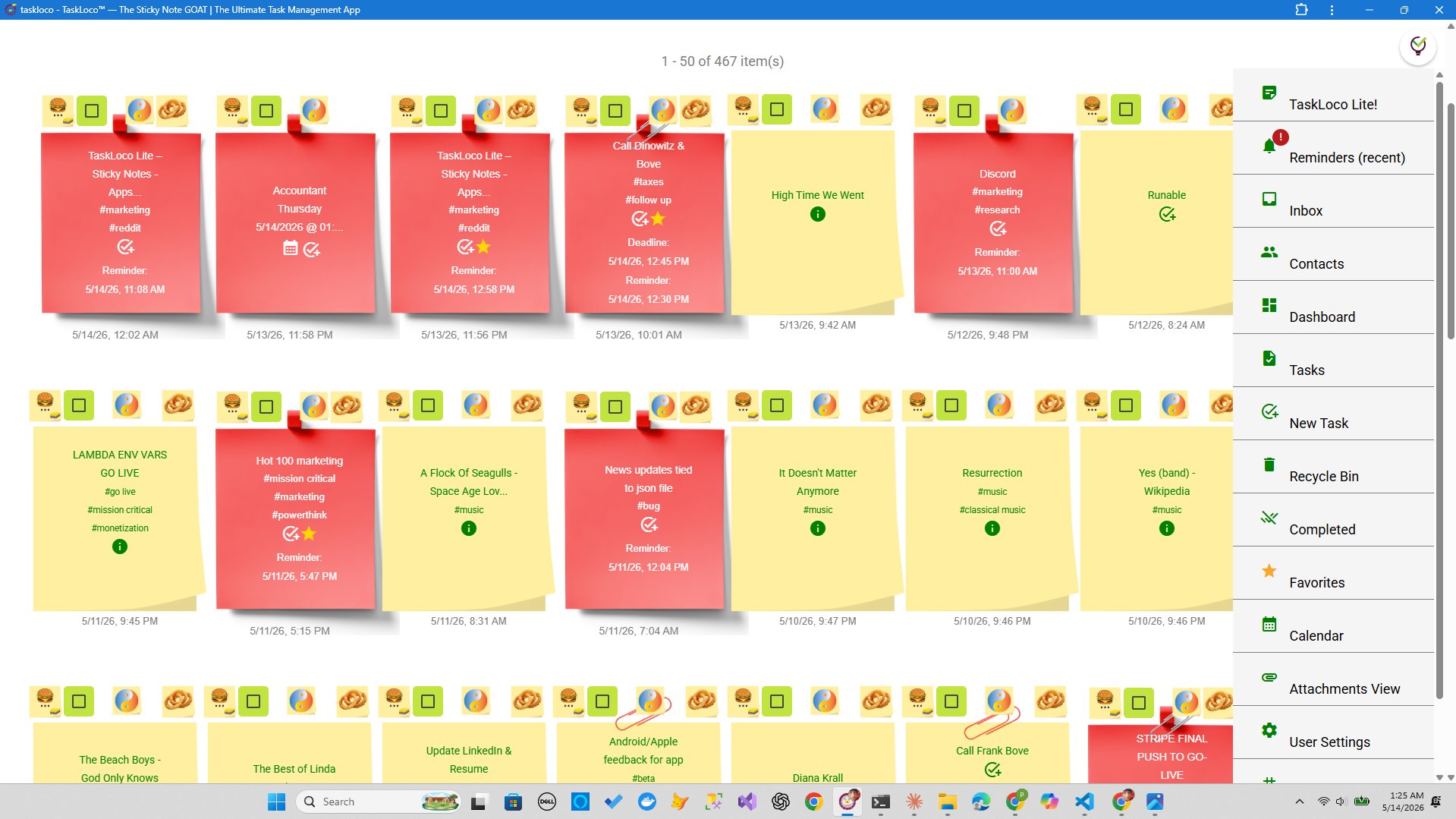
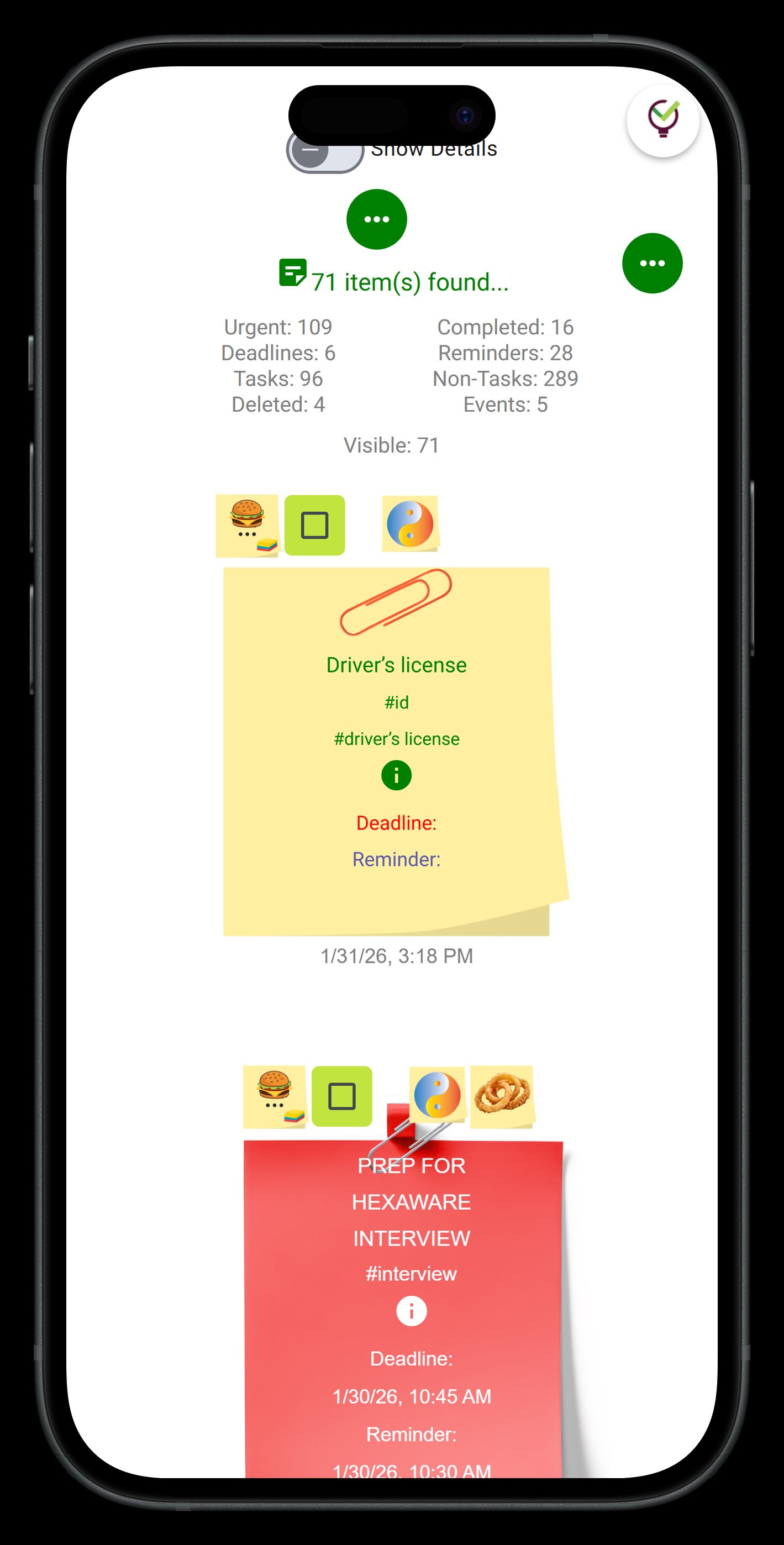
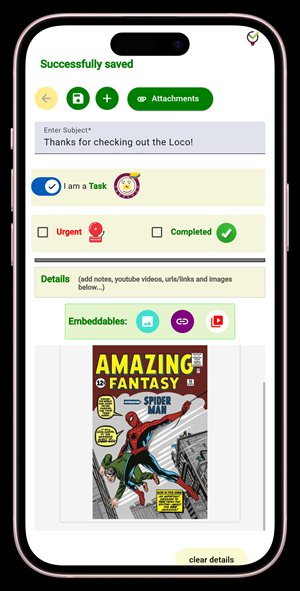
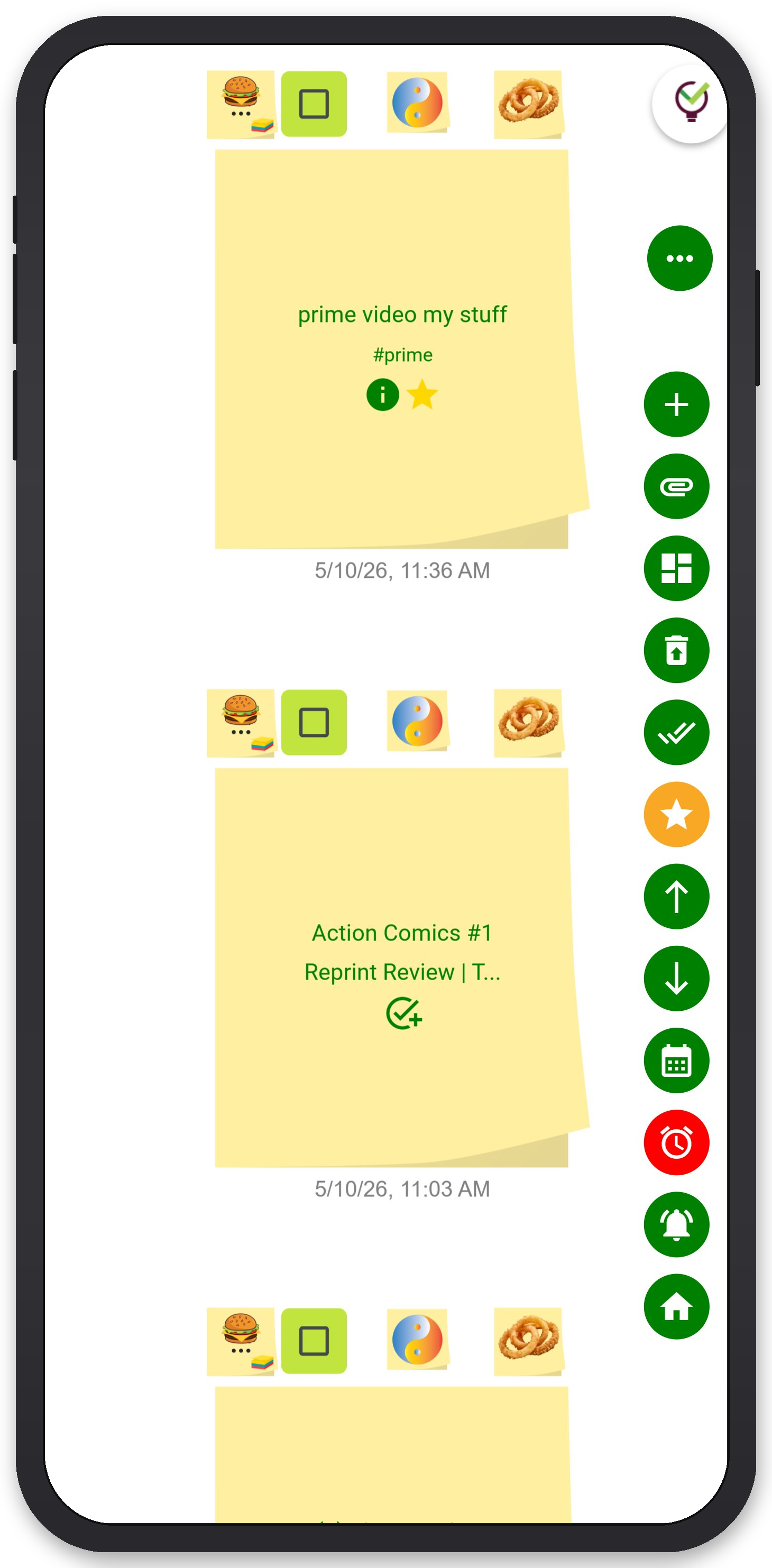
TaskLoco was built around the sticky note — the thing that's been running task systems since before the internet. The interface is a wall of notes. Each note can hold a task, a checklist, a file attachment, a calendar event, or just a thought. You move things around the wall the same way you'd rearrange physical notes, except the wall syncs across every device and never falls off the refrigerator.
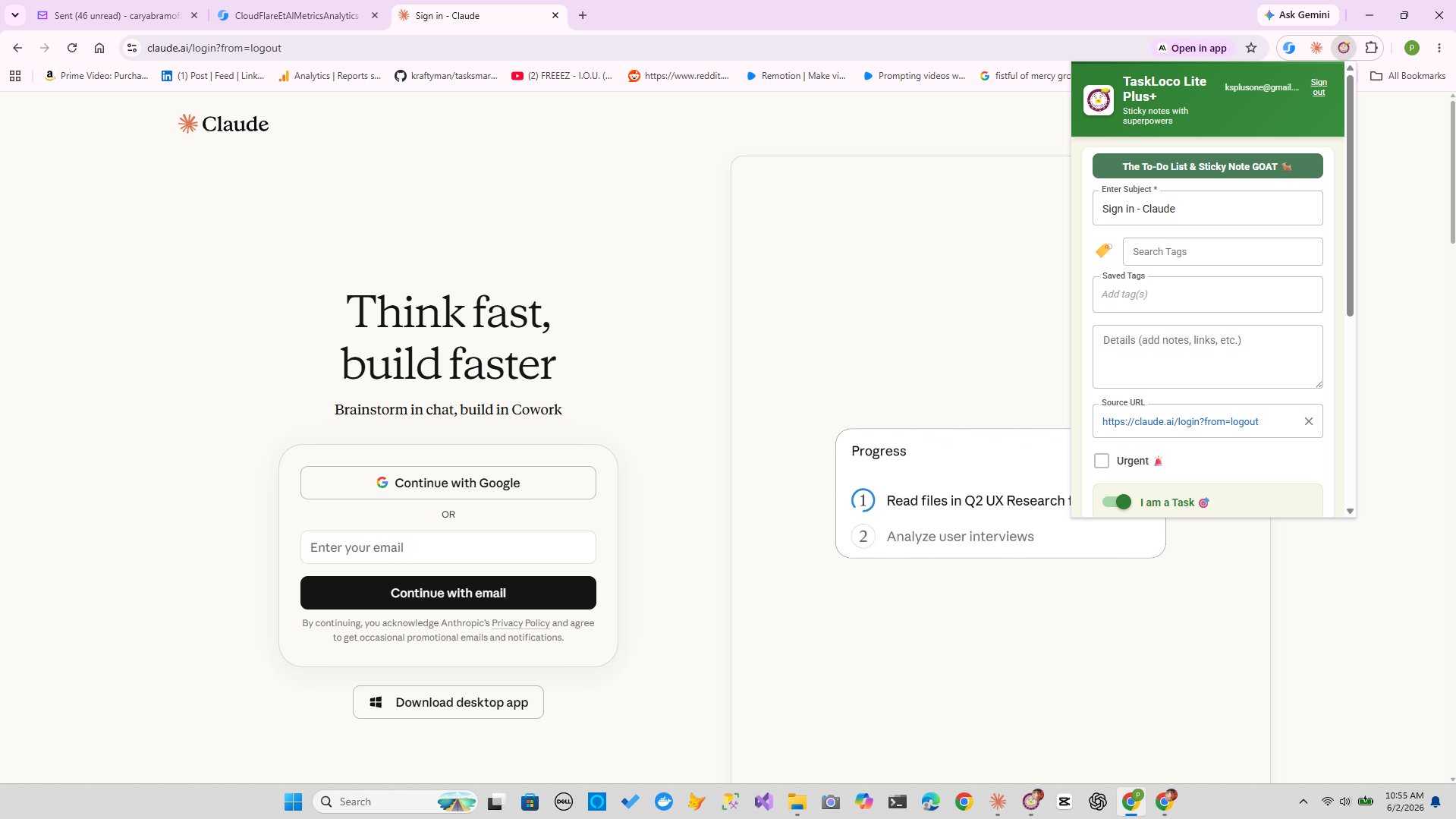
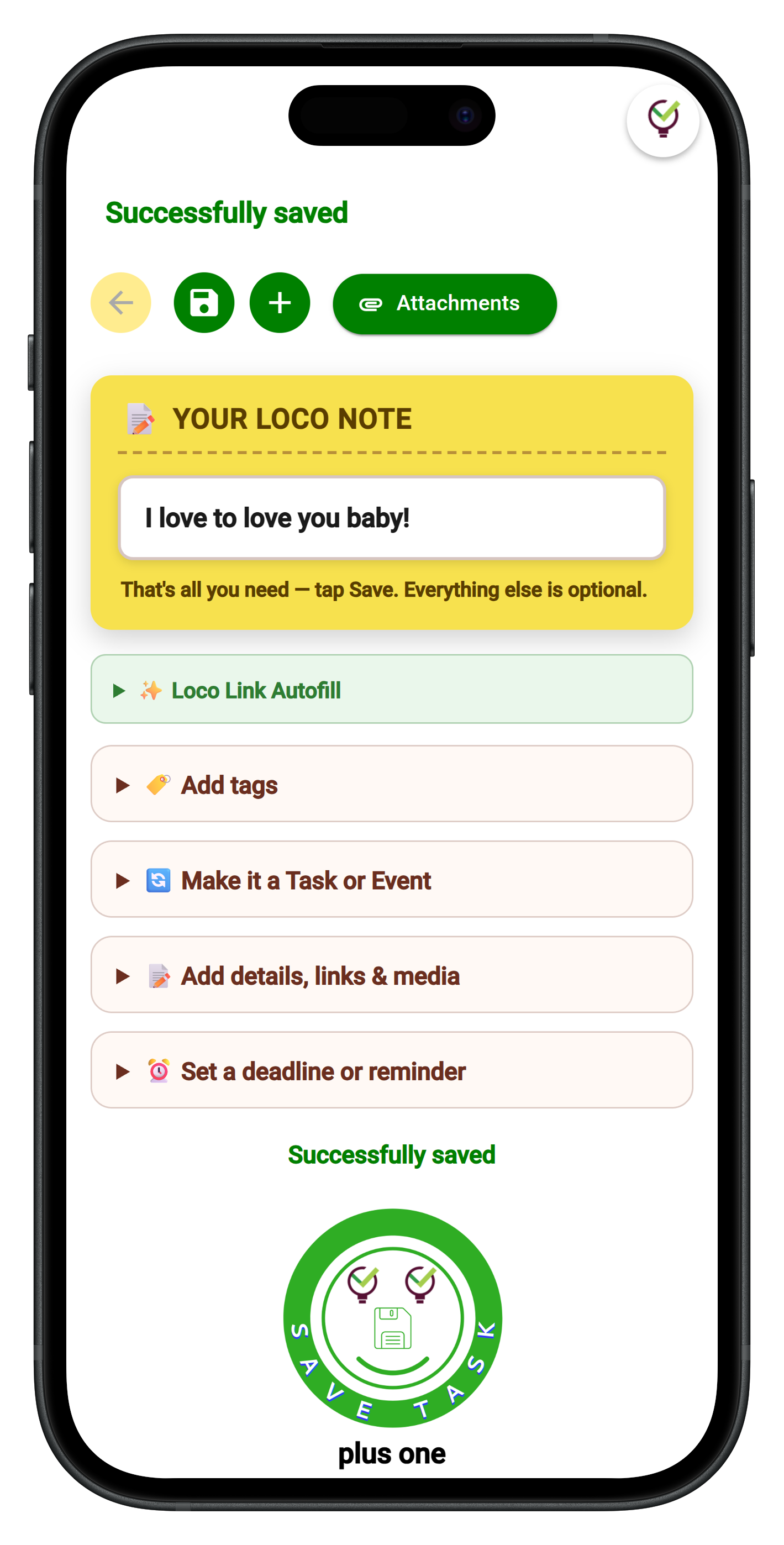
The reason it fits naturally into the system described above: the friction is almost zero. Capturing a task is one tap. The Chrome extension means you can clip a webpage — a client email, a job listing, a product you need to order — directly into a note without switching tabs. Reminders deliver as push notifications straight to your phone and computer, deep-linking back to the original note so you're never hunting for context. Optional email and SMS channels are available if you want them, but the push notification is the thing that actually interrupts you at the right moment.
For teams, shared notes work the way email attachments should have always worked: a recipient gets the note, clones it as their own, and does their work — no permissions, no access levels, no 'can you give me edit rights?' messages. Each person works in their own space while the information travels cleanly between them.
There are things TaskLoco won't do. It doesn't have Gantt charts or project dependencies. It doesn't offer enterprise SSO or compliance certifications. It has limited third-party integrations. If your system needs those, look elsewhere. But if your system needs to be fast, reliable, and low-friction — and you want to stop reading documentation and start working — it's worth a look.
TaskLoco Premium is regularly $9.99/month per person. Right now, charter members can lock in 50% off the regular price — forever. That means $4.99/month per person today. And if our price ever goes up, you still pay half. Always.
Code CHARTER50 auto-applies at checkout. First 500 spots only — once they're gone, this offer is gone permanently. Act fast while spots last.
Every Premium subscription includes unlimited notes, 10GB file storage, reminders, calendar, and team sharing. Each team member requires a separate subscription. 7-day free trial — no charge until day 8. Cancel anytime.
Free Options: TaskLoco
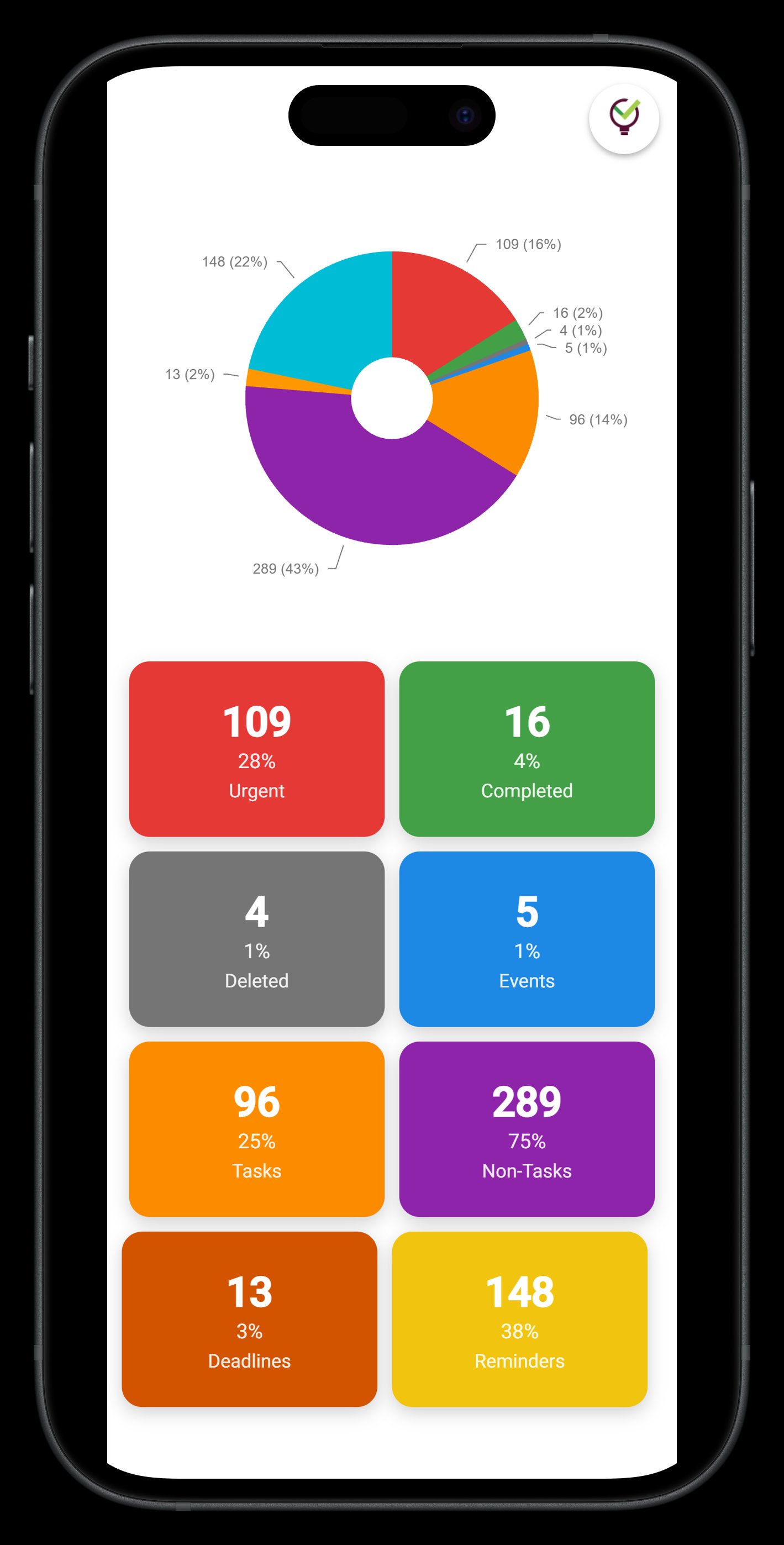
TaskLoco Lite
- Native iPhone & Android app
- Completely anonymous — no sign-in
- Data stays on your device
- Up to 20 notes
- Free forever
TaskLoco Lite Plus+
- Web app + Chrome extension
- Sign in with Google
- Wall syncs across all devices
- Up to 30 notes
- Free forever
Lock In 50% Off — Forever
7-day free trial. No charge until day 8. CHARTER50 auto-applies at checkout.
🔒 Lock In My Charter SpotSee TaskLoco in Action
Frequently Asked Questions
Do I really need an app to have a working task system?
No. A working task system is a habit, not a tool. The three habits that matter are: capturing tasks immediately, assigning a priority or date to each one, and reviewing your list regularly. All of that runs on paper, a plain text file, or a simple notes app. An app becomes useful when you need features paper can't provide — reminders, file attachments, cross-device sync, or sharing with other people.
What's wrong with just using Notion?
Nothing is wrong with Notion — it's a genuinely powerful tool. The problem is that setting it up to work the way you want takes real time and learning. Most people who struggle with it aren't failing at productivity; they're getting stuck in the configuration phase and never actually using the system. If you find yourself spending more time tweaking your Notion setup than doing tasks, that's the signal to use something simpler.
How do I stop my task list from growing out of control?
Two practices help most: a weekly delete pass and a daily three-task limit. Once a week, go through your list and remove anything you honestly know you'll never do. Then each morning, pick only three tasks that must happen today. Working off a smaller, honest list is more effective than managing a large, aspirational one.
How is TaskLoco different from a basic notes app?
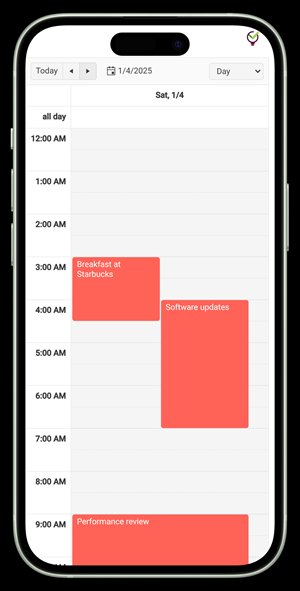
A basic notes app stores text. TaskLoco Premium adds reminders delivered as push notifications (with optional email and SMS), file attachments with 10GB of storage, a calendar view, and team sharing — all connected to the same notes you're already working in. The key difference is that a reminder deep-links back to the original note, so when the notification fires, you land directly on the relevant context instead of hunting through a list.
Can I use TaskLoco for free?
Yes. TaskLoco Lite is a free native iPhone and Android app — completely anonymous, no sign-in, stores up to 20 notes on your device. TaskLoco Lite Plus+ is also free: sign in with Google, sync up to 30 notes across all your devices, and use the Chrome extension to clip webpages into notes in one click. Premium adds reminders, file storage, unlimited notes, calendar, and team sharing. $9.99/month per person (currently $4.99/month per person for first 500 charter members with code CHARTER50)
What's the best way to prioritize tasks when everything feels urgent?
The simplest method that holds up under pressure: write down everything on your plate, then ask 'if I could only do three things today, which three would move things forward the most?' Those three go at the top. Everything else is secondary. Resist the urge to build an elaborate scoring system — under real deadline pressure, the simpler your prioritization rule, the more likely you are to actually use it.
How do I share tasks with someone else without a complex tool?
The simplest approach is to write the task clearly enough that it can be forwarded — in an email, a message, or a shared note — with no verbal explanation needed. Include what needs to be done, any relevant files or links, and a deadline. With TaskLoco Premium, shared notes work like emails: you send the note, the recipient gets it and makes it their own. No permissions setup, no access levels — the information moves and each person works in their own space.
Born in Brooklyn. Powered by AWS. Your data stays yours.
TaskLoco is available on iPhone, Android, Chrome, and every web browser.