Notion is a great tool for a lot of things, but it's not the only way to keep a file living next to the task that needs it. By the end, you'll know exactly which method fits your situation.
Method 1: Folder-Based Co-location (No App Required)
The simplest approach requires no special software at all. The idea is to mirror your to-do structure in your file system so that every task has a corresponding folder or file sitting next to it.
Here's how to set it up:
- Create a project folder on your desktop, Google Drive, Dropbox, or OneDrive — wherever your files already live.
- Name subfolders after your tasks or project phases. For example: 01_Review_Contract, 02_Send_Invoice, 03_Client_Feedback.
- Drop the relevant files into each subfolder. The task name becomes the folder name — the file is always right there.
- Keep your to-do list in a plain text file or simple checklist app inside the same parent folder, so everything is in one place.
This works surprisingly well for individual contributors and solo freelancers. The downside is that it doesn't scale — once you have multiple collaborators or dozens of tasks, folder hygiene breaks down fast.
Method 2: Paste a Cloud Link Into Your Task Description
If you use any task manager that supports text in the task body or description field — Things, Todoist, TickTick, Apple Reminders, OmniFocus, even a Google Doc — you can fake a file attachment by pasting a shareable cloud link directly into the task.
The steps are straightforward:
- Upload your file to Google Drive, Dropbox, OneDrive, or iCloud.
- Generate a shareable link (set appropriate permissions — view-only, comment, or edit).
- Open your task in whatever app you use and paste the link into the notes or description field.
- Optionally, give the link a label so it's obvious at a glance: See attached: Client Brief v3 →
This method works with almost any task app and keeps your files in a system you already pay for. The catch: the link is not the file. If the file moves, the link breaks. If someone doesn't have access to your cloud storage, the link is useless to them. And opening it means leaving your task app, finding the file, coming back — extra steps every time.
Still, for teams already deep in Google Workspace or Microsoft 365, this is often the fastest path to attaching context to a task without switching apps.
Method 3: Use a Task App With Native File Attachments
The cleanest solution is to use a task manager that treats file attachments as a real, built-in feature — not an afterthought or a workaround. When the file lives inside the task itself, there's no folder to maintain and no link to break.
Several apps support native file attachments at the task level:
- ClickUp — supports file attachments on tasks, though the interface can feel cluttered for simple use cases.
- Microsoft To Do / Planner — supports attachments if you're in the Microsoft 365 ecosystem, with some limitations on file size and storage.
- Asana — allows file attachments on tasks, typically via cloud services or direct upload, though certain features are gated behind paid tiers.
- Trello — supports attachments via Power-Ups and direct upload on cards.
What to look for when evaluating any of these options:
- Does the attachment live on the task itself, or is it just a link to an external service?
- How much storage is included, and does it cost extra?
- Can you preview the file without leaving the app?
- Is the feature available on the free plan, or do you need to upgrade?
Most apps either gate attachments behind paid plans, limit file sizes, or route you through a third-party integration. Knowing those limits before you commit saves a painful migration later.
How TaskLoco Handles File Attachments
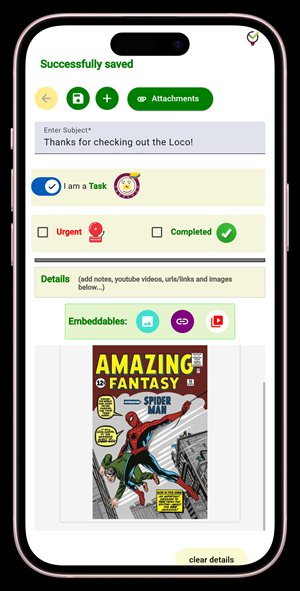
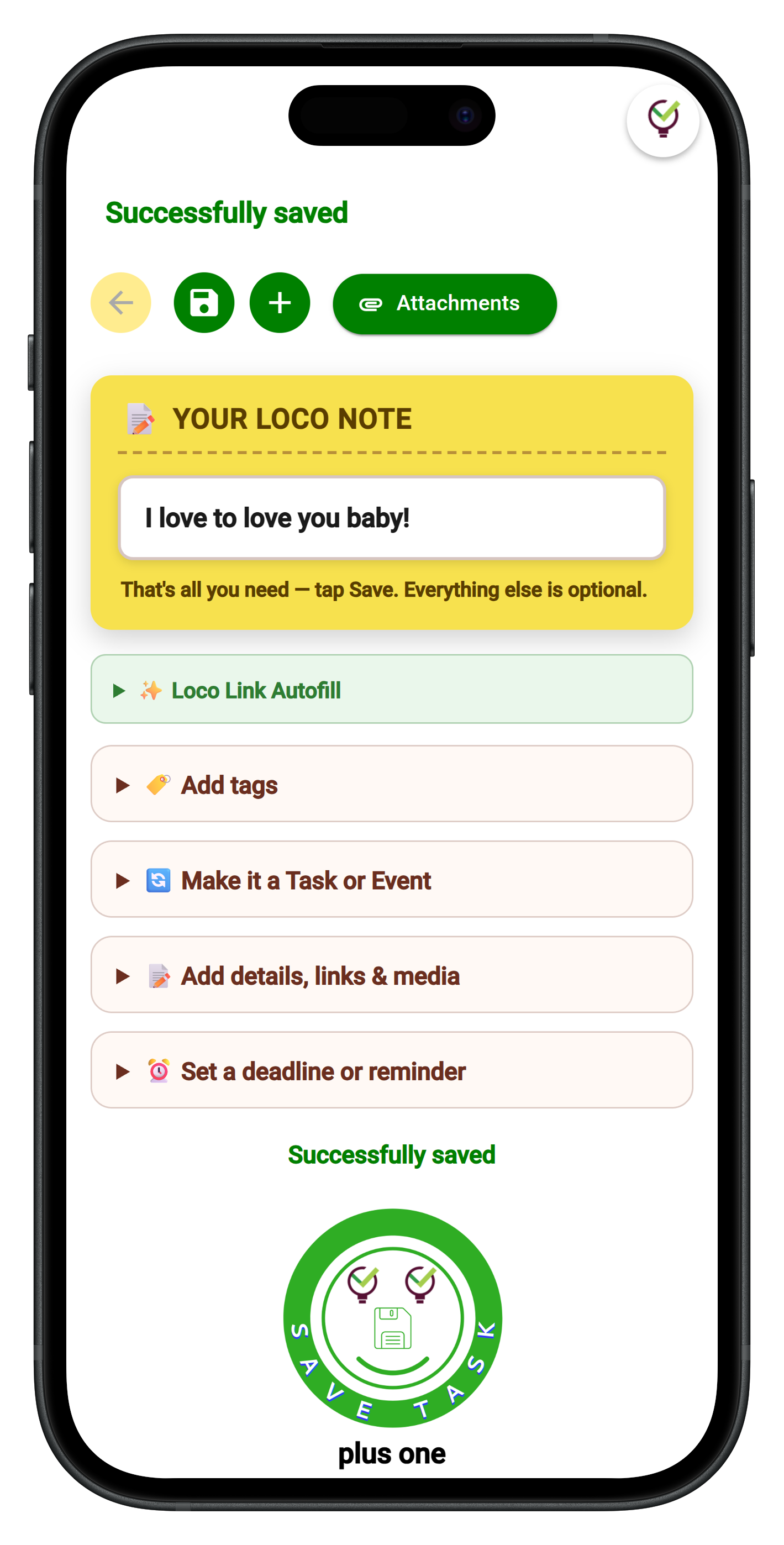
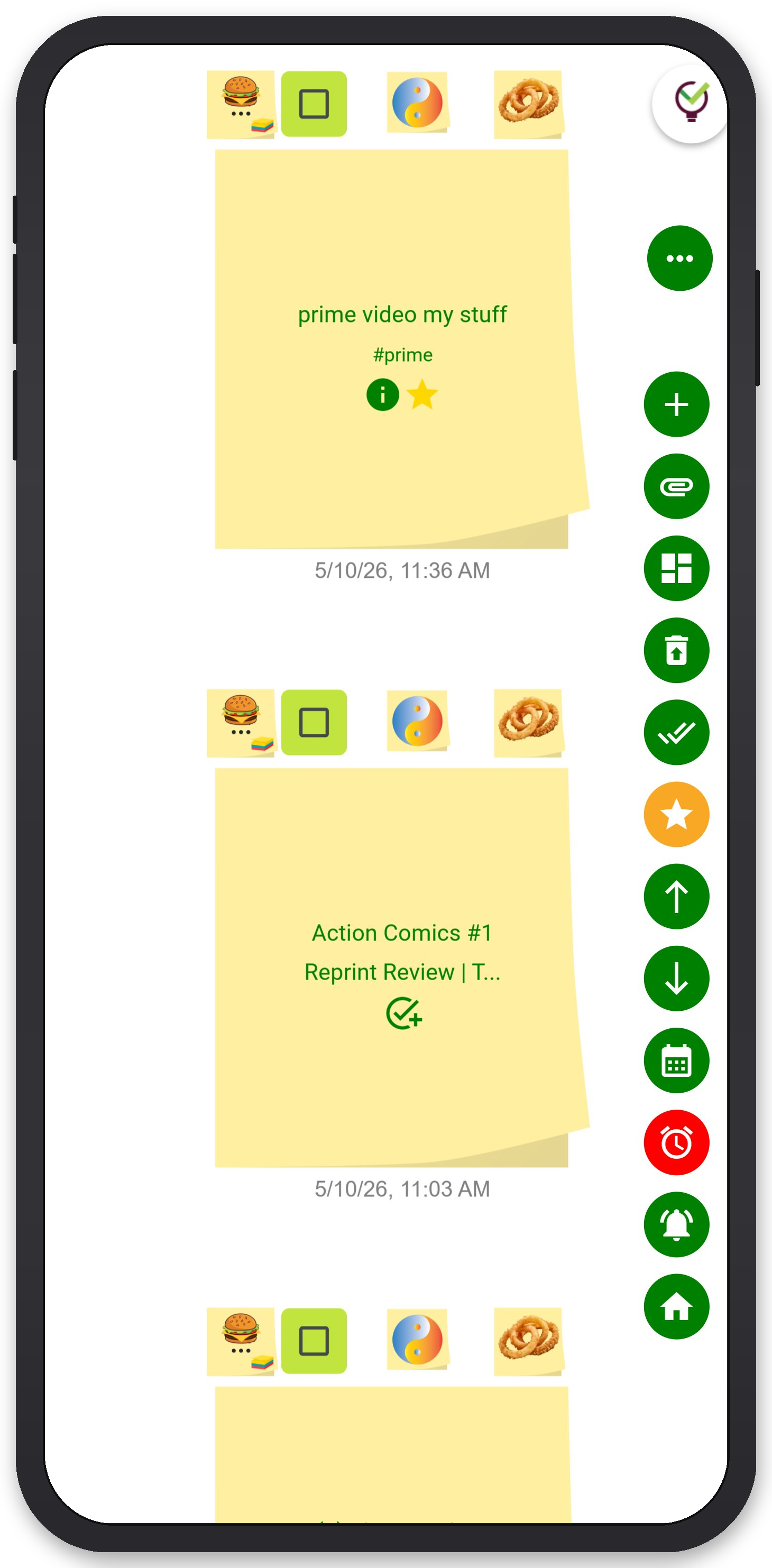
If you're already looking for a Notion alternative and want file attachments built into your tasks, TaskLoco Premium is worth a look. Attachments aren't a bolt-on feature — they're part of the note itself. You attach the file directly to the note or task card, and it stays there.
Every TaskLoco Premium account includes 10GB of file storage, and if you need more, additional storage tiers are available as add-ons — stackable up to 100x. The file lives inside the note, so when you share the note with a teammate (team sharing is included with Premium), they get the attachment too — no separate permissions, no extra steps. Shared notes work like email: recipients can clone the note and make it their own.
Reminders are delivered as push notifications directly to your phone and computer, and each reminder deep-links back to the original note — so you tap the notification and land right on the task with the attachment already there. Optional email and SMS notifications are also available as additional channels.
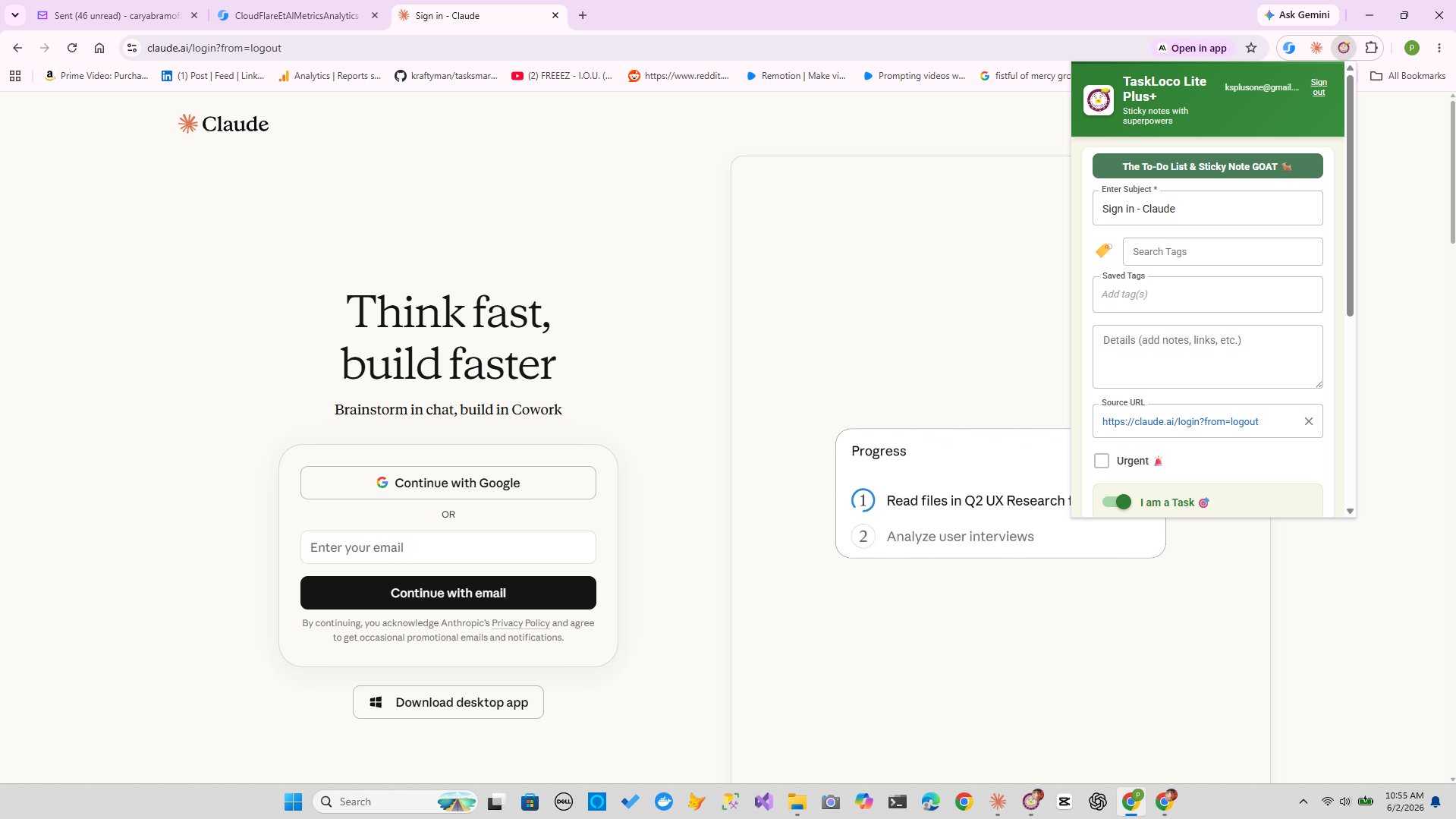
For capturing context fast, the Chrome extension lets you clip any webpage into a note in one click — useful if the "file" you need to attach is really a web resource, a job listing, a brief, or a spec doc. TaskLoco Lite Plus+ (free, web app) includes the Chrome extension. Attachments are a Premium feature.
TaskLoco Premium is regularly $9.99/month per person. Right now, charter members can lock in 50% off the regular price — forever. That means $4.99/month per person today. And if our price ever goes up, you still pay half. Always.
Code CHARTER50 auto-applies at checkout. First 500 spots only — once they're gone, this offer is gone permanently. Act fast while spots last.
Every Premium subscription includes unlimited notes, 10GB file storage, reminders, calendar, and team sharing. Each team member requires a separate subscription. 7-day free trial — no charge until day 8. Cancel anytime.
Free Options: TaskLoco
TaskLoco Lite
- Native iPhone & Android app
- Completely anonymous — no sign-in
- Data stays on your device
- Up to 20 notes
- Free forever
TaskLoco Lite Plus+
- Web app + Chrome extension
- Sign in with Google
- Wall syncs across all devices
- Up to 30 notes
- Free forever
Lock In 50% Off — Forever
7-day free trial. No charge until day 8. CHARTER50 auto-applies at checkout.
🔒 Lock In My Charter SpotSee TaskLoco in Action
Frequently Asked Questions
Can I attach files to tasks without Notion?
Yes — several methods work without Notion. You can paste a cloud storage link (Google Drive, Dropbox, OneDrive) into any task description field, use a folder system that mirrors your task structure, or switch to a task app that supports native file attachments. TaskLoco Premium includes 10GB of built-in file storage with attachments living directly on the note.
Which free tools let you attach files to to-do items?
Most apps that allow file attachments gate the feature behind a paid plan. The most reliable free method is pasting a shareable cloud link into your task description — this works in almost any task app and costs nothing if you already have Google Drive or OneDrive. For native attachments without workarounds, you generally need a paid tier.
What is the best Notion alternative with file attachments?
It depends on your workflow. For teams that want a simple, sticky-note-style interface with files, reminders, calendar, and sharing all in one place, TaskLoco Premium is a strong pick. It includes 10GB of storage per person with attachments built directly into the note. Other options include ClickUp, Asana, and Trello, each with their own tradeoffs on complexity and feature gating.
How do I attach a PDF to a to-do item?
Upload the PDF to Google Drive or Dropbox and paste the shareable link into your task's notes field — this works in nearly any task manager. For a cleaner experience, use a task app with native attachment support so the PDF lives inside the task itself. In TaskLoco Premium, you upload the PDF directly to the note and it stays there — no link to maintain.
Does TaskLoco support file attachments?
Yes — TaskLoco Premium includes file attachments with 10GB of storage per person. Files attach directly to the note or task card. Additional storage is available in add-on tiers, stackable up to 100x. File attachments are a Premium-only feature and are not available on TaskLoco Lite or Lite Plus+. $9.99/month per person (currently $4.99/month per person for first 500 charter members with code CHARTER50)
What happens to my file if I share a TaskLoco note?
When you share a note in TaskLoco Premium, the recipient gets the full note — including any attached files. TaskLoco's team sharing works like email: the recipient can clone the shared note and make it their own. No separate permissions setup, no access levels to configure.
Is there a limit on file size or number of attachments in TaskLoco?
TaskLoco Premium includes 10GB of total file storage per person. You can add more storage through available add-on tiers, which are stackable. There is no stated cap on the number of individual attachments — your total usage is governed by your storage limit. TaskLoco Lite and Lite Plus+ do not include file attachments at all.
Born in Brooklyn. Powered by AWS. Your data stays yours.
TaskLoco is available on iPhone, Android, Chrome, and every web browser.